There’s a group of people who have been quietly waiting for exactly this feature: everyone who needs to appear in videos but hates being on camera. On July 16, Google Vids started letting you build a personal AI avatar — record your face and voice once, and from then on a digital you delivers any script you type. Soft lighting, clean background, no re-takes, no ring light.
Two weeks in, there’s still no good written walkthrough of how it actually works — the search results are Google’s own help pages and YouTube videos. So here’s the honest version: the real setup steps, who can use it, and where an avatar is genuinely useful versus where it will feel uncanny.
What it actually is
Google Vids is the video editor inside Google Workspace — the Docs-and-Slides sibling most people forgot they have. The basic editor is now in every Google account, but July’s update added two AI layers on the paid side:
- Personal avatars. You record your face and voice through a short guided capture, and Vids builds a digital presenter that looks and sounds like you. Type a script; your avatar reads it on camera.
- Conversational editing with Gemini Omni. Generate clips from a text prompt, then keep chatting to fix them — change the lighting, swap the background, remove noise — plus AI voiceovers in eight languages.
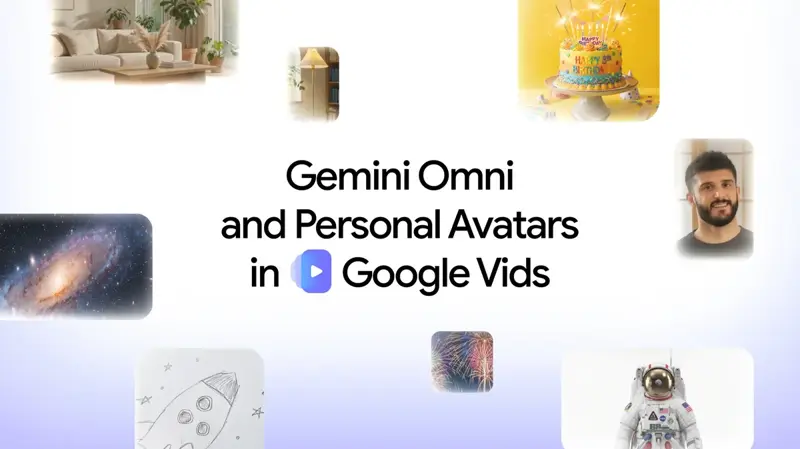
One early demo that made the rounds internally at Google: an employee’s avatar delivering a presentation in fluent Japanese — a language he doesn’t speak. That’s the ceiling of what this does. The floor is a stiff-but-serviceable talking head for your onboarding video, which is honestly what most people need.
How to set up your avatar (about 15 minutes)
The setup is deliberately built so nobody can make an avatar of someone else. That’s worth understanding before you start, because it explains the one thing that confuses everyone: you can’t just upload a photo.
Step 1: Open Vids on a computer
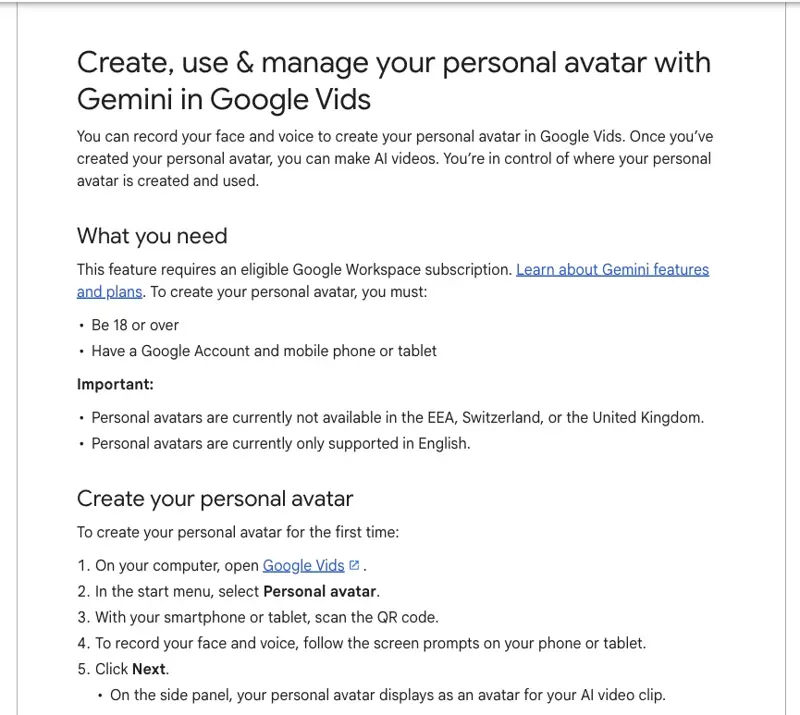
Go to vids.google.com (desktop only for this flow) and choose Personal avatar from the start menu.
Step 2: Scan the QR code with your phone
Vids shows a QR code. Scan it, and your phone becomes the capture device. This is the consent mechanism — you record your own face and voice, live, on your own logged-in account. No uploading someone’s photo, no using an old video. A few users have complained about exactly this (“why can’t I upload a picture of my own face?”), but it’s the point: nobody builds a “you” without you.
Step 3: Record face and voice
Follow the prompts — a short face recording and a voice sample. Two rules from Google’s own docs that people trip on: you must be 18+, and there should be no other faces or voices in the background during capture. Do it in a quiet room, not a café.
Step 4: Type a script and generate
Back in Vids, pick your avatar, choose portrait or landscape, paste your script, and hit Generate. You can retake or delete the avatar later — it’s tied to your Google account, and deleting it removes it across Google services.
Who actually gets this (the paywall map)
This is where most of the confusion lives, so here’s the honest breakdown:
| What | Who gets it |
|---|---|
| Basic Vids editor (templates, timeline, recording) | Every Google account, free |
| Personal AI avatars | Google AI Pro, AI Ultra, and eligible Workspace business plans |
| Gemini Omni clip generation + text-prompt editing | Same paid tiers |
| Regions | Not available in the EEA, Switzerland, or the UK (yet) |
| Language | Avatar speech is English-only at launch |
| Age | 18+ |
The rollout has also been genuinely bumpy — some paid users report the feature appearing, disappearing, and reappearing week to week. If you don’t see Personal avatar in your start menu yet, it’s more likely the rollout than your plan.
Every generated clip carries Google’s invisible SynthID watermark, so avatar videos are machine-detectable as AI-generated. For workplace videos that’s a feature, not a bug — it’s your disclosure layer.
What this means for you
If you make training or onboarding videos: this is the clearest win. The 15-video onboarding series you’ve been putting off because filming is miserable? Type fifteen scripts. When a policy changes, edit the script and regenerate — no re-shoot. Teams were already using early access for exactly this.
If you’re a solo consultant or freelancer: a welcome video for your proposals or website, without hiring a videographer. One early-adopter pattern: the avatar does the standard intro, and you save your real on-camera time for actual client calls.
If you’re a teacher or course creator: lesson intros and recap videos at scale. The English-only limit matters here, but the AI voiceover side of Vids already covers eight languages for narrated (non-avatar) videos.
If you’re camera-shy but need to “show up”: this is the feature built for you. The honest trade: your avatar will be about 90% you — good enough for informational videos, not for anything where warmth is the product.
If you’re in the EU, UK, or Switzerland: you’re blocked for now, and Google hasn’t published a date. The basic Vids editor and templates still work; the avatar and Omni generation don’t.
What it can’t do
- It can’t be anyone but you. No uploading photos, no historical footage, no making an avatar of your CEO for the all-hands. The live-capture flow makes that structurally impossible — by design.
- It won’t survive an emotional close-up. Avatars read scripts well and gesture passably. They don’t do jokes, grief, or genuine enthusiasm. Use them for information transfer, not connection.
- English only, for now. The avatar’s spoken delivery is English-only at launch, even though Vids voiceovers support eight languages.
- It’s not in the free tier. The free Vids editor is real and useful, but the avatar itself sits behind AI Pro/Ultra or a Workspace business plan.
- The rollout is messy. Features are appearing and vanishing between accounts mid-rollout. If the option isn’t there today, check again next week before assuming you’re ineligible.
The bottom line
Personal avatars won’t replace being on camera when being you is the point. But for the huge middle category of workplace video — onboarding, how-tos, weekly updates, proposal intros — the camera was always the bottleneck, and Google just removed it for the price of one selfie and a voice clip.
If you want to get good at the whole pipeline — scripts, clips, editing, publishing — our AI Video Creation course covers the workflow end to end, and AI Video Editing picks up where the generate button stops. And if you just want free practice first, this week’s 10 free Gemini videos promo is the zero-cost sandbox.
Sources
- Google — Create, edit and star in videos with two Google Vids updates (July 16, 2026)
- Google Workspace blog — Gemini Omni Flash now in Google Vids
- Google Workspace — July 2026 feature drop
- ppc.land — Google Vids gains Gemini Omni editing and avatars (July 16, 2026)
- WinBuzzer — Google Vids rolls out personal AI avatar creator and Gemini Omni
