Since early June, ChatGPT can build actual Canva designs — a poster, an Instagram post, a simple slide deck — right inside the conversation. You describe what you want, a real editable design appears in the chat, and you tweak it by typing. No design skills, no switching apps, and no, it doesn’t cost anything extra.
Here’s the odd part: search for how to actually do this and you mostly get YouTube videos, Canva’s own help pages, and a forum thread from 2025 about a plugin that no longer exists. The written, plain-English walkthrough is strangely missing. So this is that walkthrough — how to turn it on, what to make first, what’s genuinely free, and how to untangle the confusing names (because “Canva in ChatGPT” and “ChatGPT Canvas” are two completely different things, and Google mixes them up constantly).
What Canva in ChatGPT Actually Is
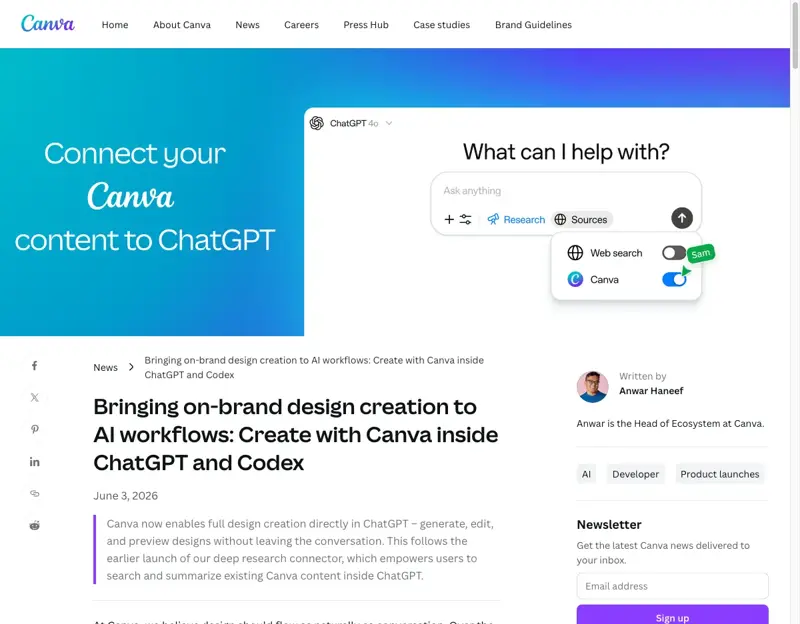
On June 3, 2026, Canva switched on full design creation inside ChatGPT. It runs on the “apps in ChatGPT” system OpenAI launched in April — the same one that puts Spotify and Zillow inside the chat — and Canva is easily the most useful of the bunch for normal people.
The promise is simple: instead of opening Canva, hunting for a template, and wrestling with fonts, you tell ChatGPT something like “Make a flyer for my Saturday yard sale, bold and friendly, with the address at the bottom.” ChatGPT hands the request to Canva, and a finished design shows up in the chat as a full preview. Ask for changes in plain English — “make the title bigger,” “try a warmer color,” “add a version for Instagram Stories” — and it updates. When you’re happy, you open it in Canva itself to fine-tune or download.
Before we go further, the name collision. Three different things sound identical, and if you’ve been confused, it’s not you:
If you searched “chatgpt canvas” and landed on pages about a text editor, that’s the middle one. What you probably wanted is the first one.
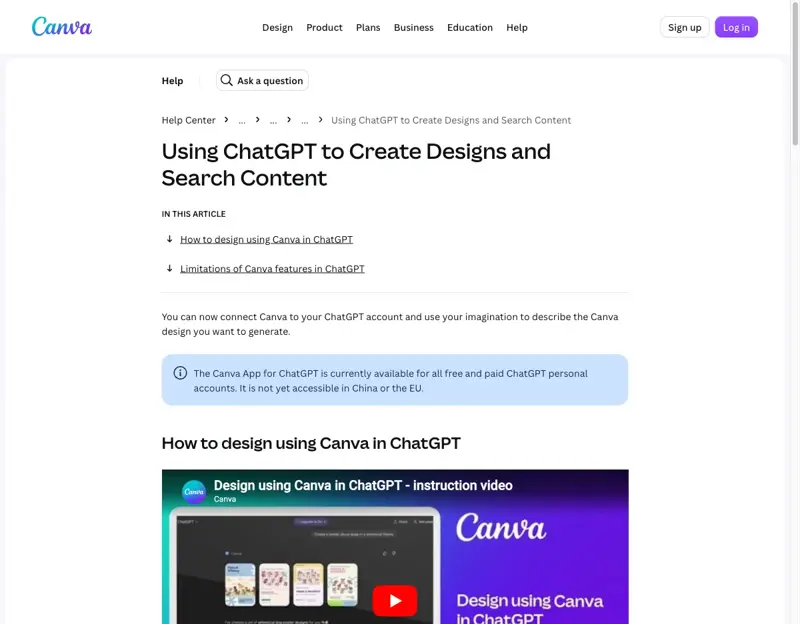
And the money question up front: is it free? Yes. The Canva app in ChatGPT works on ChatGPT’s Free plan, plus Plus and Pro, and it works with a free Canva account. There’s no fee for connecting them. The honest fine print: anything that already required Canva Pro inside the normal Canva editor — premium templates, certain stock photos, Magic Resize, full Brand Kit controls — still requires Pro when you get there via ChatGPT. The tool is free; the premium extras stay premium. One real restriction: it’s not available in the EU yet (or mainland China). More on that below.
How to Turn It On (About Two Minutes)
You only do this once.
- Open ChatGPT in a browser or the desktop app and sign in (chatgpt.com).
- Go to Settings → Apps & connectors. On some accounts the menu just says “Apps.”
- Find Canva in the list and click Connect. ChatGPT will ask you to authorize it.
- Log in to Canva in the window that pops up — a free Canva account is fine, and you can create one on the spot.
- Approve the permissions. Canva asks for access to create and edit designs on your behalf; that’s what makes the whole thing work.
That’s it. From now on, you can just mention Canva in any conversation — “use Canva to make…” — and ChatGPT knows what to do. There’s also a shortcut people discovered that’s become the community’s favorite trick: generate or upload any image in ChatGPT, then type “convert it into @canva”. The design opens as editable layers instead of a flat picture.
Your First Design in Five Minutes
Start with something you actually need this week. The pattern is always the same:
Step 1 — describe it, with details. The more specific you are, the better the first draft. Compare “make me a poster” with “Make an A4 poster for a community bake sale on July 19, warm and homey, title ‘Bake Sale Saturday’, space for a photo of cookies, and the school’s name at the bottom.” Style, purpose, text you want included — say it all.
Step 2 — look at the preview and talk back. The design appears full-size in the chat. This is where the magic actually is: you edit by describing. “Swap the background to something lighter.” “Make it feel more professional.” “Translate the text to Spanish.” Each request updates the design.
Step 3 — open it in Canva to finish. When it’s 90% there, click through to the Canva editor. Nudge things, swap a photo, fix the one stubborn line of text. Then download it as a PNG or PDF, or post it straight from Canva.
That last 10% matters. The pattern experienced users have settled on — and it matches what we found testing it — is AI for the first 80%, hands for the last 20%. ChatGPT gets you from blank page to solid draft in a minute; you get it from solid draft to done.
Five things worth making first:
- A social media post — “an Instagram post announcing our summer hours, bright, with our logo colors”
- An invitation — birthday, baby shower, retirement lunch; describe the vibe and the details
- A flyer — yard sale, open house, community event, lost cat (genuinely — it’s fast)
- A simple slide deck — “a three-slide presentation summarizing this text” works, and you can paste the text right in
- A logo starter — good for a first draft to react to, though real logo work still deserves a designer or serious time in the editor
The Magic Layers Trick
One more thing, because it’s the feature that made this integration go viral. Magic Layers takes a flat image — including images ChatGPT just generated — and splits it back into editable pieces: the text becomes real text you can retype, objects become things you can move or delete, the background separates out. Canva says it was used more than nine million times in its first four weeks. Designers describe it as un-flattening a finished image, which used to be flatly impossible (someone on X put it better: “it’s like un-baking a cake and getting the eggs back”).
For you, the practical version is: if ChatGPT makes you an image you mostly like, you don’t have to regenerate it twenty times chasing one wrong word. Convert it to a Canva design, click the text, and fix the word.
What This Means for You
If you run a small business — this is the one to try this week. The “describe it, get a draft, fix it in Canva” loop covers most of what a small shop posts in a month: promos, announcements, event flyers, menu updates. With a Canva Brand Kit (that part is Pro), designs come back already in your colors and fonts.
If you’re a teacher — worksheets headers, classroom posters, event flyers for the fall term, all describable in a sentence. It’s free on the accounts you already have, and the editing-by-chat loop is fast enough to do during a planning period.
If you sell on Etsy or run a side hustle — product announcement posts and simple promo graphics stop being the thing you put off. Describe the product, paste your listing text, ask for three variations, pick one, tweak.
If you post for a club, church, team, or PTA — you’re probably the “person who’s good with computers” whether you asked to be or not. This gets you from request to flyer in ten minutes, and nobody needs to know how easy it was.
If you’re in the EU — this is the frustrating profile. The Canva app in ChatGPT hasn’t rolled out in the EU yet, so the connect option won’t appear. The old-fashioned route still works fine: generate ideas and copy in ChatGPT, then build in Canva directly, where Canva’s own AI tools (including Magic Layers) are available. If the rollout reaches the EU, everything above applies as-is.
What It Can’t Do
Five honest limits, so you’re not surprised:
- It’s region-locked, for now. No EU, no mainland China. Canva says “rolling out,” but there’s no announced date for EU availability.
- Free doesn’t mean everything’s free. Premium templates, some stock assets, Magic Resize, and full brand controls still need Canva Pro — same as they would inside Canva. If a design uses a premium element, you’ll hit a watermark or upgrade prompt at export.
- Magic Layers is picky about image types. It shines on graphic designs and illustrations with clean edges. Photorealistic images separate badly, and complex logos can get mangled when it tries to split them. PNG and JPG only — no PDFs yet.
- One design at a time. It’s a conversation, not a factory. You can’t bulk-generate thirty variations in parallel; a slide deck comes back as one document you refine together.
- The last 10% still needs you. Precise alignment, exact print settings, careful photo choices — that’s still Canva-editor work, and honestly, still judgment work. Review everything before you print 200 copies. AI drafts confidently, including when it’s wrong.
The Bottom Line
For years, “just make it in Canva” was the advice, and it still required an afternoon of fighting templates. Now the honest advice is: describe it in ChatGPT, let Canva build the draft, and spend your ten minutes on the finish instead of the blank page. It’s free, it works on the accounts you already have (EU aside), and the skill it rewards isn’t design — it’s describing what you want clearly.
That skill is learnable. Our Canva AI course goes deeper on exactly this — getting professional-looking results out of Canva’s AI tools without a design background. The first two lessons are free, and you can start in about thirty seconds.
Sources:
- Bringing on-brand design creation to AI workflows: Create with Canva inside ChatGPT and Codex — Canva Newsroom
- Using ChatGPT to Create Designs and Search Content — Canva Help Center
- Introducing apps in ChatGPT and the new Apps SDK — OpenAI
- Create with Canva in ChatGPT — OpenAI
- You can now use apps inside ChatGPT, including Spotify, Canva and Zillow — Tom’s Guide
- Canva now lets ChatGPT create designs that match your brand — Digital Trends
- Canva launches full design creation inside ChatGPT — EdTech Innovation Hub
- Canva Now Lets You Create and Edit Designs Directly Inside ChatGPT — Techloy