A week ago, at its DevDay event in San Francisco, OpenAI launched Dots: a personal AI agent that lives in ChatGPT, has its own computer in the cloud, and keeps working after you close the tab. You can message it, call it, or find it in Slack or Microsoft Teams. It reads your email and calendar if you let it, drafts replies, tracks deadlines, and nudges you when something changes.
It’s also available to a narrow slice of people. A dot comes with ChatGPT Pro (from $100 a month) and Business Premium, not with Free, Go or Plus, and Pro users in the EU, UK and Switzerland can’t get one at all. So the real questions for most readers are: what is this thing, do I qualify, is it worth the money, and how worried should I be about handing an agent my inbox?
I haven’t had a dot of my own to test, and I’d rather say that than fake a review. What follows comes from OpenAI’s announcement and its documentation, the Pro-plan Help Center page, the Astra system card (the safety report with the numbers behind the controls), a Perplexity deep-research pass, and two rounds of what early users have been posting on X. Where something is a documented fact I’ll say so. Where it’s one person’s experience, I’ll say that.
What a dot actually is
OpenAI’s own description is “an always-on agent that keeps work moving across your tools and projects.” Stripped of marketing, here’s what’s different from the ChatGPT you already know.
It keeps working when you’re not there. Ordinary ChatGPT answers when you ask, then waits. A dot has “its own computer and browser in the cloud,” so it can continue a task while your laptop is shut. OpenAI says it “can decide when to pause and wake up to continue work,” rather than needing a fixed schedule for every follow-up.
It remembers. A dot draws on the current conversation, relevant ChatGPT memory, and its own saved notes about your preferences, decisions and ongoing work. Those notes carry across ChatGPT, voice calls, Slack and Teams, so changing where you talk to it doesn’t reset it.
It can act in other apps. OpenAI says a dot can connect to “over 4,000 apps” through its plugin ecosystem, plus the browser on its own cloud computer. If you choose, you can also connect one personal computer so it can use local files and apps (the computer has to be online with the ChatGPT app open).
It works in the background even when you haven’t asked. OpenAI calls this “proactive research.” When you aren’t actively talking to it, the dot looks at the apps you’ve connected and takes private notes to spot changes. That mode is read-only by design: its tools “can’t send messages, change app content, or control your browser or computer.” To act on something it noticed, it has to switch into a normal task, with the usual permission checks.
OpenAI’s examples are deliberately ordinary. A developer’s dot watches customer feedback, builds and tests small fixes, and brings complete pull requests to review. A product lead’s dot revises launch materials when scope changes. A sales lead’s dot updates a proposal as requirements shift. A content creator’s dot turns an interview transcript into clip ideas, show notes and draft posts for approval. In the one real-world case OpenAI describes, an early tester’s dot noticed he’d forgotten to invoice a publication, prepared the invoice, and sent it after he approved it.
The pattern in every example is the same: it prepares, you approve.
Who can actually get one (and what it costs)
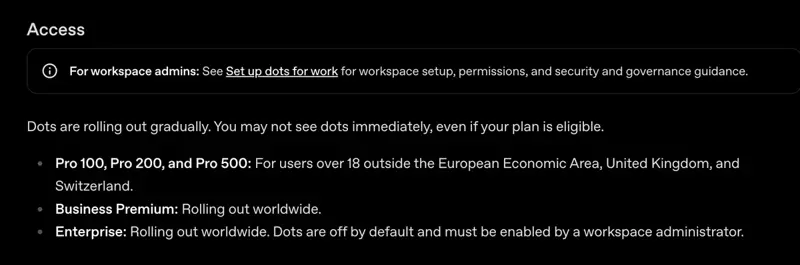
Here’s the table that matters, built from OpenAI’s Dots access guide and its Pro-plan Help Center page.
| Plan | Price (US) | Dot included? | Region and notes |
|---|---|---|---|
| Free | $0 | No | Not on OpenAI’s list of eligible plans |
| Go | Varies by country | No | Not on the list |
| Plus | $20 | No | Not on the list. OpenAI says it plans to expand dots to more users “soon” but gave no date |
| Pro 100 | $100/month | Yes | Users over 18 outside the EEA, UK and Switzerland |
| Pro 200 | $200/month | Yes | Same restriction. New subscriptions get a lower usage allowance than before |
| Pro 500 | $500/month | Yes | Same restriction. Only plan with “Ultrafast” mode |
| Business Premium | $100 per user/month billed annually, or $125 monthly | Yes | Rolling out worldwide |
| Enterprise (including Edu and Healthcare) | Custom | Beta | Worldwide. Off by default until a workspace admin enables it |
A few things to know before you pay for anything:
- “Rolling out gradually” means just that. OpenAI’s own guide says “you may not see dots immediately, even if your plan is eligible.” Some Pro accounts have reportedly waited several days.
- You set it up on a computer. You create your dot in the ChatGPT desktop app or in ChatGPT on a desktop browser. After that you can message or call it from the mobile app, but mobile web isn’t supported.
- One dot per account at launch. OpenAI says that “in the future” you’ll be able to add more dots, or make each dot faster or able to take on more work each month, but no prices or dates have been announced.
- The Pro 200 plan got less generous at the same moment. OpenAI’s Help Center says new Pro 200 subscriptions “include a lower usage allowance than previously offered,” with the price staying at $200. People who had an active Pro 200 subscription between September 22 and September 29 keep the old allowance through October 29, 2026. If you’re comparing today’s Pro 200 with a review from a month ago, you’re comparing different plans.
- The new Pro 500 is a speed plan. At launch it’s the only plan with GPT-6 Astra “Ultrafast,” which OpenAI says uses your allowance at 8 times the normal rate.
If you’re in the EU, the UK or Switzerland, you’re excluded from the Pro rollout for now, even though you can pay for the plan. A number of European users noticed an irony the same day: the EU got ChatGPT text watermarking before it got dots. We covered the watermarking side in what textGrain does.
What “included” really means for your usage
This is where the confusion is, and I’ll go slowly because people are already posting that they were surprised.
What OpenAI’s access guide says, in plain terms:
- Talking to your dot doesn’t count against your ChatGPT usage limits. Chatting and calling are free in that sense.
- When your dot starts or manages tasks in Work or Codex, those tasks count against Work and Codex limits as usual. A dot that kicks off a big research report or a coding task spends the same allowance you’d spend by starting it yourself.
- Your plan includes “an allowance for deeper work, with extended limits for the first month after launch.” OpenAI has not published that allowance as a number of tasks, hours or credits.
A few users read the launch announcement as “dots are unlimited for a month.” The documentation is more precise than that, and at least one person has reported hitting a limit within a few days on the $200 plan. I can’t verify that account independently. The safe reading is: chatting is free, delegated Work and Codex tasks still draw from your allowance, and nobody outside OpenAI knows what the allowance is after the first month. That’s the number you need to price this properly, and it doesn’t exist yet.
How a dot is controlled (what you can and can’t stop)
An agent that can touch your email is only as safe as its brakes. OpenAI describes four layers.
1. Permissions come first. A dot can only use apps you’ve connected, with the permissions those apps already grant. Connecting Slack doesn’t automatically connect your inbox or your laptop. Each connection serves one purpose: a messaging channel is for talking, a connected app is for that service’s information and tools, and the personal-computer connection is for local files.
2. Auto-review checks actions before they happen. Before a dot sends something or does something that touches your accounts, a separate review step checks the proposed action against your instructions, your Custom Rules and OpenAI’s built-in safety rules. It can allow the action, ask for your approval, block it, or hand the step to you.
3. Custom Rules let you set a standing policy. For a given kind of action (say, sending customer messages), you pick one of four behaviors. OpenAI’s exact labels are:
- Take action without asking
- Take action when you say so
- Ask before taking action
- Hand off to you
OpenAI is careful to say these are natural-language instructions the dot “attempts to follow.” They don’t grant access, can’t override built-in safety rules and are not the same thing as a hard permission lock.
4. Some things always stay with you. Changing a password is always handed to you. Per OpenAI’s documentation, permanent deletion, software installs and some purchases normally need case-by-case approval, and security checks like CAPTCHAs and login codes may need you to step in.
Two practical details that early users flagged:
- Pause doesn’t stop everything. OpenAI says pausing stops your dot’s “current main task” but does not stop delegated tasks or cancel scheduled runs. Those you stop separately in the Activity view and the Scheduled list. Ending a voice call doesn’t necessarily cancel work you assigned either.
- You can watch and take over. You can open the dot’s computer at any time, see its live browser, and press Take over to do a step yourself, then Return control to hand it back. Website logins happen through a private sign-in form so your password doesn’t pass through the model conversation.
What OpenAI’s own safety tests show
Dots run on GPT-6 Astra, and OpenAI published a Dots-specific section in the Astra system card. I read the primary text, not just the tweets about it. The numbers are worth knowing, along with their limits. They’re OpenAI’s own evaluations, mostly synthetic and adversarial, not measurements of what happens in your inbox.
Prompt injection (a stranger’s email tricking your agent). In 100 test runs, OpenAI delivered 50,000 emails to a dot, 16,600 of them generated attack emails. It reports “no scored attack successes.” In a second test where an attacker refined one email over repeated tries, it reports none either. That’s encouraging. It isn’t proof of zero risk, and OpenAI says elsewhere that its protections reduce the danger rather than eliminate it. (If the term is new, our plain-language prompt injection explainer covers it.)
Staying inside the job you gave it. In one test, the dot had to adapt when the scope of its authorization changed between tasks. It passed 91.8% of the time (45 of 49 episodes), including all 17 cases where the user explicitly changed permissions. The four misses involved ambiguous boundaries.
The number that matters most for an always-on agent. In a chained-task test, a dot had to handle five or ten unrelated tasks in a row in the same environment. The moderate-severity boundary problems, things like carrying information between unrelated tasks or editing a shared document, went from 8.6% of samples at five intervening tasks to 19.7% at ten. OpenAI itself says that doubling the tasks “roughly doubled the observed flag rate.” It observed no severe breach, no serious exposure and no substantial loss in that test.
The sensible takeaway from that chart isn’t “dots are dangerous.” It’s that long, unattended chains are where drift creeps in, which is the same advice good managers give about any assistant: give it bounded jobs, check in at natural points, and don’t let one mistake become the context for the next ten decisions.
One more piece of context. On September 28, the day before launch, OpenAI said it wouldn’t release a planned upgrade (GPT-6.1 Astra) because it didn’t meet the company’s bar for staying within scope and accurately describing the work it had done. Dots shipped on the earlier GPT-6 Astra. You can read that as reassuring (they held a model back) or as a reminder of how much the “stay in scope” problem matters for exactly this product. Both are fair.
What early users are saying (the honest mixed review)
Early reports are mixed, which is normal one week in. I’m summarizing patterns rather than quoting people.
What people like. The proactive part is what impresses them. People describe a dot catching that a meeting had moved from remote to in-person from a Slack message before they’d seen it, reminding them at day’s end that a client hadn’t replied, and reading incoming mail and flagging what mattered. One user said a dot kept arguing a flight-change fee down by pulling screenshots and showing the airline agent, ending up with a much smaller charge. Several people said talking to it by voice from their phone felt different from using a chatbot. A Japanese-language user shared a recipe of asking a dot to read English AI newsletters each morning, try the prompts they contained, and deliver a summary. Another said that during the 30-day trial he was barely touching his weekly limits while getting more done.
What people don’t. Speed is the most common complaint. One developer timed a dot at around 20 minutes for a task (grabbing screenshots for two code changes) that took about 2 minutes in Codex, and said it took ten rings for the voice call to connect. Others reported it taking several minutes to start work and compared it unfavorably with Meta’s Muse agent. Some tasks that need a logged-in website, a CAPTCHA or a site that blocks cloud browsers need you to step in (OpenAI’s own docs warn that “some websites block cloud browsers”). Some users hit errors or a broken dot in the first days. And the DevDay live demo itself stalled on stage, which OpenAI staff blamed on many updates rolling out at once.
What the price conversation looks like. A well-circulated take from a podcast called the dot “not worth upgrading to a $100+ Pro plan” yet, and recommended Claude Max instead. Other users argued that two $200 plans give about the same usage as one $500 plan and two dots instead of one. Those are opinions, but they show that the question people are asking isn’t “is this cool” (it is) but “what do I get for the money, and what will the allowance be next month.”
Dots vs everything else OpenAI sells
OpenAI now has several things that sound alike. This table is the quick sort, based on OpenAI’s own documentation.
| Dots | ChatGPT Work | Codex | Scheduled tasks | |
|---|---|---|---|---|
| What it is | A persistent personal agent with its own computer, memory and identity | A task you start: a goal in, a finished document, spreadsheet, deck or web app out | A coding agent | A prompt that runs once or on a schedule |
| Who starts the work | You, or the dot itself while monitoring | You | You (or a dot) | The clock or a trigger |
| Remembers across days | Yes, notes plus ChatGPT memory | Within the task or project | Within the code project | The saved instruction |
| Where it runs | Its own cloud computer, plus a connected laptop if you allow it | Desktop, web and mobile | Local or cloud coding environments | OpenAI’s servers |
| Counts against usage | Chat doesn’t; the Work/Codex tasks it starts do | Yes | Yes | Per task type |
Two clarifications that trip people up. First, OpenAI’s Help Center now says the old ChatGPT Agent mode is no longer available and points users to Work for long, multi-step jobs and to its cloud browser for browser tasks. A dot isn’t a renamed Agent mode, it’s a supervisor that can start Work and Codex tasks. Second, if you search “ChatGPT agent” you’ll find a mix of articles about products that no longer exist in that form, so check the date.
For the others, a rough map: if you’ve read our comparison of ChatGPT Work and Claude Cowork, a dot is closer to a Work task that never ends and has opinions about your calendar. Meta’s Muse agent, which we looked at in our WhatsApp admin guide, is the closest consumer rival, and people describe it as free where a dot starts at $100. Claude’s Dispatch is the nearest Anthropic equivalent for sending work to a computer from your phone. One user posted that he’s paying for Claude ($100), Grok Bot ($100) and OpenAI ($100) while Muse costs $0. The market has clearly arrived at “agents as a subscription”; nobody has settled what a fair price is.
The 30-day test: how to find out if a dot pays for itself
Because OpenAI hasn’t published the allowance beyond month one, the only defensible way to decide is to measure. Here’s a test you can run, and the break-even arithmetic.
Step 1: Pick one responsibility, not “everything”
OpenAI’s own advice is to “start with work you regularly need to check or update.” Good first picks have a clear source and a clear finish line: a list of open client replies, a weekly status note, a deadline tracker. Poor first picks involve money, security settings, legal or medical decisions, or messages to customers that go out without your eyes on them.
What you should see: a single sentence you can say out loud: “My dot keeps track of X and tells me when Y happens.”
Step 2: Connect the minimum
Connect one app first. A dot’s connections are purpose-specific, so you can connect email without connecting your laptop. If you have the choice, start read-only.
What you should see: the dot summarizing what it found, with no actions taken.
Step 3: Tell it how to behave
OpenAI’s own sample prompt for a first responsibility is a good template. Adapt it:
Help me keep [project] on track. Read [the plan / the emails I shared] and make a
list of decisions, deadlines, and things we're waiting on. Focus on anything that
needs an answer this week. Draft suggested replies for my review, but don't send them.
Then set the cadence, with a time zone and an end date, and ask it to confirm the schedule:
Check [the channel / my inbox label] each weekday at 9 AM [your time zone] for the
next four weeks. Update our list when something changes. Message me in ChatGPT if
a deadline is at risk or you need a decision from me. Keep routine updates in the
checklist. Confirm the schedule.
What you should see: a confirmation of the schedule and, within the first day, a first list for you to correct.
Step 4: Add a Custom Rule for anything that leaves your hands
For outgoing messages, choose Ask before taking action. For deletions and payments, choose Hand off to you. Remember OpenAI’s caveat that these rules are instructions the dot tries to follow, so keep the first month’s responsibilities low-stakes.
Step 5: Track two numbers for 30 days
Every day, write down minutes saved (how long the task would have taken you) and minutes spent supervising (setup, correcting, approving, checking). Only the difference counts.
Step 6: Do the break-even math
At $100 a month, the plan has to save you more than it costs in your own time. Here’s the arithmetic:
| Your time is worth | Hours saved per month to break even at $100 |
|---|---|
| $25/hour | 4.0 |
| $50/hour | 2.0 |
| $100/hour | 1.0 |
Those are hours of net saved time, after you subtract supervision. If a dot saves you 6 hours but you spend 4 supervising it, you’ve netted 2. For a Pro 200 plan, double the numbers. And since OpenAI hasn’t published the post-launch allowance, treat month one as the best case and ask yourself whether you’d still renew if the limits tighten.
What this means for you
Seven situations, with a recommendation and a first action for each.
If you’re a busy manager or executive on Business Premium. Your seat may already include a dot. It’s the lowest-risk way to test one, since your admin controls the workspace. First action: ask your admin whether dots are enabled (Enterprise workspaces keep them off by default) and which apps are connected.
If you’re a solo founder or freelancer on Pro 100. This is the group the product seems built for: lots of small coordination tasks, one person’s inbox, no team to delegate to. First action: run the 30-day test on a single client-follow-up list and track net minutes.
If you’re on Plus ($20). You don’t get a dot, and you can’t buy one. OpenAI says more users are coming “soon,” without a date. You can already get a lot of the same shape from ChatGPT Work and scheduled tasks. First action: try a scheduled weekday check-in prompt and see how much of the benefit you get without a dot.
If you’re in the EU, UK or Switzerland. You can’t get a dot on Pro right now. Business Premium and Enterprise are listed as rolling out worldwide, so a workplace seat might be your route. First action: ask your IT or workspace admin rather than buying Pro hoping it unlocks.
If you work in a regulated profession (accounting, legal, healthcare, HR). An agent that reads client email is a data-handling decision before it’s a productivity one. First action: check your firm’s policy and your clients’ confidentiality terms before connecting anything, and read what OpenAI says about training: personal plans have a setting for whether dot conversations improve models, and Business, Enterprise and Edu workspace content isn’t used for training by default.
If you manage a team. OpenAI says it’s piloting “specialist dots” for company workflows with their own identity and credentials, and working with Microsoft to manage them inside Agent 365. Those are focused enterprise pilots, not something you can switch on today. If governance is your concern, see our Microsoft Agent 365 explainer. First action: don’t let team members connect shared inboxes to personal dots without a policy.
If you’re curious but cost-sensitive. Waiting is a legitimate strategy. Pricing, allowances and speed are all moving. First action: put a reminder in your calendar for the end of November, when the first-month limits and any new add-on pricing should be clearer.
Edge cases and troubleshooting
These are the problems and questions showing up in the first week.
“I’m on Pro but I don’t see dots.” Rollout is gradual, and OpenAI’s guide says you may not see it immediately even if eligible. Also check that you’re using the desktop app or desktop browser (mobile web doesn’t work), that you’re over 18, and that you’re not in the EEA, UK or Switzerland. One user reported the feature appearing and disappearing as his IP address moved between the EU and the US, so location checks appear to matter. I can’t confirm exactly how OpenAI decides.
“It’s really slow.” Reported by multiple people, including a 2 to 5 minute delay before a task starts and long browser jobs. For coding or document work, handing the job to Work or Codex yourself may be faster. Treat a dot as a coordinator, not a speed tool.
“A website won’t let it in.” Sites with CAPTCHAs, human checks and aggressive bot blocking can stop a cloud browser. OpenAI’s guidance is to use Take over to complete the step yourself, or ask the dot to try a connected computer. That creates a separate task and doesn’t carry over the cloud browser’s login session.
“I paused it and it kept going.” By design. Pause stops only the main task. Open the dot’s profile, choose Activity to stop delegated tasks and Scheduled to cancel recurring ones.
“It hit a limit I didn’t expect.” Conversations don’t count, but Work and Codex tasks it launches do, and the “deeper work” allowance has no published number. If you’re on Pro 100 and delegating heavy tasks, you’ll find the ceiling faster. Check Settings → Usage in ChatGPT.
“Can it manage my memory like a normal notes app?” As far as I could verify from OpenAI’s documentation, you can turn off sharing between ChatGPT memory and your dot, but there isn’t a way to edit individual notes line by line, and deleting a dot removes its own saved context. If that matters to you, say so on your first day and keep sensitive material out of what you connect.
“Why did it ask me to approve something I already approved?” Approval is per action and per recipient. Advance approval can be possible for recurring communications, but only for the specific recipients, content and conditions you authorized. Approving one message doesn’t give it general authority.
“A tool in my workflow isn’t supported.” Plugin availability varies. Check whether the app has a plugin before you redesign a workflow around it, and keep a manual fallback.
What it can’t do (yet)
- It can’t be trusted unsupervised on anything consequential. OpenAI says so itself: “Dots can still make mistakes, so always review consequential work.”
- It can’t move money or change your passwords by itself. That’s by design. Some purchases need your approval.
- It can’t replace a human for judgment-heavy decisions. Legal, medical, compliance and hiring decisions need a person.
- It can’t promise a stable price. Allowances, add-on pricing and extended limits are all unpublished or time-limited.
- It isn’t a second brain you can audit line by line. Memory is partly opaque and OpenAI’s own system card shows drift grows with long task chains.
FAQ
What are OpenAI Dots? Dots are always-on personal agents in ChatGPT, announced at DevDay on September 29, 2026. Each runs on GPT-6 Astra with its own cloud computer and browser, remembers your preferences, and works between conversations through ChatGPT, voice, Slack or Teams.
Who can get a dot right now? ChatGPT Pro (Pro 100, 200 and 500) users over 18 outside the EEA, UK and Switzerland, Business Premium users worldwide, and Enterprise workspaces where an admin turns it on. It’s rolling out gradually, so eligibility doesn’t guarantee instant access.
How much do dots cost? Your first dot is included in the plan. Pro costs $100, $200 or $500 a month in the US, and Business Premium is $100 per user per month billed annually or $125 monthly. OpenAI says you’ll be able to add more dots or more capacity later but hasn’t priced it.
Can I get a dot on ChatGPT Plus or Free? Not at launch. OpenAI says it plans to expand dots to more users soon, with no date.
Is “ChatGPT Agent” the same as a dot? No. OpenAI’s Help Center says the old Agent mode is no longer available and points users to ChatGPT Work and its cloud browser. A dot is a persistent assistant that can start Work and Codex tasks.
Is using a dot unlimited? No. Conversations with your dot don’t count against ChatGPT limits, but tasks it starts in Work or Codex count as usual, and the “deeper work” allowance, with extended limits for the first month, hasn’t been published as a number.
Is it safe to give a dot my email? It has real safeguards: read-only background research, a separate action-review step, Custom Rules and always-human steps like password changes. OpenAI’s tests found no scored prompt-injection successes in 16,600 generated attack emails, but scope problems rose as task chains got longer, and OpenAI says to review consequential work.
Will a dot send emails without asking? Only if your rules and approvals allow it. You can set Ask before taking action for outgoing messages so it drafts and waits. Advance approval, where allowed, applies only to the recipients and conditions you authorize.
Do dots train on my data? On personal plans, a setting controls whether your dot’s conversations and work are used to improve models. OpenAI says it doesn’t use ChatGPT Business, Enterprise or Edu workspace content for improvement by default, and it doesn’t train directly on a dot’s proactive-research notes to itself.
Why can’t people in the EU get dots? OpenAI hasn’t published its reason. Its documentation simply excludes Pro users in the EEA, the UK and Switzerland, while Business Premium and Enterprise are listed as rolling out worldwide.
The bottom line
Dots are the most interesting thing OpenAI has shipped in a while, because the idea (an assistant that notices things and keeps working between your messages) is the thing most people actually want from an AI helper. But a week in, the honest verdict is: promising, slow, expensive, and gated.
If you already pay for Pro or Business Premium, turn on a dot and run the 30-day test on one low-risk responsibility. Keep it on drafts-not-sends, measure net minutes saved, and decide with your own numbers. If you don’t, you aren’t missing a revolution. You can get a good share of the benefit today from Work and scheduled tasks, and the pricing, allowances and speed will look very different by December.
Whichever way you go, learn the habits that make any agent safe: bounded jobs, drafts before sends, approvals on anything irreversible, and a human check on anything that matters. Our free OpenAI dots: Delegate to an Always-On Agent course walks through exactly that: connections, custom rules, schedules and a stop plan, in eight beginner lessons. AI Agents Deep Dive covers the habits that apply to any agent, and ChatGPT vs Claude helps you choose between the two ecosystems. If the term itself is new, start with what agentic AI means.
Sources
- OpenAI, “Introducing dots” (Sep 29, 2026)
- ChatGPT Learn, “Meet dots” (availability and access)
- ChatGPT Learn, “Control your dot”
- OpenAI Help Center, “About ChatGPT Pro tiers”
- OpenAI Deployment Safety Hub, GPT-6 Astra System Card (dots sections)
- SiliconANGLE, “OpenAI launches Dots, always-on AI agents in ChatGPT with their own cloud computers” (Sep 29, 2026)
- AI Weekly, “OpenAI launches Dots, always-on ChatGPT agents at DevDay”
- Android Authority, OpenAI Dots: ChatGPT always-on AI agents
- eesel AI, “OpenAI Dots explained: what always-on agents do, cost, and where they stop”
- Design Compass, “OpenAI Unveils Always-On AI Agent ‘Dots’” (Sep 30, 2026)
- iPhone in Canada, “OpenAI Dots take on Meta Muse and Grok Bot with 24/7 AI agents”
- AppWrite, ChatGPT Business Premium seats: pricing and what’s new
- AI Business, “New Premium Tier for ChatGPT Business”
