You’ve got a listing description that reads like it was written by committee, a contract cover note you’re too tired to proofread twice, and a buyer thread with fourteen replies you don’t have time to reread. Apple just shipped a fix for all three, and it’s already sitting on your Mac, free, doing nothing.
That’s the part that gets missed. macOS 27 “Golden Gate” landed on September 14, and most of the coverage went straight to the new Siri — the rebuilt, Gemini-powered assistant with its own dedicated app. Fair enough, that’s the flashy headline. But buried underneath it is something that actually changes how you write, every single day, in every app you already use: Apple Intelligence Writing Tools, now fully system-wide on the Mac. Highlight text almost anywhere — Mail, Notes, Pages, Slack, a Google Doc in Safari, even a text box on a random website — and you get an instant menu to proofread it, rewrite the tone, summarize it, or turn a wall of text into a clean list or table.
No subscription. No app to install. No account to create. It’s just there, built into the OS, the moment you select some text and right-click.
What Actually Shipped on September 14
Let’s separate the two things Apple announced, because the tech press mostly wrote about one of them.
Siri AI is the rebuilt assistant — a completely new conversational Siri, now with a dedicated Mac app, deeper Spotlight integration, right-click context menu access, and Visual Intelligence (ask Siri about whatever’s on your screen). It’s powered by a custom Gemini model under the hood, which Apple pays Google roughly $1 billion a year to license, according to reporting that circulated around the launch. That’s the headline. If you want the full iPhone-side rundown, FindSkill already has a whole cluster of posts on the new Siri — this one isn’t about your phone.

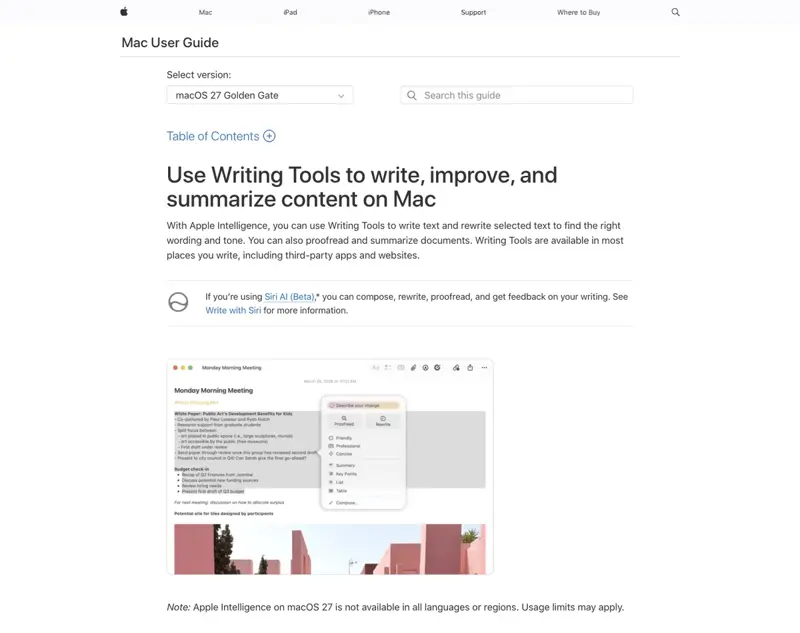
Apple Intelligence Writing Tools is the quieter shipment, and it’s the one that actually touches your workday. It’s not new — it’s been sitting inside macOS since Sequoia, over a year ago. What changed on the 14th is that it’s now genuinely system-wide, baked deeper into more apps, and paired with a Mac that can draft entire Mail replies in your own tone, not just polish text you already wrote. Apple’s own support documentation describes it as available “in most places you write, including third-party apps and websites” — Mail and Notes get dedicated buttons, but the Control-click menu works almost everywhere else, too.
Here’s the correction that matters most if you’re deciding whether your Mac even qualifies: you do not need the newest, most expensive machine to get Writing Tools. Apple’s own hardware guidance draws the line differently than most people assume.
| Your Mac | Writing Tools + Siri AI (beta) | Expressive Siri voices + advanced dictation |
|---|---|---|
| M1 or M2, any RAM | Yes | No |
| M3 or later, under 12GB RAM | Yes | No |
| M3 or later, 12GB+ RAM | Yes | Yes |
| Intel Mac (any year) | No — can’t install macOS 27 at all | No |
The M3-chip-plus-12GB-RAM requirement you may have read about only gates the fancier stuff — Apple calls it “AFM Core Advanced,” and it covers things like more expressive Siri voices and heavier on-device dictation. Writing Tools itself runs on any Apple Silicon Mac, M1 and up. If you bought your MacBook Air in 2021 and it’s still going strong, you already have this. Intel Macs are the only ones locked out entirely, since Golden Gate dropped Intel support altogether.
Before You Touch Anything: The 90-Second Setup Check
Three things to confirm before you start using this on real client work:
- Update to macOS 27. Apple menu → System Settings → General → Software Update. If you’re on an Apple Silicon Mac, it’ll show up. If your Mac shows “not compatible,” it’s an Intel model — Writing Tools already works fine in prior macOS versions on Intel, just not this system-wide version.
- Turn Apple Intelligence on if it isn’t already. System Settings → Apple Intelligence & Siri. First activation takes a few minutes while it downloads the on-device model — do this on Wi-Fi, not tethered to your phone.
- Know your invocation method. Select any text, then either Control-click (or two-finger click on the trackpad) and choose Writing Tools, or use the keyboard shortcut Apple assigns in Settings. In Mail and Notes, there’s also a dedicated Writing Tools button that shows up automatically when you’re composing.
That’s it. No sign-up screen, no trial period, no credit card. Now let’s get into the five moves.
The Walkthrough: 5 Moves to Steal This Week
Move 1: Turn One Listing Draft Into Three Tones
This is the one that pays for itself immediately, because you’re already writing listing descriptions — you’re just writing one version and hoping it lands.
Step 1: Write your rough draft, facts only. Don’t worry about voice yet. Just get the real details down.
“3 bed 2 bath house for sale. Updated kitchen. Nice yard. Close to schools. Must see!”
That’s flat, generic, and honestly reads like eleven other listings in the same zip code. But it’s fast to write and it’s factually complete — which is exactly the point. Never let Writing Tools invent a detail you didn’t type. Garbage in, garbage out, same as any tool.
Step 2: Select the whole paragraph. Click and drag, or triple-click to grab the block.
Step 3: Control-click the selection, choose Writing Tools, then Rewrite. You’ll see three tone buttons: Professional, Friendly, Concise. There’s also a “Describe your change” field if none of the three presets fit.
Step 4: Try Professional first, for an MLS-ready version:
“This beautifully updated 3-bedroom, 2-bathroom home offers a modern kitchen renovation, a spacious and well-maintained yard, and a desirable location near top-rated schools. A must-see for buyers seeking comfort and convenience.”
Step 5: Undo, then try Friendly, for a version you’d post to your own Instagram or send to a first-time buyer:
“You’re going to love this one — 3 bedrooms, 2 bathrooms, and a kitchen that’s already been updated so you can just move in and start cooking. There’s a great yard for weekends, and the schools nearby are some of the best around. Come see it before someone else does!”
Step 6: Try Concise, for an MLS field with a hard character limit:
“Updated 3BR/2BA with modern kitchen, spacious yard, top-rated nearby schools. Move-in ready.”
Expected result: three genuinely different, genuinely usable drafts, generated in under ten seconds combined, from one rough paragraph. Pick the tone that matches where it’s going — Professional for the MLS feed, Friendly for social, Concise for a text to a buyer who already toured it.
One honest caveat, and it matters: Apple’s own Mail feature promises Siri will “reflect how you normally communicate,” matching your punctuation and tone. That’s a different, deeper feature than the three Rewrite presets — and in a hands-on test published around launch, PCMag found a Siri-drafted Mail reply was “factually appropriate but generic and recognizably machine-written,” despite the tone-matching promise. Read every draft before it goes out. Every time. No exceptions, no matter how good the first read feels.
Move 2: Proofread a Contract Cover Note Before It Goes Out
You know the note — the two-paragraph email that goes with a signed offer, and it has to sound competent because it’s the first thing the other agent’s brokerage sees.
Step 1: Draft it fast, typos and all.
“Hi Jenny, attached is the signed offer for 412 Maple St. My buyers are pre-approved and ready to close quick, they can do 21 days if needed. Let me know if you have any questions, looking forward to hear back soon.”
There’s a subject-verb mismatch in there (“looking forward to hear back”) and a missing comma that a sharp reviewer would catch. You know it’s not perfect. You’re sending it anyway because you’re on your way to a showing.
Step 2: Select the text, Control-click, choose Writing Tools, then Proofread.
Step 3: Review the suggested corrections one at a time. This is the part people skip — Writing Tools doesn’t just silently replace your text. It shows you a marked-up version you can accept, reject, or edit line by line, then lets you undo the whole pass if you don’t like it.
Expected result — a cleaned-up version:
“Hi Jenny, attached is the signed offer for 412 Maple St. My buyers are pre-approved and ready to close quickly — they can do 21 days if needed. Let me know if you have any questions; I’m looking forward to hearing back soon.”
Small fixes. Nothing invented, nothing added. That’s exactly what Proofread is built for — Apple’s own documentation is explicit that it “checks selected writing and presents corrections,” and doesn’t publish an error-detection rate, because it isn’t claiming to catch everything. It’s a second pair of eyes, not a legal review. Don’t ask it to interpret contract terms or flag missing contingencies — that’s not what this feature does, and treating it that way is how mistakes slip through on actual legal documents.
Move 3: Summarize a Long Buyer Email Thread in Ten Seconds
You’ve got a fourteen-reply thread with a buyer about inspection repairs, financing questions, and a closing date that moved twice. You need the gist before your 2pm call, not the archaeology project.
Step 1: Open the thread in Mail, select all the message bodies you want summarized (you can select across multiple messages in a conversation view, or just the most recent long one if that’s what’s dragging).
Step 2: Control-click, Writing Tools, then Summary — or choose Key Points instead if you want a bulleted breakdown rather than prose.
Expected result, from a rambling thread about repair requests, moved closing dates, and a financing hiccup:
“Buyer is requesting $2,400 in repair credits after inspection (roof flashing, water heater). Financing approved, but appraisal is delayed — closing likely pushes from the 15th to the 22nd. Buyer confirmed they’re still comfortable with the price.”
That’s the whole thread in four sentences. You can copy it straight into your CRM notes or use it to prep your next call in the time it takes to walk to your car.
One distinction worth knowing: Summary gives you flowing prose, while Key Points gives you a bulleted extraction — same source material, different shape depending on whether you want a paragraph or a scan-list. And List and Table are different again: instead of condensing the thread, they restructure your own selected text into a bulleted list or a grid. Good for turning a paragraph of repair items into a checklist, not for summarizing something long.
Move 4: Turn Messy Showing Notes Into a Clean Recap
You just did four showings back to back and your notes on your phone look like this, typed one-handed in the car:
“412 maple - buyer liked kitchen but said master bath small, asked about hoa fees. 88 oak st - loved the yard, worried about the busy street noise. 15 pine ct - too small for them, passed. 203 birch - wants second showing, bringing spouse next week”
Step 1: Paste it into Notes or a new email draft.
Step 2: Select the block, Control-click, Writing Tools, then List (or Table, if you want it broken into columns like Address / Reaction / Next Step).
Expected result with List:
- 412 Maple St — Liked the kitchen; concerned about small master bath; asked about HOA fees.
- 88 Oak St — Loved the yard; worried about street noise.
- 15 Pine Ct — Too small for their needs; passed.
- 203 Birch Ave — Wants a second showing; bringing spouse next week.
That’s a client-ready recap in the time it took you to read this sentence. Send it straight to your buyer as a “here’s what we saw today” follow-up, or paste it into your CRM as a structured log instead of a paragraph you’ll have to re-parse in three weeks.
Move 5: Warm Up a Cold Outreach Message
Expired listings, FSBOs, past-client check-ins — you’ve got a template, and it reads exactly like a template, because it is one.
Step 1: Start with your usual blunt version.
“Hi, I noticed your listing expired. I’m a local agent and I think I can sell your home. Call me if you want to talk about relisting.”
Functional. Also cold enough that most people delete it without replying.
Step 2: Select it, Control-click, Writing Tools, Rewrite, then Friendly — or use “Describe your change” and type something like “make this sound warmer and less like a form letter.”
Expected result:
“Hi there — I noticed your home came off the market recently, and I wanted to reach out, no pressure at all. I work with a lot of sellers in your area, and I’ve got a few ideas about what might have held things back last time. If you’re open to it, I’d love to grab ten minutes and share what I’m seeing — completely your call either way.”
Same core message, same intent, dramatically less “form letter.” This is the exact use case Apple’s own custom-instruction field was built for — you’re not stuck picking between three fixed presets when none of them quite fit.

Apple Writing Tools vs. Grammarly vs. Doing It Yourself
No independent lab has run both tools against the same correction test set head-to-head — that benchmark doesn’t exist yet, so don’t trust anyone who claims a precise accuracy score for either one. What does exist is documented feature scope, pricing, and platform reach, and that’s enough to make a real decision.
| Apple Intelligence Writing Tools | Grammarly Free | Grammarly Pro | |
|---|---|---|---|
| Price | Free, included with macOS 27 | Free | $30/month, or $144/year ($12/mo effective) |
| Rewrite tones | 3 presets (Professional, Friendly, Concise) + free-form “Describe your change” | Basic corrections, limited tone visibility | Full-sentence rewrites, one-click tone shifts, brand-tone/style-guide profiles |
| Generative limit | Some server-assisted features have daily usage caps Apple hasn’t published exact numbers for | 100 generative prompts/month | 2,000 generative prompts/month |
| Platform reach | Mac only (Apple Silicon), plus iPhone/iPad Apple Intelligence | Mac, Windows, browser extensions, iOS, Android | Same, plus team collaboration controls |
| Where it works | Most places you type on Mac, including many third-party apps and websites | Word, Pages, Apple Mail, Outlook, browsers, and more | Same broad reach, deeper integration options |
| Privacy model | On-device first; harder requests use Apple’s Private Cloud Compute, which Apple says doesn’t store your data or make it visible to Apple | Cloud-connected account and service | Same cloud model, with enterprise data controls |
| Persistent brand voice/style guide | Not documented — no saved profile across sessions | Not available on free tier | Yes — Pro supports style guides and defined brand tones |
| Best fit | You want free, native, no-fuss editing built into everything you already do | You want spelling/grammar catches with zero cost | You manage a team’s voice across multiple writers, or need heavier daily AI generation |
The honest read: if you’re a solo agent or a small team and you just want your emails and listings to sound sharper without paying for anything, Apple’s version is already sitting on your Mac and it’s genuinely good enough for daily use. Grammarly Pro earns its price when you need a consistent brand voice across multiple agents, way more monthly AI generations than Apple’s caps allow, or cross-platform coverage beyond your Mac. And “doing it yourself” — no tool at all — is still the right call for anything a client will scrutinize under contract: don’t hand off legal interpretation, financial promises, or fair-housing-sensitive language to either tool without reading every word first.
What This Means for You
If you’re a solo agent juggling everything yourself: Start with Move 1 today. Rewrite your next listing description in all three tones before you publish it anywhere, and pick based on the platform. This is the single highest-leverage five minutes you’ll spend this week, and it costs nothing.
If you’re a team lead managing 3-5 agents: Your bigger win is standardizing tone. Have every agent run their listing drafts through Professional before anything hits the MLS — you’ll get more consistency across the team without writing a style guide nobody reads. Grammarly Pro’s brand-tone feature is worth a serious look once you’re past five agents and need that consistency enforced automatically.
If you’re brand new to real estate: Use Proofread on everything for your first six months, no exceptions. It’s the fastest way to stop sending emails that undercut how competent you actually are, while you’re still building the muscle memory of professional real estate correspondence.
If you already pay for Grammarly: Don’t cancel it yet — but do try Apple’s version for a week on your Mac-only writing. If you’re not hitting Grammarly’s 100 free-tier generations or you don’t need the brand-voice profile, you might be paying for overlap you don’t use. If you’re on Grammarly Pro for the 2,000-generation cap or the team style guide, keep it; Apple’s daily limits on server-assisted features aren’t publicly specified, but nothing suggests they’re built for high-volume team use.
If you’re skeptical of AI writing tools in general: Start with Proofread only. It’s the lowest-risk entry point — you’re reviewing every suggested change, not letting anything auto-generate content wholesale. Build trust with that before you try Rewrite or Compose.
If you’re on an older Intel Mac: This one doesn’t apply to you — macOS 27 requires Apple Silicon. Your realistic options are a used or refurbished M1 Mac (genuinely capable of everything described here, and increasingly affordable secondhand) or sticking with Grammarly’s browser extension, which works regardless of your machine.
If most of your writing happens on your phone, not your Mac: This specific article is about the Mac desktop experience. Writing Tools also exists on iPhone and iPad under the same Apple Intelligence umbrella, and FindSkill’s iOS 27 cluster covers that side — including the separate Shortcuts-automation angle for real estate, which is a different feature entirely from what’s covered here.
Edge Cases & Troubleshooting
Writing Tools isn’t appearing when I select text. Confirm Apple Intelligence is turned on: System Settings → Apple Intelligence & Siri. First-time setup downloads a model and can take several minutes — it needs to finish before the menu options appear anywhere.
I selected text but only got a “Siri” bubble, not the Writing Tools panel I expected. Early hands-on reports from the launch window describe this exact friction — a Siri on-screen-awareness popover sometimes appears instead of the classic Writing Tools context menu. If that happens, Control-click the selection again and look for “Writing Tools” specifically in the menu, then choose “Show Writing Tools” to force the full panel rather than the quick-action bubble.
My Mac is too old / not compatible. Check System Settings → General → Software Update. If macOS 27 doesn’t appear as available, you’re on an Intel Mac, and Golden Gate dropped Intel support entirely. There’s no workaround — you’d need Apple Silicon hardware, though that includes any M1 Mac from 2020 onward.
Rewrite came out sounding generic, not like “me.” That’s a documented limitation, not a bug you’re doing wrong. A hands-on review around launch found a Siri-drafted Mail reply was factually fine but “recognizably machine-written” despite Apple’s tone-matching promise. Treat every output as a first draft you personalize, not a finished send.
Third-party app doesn’t show the Writing Tools option at all. Coverage is uneven by design — Apple’s own language is “most places you write,” not “everywhere.” Early testing found some apps (like Ulysses and OmniFocus) shipped day-one deep integration, while others, including some Google apps, reportedly lacked full support at launch. If it’s missing in your CRM or a specific web form, try copying the text into Notes, running Writing Tools there, then pasting it back.
I’m worried about client data going to Apple’s servers. Apple’s documented design routes simple requests on-device and only sends more complex ones to Private Cloud Compute — a system Apple says processes data without storing it or making it visible to Apple, and that’s been opened to independent security researchers for verification. That’s a real, auditable privacy architecture, not just a marketing claim — but it’s still a vendor’s own security design, so if you handle especially sensitive client financial data, that’s worth knowing before you paste it in.
Summary skipped something I thought was important. Summarization is inherently lossy by design — it’s compressing, not archiving. For anything you’ll need to reference precisely later (exact dollar figures, specific dates, contractual language), keep the original thread and treat the summary as a quick-orientation tool, not a replacement record.
I can’t get Writing Tools to stop sending data off my Mac / I want to disable it entirely. There’s no single master toggle for “all of Apple Intelligence” the way there used to be for some features — but you can turn off Writing Tools specifically through Screen Time: Settings → Screen Time → Content & Privacy Restrictions (turn on) → Siri → Writing Assistance → Don’t Allow.
What It Can’t Do
It can’t verify facts. If you type a wrong square footage or an expired HOA fee into your draft, Writing Tools will happily polish the sentence around that error. It edits your words, not your data. Every fact in the output is only as good as the fact you put in.
It can’t guarantee Fair Housing or MLS compliance. This is the one that actually carries legal weight, so read it twice. Under federal law (42 U.S.C. §3604(c)), it’s unlawful to publish housing advertising that indicates a preference or limitation based on race, religion, sex, disability, familial status, or national origin — and that responsibility sits with the agent and broker who publish the ad, not the tool that helped draft it. HUD guidance also flags “proxy” language — words that aren’t explicitly discriminatory but function that way, like coded references to neighborhood character. No AI tool, Apple’s or anyone else’s, is checking your listing copy against fair housing law before you hit publish. That’s still entirely on you.
It can’t reliably match your exact voice, not yet. Apple’s own marketing promises Siri reflects how you normally write to each contact — but the only independent test available so far found the output “generic,” not a convincing voice match. Treat the tone-matching claim as aspirational until more testing exists.
It doesn’t replace MLS-specific rules. A general-purpose writing tool has no idea what your specific MLS’s character limits, required disclosures, or prohibited terms are. Real estate trade coverage is explicit on this point: general AI assistants aren’t connected to your MLS feed and don’t automatically know local wording rules. You still have to check that yourself, every time.
It’s not a contract reviewer. Summarizing or proofreading a cover note is very different from interpreting contractual obligations, contingency deadlines, or inspection findings. Don’t ask it to do the second thing. Industry reporting is blunt about this: incomplete or incorrect AI output becomes genuinely dangerous when it touches legal or financial decisions tied to contracts, inspections, or underwriting.
FAQ
Does Apple Intelligence Writing Tools cost anything? No. It’s included with macOS 27 on any qualifying Apple Silicon Mac, no subscription or in-app purchase required. Some heavier server-assisted features may carry daily usage limits Apple hasn’t published exact numbers for, but the core Proofread/Rewrite/Summarize/List/Table set is free and unlimited for typical use.
Do I need the newest MacBook Pro to use this? No. Writing Tools runs on any Mac with Apple Silicon — M1 and up. The M3-chip-plus-12GB-RAM requirement you may have read about only unlocks Apple’s more advanced voice and dictation features, not Writing Tools itself.
Does it work in Word, Google Docs, or my CRM, not just Apple’s own apps? Mostly, yes — Apple’s documentation says it works “in most places you write, including third-party apps and websites,” with Mail and Notes getting dedicated buttons. Coverage of specific third-party apps is uneven at launch; some shipped deep day-one integration, others didn’t yet fully support it.
Is it as good as Grammarly? No independent benchmark has tested both on the same set of writing samples, so there’s no verified accuracy comparison to point to. What’s documented: Grammarly offers more tone granularity, a persistent brand-voice profile (on the paid tier), and broader cross-platform reach beyond the Mac. Apple’s version is free, built in, and genuinely useful for day-to-day polish — different tools solving overlapping but not identical problems.
Can Siri really draft an email reply in my own voice? Apple says so — in Mail, Siri is designed to reflect how you typically communicate with each specific contact, including tone and punctuation. The one independent hands-on test available at launch found the result competent but “generic,” not a convincing personal-voice match. Read that draft before you send it.
Do I have to disclose that I used AI to write a listing description? No federal Fair Housing rule requires a disclosure label purely because listing text was AI-assisted — that’s different from rules some states now have around AI-edited photos, which is a separate, image-specific issue. MLS-level rules vary locally, and some brokerages (like eXp, per real estate trade coverage) have voluntarily added AI-use disclosure to their listing agreements as a risk-management choice, not because a law requires it. Check your specific MLS and brokerage policy.
What’s the difference between Summary, Key Points, and List? Summary gives you flowing prose that condenses the original. Key Points gives you the same condensing job but in bulleted form. List and Table are different again — they don’t condense anything; they restructure the text you selected into a bulleted list or grid format, keeping the original content roughly intact just reorganized.
Will this replace Grammarly for real estate teams? For solo agents and small teams doing routine emails and listing polish, quite possibly — it’s free and it’s already installed. For teams managing a consistent brand voice across multiple writers, or generating well beyond Apple’s free daily caps, Grammarly Pro’s style-guide and higher-volume features still solve a problem Apple’s tool doesn’t currently address.
The Bottom Line
The rebuilt Siri is getting the headlines this week, and it’ll probably keep getting them for a while — a whole new assistant app is a bigger story than “your right-click menu got smarter.” But if you’re a real estate agent writing five to ten pieces of client-facing text a day, the quiet feature is the one that actually changes your Tuesday. It’s free, it’s already on your Mac if you’ve got Apple Silicon, and it turns a rough draft into three usable versions in the time it takes to read this sentence.
Try Move 1 on your next listing before you publish it anywhere. That’s the whole ask. If you want to go deeper on using AI across your entire real estate workflow — not just writing, but pricing conversations, follow-up sequences, and client communication systems — FindSkill’s AI for Real Estate Agents course walks through the rest of it, free lessons included, no credit card required to start.
Sources
- Apple Newsroom — Major updates for Apple’s software platforms are now available (Sept 14, 2026)
- Apple Newsroom — Siri AI, a profoundly more capable and personal assistant, is here
- Apple Support — Use Writing Tools to write, improve, and summarize content on Mac
- Apple Support — How to get Siri AI
- Apple Support — Apple Intelligence and privacy on Mac
- Apple Security — Private Cloud Compute: A new frontier for AI privacy
- Macworld — macOS 27 Golden Gate: New features, release date, beta, compatible Macs
- 9to5Mac — macOS 27 Golden Gate: Here are Apple’s full release notes
- AppleInsider — macOS 27 Golden Gate will be available on September 14
- AppleInsider — You need to join the Siri AI waitlist before you can use it
- PCMag — Apple macOS Golden Gate review
- PCMag — Grammarly review
- 9to5Mac — OmniFocus adds Siri AI support as Omni Group updates its apps
- NAR — Realtors Embrace AI, Digital Tools to Enhance Client Service, NAR Survey Finds
- NAR — 2026 Code of Ethics and Standards of Practice
- Real Estate News — What ChatGPT can and can’t do for agents
- Cornell Law — 42 U.S.C. § 3604, Fair Housing Act
- Fair Housing Center of Central Indiana — HUD Guidance on Advertising through Digital Platforms
- California DRE — Advisory on AI in California Real Estate
- Grammarly Support — About Grammarly Pro
