On October 15, OpenAI updated the ChatGPT extension for Chrome so that it can do two new things. In Chat, it can look across the tabs you already have open and answer questions using all of them. In Work, it can take control of those tabs and do things in them: fill out forms, send messages, download files, and group a messy pile of tabs.
The first part is a convenience. The second part is a different kind of tool, because the tabs it acts in are the ones where you’re already signed in to Gmail, LinkedIn, your CRM or your bank. OpenAI’s own documentation says so in its opening paragraph.
This guide covers what the update actually does, how to set it up, what the permission prompts mean, what people hit in the first 48 hours, and a rule for deciding what to hand over. One honest note before we start: I haven’t run this on a live account, since it needs the ChatGPT desktop app and a paid plan for Work. Everything here comes from OpenAI’s documentation, the launch coverage, and the first posts from people using it. Where a detail isn’t published, I say so.
What just changed
Reading tabs in a side panel isn’t new. Coverage of the October update notes that a July 30 update had already let the side chat reference your open tabs. What’s new on October 15, according to OpenAI’s announcement and the reporting on it, is this:
- Tab context in regular Chat. OpenAI’s post says: “If you’re in Chat, it can look across your open tabs and gather info.” You can point at a specific tab with
@chrome. - Tab control in Work. In Work, OpenAI says ChatGPT can control your Chrome tabs “to get things, like sending messages, filling out forms, or downloading files,” and can organize and group open tabs. That quote comes from the 9to5Google write-up of the announcement.
- A redesigned side panel that brings your full ChatGPT history into Chrome next to the page you’re viewing.
- Other Chromium browsers too. Edge, Brave, Opera and Vivaldi are supported alongside Chrome.
OpenAI described the whole thing as “bringing the power of computer use to anyone who uses Chrome,” and said the extension is available on all ChatGPT plans. We’ll come back to that last phrase, because it’s less simple than it sounds.
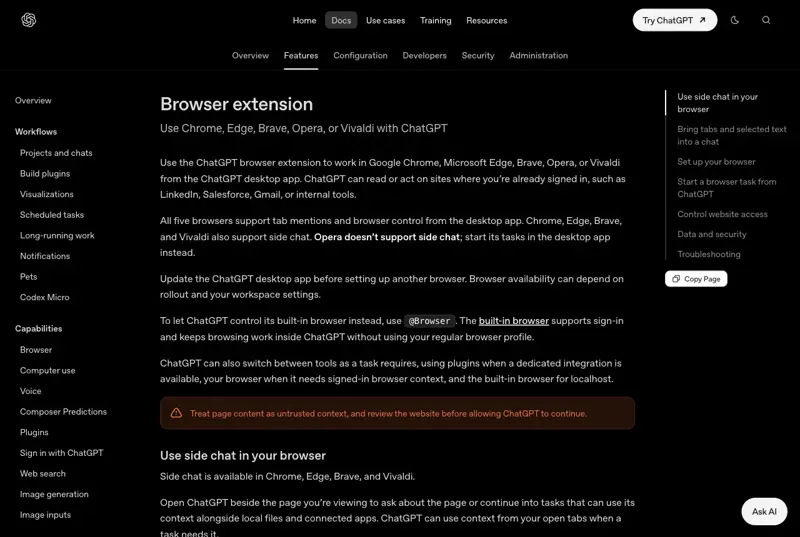
That screenshot is worth a slow read. The second sentence, “ChatGPT can read or act on sites where you’re already signed in, such as LinkedIn, Salesforce, Gmail, or internal tools,” is the feature and the risk in one line. A browser agent that works in a fresh, empty browser is a toy. One that works in your logged-in browser is useful, and it’s useful for the same reason it deserves care.
If you want the background on what an AI browser is and how this fits with the older Atlas browser, we cover it in What Is an AI Browser? and in The Best AI Browser for Normal People. This post stays on the October update.
Atlas is gone, and this is where its job went
OpenAI retired its standalone Atlas browser, which stopped working on August 9, 2026. The company announced on July 9 that an official ChatGPT extension for Chrome would replace it. A Japanese user quoted in an X search for reactions put the logic plainly: a dedicated browser is less practical than controlling the Chrome you already use. That’s a fair reading of why the extension exists. If you used Atlas for form filling or tab research, this is the replacement, with the difference that it now lives inside the browser you already trust with your passwords.
Chat versus Work: the one distinction to learn
Almost every question about this update comes down to which mode you’re in.
Based on OpenAI’s announcement and its browser-extension documentation. The capability list is from OpenAI; the “cost of a mistake” lines are my framing.
In Chat, the worst realistic outcome is a wrong summary. You’ll catch it, or you won’t, but nothing has left your computer except what you sent ChatGPT as context. In Work, a wrong guess about which “Send” button to press, which recipient to pick, or which form field maps to which value turns into an action in a real account. That asymmetry is the reason the rest of this guide spends so much time on permissions.
What each mode is good for, according to OpenAI’s own examples
OpenAI’s sample requests, as reported by 9to5Google and the Decoder, give a feel for the intended jobs:
- Compare couches across several open tabs (Chat).
- Match price pages from different sellers, or compare products by size, material, shipping time and return rules (Chat).
- Fill out a registration form and stop before submitting (Work).
- Add a dentist appointment to calendars (Work).
- In OpenAI’s documentation, a Work example:
@Edge open Salesforce and update the account from these call notes.
Notice the second Work example. “Stop before submitting” appears in OpenAI’s own sample prompt. That’s not decoration. It’s the pattern the whole product is built to make safe: let the agent prepare, you commit. We’ll build a full example around it below.
How it works under the hood, in plain terms
The documentation describes three separate places ChatGPT can browse. Mixing them up is the most common source of confusion, so here they are side by side.
| Environment | Whose session does it use? | When you’d use it |
|---|---|---|
| Chrome extension (this update) | Your existing browser profile, open tabs and signed-in sessions | Tasks that need your logged-in accounts, or the tabs you already have open |
Built-in browser in the ChatGPT desktop app (@Browser) | Its own browser state; supports sign-in without using your regular profile | Tasks that shouldn’t touch your everyday browser, and localhost pages |
| Cloud browser | A separate computer in the cloud; doesn’t inherit your tabs, cookies, passwords or extensions | Supported web tasks where you don’t want your own machine involved |
Source: OpenAI’s help-center articles on the built-in browser and cloud browser, as summarized in research for this post. The extension row is from OpenAI’s browser-extension documentation.
If a task doesn’t need your accounts, the built-in or cloud browser is the safer default, because they don’t carry your everyday logins. The extension earns its place when the task really is “do this in my Gmail,” “update this in my CRM,” or “compare the three tabs I already have open.”
One more architectural detail that surprised me: browser control is documented as starting from the ChatGPT desktop app. Setup runs through the app’s settings, and you start a browser task from a Work or Codex chat. The extension is the bridge into Chrome. The side panel also hosts Chat and, where it’s available to you, Work, and the first bug reports we’ll cover below were about the side panel losing control of tabs while the app-initiated route kept working. So the desktop app is more central than the headline suggests.
Setup, step by step
OpenAI’s documentation and the October 15 coverage describe the same sequence. I’m giving you the steps as published, with the result you should see at each one.
Step 1: Update the ChatGPT desktop app
OpenAI says to update the desktop app before setting up another browser, and adds that browser availability “can depend on rollout and your workspace settings.” If you skip this and something doesn’t appear, this is the first thing to check.
Expected result: you’re on the current desktop version and the Computer Use settings page exists.
Step 2: Choose your browser in Settings > Computer Use
Open Settings, go to Computer Use, and install the ChatGPT extension for the browser you want to use. Supported browsers are Chrome, Edge, Brave, Opera and Vivaldi.
Expected result: your browser appears in the list.
Step 3: Install the extension from the browser’s store
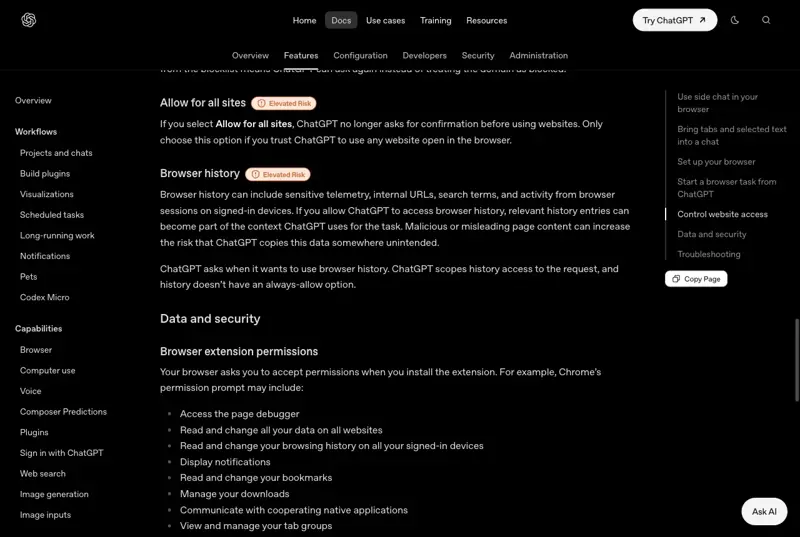
The Chrome Web Store listing shows about 7 million users, according to Unite.AI’s report on the update. Installing is a normal Chrome extension install, and the permission screen is where you first meet the breadth of access involved. OpenAI’s documentation lists what Chrome’s prompt may include:
- Access the page debugger
- Read and change all your data on all websites
- Read and change your browsing history on all your signed-in devices
- Display notifications
- Read and change your bookmarks
- Manage your downloads
- Communicate with cooperating native applications
- View and manage your tab groups
That’s a long list, and it’s normal for an extension that can drive a browser. OpenAI’s documentation is explicit that these are the installation-level capabilities and that ChatGPT then applies its own confirmations and website lists on top. The two layers are different: the install grants the extension the technical ability, and the per-site prompts decide when ChatGPT may use it.
Expected result: the extension is installed and the browser shows a Manage option next to it in the desktop app’s settings.
Step 4: Confirm the connection
Back in Settings > Computer Use, look for Manage next to your browser. OpenAI’s own screenshot shows a Google Chrome row labeled “Connected to browser extension for additional control” with a toggle. That’s your confirmation.
Expected result: the browser row says it’s connected and the toggle is on.
Step 5: Start a task with an @-mention
Start a new ChatGPT Work or Codex chat and pick your browser from the @ menu. OpenAI’s example: @Edge open Salesforce and update the account from these call notes. You can also mention an open tab to give ChatGPT context from that page, or highlight text on a page to bring it into a chat. For Chat-mode tab reading, the announcement describes tagging Chrome, as in @chrome.
Expected result: ChatGPT asks for permission for each new website, which is the next section.
Two small conveniences OpenAI documents: you can right-click a page and choose “Ask ChatGPT,” and you can ask about a YouTube video using its timestamped transcript, as long as captions are available.
The permission prompts, and what each one really grants
When ChatGPT wants to use a site it hasn’t used before, it asks. The prompt is based on the website’s host, such as example.com. You get four choices.
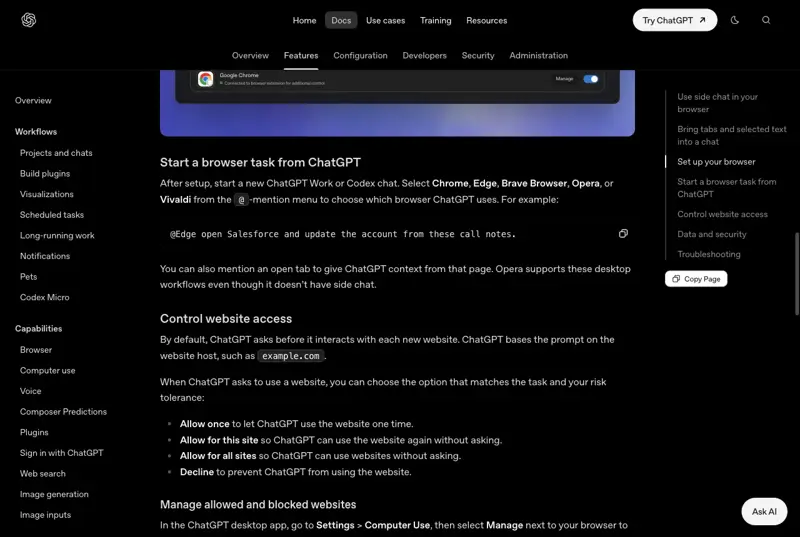
Options and the Elevated Risk label are from OpenAI’s documentation. The bar heights are my illustration of exposure, not an OpenAI metric.
A few details from the documentation that people tend to miss:
- “Allow for all sites” is flagged Elevated Risk by OpenAI itself. The docs say that if you pick it, “ChatGPT no longer asks for confirmation before using websites,” and add: “Only choose this option if you trust ChatGPT to use any website open in the browser.”
- Browser history is a separate Elevated Risk permission. History “can include sensitive telemetry, internal URLs, search terms, and activity from browser sessions on signed-in devices.” ChatGPT asks each time it wants it, scopes access to the request, and offers no always-allow option.
- Files get their own check. Unite.AI’s summary of the docs reports that ChatGPT always asks for permission when downloading or uploading files.
- You can manage lists. In the desktop app, Settings > Computer Use, then Manage next to your browser, you can maintain allowed and blocked websites. The lists are shared across supported browsers.
One thing the prompts don’t do, and OpenAI’s own wording makes clear: permission to use a site is not permission to trust what’s on it. A site grant says “you may operate here.” It says nothing about whether the page is safe to follow instructions from. That’s the gap the next section is about.
Where this gets risky, in plain English
Browser agents have one structural problem that no setting fully removes. They read web pages, and a web page can contain text that is addressed to the agent rather than to you. If the agent mistakes that text for your instructions, it might do what the page says. The industry name for this is prompt injection. It’s the top entry, LLM01:2025, on the OWASP list of risks for AI applications, and OWASP notes the malicious instructions don’t have to be visible to a human reader. Our own plain-language page on it is What Is Prompt Injection?.
OpenAI doesn’t claim this is solved. Its documentation tells you to treat page content as untrusted, to review the website before letting ChatGPT continue, and to avoid sending secrets through browser tasks unless you really need to and can review them.
What the independent research says, and what it doesn’t
The best independent work I found is a University of Washington study. Franziska Roesner and David Kohlbrenner tested seven agentic browsers in early 2026 and presented the paper, “Agentic Browsers and the Same-Origin Policy,” at an ICLR 2026 workshop. The UW news release summarizes it this way:
- Four of the seven let a malicious actor get around the same-origin policy, the browser rule that stops one open website from reading another’s information.
- The researchers ran a successful proof-of-concept attack on ChatGPT Atlas, where one site stole information from another embedded within it.
- Chrome with Gemini, Claude for Chrome and Perplexity Comet met the preconditions for similar attacks, but weren’t reported as fully exploited.
- Browsers that gave agents fewer permissions were generally safer.
Kohlbrenner’s summary in the release: “Browser agents aren’t ready for the public.” And Roesner: “how to make them safe is still an open question.”
Here is the part that matters for this post, and it’s easy to get wrong. That study did not test the October 15 ChatGPT extension. It tested Atlas, a different product that no longer exists, plus other vendors’ tools as of early 2026. It tells you the category has an unsolved architectural problem. It doesn’t tell you how this specific extension behaves today. I couldn’t find any independent security audit of the October build, and I’d be wary of anyone who claims one. The honest statement is: the risk class is real and documented, the specific exposure of this release is unmeasured.
Other findings from the same research thread, with the same caveat that they concern older products:
- Brave’s security team published demonstrations of indirect prompt injection against Perplexity’s Comet in August 2025, and a follow-up in October 2025 showed that nearly invisible text inside screenshots could also carry instructions. Brave is a browser competitor, so read it as a useful technical disclosure and not a neutral ranking.
- Anthropic’s August 2025 pilot of its Chrome agent reported a 23.6% attack success rate on 123 adversarial test cases without safeguards, and 11.2% with them. Anthropic’s later research on prompt-injection defenses describes a 1% rate as a major improvement that still carries real risk. Those are numbers from Anthropic’s own evaluations, not the odds that something goes wrong on a normal day.
- When Atlas launched in October 2025, OpenAI’s own safeguards list pointed users to a logged-out mode that limits what the agent can reach, and OpenAI’s chief information security officer said prompt injection “remains a frontier, unsolved security problem.”
The logged-out advice is the most practical sentence in the whole body of vendor guidance, and it’s the basis for the rule I suggest further down: when a task doesn’t need your accounts, don’t bring your accounts.
What people on X flagged in the first two days
I ran an X search for reactions between October 15 and 17. The official announcement drew about 8,600 likes and 1.3 million views. Hands-on reports were still thin, and most posts were news sharing. The ones with substance fell into three groups:
- Trust. One user wrote that an agent that fills forms and sends messages in your signed-in browser “is a security problem waiting to happen,” with prompt injection doing the rest. Another called it “useful,” but “also an agent inside every logged-in session you have,” and said their own agents only get a separate Chrome profile with nothing important signed in. A third wrote that it’s “a lot of trust to hand over.”
- Praise for Chat. A post about the Chat-mode tab context got 140 likes and about 5,500 views, with the author welcoming that you can “let your model work with all your Chrome tabs right from Chat.”
- A bug. More below.
One poster said Claude “works so much better with chrome than ChatGPT.” That’s one person’s opinion on day two, with no engagement behind it, so I’m not weighing it. I’m mentioning it so you know the comparison is already being made.
A worked example you can adapt: the “prepare, then commit” pattern
Here’s the pattern I’d use for any Work task, built from OpenAI’s own sample prompts. I haven’t run it, so I’m not going to show you outputs. What I can show is the set of decisions, in order, and what to look at each time. The example task is registering for a conference, which is one of OpenAI’s documented use cases (fill out a registration form, stop before submitting).
The situation. You have three tabs open: the conference registration page, your company’s travel policy page, and your email. You want ChatGPT to fill in the registration form using details from the policy and your calendar, but to stop before it pays or submits.
Decision 1: close what the task doesn’t need. Close your email tab. The task never needs it, and an open signed-in tab is exactly what you don’t want an agent roaming near. This costs nothing and removes the biggest exposure.
Decision 2: choose the narrowest permission. The conference site is new, so ChatGPT will ask. Pick Allow once. The travel policy page is internal. If the permission prompt appears for it, pick Allow once as well, or paste the three lines you need into the chat instead and skip the grant entirely.
Decision 3: write the stop into the prompt. Use the structure of OpenAI’s own sample:
@chrome Using the travel policy in the open policy tab, fill out the registration form on the conference tab for me. Use the attendee details below. Stop before submitting or paying and show me what you entered.
Decision 4: read what it filled in. When it stops, check each field against what you gave it, and look at the page itself rather than ChatGPT’s description of the page. Two things to verify every time: the destination (is this the real conference domain you expect?) and the dollar amount on any payment step.
Decision 5: you press the final button. Submission and payment stay yours. If the page changed mid-task, or asked you to confirm something you didn’t expect, that’s your cue to stop and look.
Decision 6: revoke what you granted. If you used Allow for this site, go back to Settings > Computer Use > Manage and remove it when the task is done.
That sequence works the same for the “update the Salesforce account from these call notes” example, with one extra rule: in a CRM, ask it to show a list of the changes it intends to make before it saves any of them.
The principle is “prepare versus commit.” Let it compare, draft and fill. Review the exact destination and content yourself before anything is sent, submitted, purchased or uploaded. OWASP’s guidance for agent systems says the same thing in different words: give the agent the least authority it needs, and require human approval for high-risk actions.
How it compares with the other ways to do this
Every major assistant now has some version of “an AI that works in your browser,” and they differ in how you approve actions. Here’s the landscape as I could verify it from vendor pages and reporting on October 17. These products change quickly, so check the vendor’s page before you rely on a row.
| ChatGPT extension | Claude in Chrome | Gemini in Chrome | Perplexity Comet | |
|---|---|---|---|---|
| What it is | Extension for Chrome, Edge, Brave, Opera, Vivaldi, driven from the ChatGPT desktop app | Extension, in beta on Chrome | Built into Chrome | A separate browser, not an extension |
| Who can use it | Announced for all plans; Work availability depends on plan and rollout | Anthropic’s support pages list Pro, Max, Team and Enterprise | “Auto browse” is in US preview for Google AI Pro and Ultra subscribers | Not checked for this post |
| How approvals work | Asks per website: allow once, this site, all sites, or decline | Modes include “Manually approve,” “Automatically approve” and “Skip all approvals” | Designed to pause and ask before a purchase or a social post; daily limit on actions | Not checked for this post |
| In the UW study | The new extension wasn’t tested (the older Atlas was) | Met the preconditions for cross-origin attacks | Met the preconditions | Met the preconditions |
Sources: OpenAI docs, Anthropic’s Claude in Chrome permissions guide, Google’s Auto Browse announcement, UW news release. I left Comet’s access and approval cells blank on purpose instead of guessing.
The practical read: the approval models differ, and none of them is a security guarantee. ChatGPT’s per-website prompt is a clear, inspectable control. Claude’s default for its side panel has been reported as automatic approval with the agent screening its own actions, with manual approval available. Google’s Auto Browse is gated to paid US subscribers. Which is “safest” isn’t answerable from the evidence available today, because most published testing covers older versions or different products. If you’re choosing between them, compare the controls you get and what you’re willing to leave on.
For Claude’s side of this, see our honest review of Claude’s computer use, and for how these agents stack up as a category, Gemini Spark vs ChatGPT Atlas vs Claude agents, written when Atlas was still alive and worth reading mostly for the framework.
Who can actually use it: “all plans” needs a footnote
OpenAI’s announcement said the extension is available on all ChatGPT plans. That’s about the extension: free users can install it. What a given plan can do with Work is a separate question, and the sources I found disagree:
- ppc.land reported that Work first rolled out in July to Pro, Enterprise and Edu subscribers, with Plus and Business following.
- PiunikaWeb said Work needs at least Plus, per a secondary summary I read.
- Mashable described the active capabilities more narrowly, in terms of Pro and enterprise users.
- OpenAI’s own Work documentation, as summarized in my research, says Work is available to eligible paid plans and remains subject to plan, rollout, usage and workspace permissions. The help-center page itself blocked my automated fetch, so I couldn’t quote it directly.
Where that leaves you: install the extension, open the desktop app, and see whether Work is offered on your account. If you’re on the free plan, expect Chat-style tab context and assume browser actions may not be on yet. If you’re on a work account, an administrator can restrict the built-in browser, browser use through the extension, and native computer use independently of what you installed, so the extension can’t override your workspace’s policy.
What this means for you
If you’re a solo professional who lives in Gmail, a CRM and a few SaaS tools. The temptation is to let Work handle follow-ups and data entry. Start with Chat-mode tasks on public pages for a week, and only then try a single Work task on a site that holds low-stakes data. First action: write down the three accounts you’d never let an agent near (email, bank, payroll) and keep those tabs closed during any Work task.
If you work in sales or customer success. The Salesforce-from-call-notes example is aimed squarely at you. It’s also where a wrong field mapping turns into bad data in a system other people trust. First action: run it on a sandbox or a test record, and make “show me the list of changes before saving” part of every prompt.
If you’re a researcher, analyst or student. Chat-mode tab context is the safe, high-value part: comparing sources across tabs without copy-pasting. First action: open the sources you’re comparing, mention them with @chrome, and ask ChatGPT to quote the sentence it relied on for each claim, so you can check it.
If you manage a team or run IT. The extension asks for broad installation permissions, and OpenAI says admins can restrict browser use at the workspace level. First action: decide your policy before employees decide for you, including whether “Allow for all sites” is acceptable. Our AI Agent Security course covers permission boundaries and agent threat modeling if you need a structure to write it from.
If you handle regulated or client data (health, legal, financial). Treat Work as off-limits on any tab that displays client information until your organization has approved it. OpenAI’s own guidance is to avoid sending secrets through browser tasks. First action: use a separate browser profile with no client systems signed in for any AI browser experimentation.
If you’re a parent or you share a computer. An agent with your login can act as you, including on accounts other people use. First action: leave Work off for shared profiles, and don’t grant “Allow for all sites” on a family computer.
If you’re just curious. Install it, use Chat mode on a shopping comparison or a few articles, and decline everything else. That’s enough to see why people like it.
Edge cases and troubleshooting
These are real problems from the first days, plus the failure points OpenAI documents itself.
1. “Sheep MCP session closed: RPC INTERNAL.” Several users on X reported the side panel stopping tab control with this error, one noting extension version 1.26.1005.11759. Restarting and reinstalling didn’t fix it for at least one person with two Chrome profiles. That same person reported that browser control still worked when started from inside the desktop app instead of the side panel. Workaround: start the task from a Work or Codex chat in the app and @-mention the browser. This looks like an early rollout bug, and I have no confirmation from OpenAI on a fix.
2. The browser doesn’t show “Manage” in settings. OpenAI’s troubleshooting list is: update the desktop app, restart the browser, check that the extension is installed in the browser profile you’re actually using, start a new chat, and reinstall if needed. Extensions install per profile, so a second Chrome profile won’t have it until you add it there.
3. File uploads fail. In Chrome, OpenAI says to turn on “Allow access to file URLs” in the extension’s details page.
4. It keeps asking permission for every site. That’s the default design, not a bug. If a site is one you use constantly and trust, Allow for this site stops the repeat prompts without going to all sites.
5. Opera users can’t find the side panel. Side chat isn’t available in Opera. Tab mentions and browser control still work from the desktop app. That’s a documented limitation.
6. A YouTube question returns nothing useful. ChatGPT uses the video’s timestamped transcript, and OpenAI says that only works when captions are available.
7. Work is missing on your account. See the plans section above. It may be a plan or rollout gap rather than something you did wrong. On a work account, check with the person who manages your workspace.
8. You’re not sure which browser environment ran your task. If it used the cloud browser, it did not use your open tabs or logins. If it used the extension, it did. The “Chrome extension,” “built-in browser” and “cloud browser” rows in the table earlier are the tell.
What it can’t do
It can’t promise to ignore hostile instructions on a page. Prompt injection is an open problem across the industry. OpenAI’s own docs treat page content as untrusted and put the review step on you. Per the UW researchers, no clear fix currently exists that keeps the capability and removes the risk.
It can’t give you an audit trail of what it did. OpenAI’s documentation says it doesn’t keep “a separate complete record of your browser actions” from the extension. Browser activity is stored when it becomes part of a chat’s context, such as page text, screenshots or messages, and Computer Use follows your Memories setting. That means “nothing is logged separately” and “nothing is retained” are not the same statement. I didn’t find a published retention period specific to the extension, so I won’t give you a number of days.
It can’t work in every browser. Safari and Firefox aren’t on the supported list. The supported set is Chrome, Edge, Brave, Opera and Vivaldi.
It can’t guarantee a task will succeed on every website. Coverage of the launch describes supported task categories, not a promise that every site or workflow works. Dense forms, custom widgets and sites that block automation are the usual trouble.
It can’t decide whether the recipient, the amount or the attachment is right. Having permission to use a site isn’t the same as understanding which message should go to whom. That judgment stays with you, which is the whole point of stopping before you send.
FAQ
Is the ChatGPT Chrome extension free? The extension is available on all ChatGPT plans according to OpenAI, so you can install it without paying. Work, which does the browser actions, depends on your plan and rollout, and the reporting disagrees on exactly which paid plans have it today.
Do I need the ChatGPT desktop app? For browser control, yes. OpenAI’s setup starts in the desktop app’s Settings > Computer Use, and you start browser tasks from a Work or Codex chat. The side chat in the browser can answer questions about the page you’re on.
Does it work in Edge, Brave and other browsers? Yes for Edge, Brave, Opera and Vivaldi, alongside Chrome. Opera doesn’t have side chat. Safari and Firefox aren’t supported.
Can ChatGPT see all my open tabs all the time? OpenAI’s documentation says ChatGPT can use context from your open tabs “when a task needs it,” and you can mention specific tabs. In Chat, tab access is invoked, for example with @chrome. For browser actions, it asks before using each new site.
Can it see my passwords? The docs don’t say it reads saved passwords. They do say the extension requests broad permissions, including reading and changing data on all websites, and that ChatGPT can act on sites where you’re signed in. Treat anything visible on a granted site as potentially visible to it, and don’t use the agent to sign in on your behalf.
Does OpenAI keep a record of what it did in my browser? Per its documentation, it doesn’t store a separate complete record of extension browser actions, but activity can be stored when it becomes part of the chat context, including page text and screenshots. Check your Memories setting too, since Computer Use follows it.
Can my employer block it? Yes. Workspace admins can restrict browser use independently of the extension, so an installed extension can’t override a workspace policy.
How is this different from Atlas? Atlas was a standalone browser that OpenAI shut down on August 9, 2026. The extension brings the same kind of capability into the browser you already use, with a per-website permission model.
What’s “Work,” exactly? It’s ChatGPT’s mode for longer tasks, as opposed to Chat for conversation. In the browser context, Work is the mode that can act in your tabs, as opposed to reading them.
How do I take access back? In the ChatGPT desktop app, go to Settings > Computer Use, choose Manage next to your browser, and edit the allowed and blocked sites. Removing a site from the allowlist means ChatGPT asks again instead of treating it as blocked. You can also disable or remove the extension in the browser.
The bottom line
If you only read one thing: use Chat mode freely and Work mode narrowly. Chat-mode tab reading is a real time-saver with a small downside. Work mode is a capable assistant sitting inside every account you’re logged in to, which is why OpenAI itself flags “Allow for all sites” as elevated risk and tells you to treat page content as untrusted.
A simple rule that covers most of the risk: before any Work task, close the tabs the task doesn’t need, grant the narrowest permission, tell it to stop before it sends, submits or pays, and press the last button yourself. Add a separate browser profile for agent work if you can, as several users on X already do.
If you want to understand the “why” behind these precautions, our AI Privacy 101 course covers what to share with AI tools and what to keep out, and the AI Agent Security course goes deep on permission boundaries and prompt injection. For the basics, AI Fundamentals is the place to start.
Update note: this is a Day-2 guide. OpenAI’s plan rollout, the early bug reports and the permission details may change quickly. If something here is out of date by the time you read it, the OpenAI documentation linked below is the source to trust.
Sources
- OpenAI, “Browser extension” (ChatGPT Learn documentation)
- ChatGPT on X, October 15 announcement
- 9to5Google, “ChatGPT gets deeper Google Chrome integration, including control over tabs” (Oct 16)
- PPC Land, “ChatGPT gains control of Chrome tabs to fill forms and send messages” (Oct 15)
- The Decoder, “ChatGPT becomes a full Chrome browser assistant that reads and acts on your open tabs”
- Unite.AI, “OpenAI Brings Computer Use to Chrome With ChatGPT Tab Controls”
- University of Washington, “Some agentic AI browsers come with major cybersecurity risks, UW study finds” (June 30, 2026)
- Roesner and Kohlbrenner, “Agentic Browsers and the Same-Origin Policy”
- OWASP GenAI, LLM01:2025 Prompt Injection
- Anthropic, Claude in Chrome permissions guide
- Anthropic, “Piloting Claude for Chrome” (Aug 2025) and prompt injection defenses research
- Brave, “Unseeable prompt injections in screenshots” (Oct 2025)
- Simon Willison on OpenAI’s CISO and Atlas (Oct 22, 2025)
- Google, “The new era of browsing: Putting Gemini to work in Chrome”
- @JarodGabriel on X, side-panel control bug report (Oct 16)
- @andyhq on X, signed-in browser agent concern (Oct 16)
- @TokenGremlin on X, Chat-mode tab context (Oct 16)
