

Maria Alvarez almost missed a home inspection because the report landed in the wrong inbox. Not lost — just filed under an email address she doesn’t check on weekends. Every agent reading this has some version of that story. As of August 28, 2026, ChatGPT can finally search both inboxes at once, and nobody’s written down what that actually means for a real estate business yet.
Search “chatgpt for real estate agents” right now and you’ll get the same page over and over: a listicle of 15 or 30 copy-paste prompts for writing listing descriptions, courtesy of Ascendix, HousingWire, Luxury Presence, The Close, or half a dozen similar sites. Good prompts, mostly. Not one of them mentions that you can now point ChatGPT at your brokerage inbox and your personal inbox in the same conversation. That’s the gap this post fills.
What just changed
On August 28, 2026, OpenAI removed a limit that had quietly annoyed people since ChatGPT’s Gmail, Google Calendar, and Google Contacts connectors launched: you could only link one Google account per plugin. If you had a work Gmail and a personal Gmail — which, if you’re a real estate agent, you almost certainly do — ChatGPT could only ever see one of them at a time. Switching meant disconnecting one account and reconnecting the other. Every time.
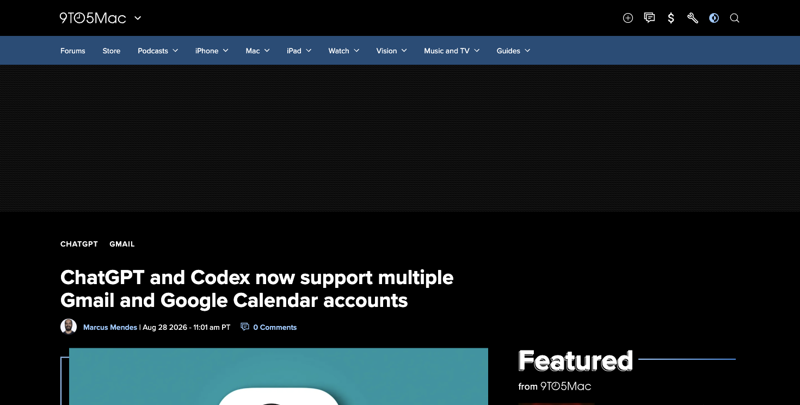
That’s gone now. OpenAI’s own release note describes it plainly: “Lots of people ask ChatGPT questions about their email and calendar… You can now add more Google accounts so you can ask about all your accounts.” Gabriel Chua, an OpenAI developer-experience engineer, broke the news on X the same morning — a post that pulled over 1,600 likes and 550,000 views inside three days, which tells you how many people had been waiting for exactly this. “This has been a very popular request,” he wrote. He wasn’t exaggerating. The replies under his post are a wishlist for more accounts across more tools — Drive, GitHub, Notion, Exchange — which is a good sign the underlying idea landed well even before people had tried it.
The actual first post came earlier and quieter. An OpenAI plugins engineer, @KyleSPatel, posted “We rolled out multi-account support for Gmail, Google Calendar and Google Contacts in ChatGPT” at 3:11am GMT — low reach, three likes, the kind of post that only matters in hindsight. The one that actually broke the news into wider circulation landed about three hours later: @jxnlco’s plain-language click path (“go to chatgpt.com > plugins > gmail > connect another account… only in paid plans”) pulled nearly 1,800 likes and became the version people quote-tweeted all day. OpenAI’s APAC lead posted a bilingual English/Chinese version around the same time. By the following Monday, agents and consultants were describing it in Spanish, Japanese, German, Korean, and Polish — a genuinely global, fast reaction for what is, on paper, a fairly narrow settings change.
Here’s the plain version of what changed. You can now connect a second (or third) Google account to the Gmail, Google Calendar, and Google Contacts connectors inside ChatGPT, and ask questions that span all of them in a single chat. “What’s on my calendar across both accounts this week?” “Find that email from the title company — I don’t remember which inbox it landed in.” Before August 28, that question was structurally impossible to answer in one prompt. Now it isn’t.
It’s live worldwide, on Plus, Pro, Business, and Enterprise plans, across web, desktop, iOS, and Android — not on the Free or Go tiers. And it’s a bigger permission grant than most people realize, which is exactly why the walkthrough below spends real time on the settings screen and not just the fun part.
Why nobody’s written this up for real estate yet
Here’s the thing that made this post worth writing instead of skipping. “Chatgpt for real estate agents” gets roughly 260 searches a month with essentially no competition — a keyword difficulty of zero, and a $31.52 cost-per-click, which tells you advertisers think real estate agents searching that phrase are worth a lot to reach. Every single organic result on that page right now is some version of the same content: Ascendix’s “30 Chat GPT Prompts,” HousingWire’s “11 Clever Ways to Use ChatGPT,” Luxury Presence’s email-marketing prompt list, The Close’s “Complete Guide,” a Techpresso Academy roundup of 35 prompts, even a short Substack post with three prompts. Good content, all of it aimed at the same handful of use cases: listing descriptions, market analysis blurbs, social captions, cold-outreach emails.
Not one mentions connectors. Not one mentions Gmail, Google Calendar, or the account-switching problem that every agent running a brokerage-plus-personal setup deals with weekly. That’s not a criticism of those sites — most of them were written before this feature existed. It’s just a real, current, unfilled gap on a page Google already sends real-estate-specific search traffic to, and it’s exactly the kind of gap that closes fast once one piece of content covers it well.
The walkthrough: connecting both inboxes (and what to actually ask)
Here’s Maria’s setup, step by step. She runs solo under a brokerage — Sunrise Realty Group — with a company email (maria@sunriserealty.com) she uses for client-facing work, and a personal Gmail she’s had since college that, inevitably, some contractors and old clients still have saved.
Step 1: Connect your first (brokerage or primary) Gmail account
- Open ChatGPT, click your profile icon in the corner, and go to Settings.
- Select Connectors in the sidebar.
- Find Gmail and click Connect.
- Sign in with your primary Google account — for Maria, that’s her Sunrise Realty address.
- Review the permissions screen carefully before you accept it. (More on exactly what it’s asking for in a minute — don’t skip that part.)
- Once connected, Gmail shows up with an AUTO tag, meaning ChatGPT can reference it automatically in text chats without you manually selecting it every time. You can turn that automatic behavior off per-connector if you’d rather approve each use.
Repeat the same five steps for Google Calendar, since connecting Gmail doesn’t automatically connect your calendar too — they’re separate authorizations even though they live on the same Google account.
Step 2: Add your second Google account
This is the part that didn’t exist two weeks ago. In the Connectors screen, find your already-connected Gmail (or Calendar) entry and click its gear icon.
- Select Connect another account (some coverage describes this as Add account — OpenAI’s rollout was staged, so the exact label may vary slightly by platform, but the gear icon is the consistent entry point everywhere).
- Sign in with your second Google account. For Maria, that’s her personal Gmail.
- Google will show you a fresh consent screen for this account specifically — review it the same way you did the first time. A second account means a second, independent grant of access.
- Repeat separately for Calendar if you want both calendars visible too.
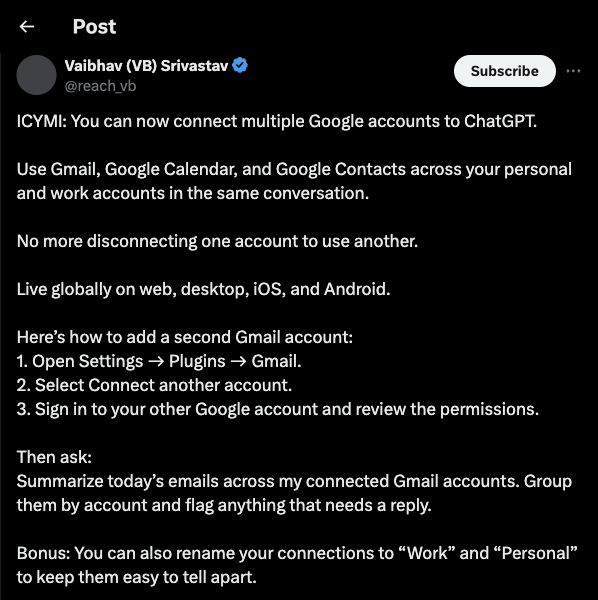
One genuinely useful tip from that same thread: rename your connections. Instead of two entries both labeled “Gmail,” rename them “Work” and “Personal” (or “Brokerage” and “Personal,” in Maria’s case) so you can tell them apart later — and, more importantly, so ChatGPT’s citations tell you which account a result came from.
Step 3: Verify exactly what you authorized
Before you ask ChatGPT a single question, go check what you actually agreed to. This matters more than the setup steps themselves, and it’s the one part of this rollout that got real scrutiny from tech press.
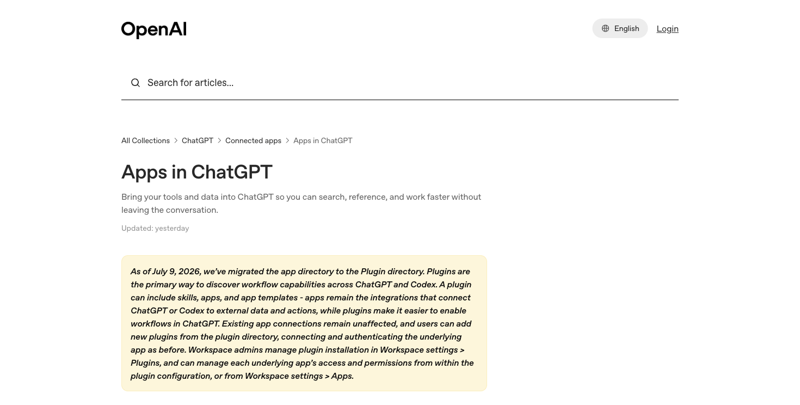
The permission scopes involved are:
- Gmail:
gmail.modify— this is not read-only. It covers reading, composing, and sending mail, short of permanently deleting anything outright (deleted items still go to Trash). - Google Calendar:
calendar.events— full event-level access, not a read-only calendar feed. - Google Contacts: read-only for saved contacts and “other contacts.”
- Google Meet data surfaced through Calendar: a read-only scope covering meeting spaces, recordings, and transcripts if you use Meet.
Notebookcheck’s coverage of the launch put it bluntly: “The permission OpenAI asks for on Gmail and Calendar… goes well beyond reading.” That’s accurate, and it’s worth sitting with for a second. Connecting a second account doesn’t just double your visibility — it doubles the surface area where a mistaken send or an unreviewed action could happen. ChatGPT doesn’t auto-send emails on its own initiative in ordinary chat; sending typically requires you to explicitly invoke the connector as a tool and confirm the action. But the scope exists, which means the possibility exists, and a careful agent treats that possibility as real.
Worth knowing, too: OpenAI hasn’t published a technical spec for exactly how ChatGPT decides which account to pull from when your prompt doesn’t specify. Its own documentation says only that, for connected apps generally, “ChatGPT sends and retrieves information relevant to a prompt and may issue several queries to locate the most relevant material” — nothing about a deterministic priority order, a labeling scheme, or deduplication across accounts. Practically, that means the account-naming habit from Step 2 (calling them “Brokerage” and “Personal” instead of leaving both as generic “Gmail”) isn’t a nice-to-have. It’s the closest thing you have to a routing control, because ChatGPT doesn’t offer a formal one.
Step 4: Try it with a real scenario
Here’s where it gets useful. The Thursday before a scheduled final walkthrough, the home inspector’s assistant emails the completed report — to Maria’s personal Gmail, because that’s the address on file from a referral three years ago, before Sunrise Realty even existed for her. Normally, that report sits unread in an inbox she checks maybe twice a week.
Maria opens a new chat and types:
“Search my connected Gmail accounts for anything about the Henderson property inspection from the last five days. Tell me which account each result came from.”
ChatGPT searches both authorized inboxes and comes back with something like: “Found one match in your Personal account: an email from inspecthome@[inspector].com dated Tuesday, subject ‘Henderson St. Inspection Report — Complete,’ with a PDF attachment. No matches in your Brokerage account.” It cites the source account and the message — she doesn’t have to trust a summary blind, she can click through and confirm it herself.
Then she checks scheduling:
“Compare my Brokerage and Personal calendars for Thursday between noon and 4pm. Flag any conflicts with the Henderson final walkthrough at 2pm. Don’t create or change anything.”
This is the second thing that used to be impossible in one prompt — and it’s the one that actually saves an agent from double-booking. In Maria’s case, it turns up a dentist appointment on her personal calendar at 2:30pm that she’d completely forgotten to move. Small catch. Real one. The kind of thing that used to require manually flipping between two separate calendar apps to notice at all.
She reschedules the dentist herself, in her own calendar app — not through ChatGPT, on purpose. Then, because the report landed somewhere the Hendersons don’t know to look, she asks one more thing:
“Summarize the key findings from the Henderson inspection report, and list which items are typically negotiable repair requests versus cosmetic. Don’t quote financial figures or the inspector’s cost estimates verbatim — just flag which sections mention costs so I can pull those myself.”
That last instruction matters more than it looks. She’s deliberately keeping dollar figures out of the AI-generated summary and pulling them herself from the source PDF before she puts anything in front of a client. Small habit. It’s also exactly the discipline the safety box below is about.
Step 5: Set up the “one prompt pattern” and reuse it
Once the novelty wears off, the actual daily value is one repeatable prompt shape, not a new one every time. A version worth saving somewhere:
“Search my connected Google accounts for [specific terms or a date range]. Identify which account each result came from. Summarize only — don’t send, modify, delete, create, or share anything. Cite the source email or calendar item for everything.”
That phrasing does real work. It compensates for the two things OpenAI’s own documentation doesn’t guarantee — a labeled, deterministic account-by-account breakdown, and a hard cap on how many accounts get searched — by making the citation itself your review checkpoint before you act on anything it returns.
Never paste a client’s Social Security number, bank account or wire routing details, or full loan application into a ChatGPT conversation — even inside a connected, “your own” chat. Google’s own AI Overview flags this exact risk on the real estate SERP, and it’s correct to. Connector data isn’t automatically encrypted end-to-end the way a bank’s own portal is, and once sensitive financial data is typed or pasted into a chat, it’s part of that conversation’s history under ChatGPT’s normal retention rules — not a redaction tool. Ask ChatGPT to summarize that an inspection report exists and what it flags. Don’t ask it to transcribe wire instructions.
Old workflow vs. new workflow
| Before Aug 28, 2026 | After Aug 28, 2026 | |
|---|---|---|
| Checking two inboxes | Disconnect one account, reconnect the other, repeat | Both connected simultaneously, one chat |
| “Which inbox is this email in?” | You manually search each inbox yourself | ChatGPT searches both, cites the source account |
| Cross-calendar conflicts | Manually compare two calendar apps | One prompt compares both, flags overlaps |
| Setup effort | One account per connector, ~2 minutes | One extra gear-icon click per additional account |
| Contacts | Single account’s contacts only | Both accounts’ saved + “other” contacts, read-only |
| Where it works | Web, desktop, iOS, Android | Same — unchanged, still no Voice mode support |
| Who gets it | Plus, Pro, Business, Enterprise | Unchanged — still not on Free or Go |
| Write access | gmail.modify scope already existed per-account | Same scope, now duplicated across every connected account |
Plan and platform availability
| Plan | Multi-account rollout | Platforms | Region |
|---|---|---|---|
| Free | Not included | — | — |
| Go | Not included | — | — |
| Plus | Available | Web, desktop, iOS, Android | Global |
| Pro | Available | Web, desktop, iOS, Android | Global |
| Business | Available | Web, desktop, iOS, Android | Global |
| Enterprise | Available | Web, desktop, iOS, Android | Global |
If your brokerage runs on ChatGPT Business or Enterprise, there’s a second layer worth knowing about before you try connecting a personal account: the Google Workspace administrator on the company side can require that the ChatGPT OAuth app be explicitly trusted, or block specific scopes outright. If a scope isn’t approved, you’ll hit an “admin approval required” error the moment you try to connect — not a bug, just governance working as intended.
Locking it down: five controls worth setting up before you connect anything
This is the part most coverage of the launch skipped entirely, because it’s less exciting than “you can search two inboxes now.” But if you’re mixing a client-facing brokerage account with a personal one, these five things take about ten minutes total and meaningfully change your risk exposure.
- Get it approved in writing first, if you’re on a company plan. “Technically possible” isn’t the same as “allowed under your brokerage’s confidentiality policy.” If your firm runs ChatGPT Business or Enterprise, confirm with whoever administers it that connecting a personal Google account alongside your work one doesn’t conflict with client-data handling rules already on the books.
- Turn off automatic actions you don’t need. Each connector shows an AUTO tag by default. If you never intend to have ChatGPT draft or send email on your behalf, disable that specific action in the connector settings rather than leaving the door open because it’s convenient in theory.
- Turn off “Improve the model for everyone” on the personal side. In Settings → Data Controls, this toggle controls whether your conversations (and, with some exceptions, connector data) can be used to improve OpenAI’s models. It’s a one-time setting, it syncs across web and mobile, and it’s worth confirming it’s off before you connect a personal inbox that might contain things you’d rather not have anywhere near training data — even under the stated exceptions.
- Use Temporary Chat for anything genuinely sensitive. A Temporary Chat isn’t saved to history, doesn’t create new memories, and isn’t used for training — though OpenAI notes it may still be reviewed for abuse monitoring and is deleted after 30 days rather than instantly. It’s a reasonable default for a one-off search you don’t want lingering in your regular chat history.
- Audit what you connected, a week later. Check your ChatGPT connector settings, your Google Account’s own third-party access list, and — if applicable — your Workspace admin’s app controls. Confirm scheduled tasks, saved memories, and chat history reflect what you actually intended to authorize, not just what you clicked through in the moment.
None of this is about distrust of the feature. It’s the same instinct as reviewing a listing agreement before you sign it — cheap insurance against a mistake that’s expensive to unwind later.
What this means for you
Solo agents juggling a personal Gmail. You’re the person this update was built for. First action: connect both Gmail accounts today, rename them clearly, and try the “find that email, I don’t remember which inbox” prompt on something real from this week. That’s the single highest-value use case for you specifically.
Team leads with a shared team inbox. Your situation is slightly different — you likely have your own account plus visibility into a team or group inbox. First action: before connecting anything on a shared account, confirm with your team whether that inbox is meant to be visible inside a personal AI tool at all. Shared inboxes often carry other agents’ client relationships, and “I can see it” isn’t the same as “I should.”
Transaction coordinators (TCs). You spend your whole day cross-referencing calendars, closing checklists, and email threads across multiple agents’ accounts. First action: this feature is genuinely built for exactly that kind of cross-referencing, but confirm with each agent whose accounts you’d be connecting that they’re comfortable with it — this is their client data, connected through your ChatGPT login, not theirs.
Brokerage owners managing several agents. Your risk profile is different from a solo agent’s — you’re now thinking about firm-wide policy, not just your own inbox. First action: before any agent on your team connects a personal Gmail alongside a brokerage one, put a one-paragraph written policy in place covering what’s off-limits (client financial data, in particular) and whether Workspace admin approval is required first.
New agents still building their systems. You don’t have years of scattered personal-vs-work email habits to untangle yet, which is a real advantage. First action: set up separate, clearly-labeled Gmail accounts for personal and brokerage use from day one, connect both to ChatGPT now, and you’ll never have the “which inbox is it in” problem your more established colleagues are still solving for.
Property managers with multiple owner or vendor threads. Your inbox chaos usually isn’t personal-vs-work — it’s dozens of properties, owners, and vendors all in one account. First action: this specific update (personal + work account merging) matters less to you directly, but the underlying “search across everything and cite the source” pattern is worth testing on your existing single account for vendor-invoice searches.
Anyone who was using two separate AI tools to avoid the old limit. A few people in the community reaction data literally said this out loud — one user described using ChatGPT for work and Claude for personal specifically because ChatGPT only allowed one Google account. First action: if that was your workaround, it’s worth revisiting whether you still need two separate AI subscriptions now that the original constraint is gone.
Edge cases and troubleshooting
“I connected the second account, but Gmail results still only come from the first one.” Gmail and Calendar are separate authorizations even on the same Google account, and each connector has its own multi-account setting. Double check you clicked the gear icon on the specific connector (Gmail, not Calendar) and that the second account shows as connected under that connector specifically.
“My work IT admin is blocking the connection.” That’s Google Workspace governance, not a ChatGPT bug. Your organization’s Workspace admin has to explicitly trust the ChatGPT OAuth app or approve the specific scopes it’s requesting. If your firm won’t approve gmail.modify, the fix isn’t on your end — raise it with IT, and in the meantime, disable any ChatGPT action that depends on that scope rather than living with recurring permission errors.
“Contacts disappeared after I disabled Gmail.” This is documented, expected behavior, not a glitch: OpenAI’s connector settings automatically disable Google Contacts if both the linked Gmail and Calendar connectors get disabled. Reconnect either one and Contacts comes back.
“I disconnected an account, but ChatGPT still seems to remember details from it.” Disconnecting a connector stops future access — it does not retroactively delete conversation history or memories already derived from that account. If that matters to you, separately review and delete relevant memories under Settings → Personalization, and delete the specific conversations too.
“Voice mode won’t use my connected accounts.” Correct, and this isn’t specific to multi-account — connectors in general aren’t supported in ChatGPT’s Voice mode. Switch to a regular text chat for anything that needs Gmail, Calendar, or Contacts.
“I asked it to check both calendars and it only searched one.” Be explicit. Because OpenAI hasn’t published a formal spec for how cross-account queries are routed or deduplicated, the safest habit is to name both accounts by their label in the prompt (“check my Brokerage and Personal calendars”) rather than assuming a vague “check my calendar” will automatically pull from everything connected.
“There’s no real-estate-specific guidance anywhere for this.” That’s not you missing something — it’s genuinely true right now. When this rollout was cross-checked against public reaction data from the week it launched, a targeted search for real estate agents, brokers, or property managers discussing the feature came back with zero matching posts. The broader conversation is dominated by consultants and generalist “work vs. personal” users. You’re early. That’s an advantage, not a gap in your research.
“I’m nervous about connecting a personal account to a work tool at all.” That instinct is reasonable and worth respecting, not overriding. Nothing about this feature requires you to connect a personal account — you can use it purely to link two work accounts (a brokerage email plus, say, a property-management-side email) and get the same cross-account search benefit without ever touching personal data.
What it can’t do
It doesn’t create one unified mailbox. Your brokerage and personal accounts stay completely separate on Google’s side. ChatGPT queries across both and reports back — it isn’t merging them into a single inbox you’d see in Gmail itself.
There’s no published maximum account count, and no documented routing logic. OpenAI’s own release note says “multiple accounts” without a stated cap, and doesn’t publish how it decides which account to prioritize, how it deduplicates near-identical results, or whether you can restrict a specific prompt to just one connected account. Treat every cross-account answer as something to spot-check, not a guaranteed complete search.
It won’t act autonomously across accounts without your input. Sending an email or creating a calendar event isn’t something ChatGPT does on its own initiative during a normal chat — those actions generally need you to explicitly select the connector as a tool and confirm.
It doesn’t work in Voice mode, and it isn’t available on Free or Go plans. If your whole team isn’t on a paid plan, this doesn’t roll out evenly across the office.
It doesn’t replace your CRM or transaction management software. This is a search-and-summarize layer sitting on top of Gmail and Calendar. It’s genuinely useful for finding things fast and catching scheduling conflicts — it is not a system of record, and nothing here should be the final source of truth for a closing timeline or a client’s financial details.
Frequently asked questions
Can ChatGPT send an email from my personal account automatically?
Not on its own initiative during a regular chat. Sending requires you to explicitly use the connector as a tool and, in most flows, confirm the action before it goes out. The underlying scope (gmail.modify) technically permits send access, which is exactly why reviewing your connector settings — and disabling send if you don’t need it — is worth the two minutes it takes.
Does this cost extra? No. It’s included in Plus, Pro, Business, and Enterprise plans at their existing prices — there’s no separate fee for connecting additional Google accounts.
Will my brokerage see my personal Gmail if I connect it? Not automatically, no — connecting an account authorizes ChatGPT to access it, not your brokerage. But if you’re on a ChatGPT Business or Enterprise plan tied to your brokerage’s workspace, check your company’s specific data policy before assuming full separation. Business and Enterprise connector data generally isn’t used for model training; the exact visibility rules for admins vary by plan and setup.
How many Google accounts can I connect? OpenAI hasn’t published a hard number. The rollout is commonly described as supporting a second or third account through the interface, but that’s based on how people are using it, not a stated limit in official documentation.
Is this available outside the US? Yes — OpenAI’s release note describes the rollout as global for supported paid plans, without an EEA, UK, or Switzerland carve-out specific to this feature (some other, separate connector features do carry regional limits, so don’t assume this applies elsewhere).
What happens to my data if I disconnect an account later? Disconnecting stops future access going forward. It does not automatically delete chat history or memories already generated from that account — those need to be reviewed and deleted separately if that matters to you.
Does Gemini or Copilot already do this? Not in a documented, equivalent way as of this rollout. Community reaction searched specifically for a head-to-head comparison and didn’t turn one up — the closest related commentary was people saying they use Gemini for its native Google integration and ChatGPT for everything else, which is a different point entirely.
Is my data used to train ChatGPT’s models? It depends on your plan and your settings. For Business, Enterprise, and Edu accounts, connector data generally isn’t used for model training. For Free, Plus, and Pro accounts, it can be, unless you’ve turned off “Improve the model for everyone” in Data Controls — and OpenAI’s Google-specific FAQ notes an added layer: even with that setting on, direct connector data isn’t used for generalized training except when you manually copy/paste it, submit it as feedback, or it appears in a response you generate.
Should I turn off Memory for this? If you’re mixing personal and brokerage context in the same account, it’s worth considering. Memory can pull in details from your connected apps to personalize future chats, and disconnecting an account doesn’t clear memories already built from it — you’d need to review and delete those separately under Settings → Personalization.
Bottom line
This isn’t a flashy feature. It’s a small, structural fix to something that’s been quietly annoying every agent running a business out of two inboxes since ChatGPT connectors existed at all. Connect both accounts, rename them clearly, keep client financial details out of the chat entirely, and you’ve got a real time-saver for the two things that eat the most of an agent’s week: finding the email you know exists somewhere, and catching the calendar conflict before it becomes an apology call.
If you want the fuller system — not just this one feature, but a complete AI setup for CMAs, listing descriptions, client email, and fair housing compliance — the AI for Real Estate Agents course walks through it in eight lessons, and Teach Your AI to Run Your Real-Estate Admin goes deeper on exactly the transaction-coordination workflow this post touches on.
Sources
- OpenAI — ChatGPT Release Notes, August 28, 2026
- OpenAI Help Center — Google App for ChatGPT: Data Controls FAQ
- OpenAI Help Center — Connectors in ChatGPT
- OpenAI Help Center — Data Controls FAQ
- 9to5Mac — “ChatGPT and Codex now support multiple Gmail and Google Calendar accounts,” Aug 28, 2026
- Notebookcheck — “ChatGPT connects two Google accounts, write access included”
- @gabrielchua on X — original announcement thread, Aug 28, 2026
- @reach_vb on X — community setup walkthrough, Aug 28, 2026
- @jxnlco on X — shortest official click-path summary, Aug 28, 2026
- Ascendix — “Top 30 Chat GPT Prompts for Real Estate Agents to Increase Sales”
- HousingWire — “11 Clever Ways to Use ChatGPT for Real Estate in 2026”
- The Close — “ChatGPT for Real Estate: The Complete Guide for Agents”