

If you have ever run a survey in Google Forms, you know the part nobody warns you about: reading the answers properly. Most people skim, pick the three loudest comments and call it analysis. In early November 2026, Google added a button that offers to do the reading. It is called Actionable insights, it lives in the Responses tab of a form, and Google says Gemini “analyzes your responses by writing and running Python code,” then recommends next steps.
The catch is that the button depends on your plan and on a rollout that is still under way: domains on Google’s Scheduled Release track don’t start until November 19. This guide covers who gets the button, the six reasons it may be missing, what pressing it does, and what to do if you are on a free account. We have not pressed it ourselves, because we have no eligible account. What we did instead was test the free route on a made-up survey, and the free route got something wrong in a way worth seeing before you trust any tool with your numbers.
Note: Everything about Google’s feature comes from Google’s own announcement and help pages, read on November 9, 2026. The survey test is ours: 24 invented responses, run in a signed-out Gemini window on the same day. No real people’s answers were used anywhere in this guide.
What Google announced
Google published the announcement on its Workspace Updates blog on November 5, 2026, under the title “Get actionable insights with Gemini in Google Forms.” The feature uses Gemini to analyze form responses, surface key trends and recommend next steps. Google lists three jobs it does: it calculates counts, percentages and comparisons; it finds patterns and relationships between questions; and it summarizes the main takeaways with suggested next steps.
The part that matters most is how it gets its numbers. Google’s wording is that Gemini “analyzes your responses by writing and running Python code,” and it says the results rest on the actual response data. In plain terms, the arithmetic is supposed to come from a small program run on your responses, not from a language model estimating averages in its head. That is a real design difference, and it is the reason this feature is worth writing about separately from “paste your survey into a chatbot.” Whether it works that well in practice we can’t say. We found no independent hands-on test of it; what turned up was Google’s own pages and coverage of the announcement.
Google’s examples of where to use it are event and product feedback, research surveys, and registration and application forms. It is a new layer on top of older Gemini features in Forms, which we separate further down, because the three features have different limits and the pages that describe them are easy to mix up.
The rollout dates
Google splits Workspace domains into two release tracks. Per the announcement:
| Release track | When it starts | How long until you see it |
|---|---|---|
| Rapid Release domains | November 2, 2026 | Gradual, up to 15 days |
| Scheduled Release domains | November 19, 2026 | Gradual, up to 15 days |
As of November 9, Scheduled Release domains haven’t started at all, and Rapid Release domains are still inside the 15-day window. “Announced” does not mean “on your account.” If you work for an organization, your Workspace admin knows which track your domain is on.
Who gets it, and who doesn’t
Google ties the feature to certain Workspace and Google AI plans. The announcement lists these:
| Where you use Forms | Plans Google lists |
|---|---|
| Work (Business) | Business Standard, Business Plus |
| Work (Enterprise) | Enterprise Standard, Enterprise Plus |
| School | Education Plus, plus the add-ons Google AI Pro for Education and Teaching and Learning |
| Personal account | Google AI plans (the announcement names Pro and Ultra) |
The plans the announcement does not list are Business Starter and a free personal Google account. Google’s help page says the feature “requires an eligible Google Workspace or Google AI plan,” and that it is also available through Google’s trusted tester program, Google Workspace Experiments.
If you are a teacher, the line that matters is the school one. Whether your school’s accounts are on Education Plus, on one of the two add-ons, or on neither is a question for whoever administers your school’s Google accounts. A school account on a plan that isn’t in the list above is outside it, so check with the administrator rather than assuming either way.
Why the button may not be there
When a feature is new and gated, “I can’t find it” is a likely first reaction. Google’s help page names the conditions under which Actionable insights isn’t available, and the announcement covers plans, rollout dates and an admin setting. Going through them in order saves a lot of clicking.
Here is the same list with what each check means in practice:
- Your plan isn’t on the list. Check this first, because nothing on your form will fix it.
- The rollout hasn’t reached your account. Rapid Release domains started on November 2 and Scheduled Release domains start on November 19, each with up to 15 days before everyone sees it.
- Fewer than 12 responses, or fewer than 3 questions. Google’s help page: “Your form must have a minimum of 12 responses and 3 questions.” A short exit ticket with one question never qualifies.
- Quiz settings are on. The page says the feature isn’t available for forms when you turn on Quiz settings. If you made your form as a quiz so it would score answers, you can’t use this on it.
- A linked Sheet you can’t open. The help page says it isn’t available “if the form has a linked sheet which you do not have access to.” That reads as a trap for a form somebody else created and linked to a spreadsheet you can’t see. It does not say every form must have a linked Sheet.
- Smart features and personalization are off. The announcement’s admin note says that to use Gemini in the side panel of Workspace apps, users need smart features and personalization turned on, and that admins can enable a default for users. The note is written about the side panel, and the announcement doesn’t spell out whether Actionable insights depends on it. If everything else on this list checks out and the button is still missing, this is the one to raise with your admin.
Google’s steps all begin “On your computer,” so use a desktop browser.
What pressing the button does
When the feature is on, Google’s help page gives five steps:
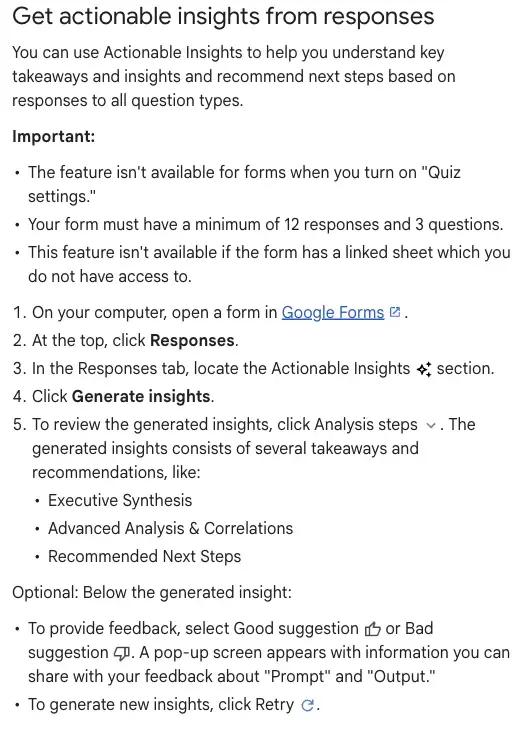
- Open the form in Google Forms, on your computer.
- Click Responses at the top.
- In the Responses tab, find the Actionable Insights section.
- Click Generate insights.
- To review how it got there, click Analysis steps.
The output, per the help page, “consists of several takeaways and recommendations,” and it names three headings as examples: Executive Synthesis, Advanced Analysis & Correlations, and Recommended Next Steps. Under the result there are Good suggestion and Bad suggestion buttons for feedback, and a Retry button that makes a new set of insights.
Two details are worth noticing. First, Google’s help page says to click Analysis steps to review the generated insights. Use it. Google doesn’t say how much of the working it shows, so treat it as a place to look, not a guarantee, and the free-route test below shows why checking the numbers matters. Second, Retry makes a new set of insights, which means the result isn’t fixed. If you press it and the story changes, treat the difference as information about how firm the findings are.
One thing neither Google page says is whether the generated insights are saved. For the older summary feature, the help page says generated summaries aren’t saved and you can copy them or generate them again. For Actionable insights it says nothing, so copy what you need into your own document before you leave the page.
Three Gemini features in Forms that sound alike
Part of the confusion online is that Google’s one help page describes three features. They have different limits:
| Feature | What it does | Limits Google lists |
|---|---|---|
| Summaries | A summary for each open-text question | Appear once there are 3 to 200 responses; not for quiz responses; not saved; no summary for direct questions like names and addresses |
| Themes | Groups open-text answers into themes in a Google Sheet, with a pie chart and a count per theme | Works best with 8 to 200 responses; the page gives different cut-offs in two places (200, and 500) |
| Actionable insights | Takeaways, relationships between questions and next steps across all question types | At least 12 responses and 3 questions; not for quiz forms; not with an inaccessible linked Sheet |
Don’t carry one row’s limits over to another. Because the page itself gives two different upper limits for the theme feature, we have repeated both rather than choosing one.
What this doesn’t tell you yet
Everything above is Google describing its own feature. Here is what we looked for and didn’t find:
- An independent hands-on test. Our search on November 9 found Google’s pages, coverage of the announcement and how-to guides based on those pages. We found no teacher, HR lead or small-business owner describing a real run. A Grok search of X and Reddit on November 9 came back with mostly re-posts of the announcement, almost no hands-on accounts and no bug reports.
- A statement about languages for this feature. Google’s “Supported languages for Google Workspace with Gemini” page lists three Google Forms features by name: Help me create a form, Automated text summaries and Generate questions. Actionable insights isn’t one of them. The page also says “For other Google Workspace with Gemini features, English is the only supported language.” That is Google’s general rule for unlisted features, not a statement about this one. If your respondents write in another language, test on a small form before you rely on it.
- A statement about small groups. Neither Google page we read says anything about hiding results for small groups, removing names or protecting anonymous answers. If you survey staff, that matters, and we come back to it below.
A worked example: the free route, with a miscount
If you aren’t on an eligible plan, a route that gets suggested is to export your responses to a spreadsheet, copy the table, paste it into a free chatbot and ask for the analysis. Before telling you to do that, we wanted to see what it does to real numbers. So we built a small test.
The test data
We invented a back-to-school survey for parents of a school with three grade bands. It has 24 responses, two 1 to 5 ratings (how drop-off went and how communication was) and one open question, “What should change?”. We wrote the comments to contain a known set of themes, then tallied everything ourselves, with a Python script and by hand, so that we knew the right answer before asking any AI.
Our tally of the 24 responses:
| Theme in the comments | Responses |
|---|---|
| Communication: emails, portal, messages, notice | 7 |
| Pickup line and traffic | 5 |
| Positive or “nothing to change” | 4 |
| Homework load | 3 |
| Lunch options | 3 |
| Bus 12 running late | 2 |
The averages: drop-off 3.50 overall, communication 3.21 overall. By grade band, drop-off and communication came out at 3.56 and 3.33 for K-2, 3.44 and 3.22 for grades 3-5, and 3.50 and 3.00 for grades 6-8. Every response in it is invented.
Run 1: the obvious prompt
On November 9, 2026, we opened Gemini in a fresh browser window, signed out of any account. The page’s model label said “Flash-Lite.” We pasted the table and asked for the averages, the themes with a count for each, and the three changes with the best effort-to-impact, with one short quote per theme. One run.
Here is how the answer compared with ours:
| What we asked | Our count | Gemini’s answer | Right? |
|---|---|---|---|
| Overall drop-off average | 3.50 | 3.46 | A little off |
| Overall communication average | 3.21 | 3.17 | A little off |
| Grades 3-5 drop-off | 3.44 | 3.56 | Wrong |
| Grades 3-5 communication | 3.22 | 3.00 | Wrong |
| Grades 6-8 communication | 3.00 | 3.17 | Wrong |
| Communication theme | 7 | 7 | Right |
| Pickup theme | 5 | 6 | One too many |
| Homework theme | 3 | 4 | One too many |
| Lunch theme | 3 | 3 | Right |
| Bus 12 | 2 | Not a theme | Missed |
The writing was good. The advice was sensible: it put “consolidate communication channels” first, which is the biggest cluster in the data, and its quotes were real lines from the file. But it miscounted two of the four themes it did list, it got several averages wrong while presenting them to two decimal places, and it folded the two Bus 12 complaints into a sentence saying the remaining responses “were positive or mentioned transportation issues like late buses.”
Look at that last point, because it’s the one that would hurt in a real survey. Two parents named a specific bus. Of all the comments, that is the one a school can fix in a day, by calling the bus company. It got a throwaway line. If you had read only the summary, you would never have known the bus was named.
Also notice the arithmetic: its four theme counts of 7, 6, 4 and 3 add up to 20, and four of the 24 responses were positive. That leaves no place for the two bus responses in its arithmetic. A tool that checked its totals against 24 would have caught that. This one didn’t check.
Run 2: a prompt that forces the work to show
We then asked the same question differently, in a second fresh signed-out Gemini window the same day, with the same model label. This time the table had a Row column, which sat between the first line below and the numbered steps, and the prompt asked for the working:
Here is a CSV export of a survey with 24 responses. Do not guess: if you are not sure, say so.
Do these steps in order.
1. List every row number with the one theme you give it, one per line.
2. Count the rows per theme from that list, and check that the counts add up to 24.
3. Give the average of each rating column, overall and per grade, and show the sum you divided.
4. Keep rare but specific comments (a named bus, a named street) in a separate list, even if only one or two people wrote them.
5. Give the three changes with the best effort-to-impact.
This time every number matched our tally. The themes came out as 7, 5, 4, 3, 3 and 2, and the totals added to 24. Each average came with its sum: for example, K-2 drop-off was 3.56 (32 divided by 9) and the overall communication average was 3.21 (77 divided by 24), the same as our script’s. The rare-comments list held the Oak Street comment and both Bus 12 comments. One of its three recommendations was to fix Bus 12 and tell the families.
What changed between the runs? Mostly the prompt: numbering the rows, asking for a per-row list before any counting, and asking for sums. But we ran each prompt once, and a chatbot can give a different answer on a second try, so we can’t say the second prompt will always win. What we can say is that the second prompt produced something we could check line by line, and the first did not.
That is the lesson to take from this, for the free route and for Google’s feature alike. The risk isn’t that the writing is bad. The risk is a clean paragraph sitting on top of a number that is slightly wrong.
Note: This was a test of a free chatbot given pasted data. It says nothing about how well Google’s Actionable insights counts, which runs Python on your responses and which we haven’t run.
A published study that points the same way
A study published in PLOS Digital Health on April 3, 2026 compared large language models with human analysts on one focus-group transcript of about 12,000 words, with seven participants. Where the models were given a list of codes to apply, they agreed with an expert panel about as often as the humans did: 93.5% on average for the models against 92.7% for the humans. When the models had to find the themes themselves, the results were more variable, “particularly on latent meaning and affect,” in the authors’ words, and only one of the three models matched the human analysts on that task. The authors treat the models as an adjunct to human analysts, not a replacement, and recommend checking quotes.
Treat it as a reason for caution, not a verdict. It is one transcript with seven speakers, tested on the models available at the time, and it isn’t about Google Forms. It does agree with our small test on the main point: a list of labels you can check is more trustworthy than a summary you can’t.
The free route, step by step
If you don’t have the button, this is the route that gets you most of the value. It takes the same steps whatever chatbot you use.
- Get the responses into a spreadsheet and open it.
- Make a copy to work on. Never scrub the original.
- Remove what identifies people. Delete the timestamp and any email or name column. Then read the comment column for names, bus numbers, streets, job titles and other details a reader could use to work out who wrote it. Our own test data contains a street and a bus number, which is precisely the kind of detail to think about before you paste real comments anywhere.
- Add a Row column with 1, 2, 3 down the side. It lets you check the tool’s work against the sheet.
- Paste the table and use a prompt that asks for working, like the one above. Change the labels to match your columns.
- Check three things yourself. Count one theme by hand. Add up the theme counts and see if they equal your number of responses. Recompute one average from the sums the tool shows.
- Read every comment the tool filed under “other” or “rare.” This is where the single serious complaint lives.
- Copy your conclusions into your own document. Don’t rely on the chat history.
If step 6 fails, don’t fix the tool’s answer by hand: ask it to redo the work and show the row-by-row list again, or do the counting in the spreadsheet yourself.
Privacy: what you’re allowed to paste
Whether a survey can go into an AI tool depends on who answered it and what rules your organization has, not on the tool. We can’t tell you what your rules are. Two sources show where the lines tend to fall.
The University of Tennessee, Knoxville’s IT office published guidance for its staff on October 12, 2026. It says that in practice, free and public AI tools like ChatGPT Free, Gemini Free and mobile AI apps are approved for publicly available data only, and that FERPA-protected student information is explicitly off-limits. Its closing line is “When in doubt, leave it out.” That is one university’s rule for its own employees, and it says nothing about Google Forms. It is a useful picture of how an institution thinks about free chatbots and student data.
The takeaway for teachers is simple. A parent survey, a student exit ticket and a class feedback form can all contain information about identifiable children. Before you paste any of it into a free chatbot, ask the person at your school who answers privacy questions. For a school that has approved Gemini under its own Workspace agreement, the answer may be different, and that is a question about your school’s arrangement, which neither Google’s help page nor this guide settles.
For HR and managers, the same questions apply to employee surveys, with one more. Even without names, a comment from a three-person team can point to one person. Decide before you collect: who sees raw comments, and what is the smallest group you will report on? Neither Google page we read says anything about hiding small groups, so that decision is yours.
Google’s own privacy terms for this feature are a separate question we didn’t verify, so we aren’t stating them here. If you work in an organization, your admin can tell you what the agreement says. For a deeper walk-through of what is safe to paste into AI tools at all, AI Privacy 101 (first 2 lessons free) covers it.
What this means for you
If you’re a teacher on a school Google account. Ask your admin one question: “Are we on Education Plus, or Google AI Pro for Education, or Teaching and Learning?” If yes, your first action is to try it on a parent or student feedback form that is not a quiz and has at least 12 responses. If no, use the free route on responses with names and identifying details removed, and ask your privacy contact whether that is allowed.
If you’re a teacher on a free personal account. You aren’t on the plan list, so use the free route, but think first about whose answers you are pasting. Surveys of colleagues or of parents about logistics, with identifying details removed, are one thing; student comments are another. Your first action is to make a mock version of your form with invented answers and try the prompt on that.
If you’re an HR lead at a company on Business Standard or Plus. Check whether the button shows up on a form you own. If it does, your first action is to try it on a survey with enough responses to hide behind, decide your minimum reporting group before you read the results, and keep raw comments to a short list of people.
If you’re a small-shop owner on a free Gmail. You are most likely on the free route. Your first action is the cheapest one: take your last 15 customer comments, add a Row column and run the prompt with the sums. The three-changes step is where a feedback form starts to earn its keep.
If you’re an event or wedding planner. Post-event forms are Google’s own example use. Your first action is to build one question you’ll want to compare every time (a 1 to 5 rating works), so the numbers mean something across events, and to add one open question, “What should we change?”. With 12 or more responses per event, the native feature becomes an option if you’re on a paid plan.
If you run a nonprofit. Volunteer and donor surveys are small, so the 12-response minimum may matter. Your first action is to choose whether anonymity matters to your respondents, and say so on the form. If it does, take extra care with the free-text answers.
If you want to learn the whole toolkit around this, AI for Google Workspace (first 2 lessons free) is the closest course on the site. Teachers can look at AI for Teachers: Your First Week Back (first 2 lessons free), and HR people at Smarter Hiring with AI (first 2 lessons free).
Edge cases and troubleshooting
The Actionable Insights section isn’t on my Responses tab. Run down the six checks above. Start with the plan and the rollout, because you can’t change either from the form.
It’s greyed out or missing on a form I know has plenty of answers. Check whether Quiz settings are turned on, and whether the form is linked to a Sheet you can’t open. Both are in Google’s help page.
I have 11 responses. You are one short of Google’s minimum. Wait, or use the free route, where there is no such minimum, but remember that 12 answers is a software threshold, not a statement that 12 people represent anybody.
The insights changed when I pressed Retry. Google’s help page describes Retry as a way to generate new insights. If a headline finding changes between two runs, trust it less, and go and look at the raw answers.
It summarized a comment I wrote in another language badly. Google’s language page doesn’t list this feature. Its general rule for unlisted features is English only. Test on a small sample.
The chatbot’s counts don’t add up. This is the failure our test found. Ask for a per-row list, ask it to check the total against your number of responses, and ask for the sums behind each average. If it still fails, do the counting in the spreadsheet.
A serious complaint is buried in one comment. Read every comment filed under “other” or “rare” before you accept the summary. A harassment complaint or a safety issue from one person can matter more than a theme from seven.
I want to share the results. Report the number of responses with every percentage. “Five of 24 mentioned pickup” says what happened. “21%” with no base invites a bigger claim than a small survey can support.
What it can’t do
- It can’t tell you who your respondents are. The people who answer a survey are not a random sample of the people you care about. The tool analyzes what came in, not what didn’t.
- It can’t tell you why. Cross-question patterns are patterns. A link between two questions doesn’t show that one caused the other.
- It can’t make an anonymous survey anonymous. With three questions and 12 answers, a distinctive comment can identify a person, and neither Google page we read says the tool prevents that.
- It can’t replace reading. A study of AI-assisted analysis of a focus-group transcript found it did best when applying a list of codes and worse on subtle meaning. Skim the raw comments even when the summary looks right.
- It can’t be trusted on a number you haven’t checked. Google says Gemini’s suggestions may be inaccurate or inappropriate, and tells users not to rely on them as professional advice. Check one count by hand each time.
FAQ
Is Actionable insights in Google Forms free? Google’s help page says it requires an eligible Google Workspace or Google AI plan. The announcement lists Business Standard and Plus, Enterprise Standard and Plus, Education Plus, two education add-ons, and Google AI plans. Business Starter and free personal accounts aren’t on its list.
Does it work on a personal Gmail account? Only if the account has an eligible Google AI plan. The announcement names Pro and Ultra. A free personal account isn’t listed.
How many responses do I need? At least 12, and at least 3 questions, according to Google’s help page.
Does it work on quizzes? No. The help page says it isn’t available when Quiz settings are on.
Is it the same as the “Summarize responses” button? No. Summaries are for open-text questions, appear with 3 to 200 responses and aren’t saved. Actionable insights covers all question types, with a different minimum.
Does it save the results? Google’s page doesn’t say, so copy them out.
Can I use ChatGPT or Claude instead? You can use any chatbot you are allowed to put the data into. The routine is the same: scrub, number the rows, ask for working, check one count.
Is it safe for student surveys? That is up to your school’s privacy rules. One university tells its staff to keep FERPA-protected student information out of free chatbots entirely. Ask your privacy contact before you paste anything about children.
Will it work in my language? Google’s language page doesn’t list it, and its rule for unlisted features is English only. Test it on a small sample first.
Did you try Google’s feature? No. We don’t have an eligible account, so everything about it comes from Google’s pages.
The bottom line
Google’s new button is aimed at a real problem: surveys get collected and then barely read. If your plan has the button, it is worth pressing on a form with enough answers, as long as you open Analysis steps, check one count by hand and still read the comments. If it doesn’t, the free route gets you part of the way. Our small test showed its danger, a confident summary on top of a slightly wrong count, and one way to catch it: ask for the row-by-row working and check a count yourself.
The practical first step is to take one survey you already ran and never properly read. Number the rows, remove anything that identifies people, run the prompt with the sums and check a count. If the totals add up, you have a first read of the whole survey and a short list of changes to make. If they don’t, you’ve learned something about the tool before it mattered.
To build the habits around it, start with AI for Google Workspace (first 2 lessons free).
Sources
- Google Workspace Updates: Get actionable insights with Gemini in Google Forms (November 5, 2026)
- Google Docs Editors Help: Summarize & analyze responses with Gemini in Google Forms
- Google Docs Editors Help: Supported languages for Google Workspace with Gemini
- University of Tennessee, Knoxville OIT: Think Before You Type: AI Tools and Student Privacy (October 12, 2026)
- PLOS Digital Health: Large language models for thematic analysis in healthcare research, a blinded comparison with human analysts (April 3, 2026)