

On November 6, 2026, Meta added a feature called Spaces to Muse, its personal AI agent app. The idea is simple to say and surprisingly big in practice: you describe a thing you want, such as a holiday gift tracker, a trip planner or an order list for your small business, and Muse builds it as a small tool that stays in the app. You can pin it to the sidebar, set it to appear on certain days and, if you connect your other apps, let it keep itself up to date in the background.
That last part is where the useful questions live. A tracker you type into is one thing. A tracker that reads your email, your calendar or your Instagram saves while you aren’t looking is another. This guide covers how to start, what Meta says a Space can touch, which switches turn it off, who can use it at all, and the answers Meta’s pages don’t give.
Note: We haven’t built a Space. We have no Muse account, so everything here comes from Meta’s own pages, read on November 9, 2026, plus news coverage and a Grok search of X and Reddit. Where Meta doesn’t say something, this guide says so rather than guessing.
What a Space is
Meta’s announcement, titled “Design the Muse App, Just for You,” defines it in one sentence: “A space is a custom experience you create inside Muse by describing your idea, like a holiday gift tracker, a daily word game, or a planning board for your next DIY project.”
Four things follow from that definition, all from the same post.
You build it by describing it. Meta’s wording is “Tell Muse about it, and it builds it for you. Your initial idea is just the starting point.” After the first version, you keep adjusting it by talking to Muse, “whether that’s adding what’s missing, trying a new look, or changing how it works.”
You can also use it by hand. The post says you can “check things off, add notes, and make edits right in your space, and everything will be there when you return.” So it isn’t only something Muse updates; it behaves like a small app you can edit yourself.
You choose where it lives. Spaces can go in the sidebar or in the main tabs, be hidden, and be scheduled to appear at set times. Meta’s example is to “keep your weekly planner up front during the workweek, then swap it for your weekend plans on Saturday.”
It’s personal. Meta says “Your spaces are personal from the start.” It also says it is “exploring ways for you to share your spaces with others.” That is an intention, not a feature with a date.
What Meta suggests you build
Meta lists nine examples in the announcement:
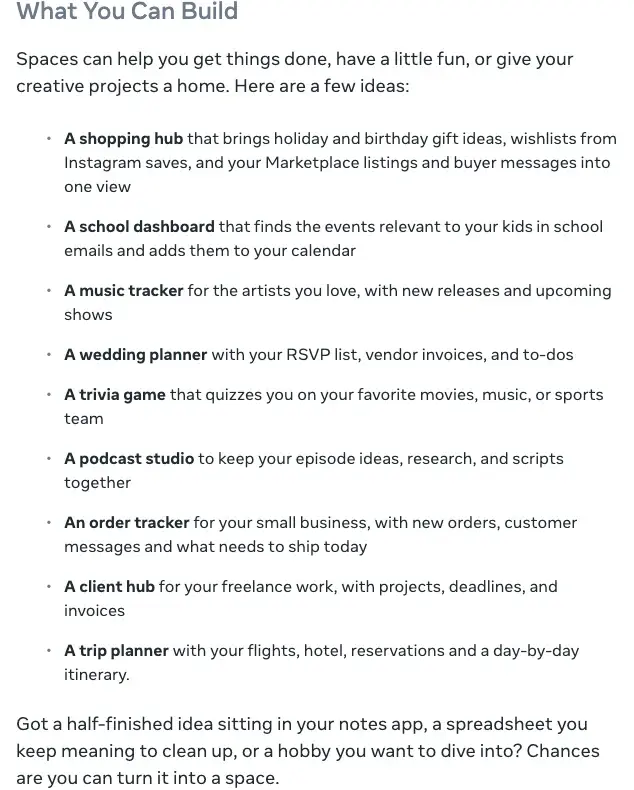
Look at which ones touch other people’s information. A school dashboard “finds the events relevant to your kids in school emails and adds them to your calendar.” A wedding planner holds “RSVP list, vendor invoices, and to-dos.” An order tracker for a small business shows “new orders, customer messages and what needs to ship today.” A client hub holds “projects, deadlines, and invoices.” A shopping hub brings in “wishlists from Instagram saves, and your Marketplace listings and buyer messages.” These are the examples where the question of what the Space can read matters most.
Can you use it where you live?
Meta’s post says only that “Starting today, spaces are available everywhere Muse is available.” It names no countries.
So the real question is where Muse is available, and we couldn’t get a clean answer from Meta. Here is what we found:
- Meta said in October that more than 10 million people in the US and Canada had set up Muse agents, per TechCrunch and PPC Land’s account of Meta’s third-quarter call.
- Meta’s Japanese newsroom announced Muse’s launch in Japan on October 23, 2026 (Japan time), calling Japan the first market outside North America. Search results also mention Singapore, which we couldn’t confirm on a Meta page.
- We found no official Meta page that lists the countries.
If you aren’t sure, the test is the Muse app itself: if it lets you create an account, you have Muse, and Meta says Spaces comes with it. If it says Muse isn’t available where you are, no guide can change that.
Meta’s Japanese launch post says many of Muse’s basic features are free and that subscription plans exist for people who want to do more. Meta hasn’t said whether Spaces needs a paid Muse plan or whether building and refreshing one counts against the free allowance. PPC Land points out the same gap. We also saw prices for Muse’s paid plans quoted online that conflicted with each other, so we aren’t repeating any.
How people are using it so far
Spaces launched on November 6, so the evidence is early and mostly informal. A Grok search of X and Reddit on November 9, which we didn’t repeat by hand, found Mark Zuckerberg’s own post from November 6, where he said he had made “a BBQ game, an event tracker, and a home control dashboard.” It also reported threads on a Muse subreddit asking what people were building, with answers such as grocery lists, personal finances, family appointments, a wine cellar tracker and exam-study material.
One early post, as Grok reported it, described building a holiday gift tracker in about three minutes and then said that it still couldn’t be shared with anyone. The inability to share was the most common complaint Grok found. It found few concrete reports of Spaces-specific bugs and couldn’t confirm a Spaces-specific paywall. All of that is second-hand and from the first few days, so read it as a mood, not a review.
We also asked Perplexity to find hands-on reviews published between November 6 and 9 by established English-language tech outlets, and it found none that it could verify. TechCrunch’s piece is a launch report, which we read, and it doesn’t claim to have tested anything.
There is one hands-on from a Japanese outlet. On November 7, Impress Watch’s Kinya Usuda (臼田勤哉) published a report in which he built three spaces: a log of movies he had watched, which filled in titles, dates and theaters from his email history; a cup-noodle timer that made no sound until he asked Muse to fix it; and a dashboard for managing data-breach notification emails, which he wrote was finished in about five minutes on Muse’s free version. The request he typed for that dashboard was specific: it named the ranking he wanted (S to D by how serious the leaked information was) and the case states (in progress, measures completed). That is a useful habit for your own first Space: say what fields, ranks and states you want.
How to start
Meta’s post describes the start in one line: tell Muse about your idea. Here is a way to use that line safely, in three steps. The prompt is ours, written to follow Meta’s description; we haven’t run it in Muse.
- Pick something with nothing in it that you’d mind losing or leaking. A gift list, a trip plan, a reading list. Not a Space for medical records, a client’s invoices or a bank balance on day one.
- Don’t connect anything yet. Build the Space with only what you type. You can connect apps later, once you’ve seen what it does.
- Describe the job, the fields and what you want to see first. For example:
Build me a space called "Holiday gifts".
For each person I list, track: name, gift idea, price, where I'll buy it, and whether it's bought.
Show a running total against a budget I can set, and show who I haven't bought for yet at the top.
Don't connect to any other app yet. Keep everything in this space.
Then use it for a few days. Check items off. Edit a field by hand. Ask Muse to change one thing about how it looks. The aim is to learn how it behaves with data you can afford to get wrong, before it has any access to the rest of your life.
What a connected Space can see
This is the part Meta’s announcement covers in two sentences: “Connect the apps you use, and your spaces keep themselves up to date in the background, so new concert dates, price changes, or savings progress show up without you having to ask.”
The announcement doesn’t say which apps, how often a Space refreshes, or what a Space is allowed to read beyond what you ask it to track. For the rules about connections, you have to go to Meta’s Muse Help Center. Its page “How Muse works with Connectors” showed “Updated: 8 weeks ago” when we read it on November 9, and it doesn’t mention Spaces. What it says about Muse in general is the best guide we have, and it is reasonable to think Spaces connect through the same system, though Meta’s Spaces post doesn’t confirm that.
What Meta’s Connectors page says
- Connecting is a choice. “You can choose to connect Muse to apps and services provided by Meta or third-parties.” You can connect by asking Muse (the page’s example is “Connect my Gmail”) or through Settings and then Connectors.
- It’s meant to take only what a task needs. Meta says Muse is designed to exchange with Connectors “only the data that’s needed for them to work for you.” Its example: “connecting your email allows Muse to search your email, but it won’t download your whole inbox (unless you tell it to).”
- Some connectors push information to Muse. “Calendar Connectors can update Muse automatically when there are changes in your schedule.” Meta says it identifies those before you connect them.
- Three Meta apps connect on their own. Facebook, Instagram and Threads “are connected automatically if you have your accounts in the same Accounts Center.” If your accounts are linked that way, check what is already connected.
- Custom connectors are on you. If you ask Muse to connect a service that isn’t on the list, “Meta doesn’t review custom connectors or how they use your information, so grant access with caution.”
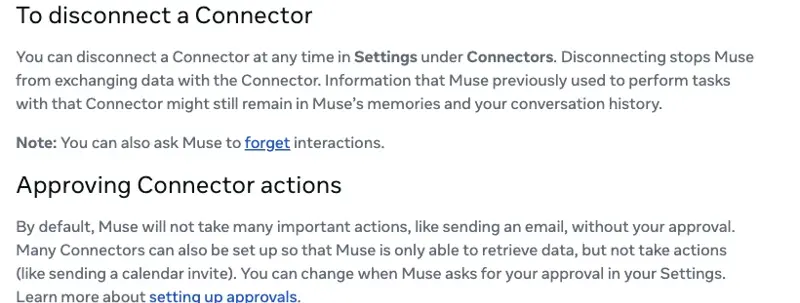
- Important actions wait for you. “By default, Muse will not take many important actions, like sending an email, without your approval.” Many connectors can also be set to read-only, “only able to retrieve data, but not take actions.” You change this in Settings.
What Meta’s pages leave out
| Question | What the pages we read say | What’s missing |
|---|---|---|
| Which apps can a Space connect to? | Spaces post: “the apps you use.” Help page: connectors for Meta and third-party apps, plus custom ones | No list in the Spaces post |
| How often does a Space refresh? | “In the background,” with examples | No interval or reliability figure |
| Do Spaces have their own permissions? | Spaces post: “personal from the start” | Whether Spaces follow extra rules isn’t said |
| Are connected-app data and Space contents used for ads? | The Spaces post doesn’t mention ads | No statement either way for Spaces |
| Can a Space be exported or run outside Muse? | Not mentioned | PPC Land notes the post gives no indication that it can |
| Is there a limit on Spaces? | Not mentioned | No count or size limit stated |
The ads row deserves a comment. PPC Land read the announcement and noted that it contains no reference to advertising, and doesn’t say whether data flowing into a space is used to personalize ads elsewhere in Meta’s apps. It also recalled that on Meta’s October 21 call, Mark Zuckerberg described an optional link: people who want Muse to help improve the personalization of their content and ads across Meta would be able to connect it to those experiences. That is a reporter’s account of a call, not Meta’s policy page. Meta’s Japanese launch post of October 23 does make a statement: it says Muse doesn’t share users’ conversations or the data inside their virtual machine with Meta’s advertising systems. That post is about Muse as a whole and doesn’t mention Spaces, so whether a Space’s contents count as conversation data is left open. Before you connect Instagram or Facebook, read Meta’s Muse privacy policy rather than this paragraph.
How to switch it off
There are four levers, from smallest to largest. They come from Meta’s Help Center pages on Connectors and on managing Muse data, read on November 9.
A few details from the same pages are worth keeping in mind:
- Disconnecting isn’t forgetting. Meta’s own words are that “information that Muse previously used to perform tasks with that Connector might still remain in Muse’s memories and your conversation history.” After you disconnect, ask Muse to forget if you want the information gone from its memory.
- The training setting reaches backwards. Meta says “Changes to this setting also apply to previous interactions.” With the setting off, your interactions “will not be used to develop and improve AI at Meta.”
- If you leave training on, Meta says it strips some personal details. Names, email addresses, phone numbers and Social Security numbers, and it disassociates the interactions from your account.
- Muse’s memory is files you can edit. Under the Assistant icon, then Identity, then Memory, the help page says you can edit and delete the memory file directly.
- Where a Space’s own contents are deleted isn’t documented. The Help Center pages we read list chats, goals, files in the Library tab, reminders and memories, and not Spaces by name. The documented route is to ask Muse in chat.
The October sharing pause, and why it matters for Spaces
As of November 9, Spaces can’t be shared, so you might think the sharing history is irrelevant. It isn’t, for one reason: Meta says it is exploring sharing for Spaces, and Muse’s conversation sharing was paused on October 20.
On October 20, 2026, Meta paused Muse’s conversation-sharing feature, according to several outlets. PPC Land reports that the security firm Claroc found more than 6,800 share hostnames in passive DNS records, because Muse placed each conversation’s title in the address of the shared page. Claroc opened some of the pages and a minority of them held things like loan details and internal revenue figures, per PPC Land.
One source we found says sharing came back on October 22 with new addresses. We found no second source and no statement from Meta, so we don’t state it as fact.
The lesson for Spaces is practical. When sharing arrives, a wedding planner with vendor invoices or an order tracker with customer messages is exactly the kind of Space that shouldn’t be shared by a link. Until Meta says how sharing for Spaces would be secured, and its announcement doesn’t, keep sensitive material out of anything that you might later share.
Questions to ask before you move a routine into a Space
Before you move something you already do in a notes app or a spreadsheet into Muse, it’s worth asking what you’d give up. The table lists the questions, what Meta’s pages say, and why each matters.
| Question | What Meta says | Why it matters |
|---|---|---|
| Does it update itself? | Yes, when you connect apps, “in the background” | Convenient, but you must decide which apps to connect |
| Can you share it? | Not as of November 9; Meta is “exploring ways” | A shared plan with a partner or team has to live elsewhere for now |
| Can you take it out? | Meta’s post doesn’t say | You may have to copy things out by hand |
| Who can see what’s in it? | Meta’s post says “personal from the start” | Read Meta’s Muse privacy policy before putting private details in |
| Where is it available? | Where Muse is | Check the app before you plan around it |
If your routine is something you share with a partner or a team, the lack of sharing alone is probably a reason to wait. If it’s something personal that you’d like to keep refreshed from a calendar or inbox, that is what Spaces is built for, with the privacy questions above to settle first.
What this means for you
If you sell things online and want an order tracker. Meta’s own example is an order tracker with “new orders, customer messages and what needs to ship today.” Your first action is to build it with no connections and made-up orders. Our earlier guide to Meta Muse for one-person businesses covers the admin setup, and it predates Spaces.
If you’re a freelancer and want a client hub. Meta lists projects, deadlines and invoices. Your first action is to keep invoice amounts and client names out of it for now, and build one with the project names and deadlines only.
If you’re a parent and want a school dashboard. Meta’s example finds events in school emails and adds them to a calendar. That needs email access, and school emails can contain other children’s names. Your first action is to build the dashboard by pasting the dates in by hand, then decide later whether to connect your email.
If you’re planning a wedding or an event. The RSVP list and vendor invoices are the most useful and the most personal items. Your first action is to build the timeline and checklist, and leave guest names for later. With no sharing yet, a partner can’t see it.
If you just want a gift tracker for the holidays. This is the safest starting point. Build it with typed-in data and no connections, and see how it behaves.
If you live outside the US and Canada. Check the Muse app before anything else. If it isn’t offered to you, you can still use this guide as a checklist for the same idea in whatever assistant you do have: describe the tool, start without connections, and learn where its settings are.
Edge cases and troubleshooting
We haven’t hit these ourselves, so each is a place Meta’s pages point at, not a fix we’ve tested.
I can’t find Spaces. Spaces comes “everywhere Muse is available,” so first check whether you have Muse and whether the app is up to date. Meta’s post doesn’t mention a staged rollout.
My Space isn’t updating. Meta says connected Spaces update “in the background,” with no schedule. Check Settings and then Connectors to see whether the app is connected. Calendar connectors can push changes to Muse; others may not.
I disconnected an app but the Space still shows its data. Meta’s help page says previously used information might remain in memories and conversation history. Ask Muse to forget it.
An app is connected that I didn’t connect. Facebook, Instagram and Threads connect automatically when your accounts are in the same Accounts Center. Check your connector list.
Muse wants approval for an action. By default it won’t take many important actions, such as sending an email, without your approval. You can change when it asks in Settings.
I want to send a Space to someone. As of November 9 you can’t. Meta says it is “exploring ways” to allow sharing. Copy the information out by hand.
I want to delete a Space. Meta’s help pages that we read don’t describe it. Ask Muse in chat, which Meta calls the simplest way to manage what it stores.
I can’t tell if I’m over a limit. Meta’s post doesn’t say whether Spaces count against free usage limits. If you hit a limit, check your plan page in the app.
What it can’t do
- Share a Space. Not as of November 9, and Meta gives no date.
- Promise how often it updates. Meta says “in the background” and no more.
- Tell you where your data goes. The Spaces post is silent on ads and on extra rules for Spaces, and the Help Center pages predate it.
- Work outside Muse’s countries. It follows Muse’s availability, and Meta lists no countries.
- Show how it was built. PPC Land notes that Meta’s post doesn’t say whether a Space is generated code or a configured template, and gives no indication that it can be exported or run outside Muse.
FAQ
What are Meta Muse Spaces? Custom tools you create inside the Muse app by describing them in chat, such as a tracker, a planner or a project board.
Is Spaces free? Meta’s post doesn’t mention a price or a plan. We saw conflicting figures for Muse’s paid plans, so we don’t state any.
Which countries have it? Wherever Muse is available. Meta’s post lists no countries. Meta has said more than 10 million people in the US and Canada had set up Muse agents, and its Japanese newsroom announced a Japan launch on October 23, 2026. We couldn’t confirm any other country on a Meta page.
Can I share a Space with someone? No. Meta says it is exploring ways to allow it.
Do Spaces update by themselves? If you connect apps, Meta says they update in the background. It gives no schedule.
Can a Space read my email? Meta’s school-dashboard example reads school emails, so a Space can, if you connect your email. Meta says connecting email lets Muse search your email without downloading the whole inbox unless you tell it to.
How do I stop a Space reading an app? Disconnect the app in Settings under Connectors. Meta says old information may stay in memories and chat history, so ask Muse to forget.
Does Meta use my Space for ads? Meta’s announcement doesn’t say. Read its Muse privacy policy before connecting Meta apps.
Is it safe to put invoices or medical details in a Space? We can’t say it is. The Meta pages we read have no rules specific to Spaces, so start with low-stakes data.
Did you try it? No. We have no Muse account, so this guide rests on Meta’s pages and coverage.
The bottom line
Spaces is a clever idea: describe a tool, get a tool, and have it keep itself current from the apps you already use. The early second-hand reports describe people building gift and wishlist trackers in a few minutes, with the main gripe being that they can’t share them. The things worth worrying about are the ones Meta’s announcement leaves out: which apps, how often, what it can read, and whether any of it feeds ads.
So start small. Build a Space with data you’d shrug off losing, connect nothing, and watch how it behaves. When you do connect an app, know the four switches and that disconnecting doesn’t erase what Muse has already used. If your routine involves other people’s information, or needs sharing, wait for Meta to explain how that will work.
For the habits that make any AI assistant safer to connect, AI Privacy 101 (first 2 lessons free) covers what to share and what to keep out. If the agent idea itself is new to you, AI Fundamentals (first 2 lessons free) is the place to start. Our earlier guide to what Meta Muse is and whether to trust it covers the agent behind Spaces.
Sources
- Meta Newsroom: Design the Muse App, Just for You (November 6, 2026)
- Meta Help Center: How Muse works with Connectors
- Meta Help Center: How to manage your Muse data
- TechCrunch: Meta introduces Spaces, a new way to collaborate with your Muse agent (November 6, 2026)
- PPC Land: Meta’s Muse gains self-updating tools that track prices and Instagram saves
- Digital Trends: Meta now lets you build your own mini-app experiences called spaces in the Muse app