Last Monday, a lot of people hosting client calls on Google Meet found out — mid-meeting, from a little pencil icon blinking in the corner — that Gemini was already writing down everything they said. Nobody flipped a switch. Google did, three months ago, and the change just landed.
If you run Google Meet on a Business Standard or Business Plus plan, as of September 21, 2026, any meeting you host with three or more people gets an AI note-taker turned on automatically. Not “available.” Not “one click away.” On. You can turn it off — but only if you know it’s there, and most people don’t.
This isn’t the “how do I turn on Meet notes” post you’ve read a dozen times. This is the other one: what changed, how to check if it’s already on for you, how to kill it cleanly for a call that shouldn’t be transcribed, and how to actually use the recap Google hands you instead of ignoring it in your Drive forever.
What Just Changed
Here’s the thing people are getting wrong about this rollout, including some of the coverage of it: “Take notes for me” isn’t new. Google shipped the core feature back in August 2024, tucked inside Gemini Enterprise and a few add-on bundles. It got folded into regular Business and Enterprise editions in January 2025. What happened in June 2026 was Google extending it to individual Google AI Pro and Ultra subscribers — a consumer move, not a Workspace one.
And it’s not a niche feature nobody uses. Google says over 110 million meeting attendees used “Take notes for me” in a single recent month, with usage growing 8.5x year over year. That growth is exactly why the September default-on flip matters more than a typical settings tweak — this isn’t Google nudging a handful of early adopters, it’s Google taking a feature that was already mainstream among people who opted in and making it the baseline for everyone who didn’t.
What actually happened on September 21 is narrower, and more disruptive, than either of those: Google added a third policy option to the admin console — automatic notes for any meeting with three or more people — and set that option to ON by default for Business Standard and Business Plus tenants only. Enterprise Standard, Enterprise Plus, Frontline Plus, and the Google AI Pro for Education add-on all stay OFF by default. If your org fits one of those, this whole rollout is a non-event for you (for now — see the edge cases below on why that’s not permanent peace of mind).
A few specifics worth nailing down, because Google’s own help text is a little inconsistent about them:
- The threshold is three total people, including you as host. Not three guests plus you. Google’s admin documentation says “three or more people”; the end-user toggle is labeled “3+ guests,” which reads differently but means the same thing in practice — notes kick in the moment a third person joins.
- The rollout itself is gradual. Google’s own language is “no sooner than September 21,” with the full switch-over taking up to 15 days. So if your notes didn’t start yet, that’s expected, not a sign you’re exempt.
- This only affects meetings you host and schedule. It doesn’t touch ad-hoc calls someone else organizes, and it doesn’t apply retroactively to meetings that already happened.
Where do the notes actually go? Gemini writes a Google Doc — a short summary plus a longer version with decisions and action items — and drops it in a “Google Meet” folder inside your Drive (the host’s, specifically), with a subfolder per meeting. It also attaches to the Calendar event and, depending on your sharing setting, emails a link to invited guests. Default sharing is “invited guests in your organization” — so if a client joined from outside your company domain, they may not automatically get the recap even though they were on the call. That trips people up constantly, and it’s the first thing to check if a client asks “where’s my copy?”
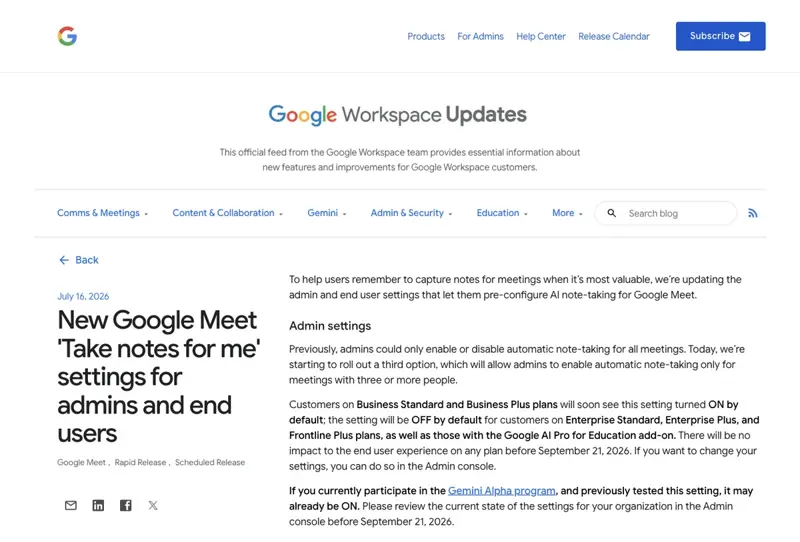
The official Google Workspace Updates post from July 2026 announcing the new admin policy — this is the source of the September 21 default-on change. Source: Google Workspace Updates.
Why This Isn’t (Yet) a Privacy Firestorm
Given how default-on AI capture usually plays out online, you’d expect a wave of “Google is secretly recording me” posts this week. It hasn’t happened — and the reason why is worth understanding, because it tells you what’s actually likely to go wrong here.
Scanning through the reaction since the rollout window opened, the loudest complaints aren’t about surprise or consent at all. They’re about the feature just not being very good. One widely-viewed post grouped “Take notes for me” alongside a handful of other AI features people consider more annoying than useful — the complaint being an unwanted button nobody asked for, not a hidden microphone. That’s a meaningfully different problem than what you’d expect from a “default-on surveillance” story, and it means the backlash — if it comes — is more likely to be “please let me turn this off easily” than “sue Google.”
The genuine consent-and-recording anger circulating right now is aimed somewhere else entirely: at third-party notetaker bots like Otter, which join meetings as a visible-but-separate participant and have already drawn a lawsuit alleging unauthorized recording under wiretap and privacy law. Gemini-in-Meet is architecturally different — it’s not a guest joining your call, it’s a feature of the platform itself, with a built-in on-screen notice. That distinction is doing real legal and reputational work for Google right now, even though the notice-versus-consent gap discussed later in this piece is still very real.
The most likely explanation for the quiet is simple timing. Google’s own rollout language says end-user defaults take effect “no sooner than” September 21, spreading gradually over up to 15 days. A lot of Business Standard and Plus tenants simply haven’t hit the switch-over yet. What chatter does exist right now skews toward IT admins and Workspace partners — in Dutch, Korean, and English — reminding each other to check the setting before their own users get surprised on a call. That’s a signal worth taking seriously: the people paying closest attention to this right now are the people whose job it is to prevent exactly the scenario this post is walking you through.
How to Check, Turn It Off, and Turn the Recap Into a Real Follow-Up
There are three things you need to be able to do here, and most guides only cover the first one badly. Let’s go through all three.
Step 1: Check if it’s actually on for you
Don’t guess — check. Two places to look:
- In Google Meet itself: open the Meet home screen (not mid-call), click your settings gear, and look for “Take notes for me” or “Meeting records.” You’ll see one of three states: off, on for all meetings you host, or on for meetings with 3+ guests. If you see that third option checked and you never touched it, that’s your admin’s default, inherited automatically.
- In a live meeting: if notes are running, you’ll see a small pencil icon and a banner telling everyone Gemini is taking notes. That’s Google’s built-in notice — it’s not nothing, but it’s not the same as asking permission (more on why that distinction matters legally, later).
If you don’t see the toggle at all, you’re either not on a plan that includes it (Business Starter doesn’t have this entitlement), or your admin hasn’t rolled the setting to your organizational unit yet. Either way — that’s a real edge case, and it’s covered below.
On mobile, the path is slightly different but worth checking separately — don’t assume your desktop setting carries over cleanly. Open the Meet app, tap your profile icon, go to Settings, and look for the same “Take notes for me” entry. Google’s mobile and in-person meeting note-taking rolled out later than the desktop version (mid-2026), so if you only checked one device, check the other too. A surprising number of people discover their desktop setting is off but their phone’s is on, because they toggled one and assumed it applied everywhere.
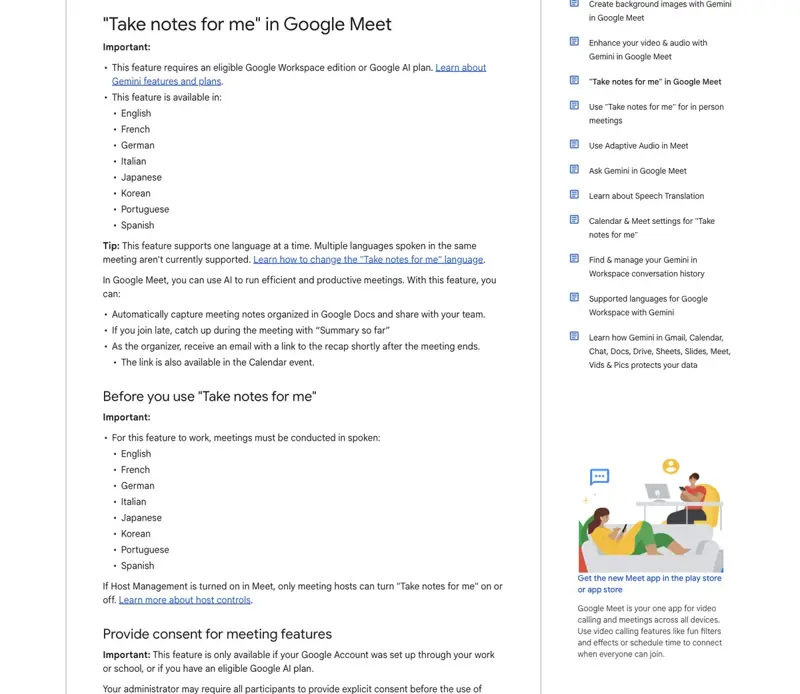
Google’s official help documentation for “Take notes for me” — this is where the setting paths and sharing controls referenced throughout this post are documented. Source: Google Meet Help.
Step 2: Turn it off cleanly for a sensitive call — and what to say instead
For a one-off private conversation — a performance review, a legal call, an interview, anything where a transcript sitting in your Drive is a liability rather than a convenience — you have two options.
Option A — turn it off before the meeting starts. From your Meet settings, flip “Take notes for me” to off, or just don’t select 3+ guests as your default. This is the move if you know in advance a call shouldn’t be recorded.
Option B — stop it mid-meeting. Click the pencil icon in the top corner during the call and select “Stop taking notes.” Depending on your admin’s host-control settings, this either stops it for everyone or just removes your own access — worth testing once before you need it for real.
Neither of those solves the actual problem, though, which is that most people on the call don’t know notes were ever running unless you tell them. So say it. Out loud, at the start of the call, every time. Something like:
“Quick heads up before we start — Gemini’s taking notes on this call so I can send you a clean recap afterward instead of scribbling while we talk. I’ll share it with just the two of you unless you’d rather I skip it — just say the word.”
That’s it. Fifteen seconds, and it does two things at once: it satisfies Google’s own guidance that hosts should announce AI capture, and it gives anyone uncomfortable with it a clean, low-friction way to opt out before it matters. If someone does object, stop notes for that call and take your own.
Step 3: Turn the recap into a client-ready follow-up email
This is the part nobody covers, and it’s the actual reason the feature is worth keeping on for most client-facing work. Here’s a full worked example.
The scenario: You’re a consultant. You’re on a 30-minute call with a client’s VP of Ops and their finance lead — three people, so notes kick in automatically. You didn’t think about it in advance. Fine. Here’s the raw recap Gemini hands you afterward:
Meeting Summary — Q4 Ops Review Discussed current fulfillment delays (avg. 4.2 days vs. 2-day target). Finance flagged budget for a new WMS integration is capped at $40K this quarter. Client wants a vendor shortlist before their board meeting on Oct 9. Agreed to revisit shipping carrier contracts once shortlist is done.
Decisions:
- Prioritize WMS integration over carrier renegotiation this quarter
- Budget ceiling confirmed at $40K
Action Items:
- Consultant to deliver vendor shortlist
- Finance to confirm Q1 budget carryover possibility
- Ops to pull current fulfillment data by SKU
That’s usable, but it’s not client-ready — no owners, no dates, no tone. Here’s the prompt to fix that, dropped into any chatbot with the recap pasted in:
Turn this meeting recap into a follow-up email to the client. Rules:
- Assign a clear owner to every action item (me = [Your Name], or the client's team member if the recap implies it)
- Add a specific due date for each item — infer a reasonable one if none was stated, and flag it as "proposed"
- Keep it under 200 words
- Warm but professional tone, no corporate filler
- End with one line confirming the next touchpoint
And here’s what comes back — the actual email you’d send:
Subject: Recap + Next Steps — Q4 Ops Review
Hi [Client Name],
Good talking today. Quick recap so we’re aligned before the board meeting on Oct 9:
Where we landed: WMS integration takes priority over carrier renegotiation this quarter, with the $40K budget confirmed.
Next steps:
- I’ll send a vendor shortlist by Sept 26 (proposed — let me know if you need it sooner given the board date)
- Your finance team to confirm Q1 budget carryover by Sept 29
- Ops to pull fulfillment data by SKU by Sept 25, so I can factor it into the shortlist
I’ll follow up once the shortlist’s ready. Let me know if I got anything wrong above.
Best, [Your Name]
Four minutes, start to finish, and it beats what most consultants send from memory two days later. That’s the actual pitch for keeping this feature on for client work — not “AI takes notes,” but “AI takes notes accurately enough that turning them into a real deliverable takes four minutes instead of forty.”
Google Meet vs. Zoom vs. Teams: Who Else Has Flipped the Default?
Google isn’t the first to ship an AI notetaker. It is, as of this rollout, the first of the big three to make one start automatically for an entire paid tier without the host opting in per meeting. Here’s how the defaults actually compare, based on each vendor’s own documentation.
| Google Meet (Gemini) | Zoom AI Companion | Microsoft Teams (Copilot / Facilitator) | |
|---|---|---|---|
| Core feature launched | Aug 27, 2024 (GA); bundled into Business/Enterprise Jan 2025 | Sept 2023 (Meeting Summary) | Intelligent Recap GA May 2023; Copilot Nov 2023; Facilitator GA late Sept 2025 |
| Default state, tenant-wide | ON by default for Business Standard/Plus meetings with 3+ people (no sooner than Sept 21, 2026) | OFF by default; admins/users can opt into auto-start, but no platform-wide default flip | OFF by default; Copilot/Facilitator must be manually started per meeting even when licensed |
| Automatic start | Yes, for affected accounts — starts the moment a 3rd person joins | No default auto-start; a separate “auto-start on meeting begin” setting exists but isn’t the baseline | No — user or host must click to start Copilot/Facilitator each time |
| Consent mechanism | Pencil icon + notification is default; a separate “require explicit consent” toggle exists but is OFF by default | In-meeting notification when summary starts; optional consent requirement, account-owner controlled | Notification on record/transcribe start; explicit consent setting exists, OFF by default (mandatory pre-meeting consent rolling out as of Sept 2026) |
| Where output lands | Google Doc in host’s Drive → Meet folder; Calendar attachment; email recap | Meeting card / Meetings page; can be emailed or posted to Team Chat | Recording/transcript in host’s OneDrive (or SharePoint for channel meetings); Facilitator notes in meeting chat |
| Post-meeting sharing default | Internal invitees only (admin-changeable; hosts can be locked out of changing it) | Admin/user-controlled; external sharing can be restricted | Follows OneDrive/SharePoint permissions and meeting roles |
The honest read: Zoom and Teams both can be configured to auto-start their AI tools, and plenty of orgs do turn that on. But neither vendor’s documented baseline flips an entire paid tier to automatic capture the way Google just did. If you use all three tools across different client relationships (common for consultants and agencies), that inconsistency is exactly why “I assumed it worked like Zoom” is going to be a real source of confusion for the next few months.
There’s a second gap worth flagging, because it’s easy to miss: Microsoft’s own documentation notes a mandatory pre-meeting consent configuration rolling out for Teams around this same window — meaning Microsoft is moving toward more explicit consent infrastructure at roughly the same time Google shipped a default that relies on a passive on-screen icon. If you’re choosing a platform partly on AI-notetaker trust, that direction of travel matters as much as where each vendor stands today.
What This Means for You
If you’re a solo real estate agent on Business Standard: Your buyer and seller calls almost always hit three people once an agent, a client, and a co-buyer or spouse join. Notes are probably already on. That’s genuinely useful for you — showing recap-quality follow-ups is a differentiator — but announce it on the first call of any new client relationship, once, and move on.
If you manage a 10-person consulting team on Business Plus: This is now a firm-wide policy decision, not an individual one. Set your sharing default to “hosts and co-hosts only” at the admin level rather than trusting every consultant to remember, and write one paragraph into your client onboarding doc about AI notes being standard practice. Do this before a client asks why a stranger’s name is on a Drive share notification.
If you’re on Google Workspace Enterprise Standard or Plus: You’re in the default-OFF cohort — nothing changed automatically for you. But don’t mistake that for “this doesn’t apply to me.” Someone on your team may have opted in individually, or your admin may flip the tenant default later. Check your own Meet settings once, just to know where you stand.
If you have no paid Google Workspace plan at all (free personal Gmail, or you’re on a competitor): none of this touches you directly, but it’s worth knowing your Google-Workspace clients and vendors may now be taking AI notes on calls with you by default. If that matters to you, ask at the start of the call — you’re allowed to.
If you’re a recruiter running candidate screening calls: This is a genuine caution zone, not just a productivity win. Candidate interviews increasingly get flagged in AI-bias discussions, and a Drive full of AI-generated interview transcripts is exactly the kind of record a plaintiff’s attorney would ask for in a discrimination claim. Turn notes off for screening calls, or at minimum, get explicit verbal consent and keep it out of default all-invitee sharing.
If you’re an account manager or salesperson on client renewal calls: Keep it on, but change your sharing default to internal-only. A recap of a tense renewal conversation landing in a client’s inbox verbatim, phrased exactly how Gemini interpreted it (not how you’d have written it), can undo relationship work in one email.
If you’re a project manager running weekly status calls with 3+ stakeholders: This is close to the best-case use of the feature. Standing meetings, repeat attendees, low sensitivity, high value in consistent action-item tracking. Let it run, but spend five minutes setting up a Drive folder rule so a quarter’s worth of status-call recaps don’t get buried.
Edge Cases and Troubleshooting
“The recap went to the wrong person’s Drive.” Notes always save to the host’s Drive, not the organizer’s calendar identity if those differ (common when an EA schedules for an exec). If you’re the EA who scheduled it, you may not have access to the notes at all — the person who actually clicked “Start meeting” does.
“A client told me nobody said notes were being taken.” This happens most often on recurring meetings, where the first instance got an announcement and every instance after it didn’t. Fix: put a one-line notice in the recurring meeting’s description (“This series uses Gemini AI notes — let the host know if you’d like it off for a specific session”) so it’s not a per-call decision you have to remember.
“I can’t find the toggle — am I not an admin?” You don’t need to be an admin to see your own Meet notes setting, but you do need your org to have rolled the option to your organizational unit. If it’s genuinely missing, either your edition doesn’t include it (Business Starter has no entitlement) or your admin hasn’t enabled it yet — ask them, don’t assume it’s broken.
“Notes started even though I only invited two other people.” Check who actually joined, not who was invited. The three-person threshold counts live participants, including anyone who dialed in by phone or joined from a Meet hardware device in a conference room — both of which are treated as automatically consenting under Google’s system, with no individual notice shown to them.
“The sharing settings say ‘all invited guests’ but my external client says they never got it.” Calendar invite visibility and actual Drive access permissions aren’t the same thing. Being on the invite doesn’t guarantee Drive access if your org’s sharing policy restricts external recipients — this is a documented gap, not a bug you’re imagining.
“The action items in the recap are wrong — it invented a decision we didn’t make.” This is a real, documented failure mode of AI summarization generally, not specific to Gemini. Treat every recap as a draft that needs a 30-second human read before it goes anywhere near a client, especially for anything resembling a commitment or a number.
“Someone asked me to stop notes mid-call and I couldn’t find the button fast enough.” Practice this once before you need it live — click the pencil icon, find “stop taking notes,” know the path cold. Fumbling for a UI element while a candidate or client is visibly uncomfortable is worse than the notes themselves.
“My in-person meeting captured a slide screenshot I didn’t want shared.” The mobile/in-person version of “Take notes for me” auto-captures screenshots when a presentation displays for 10+ seconds. If you’re presenting anything confidential you don’t want archived, either present from a device not running the Meet app, or stop notes before switching to that slide.
“The recording ran in a language I didn’t expect, and half the notes are garbled.” Gemini currently transcribes in one language per meeting — English, French, German, Italian, Japanese, Korean, Portuguese, or Spanish — chosen automatically based on what it hears first. If a call switches languages partway through (common on international client calls), you’ll get a notification asking whether to switch, but if nobody catches it in time, the back half of your notes can come out mangled. Worth mentioning at the start of a multilingual call which language to expect.
“I’m the host, but a co-host turned notes off without telling me.” If your org has host controls enabled, anyone with co-host status can start or stop notes for the whole meeting, not just you. That’s useful for delegating the “remember to hit stop” job, but it also means you can’t assume notes ran just because you turned them on — check the actual Drive folder afterward if it matters.
What This Can’t Fix
Be honest with yourself about the limits here, because the feature’s convenience makes it easy to over-trust.
It doesn’t retroactively delete recordings or notes taken before you knew about this. If notes were on for weeks before you noticed the pencil icon, whatever got captured already lives in your Drive (and possibly a client’s inbox). Turning the setting off now doesn’t undo that — you’d need to manually find and delete those docs if that matters to you.
It doesn’t cover you if you’re on Enterprise or Education and someone opted in individually. Tenant-wide defaults and individual overrides are separate systems. A default-OFF org can still have Gemini-notetaking employees if nobody’s checked.
It does not replace actual legal consent in two-party (all-party) consent states. The pencil icon and on-screen banner are notice, not documented affirmative consent. In states like California, Illinois, or Pennsylvania — where every participant’s consent is legally required to record a conversation — a visual icon alone is a weaker legal position than Google’s own separate “explicit consent” admin setting, which is off by default and has to be turned on deliberately if you actually need it.
It doesn’t fix the accuracy problem. AI-generated summaries can misattribute statements, invent decisions that were only discussed as options, and miss context a human note-taker would have caught. Treat every recap as a first draft, not a record of truth.
It doesn’t protect you from a subpoena or legal hold. Notes saved to Drive are subject to your org’s normal retention and Vault legal-hold policies — turning off notes going forward doesn’t remove documents already captured, and if your organization is under a legal hold, deleting them yourself may not be an option regardless.
It doesn’t shift the compliance burden off you and onto Google. This one trips up a lot of managers: Google’s own Cloud Data Processing Addendum treats Google as the processor and your organization as the controller. In plain terms, that means the legal responsibility for having a valid reason to process someone’s voice and words — under GDPR or otherwise — sits with whoever hosts the meeting, not with Google. An admin console default doesn’t transfer that responsibility. If your org operates in the EU or handles EU residents’ data, a tenant-wide default-on setting is exactly the kind of “processing by default” that Article 25 of GDPR asks controllers to actively justify, not passively inherit. If that’s you, it’s worth a five-minute conversation with whoever handles data protection at your company before you assume the default is fine to leave alone.
FAQ
Is Google Meet recording me without telling me? Not silently — Google shows a pencil icon and an on-screen notice to everyone on the call when notes are active. But that notice only appears if you’re paying attention, and it’s not the same as someone verbally telling you at the start of the call, which is why announcing it out loud still matters.
How do I know if it’s on for my account right now? Open Google Meet (not mid-call), go to settings, and look for “Take notes for me.” You’ll see it set to off, on for all meetings, or on for meetings with 3+ guests. If you’ve never touched that setting and it shows one of the “on” states, that’s your admin’s Business Standard/Plus default.
Can I turn it off for just one call without changing my permanent setting? Yes — click the pencil icon during the meeting and select “stop taking notes,” or decline to select it when the meeting starts if you’re prompted. Your default setting for future meetings stays unchanged.
What happens to notes after the meeting ends? Gemini generates a Google Doc — summary plus a longer version with decisions and action items — saved to a “Google Meet” folder in the host’s Drive, attached to the Calendar event, and emailed to invitees based on your sharing setting (default: internal invitees only).
Does this apply to free personal Google accounts? No. This specific default-on change applies to Google Workspace Business Standard and Business Plus tenants. Personal Google AI Pro and Ultra subscribers got note-taking access in June 2026, but it’s opt-in for them, not default-on.
Is this legal in two-party consent states like California? The feature’s built-in notice (the pencil icon) provides some notice, but it’s a weaker legal position than documented affirmative consent from every participant. If you’re regularly on calls with people in strict all-party-consent states, turn on Google’s separate “require explicit consent” admin setting and get a verbal yes at the start of the call — don’t rely on the icon alone.
Does turning off “Take notes for me” also stop the meeting from being transcribed? Not necessarily. Transcription and note-taking are related but separate settings in Google Meet’s admin console. If you need to guarantee no transcript exists, check both settings, not just notes.
How is this different from Gemini writing follow-ups in Gmail or Docs? Those are separate Gemini surfaces that act on content you already have. This feature specifically listens to and summarizes a live Meet call — it’s the capture step, not the writing-assistance step, though you can absolutely feed its output into Gemini (or any chatbot) afterward to draft the follow-up, as in the worked example above.
My org is on Enterprise — could this default flip on us later without warning? Google hasn’t announced that, and Enterprise/Frontline Plus/Education explicitly stay OFF in this rollout. But given that Google expanded this feature’s reach three times in under two years (2024, 2025, 2026), don’t assume permanence — check your admin console’s Gemini settings periodically rather than assuming today’s default is forever.
The Bottom Line
Google didn’t sneak this feature in — it announced the policy change back in July and gave admins six weeks to prepare. But announcements to IT departments don’t reach the person hosting a client call, and that gap is where the actual problem lives. The fix isn’t complicated: know your setting, say it out loud when notes are running, and don’t trust a recap enough to skip reading it before it goes to a client.
Used well, this is a genuine time-saver — the worked example above turns a messy recap into a client-ready email in about four minutes. Used carelessly, it’s a privacy incident waiting for the wrong call. The difference is entirely about whether you checked your settings before September 21 made the decision for you.
If you want the fuller workflow — picking the right note-taking tool for your setup, building a consent habit that doesn’t feel awkward, and turning recaps into a repeatable follow-up system — our free AI Meeting Notes course walks through all of it in about two hours, no login required for the first two lessons.
Sources:
- Google Workspace Updates: New Google Meet “Take notes for me” settings for admins and end users
- “Take notes for me” in Google Meet — Google Meet Help
- Google Workspace Updates: Control “Take notes for me” directly from Google Meet hardware touch controllers
- Google Workspace Updates: Take Notes for me for in-person meetings is now available
- Google Meet “Take notes for me”: check admin default before Sept 21 — KMO.partners
- Knowledge.workspace.google.com — Gemini admin toggle and consent settings documentation
- European Data Protection Board — Guidelines on the use of consent and legitimate interest
- Federal Wiretap Act / ECPA text — govinfo.gov
- Reed Smith — State two-party consent recording law analysis
- Barnes & Thornburg (btlaw) — AI notetaker litigation coverage (Brewer v. Otter.ai)
- Microsoft Learn — Teams Copilot and Intelligent Recap documentation
- Zoom Support — AI Companion Meeting Summary settings
- Google Cloud — Workspace Data Processing Addendum
