
The question any teacher asks about an AI tutor is easy to state: if my students use one, will it just hand them the answer? On November 3, 2026, Google started rolling out its answer inside Google Classroom. A teacher can attach a Guided Learning activity to an assignment, point it at the class’s own materials, and then read what the students asked. On November 4, Google’s Workspace Updates post linked the Help Center articles that say how.
This guide walks through those articles as a teacher would use them: what has to be switched on before you see the option, the click path to assign it, what your students will see, how to read the insights without over-trusting them, and what to do when something doesn’t show up. We’ve also put in a short routine for using the results, clearly marked as our suggestion.
One honest note first. We haven’t assigned a Guided Learning activity ourselves, because we don’t have a Workspace for Education teacher account to test with. Every step below comes from Google’s own pages, which we read on November 5, and we say where Google is quiet. The screenshots are of Google’s Help text, not of the product.
What Guided Learning in Classroom is
Google’s Workspace Updates post of November 4 describes Guided Learning as “a mode in the Gemini app designed to help students deepen their understanding with step-by-step guidance, rather than giving the answer.” The new part is the Classroom integration, which lets a teacher “add Guided Learning to any assignment.”
The teacher Help article says it “acts as a personal AI tutor that uses your uploaded class materials to help students work through complex concepts,” and that it “will ask guiding questions and offer hints, rather than defaulting to providing direct answers.” Google’s blog says the design is grounded in its LearnLM research and built around “stimulating curiosity, providing scaffolding, facilitating productive struggle, and offering graduated hints.”
Three things make the Classroom version different from the Guided Learning mode a student might open on their own in Gemini:
- You choose the material. You attach sources from your class, so the tutor works from what you’re teaching.
- The student view is narrowed. When a student opens the activity, “the Gemini side navigation panel is automatically hidden, new chats are disabled within the tab, and they remain in Guided Learning mode.”
- You can see what happened. Teachers get “AI-generated insight summaries in Classroom based on students’ conversations” at both the class and student level, and can open individual chat transcripts.
Google also lists four ways it expects teachers to use it: scaffolded support for STEM problem-solving, open-ended exploration and extension tasks, brainstorming project ideas before a group discussion, and on-demand help during homework and remote study. Those are Google’s suggestions, not findings.
When it’s available
Google’s post says the rollout began on November 3, 2026, as an “extended rollout (longer than 15 days for feature visibility)” for both Rapid Release and Scheduled Release domains. It covers “Education Fundamentals, Standard, and Plus,” and it’s “rolling out globally in all Gemini-supported languages.”
That “longer than 15 days” phrase is the one to remember. If you’re reading this on November 5 and your Classroom has no Guided Learning option, Google’s own timeline allows for that, and it’s not a sign you’ve done something wrong.
Before you start: four checks
If the option is missing, the first place to look is a setting your administrator controls. Run through this list first.
| Check | Where it comes from | If it’s not true |
|---|---|---|
| Gemini is on for you | Admin: you must be in a group or OU with Gemini set to On | You can’t create the activity or review insights |
| Gemini is on for your students | Admin: students must be in a group or OU with Gemini set to On | They can’t use the activity |
| Your domain has the rollout | Extended rollout began Nov 3 | Wait; Google says visibility can take more than 15 days |
| You’ve done Gemini onboarding | Help article, preview step | You’ll be asked to complete it |
Google’s teacher article states the first two in its own “Important” box: “Your admin must enable access to the Gemini App for you to create a Guided Learning activity and review Insights,” and students “must also have admin-enabled access to the Gemini App.”
There’s a useful detail for mixed classes. If your admin has turned the Gemini app off for every student in a class, “you will see a notice, but can still create a Guided Learning activity.” If only some students have access, you can find out who doesn’t by clicking View Students. Either way, the next move is a message to your admin, and the message is easier to write when you know which students are affected.
One note on editions. Google’s rollout post lists Education Fundamentals, Standard, and Plus. The Help article adds that “Guided Learning insights are available to teachers on all Google Workspace for Education editions.” We read those as consistent, but the edition details are Google’s to explain, so check with your admin if it matters for your school.
How to assign it, step by step
Here’s the path from Google’s teacher Help article, in order. It describes the desktop version, since the article starts “On your computer.”
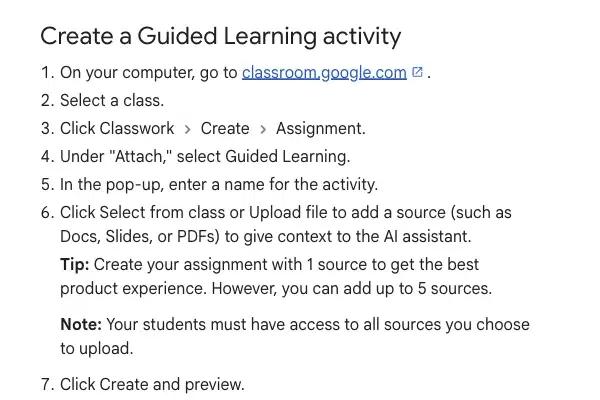
Step 1. Go to classroom.google.com and open your class. Select the class you want to assign to.
Step 2. Click Classwork, then Create, then Assignment. You’re making a normal assignment, and Guided Learning is something you attach to it.
Step 3. Under “Attach,” choose Guided Learning. A pop-up asks you to name the activity. Pick a name students will recognize, since it’s what they’ll click.
Step 4. Add your source. Click “Select from class” or “Upload file” to add something like Docs, Slides or PDFs “to give context to the AI assistant.” Here Google gives a clear recommendation: “Create your assignment with 1 source to get the best product experience. However, you can add up to 5 sources.” It also warns that “your students must have access to all sources you choose to upload.”
That last warning has a practical side. If you attach a Doc that you haven’t shared with the class, the student’s activity depends on a source they can’t open. Check sharing before you assign.
Step 5. Click “Create and preview.” Google says that “in the preview tab, you can test the student experience before assigning it.” If you haven’t used Gemini before, “you’ll need to complete Gemini onboarding to proceed.”
Use the preview. It lets you see what a student will see before it’s live, and you can try the sort of questions a stuck student would ask.
Step 6. Add instructions, if you want them. In the assignment’s Instructions section you can write directions for students, as with any assignment. But Google is explicit: “Instructions are for students, and will not be referenced by Gemini in the Guided Learning activity.”
This is a point teachers will trip on. If you write “only help with questions 1 to 5, and don’t explain the last one,” the tutor will not see that. What the tutor knows comes from the sources you attached. So any guidance you want it to follow has to be in the material, not in the instruction box.
Step 7. Return to Classroom, set the assignment, and click Assign. Google adds a tip that Guided Learning “connects with Class Tools, so you can easily share and lock learning resources to students’ ChromeOS devices.”
Reuse and housekeeping
Three details from the same article are worth knowing before you build a set of them:
- Attaching a Guided Learning activity to a Classroom post “automatically shares” it with your students.
- You can “reuse your Guided Learning assignments across classes.” If you make a new class with Class Copy, “new copies are created of any attached Guided Learning activities in the new class.”
- If you delete a post that has a Guided Learning activity, that “removes student access to the activity, but does not delete the student’s past conversations.”
Choosing what to attach
Google says one source works best, so think about what a single source should be. We don’t have a test to point to, so this is reasoning, not a finding. A tutor that works from one focused handout, one worked-problems set or one reading is working from a smaller, clearer pile than one pointed at five documents. And remember that the tutor reads the sources, not your instructions, so a source with the key definitions and a worked example in it will do more for you than a long list of tasks.
What students see
Google’s student Help article describes the student side. The student goes to classroom.google.com, selects the class, clicks Classwork, opens the assignment and clicks the Guided Learning attachment. “A new tab will open a simple ‘Focus Mode’ to help reduce distractions and keep you focused on the Guided Learning activity.” Then they type their question or response in the chat box and click Submit.
A few details matter for how you plan the lesson:
- Conversations live in Classroom. “Your conversation history with a Guided Learning activity assigned by your teacher will not show up in the left side panel in Gemini,” Google says. Students find these chats under Classwork. That means a student can’t reopen the chat from the Gemini app.
- The tutor is supposed to coach. Google’s student article says “Guided Learning is designed to help you learn, not to give you direct answers. If you get stuck, it will ask guiding questions, break down problems step-by-step and offer hints.” That’s the design, and Google’s own student page also says “Gemini is AI and can make mistakes, so double check it.”
- Students are told you can read the chat. The student article says: “You will see a message in Guided Learning activities so you know which conversations your teachers can see.” More on that in the privacy section.
- ChromeOS gets extra controls. Google’s rollout post says that for classes using ChromeOS and Class Tools, the activity can be launched “to maintain a secure, unified, and locked-down environment where students are focused on a single tab and teachers can remotely view students’ screens to monitor progress.”
Reading what happened: insights and transcripts
After students have worked on the activity, you can read what they asked. Google gives three ways in. From Classwork, you can use “Class learning tools” at the top and click “View more” next to Insights; or you can open the expanded classwork card and click the Insights button under the Guided Learning attachment; or from a student’s work page, click Insights.
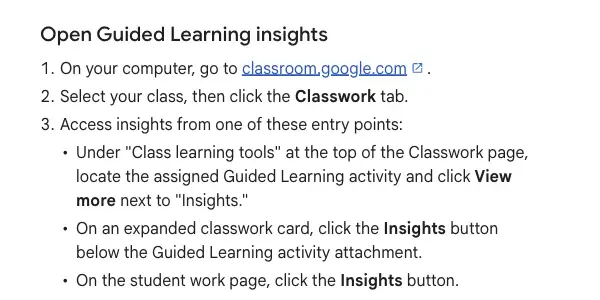
The class view
On the Insights page, Google says the class overview shows two things.
Usage information. This is the engagement status, “including how many students have opened or started conversations with a Guided Learning activity.” That’s the quickest way to see who hasn’t started.
Class insights. Here you get an “Overall summary,” which “highlights the primary ways students interacted with the Guided Learning activity,” and “Insight themes,” a sample of common themes “such as potential areas to support, areas of strength and common questions.” Next to a topic you can click View details to see “a sample of student questions and view full transcripts.”
The individual view
From the Insights page, the student list is on the left. Click a name and you’ll see a status (“Opened” or “Started a conversation”), the date the student last opened the activity, and a link to the conversation. There’s also an “Email student” option at the top right of the card. Under Student insights you get that student’s own summary and themes, and a View details button opens the full transcript in a dialog window.
Google adds one condition: “Transcripts are only available when Gemini activity is on.”
What the insights are, and aren’t
Google is direct about the limits, and they’re worth reading to your department:
- “Insights are generated by AI and can make mistakes.”
- They are “intended as an aid and are not intended for assessment or placement.”
- Google says to “always review and double-check summaries against student work and chat transcripts to ensure accuracy.”
- “Insights summaries have usage limits.” If conversations go over them, “insight summaries will not be generated, but you can still view the chat transcripts.” Google suggests assigning to “smaller groups of students” or “reducing the number of prompts.”
- “If an admin allows students to delete their chat history in Guided Learning, deleted chats will no longer appear in the teacher’s chat transcripts view.”
- Insights aren’t combined across classes: “Insight summaries are not aggregated across multiple classes.”
Put plainly, the summary is a map and the transcript is the ground. Use the summary to decide where to look, and look at a few real transcripts before you act on what it says.
A simple routine for using the results
This part is our suggestion, not Google’s, and we haven’t tried it with a class. It’s a way to keep the insights useful without turning them into a second job.
- Look at usage first. Who hasn’t opened it? That’s a conversation about access or motivation, and it needs no AI.
- Read the overall summary and the themes. Pick one or two themes that match what you saw in class.
- Open two or three transcripts behind a theme. Check that the summary matches what students actually asked.
- Decide one change. A five-minute re-teach, a worked example on the board, a different source for next time.
- Leave the grading alone. Google says insights aren’t for assessment.
The goal is to find the places where students got stuck and the questions they were embarrassed to ask out loud. One Year 9 teacher in Google’s UK pilot described exactly that: “a lot of the students were asking [Guided Learning] things they weren’t comfortable saying out loud.” That’s a quote from a teacher Google chose to feature, so read it as one teacher’s experience.
Telling students, and protecting them
Because the transcripts are visible to you, a few habits matter.
Say it out loud. Google’s student page says students will see a message about what teachers can see. Still, tell them yourself, at the start, in plain words: you can read what they type into this activity, you can’t read their other Gemini chats, and you’re reading it to find out what to teach, not to catch them out.
Google’s student article draws the same line about visibility: “Your teacher will not be able to see chats with Gemini that they did not assign.” And the Help article for teachers says “Student interactions with Gemini not assigned by their teacher, including chats created by students, will not be visible to teachers.”
Be careful what you attach. The tutor works from your sources, and students must be able to open them. That’s a reason to attach clean materials: a handout, a reading, a problem set. Leave out anything with student names, grades or notes about individual children. That’s our advice, not a Google rule.
Remember the school account. Google’s student article says “because your account is provided by your school, school administrators may still be able to review account activity (such as through Google Vault) in accordance with school policies.” The student’s chat isn’t private from the institution, and it’s fair to say so if they ask.
Know your school’s policy. Google’s teacher guide points to its Generative AI in Google Workspace Privacy Hub for how student data is handled. We haven’t summarized it, because we didn’t read it for this post. If you need to explain data handling to parents, read that page and your district’s policy first.
Guided Learning or a Gemini Notebook?
Two of Classroom’s teacher-led AI tools look alike from the outside. Google’s guide to teacher-led AI tools says which is for what.
| Guided Learning | Gemini Notebook | |
|---|---|---|
| Google says it’s best for | “Focused assignments where you want students to build a deep understanding” | “Open-ended exploration and study aids” |
| How it works | “Walks students through concepts step-by-step” | Students can interact with uploaded sources or use it to generate items like “audio overviews, study guides, and FAQs” |
| Student view | Opens in “Focus mode” | Not described as Focus mode |
The last row is what we found in Google’s guide: Focus mode is described for Guided Learning, and the guide doesn’t say whether a notebook has one. Your rule of thumb from Google’s wording: use Guided Learning when you want a student to work through a problem with coaching, and a notebook when you want them to explore sources and produce study aids.
Both give teachers insight summaries and transcripts. On October 19, Google’s Workspace Updates post added insight summaries to teacher-assigned Gemini Notebooks and said teachers “can also open individual student chat transcripts.”
What the evidence says
Google released two pieces of evidence alongside the Classroom rollout, in a post on November 3. Both are Google’s own reports on its own product, and both deserve a careful read.
The first is a randomized controlled trial at the University of Tokyo with “more than 300 students.” Everyone got “half a day to independently study a statistics lesson using standard online resources,” and half also had Guided Learning in the Gemini app. Google reports that students with standard tools improved their scores by 5.3 percentage points, and students with Guided Learning by 8.1 points, “1.5x higher learning gains in just a single study session.”
The second is a four-week pilot with Ark in three UK secondary schools across four subjects. Google says teachers “found Guided Learning handled initial student questions effectively during independent work, so they had more time to offer targeted, one-on-one help,” and that “the majority of surveyed students said they felt comfortable asking Gemini for help when stuck, and over half said it helped them solve problems on their own.”
Here’s what these two results can and can’t tell you:
- They are Google’s own reports. The page doesn’t name an outside evaluator.
- The Tokyo students were at a university, not in a school, and the study was one half-day session on one statistics lesson.
- The Ark result rests on post-pilot surveys and interviews, as Google reports it.
- Google itself says some teachers wanted “clearer visibility into how their students were engaging,” and others wanted to “keep their students focused on specific assignments.”
So the evidence is encouraging and early. It doesn’t tell you what will happen in your classroom with your students.
What this means for you
If you’re a classroom teacher with a Workspace for Education account. Check whether your Classroom shows the Guided Learning option, then ask your admin about the Gemini setting if it doesn’t. First action: make one assignment with one source you already use, run Create and preview, and ask the tutor the question your most stuck student would ask.
If you teach on Chromebooks. Google’s post says Class Tools can launch the activity in a locked-down single tab and let you see screens. First action: ask whoever runs your Chromebooks whether Class Tools is set up for your class, because the Help article only says Guided Learning “connects with Class Tools.”
If you teach at a small school and also act as the admin. You’re the person who sets Gemini to On, so the setting is yours to decide. First action: read Google’s Help Center page on turning Gemini on or off for users, which Google’s rollout post links, before you change anything for students.
If you run a department or coach other teachers. The useful question is how your department will read the insights. First action: share Google’s own caution (“not intended for assessment or placement”) and agree that insights guide teaching but never grades.
If you tutor or teach through an organization that doesn’t use Google Workspace for Education. Google’s teacher Help article is written for teachers with a Google Workspace for Education account. We found nothing about other account types, so don’t assume it applies. First action: ask your organization which Google accounts it runs.
If your admin hasn’t turned Gemini on. You can still read Google’s pages and prepare your sources. First action: write your admin a two-line request naming the setting from Google’s post: Gemini On for the teacher and student groups.
Edge cases and troubleshooting
These come from Google’s Help articles unless we say otherwise.
1. There’s no Guided Learning option under Attach. The most likely causes, from Google’s pages, are that your domain doesn’t have the rollout yet (extended rollout began November 3) or that your admin hasn’t enabled the Gemini app for you. Check with your admin.
2. You can create the activity, but students can’t open it. Students need admin-enabled access to the Gemini app, too. If only some lack it, View Students in Classroom shows who. The student Help article tells a student who can’t see the activity to contact the teacher, so expect those messages.
3. The tutor ignores your instructions. Google says Instructions “will not be referenced by Gemini.” Put what the tutor needs in the attached source.
4. Students say they can’t open a source. Google warns that “your students must have access to all sources you choose to upload.” Check sharing on every source and re-preview.
5. No summary appears. Google says that if conversations exceed the usage limits, “insight summaries will not be generated, but you can still view the chat transcripts.” Try smaller groups, or fewer prompts, next time.
6. A transcript is missing or short. Two reasons from Google: transcripts are only available “when Gemini activity is on,” and if your admin lets students delete their chats, a deleted chat disappears from your view.
7. The tutor said something wrong. Google’s student page says “Gemini is AI and can make mistakes.” This is the main reason to use Create and preview, and to read a few transcripts, instead of trusting the summaries.
8. You deleted the assignment, and a student’s chat is still there. Deleting the post removes student access to the activity but “does not delete the student’s past conversations.”
What it can’t do
It can’t see your instructions. The tutor knows your sources, not your assignment’s directions.
It isn’t for grading. Google says insights are “not intended for assessment or placement.”
It can’t promise it never gives an answer. Google says the tool “will ask guiding questions and offer hints, rather than defaulting to providing direct answers.” The word is “defaulting,” and the design is a default, not a guarantee.
It can’t show you chats you didn’t assign. Teachers see only the activity they assigned, not a student’s other Gemini conversations.
It can’t replace the admin’s decision. Whether it appears at all depends on the Gemini setting your school controls, and Google’s November 3 post says Gemini and Search will be off by default for K-12 student accounts until administrators turn them on.
On that last point: on the same day as the Classroom rollout, Google also announced that Gemini, Gemini Notebook, Gemini in Classroom and Google Search will be off by default for K-12 student accounts until administrators turn them on, with no start date in Google’s own text. The New York Times, as reported by 9to5Google, put it in early 2027. We cover that announcement in a separate post for parents, Gemini Off by Default at School? What Parents Should Know. For a teacher, the practical reading is that whether you can use Guided Learning in a given term is going to depend on a school-level decision, so it’s worth knowing who makes it.
FAQ
Do students need their own Gemini access? Yes. Google says students “must also have admin-enabled access to the Gemini App” to use an assigned activity.
Which Workspace editions get it? Google’s rollout post lists Education Fundamentals, Standard, and Plus.
How many sources can I attach? Up to five, though Google recommends one “to get the best product experience.”
Can I test it before assigning? Yes. After you click “Create and preview,” Google says you can test the student experience in the preview tab.
Can I see my students’ other Gemini chats? No. Google says teachers can only see insights and transcripts for Guided Learning assigned through Classroom.
Will students know I can read their chats? Google’s student Help article says students see a message in the activity so they know which conversations teachers can see.
Does it work in other languages? Google’s post says it’s rolling out “in all Gemini-supported languages.”
Can I reuse an activity next term? Google says you can reuse Guided Learning assignments across classes, and that a Class Copy duplicates attached activities.
The bottom line
Guided Learning in Classroom is Google’s answer to the “it just gave them the answer” worry: a tutor that works from your materials, coaches instead of answering, and shows you what students asked. The steps to assign it are short. The parts that need your attention are the ones around it: whether your admin has the right setting on, whether your sources are shared with students, whether you tell students what you can see, and whether you treat an AI summary as a pointer and not a verdict.
If you’re new to using AI in your teaching, Teaching with AI (first 2 lessons free) covers lesson planning, assessments and rubrics, and differentiation. For the start of a term, AI for Teachers: Your First Week Back (first 2 lessons free) helps you write your classroom AI rule and the parent email that goes with it.
Sources
- Google Workspace Updates, Educators can now add Guided Learning to assignments in Google Classroom (Nov 4, 2026)
- Google Classroom Help, Create and manage Guided Learning activities in Classroom
- Google Classroom Help, Complete a Guided Learning activity in Classroom (for students)
- Google Classroom Help, Guide to teacher-led AI tools in Classroom
- Google, New research shows how Guided Learning supports students (Nov 3, 2026)
- Google, Designing responsible AI for learning (Nov 3, 2026)
- Google Workspace Updates, teacher-led Gemini Notebook insight summaries (Oct 19, 2026)
- Chalkbeat, on Google’s Guided Learning and school AI controls (Nov 3, 2026)
- 9to5Google, Google disables Search for students unless schools accept AI (Nov 3, 2026)