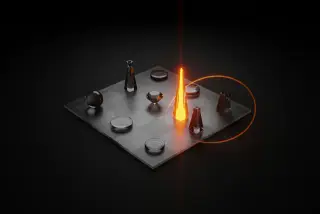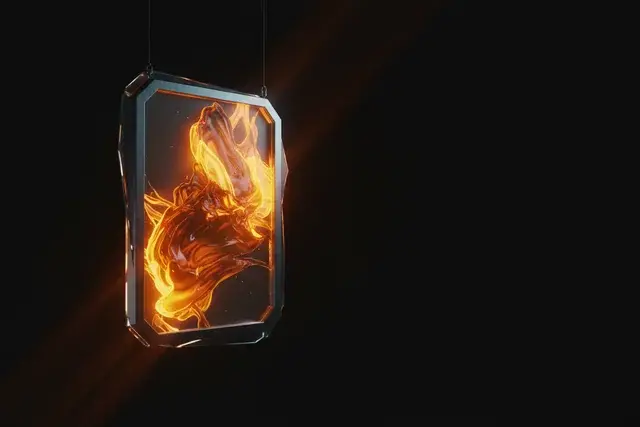
On November 4, 2026, OpenAI released Images 2.6, and the part most people will care about is small and fun: ChatGPT can now make an animated GIF. Type a request, or upload a photo, and you get a looping clip you can slow down, speed up, and edit frame by frame. The Verge’s headline put it plainly: “ChatGPT will now make you animated GIFs.”
Here’s the honest state of things on the day we’re writing this. The feature is real, and OpenAI’s own announcement says it. But the numbers people want most (how long a GIF can run, how big the file is, how many a free account can make) are not published anywhere we could find. And we haven’t run it ourselves, so you won’t find a “we tried it and here’s the result” section below. What you will find is everything the sources confirm, the exact steps they imply, a close reading of the full prompts OpenAI published, prompts of our own for you to try (marked as untested), and a list of what to check first when you do.
If you’ve read an older tutorial on making GIFs with ChatGPT, treat it as out of date. Those walkthroughs describe a workaround, and there’s a short history of them further down.
What Images 2.6 actually changed
OpenAI’s announcement, dated November 4, 2026, names three things in the ChatGPT product: GIFs, faster image generation, and tighter editing. In OpenAI’s words, you can “bring motion to your images with GIFs — from animating a brand mascot or character to turning a product shot into an eye-catching loop.” It also says Images 2.6 “generates images 50% faster than before,” and promises to help you refine images “keeping characters, products, and brand details consistent as you edit.”
The GIF piece is what’s new to ChatGPT users. The Verge reports that “ChatGPT can now create GIFs using a prompt or a photo uploaded to the AI chatbot,” and that the update “allows you to adjust the GIF’s animation speed, edit individual frames, and share it with others.” It adds that “before this change, ChatGPT couldn’t natively generate GIFs in a single step.”
OpenAI also released two models for developers in its API, called GPT-Image-2.6 Flare and GPT-Image-2.6 Sunburst. Flare is the speed option: at low quality, OpenAI says it “can generate images in as little as six seconds.” Sunburst is the higher-quality one. If you only use ChatGPT, you can skip those two. They’re there because a lot of the coverage mentions them, and they’re easy to confuse with the ChatGPT feature.
OpenAI also says “people around the world now create 4 billion images per week across ChatGPT, Codex, and the API.” The Verge notes that’s up from 3 billion per week in September. That figure counts every kind of image across all three places, and it isn’t a count of GIFs.
Who gets it
OpenAI’s availability section is short and clear.
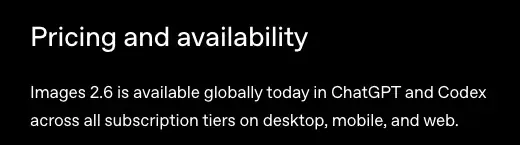
OpenAI says “across all subscription tiers,” and The Verge says the update is rolling out to “all ChatGPT and Codex users,” so the free plan is covered. What OpenAI doesn’t tell you is how many GIFs a free account can make in a day, because OpenAI’s page doesn’t say. The Verge also calls it a rollout, which can mean you don’t see it in the first hours even though OpenAI says it’s “available globally today.” More on that in the troubleshooting section.
What’s confirmed, and what isn’t
Most of the confusion about new AI features comes from mixing up three things: what the company said, what a reporter saw in a company demo, and what someone guessed. So here’s a plain sorting of what we found on November 5, with where each fact comes from.
| What you want to know | What the sources say | Where it comes from |
|---|---|---|
| Can ChatGPT make a GIF from text? | Yes | OpenAI, The Verge |
| From an uploaded photo? | Yes | The Verge, The Decoder |
| Can I change the playback speed? | Yes | The Verge |
| What speeds? | 0.5x to 2x in the shared example | Android Authority |
| Can I edit one frame? | Yes, individual frames | The Verge |
| Is it on the free plan? | Available “across all subscription tiers” | OpenAI |
| How many GIFs on free? | Not published | Nobody |
| Maximum length, size, resolution? | Not published | Nobody |
| Is it in the Help Center yet? | Not as of November 5 | OpenAI Help Center |
The last row matters. OpenAI’s help article “Images in ChatGPT” was updated a week before we read it, and it still describes Images 2.5 with no section on GIFs. The ChatGPT release notes page we checked also had no November 4 entry. Until those pages catch up, the best written sources are OpenAI’s announcement and the press coverage of OpenAI’s demo.
That’s why we’ve split the next section carefully. The steps are what the sources describe. The exact button labels are something you’ll see on your own screen.
How to make a GIF in ChatGPT
The sources don’t give a click-by-click manual, so what follows is the path they describe, in the order you’d actually use it. We’ve put a note on any step where the sources are thin.
Step 1: Ask for a GIF from text
Open a ChatGPT conversation on the web, desktop, or mobile app, and write your request. OpenAI’s own example, as The Verge quotes it, is as simple as it gets: “can you make a gif of a cat dancing?”
Say the word “gif” in the request. Everything we’ve read describes asking for one outright. The Verge’s article describes the result as a GIF you can change the speed of and view frame by frame.
What you should expect to see: a looping animation in the chat, with controls for speed and frames. The Decoder describes OpenAI’s cat example as “several slight variations of a character that are strung together flipbook-style into a GIF.” That’s a useful way to think about what’s happening. You’re not getting a video. You’re getting a handful of near-identical drawings played quickly, and the quality of the GIF comes down to how well the character stays the same from one drawing to the next.
Step 2: Or start from a photo
The Verge says you can create a GIF “using a prompt or a photo uploaded to the AI chatbot.” For uploads, OpenAI’s Help Center says you can “upload an existing image and describe the changes you want ChatGPT to make,” and its image-inputs FAQ says to tap the + icon in the prompt area and select Add photos & files (you can also drag a file in or paste one). That FAQ lists PNG, JPEG and non-animated GIF as the supported file types, with a limit of 20MB per image, so start from a still photo. For a GIF, the change you describe is the motion: a wave, a blink, a nod, a bounce.
OpenAI’s announcement says “even a simple sketch can become an expressive, animated character.” On the ChatGPT mobile app, the Help Center says you can draw a sketch by typing @ and choosing Sketch. Whether the sketch feature and the GIF feature work together the way OpenAI’s owl example suggests is something we can’t confirm from the help article, which still describes the older version.
Photo caution: if the photo has a person in it, the motion you request is a request to change how that person looks, frame by frame. Ask for gentle, small movement and check every frame for odd faces before you share it. We’ll come back to that in the edge cases.
Step 3: Change the speed
After the GIF appears, The Verge says you can “change the playback speed and view it frame by frame.” Android Authority, describing the shared demo, says the options range “from 0.5x to 2x.”
Try this before you re-prompt, since it’s a control on the GIF you already have. Whether it counts against any quota isn’t published. One thing the sources don’t say is whether a changed speed is saved into the file you share or only affects how it plays in the chat. Check that by sharing it to yourself and watching it in the app where you’ll actually use it.
Step 4: Look at the frames and fix the weak one
“Edit individual frames” is the most interesting control, and the least documented. The Verge describes it as editing “directly in ChatGPT.” Android Authority adds that the “Edit prompt box and the option to resize or remove elements remain.”
So the likely workflow is to step through the frames, spot the one where the face melts or the hand gains a finger, and ask for a fix on that frame only. What we can’t tell you is how many edits you can make, or whether a single-frame edit costs the same as making a new GIF. The sources don’t say.
Step 5: Share or save
The Verge says you can “share it with others.” OpenAI’s help article mentions a Save button in its image editor, and we can’t confirm that the same menu applies to GIFs. Try it, and check that the saved file is actually a moving GIF and not a still image. If you plan to post it, look at it on the platform before you publish.
A close reading of OpenAI’s own prompt
The best evidence we have about what works is the pair of full prompts OpenAI published. Both are credited to OpenArt and appear on the announcement page under “Animate your ideas with GIFs.” They’re not the typical way a person would ask in the ChatGPT app: they describe the whole GIF as a grid of frames, which is a lot more than the one-line request OpenAI shows for ChatGPT. But they show the habits that make a loop work, so the first one is worth reading slowly.
The first prompt makes a chibi office worker react to a falling stock chart. Here’s how it starts, quoted from OpenAI’s page:
Create a single animation sprite sheet for a seamless looping GIF. A super-cute chibi adult office worker sits at a desk watching a computer monitor with a clearly plunging stock-market line chart.
Then it describes the sequence: “hopeful expression, notices the chart falling, eyes widen, face crumples, large cartoon tears stream down both cheeks, then quietly wipes tears while still staring at the falling chart.” And it ends with the technical constraints. Here’s each part, and what we think it’s doing.
| Part of the prompt | What it says | Why it’s likely there |
|---|---|---|
| Format | “single animation sprite sheet for a seamless looping GIF” | Names the output |
| Story | Hopeful, notices, eyes widen, face crumples, tears | One emotion arc, in order |
| Frame count | “Exactly 6 sequential frames” in “3-column by 2-row grid” | Fixes the length |
| Consistency | “Same character, same desk, monitor, outfit” | Stops drift |
| Camera | “Fixed front three-quarter camera” | No camera movement |
| Motion | “Clear incremental facial and tear motion” | Small steps |
| Loop | “Sixth frame transitions smoothly toward the first” | Makes it loop |
| Exclusions | “No captions, no words, no numbers, no logos” | Keeps the frames clean |
The “why” column is our reading, not OpenAI’s. But the pattern is hard to miss. Every line either tells the model what changes between frames or what must stay the same. OpenAI’s second example, the same worker celebrating a rising chart, uses the same shape: the same “Create a single animation sprite sheet for a seamless looping GIF” opening, the same “exactly 6 sequential frames” grid, and the same instruction that the sixth frame “transitions smoothly toward the first.”
Two things we’d take from it for everyday use in the ChatGPT app, with the caveat that they’re our inference and not tested:
- Describe motion as a short sequence of small changes, not as one big action.
- Say what must stay still. Camera, background, outfit, and character are the usual suspects.
Prompts to try (ours, not tested)
These are prompts we wrote, based on the pattern above. We haven’t run them. Treat them as starting points, and change them freely. Each is one line so you can copy it cleanly.
A reaction GIF from text:
Make a looping animated GIF of a cartoon cat slowly nodding its head and blinking, fixed camera, plain pastel background, same cat in every frame, no text.
A photo that waves:
Turn this photo into a looping animated GIF where the person gives a small, friendly wave, keeping the face, clothing, camera and background the same in every frame, no text.
A product loop for a shop listing:
Make a looping animated GIF from this product photo where the camera stays fixed and the product rotates a few degrees back and forth on a plain background, with the same lighting in every frame and no text.
A mascot for a newsletter:
Create a looping animated GIF of a friendly round robot mascot waving once and then settling back, flat colours, fixed camera, the sixth frame returns smoothly to the first, no words.
The product example follows the use case OpenAI names directly: “turning a product shot into an eye-catching loop.” If you sell things online, our post on ChatGPT Images 2 for Etsy and Shopify product photos covers the still-image side, and a GIF is a natural next step on top of it.
The old way, and why it’s now outdated
You may have seen guides that explain how to get a GIF out of ChatGPT before November 4. They describe a workaround, because, in The Verge’s words, ChatGPT “couldn’t natively generate GIFs in a single step.”
The workaround that Atlas Cloud tested got a GIF by stitching stills together. An October 23 write-up from Atlas Cloud, a company that sells a plugin for ChatGPT and so has its own interest here, tested it in a free account with a single request. ChatGPT drew a square sheet of six panels, then used its code sandbox to cut the sheet into six frames of 360 by 540 pixels and added three blended frames between each pair. The finished file had 21 frames, each shown for a tenth of a second, plus a 0.7-second pause on the last, which Atlas puts at 2.7 seconds and 3.2 MB, set to loop. Because the in-between frames were blends, the writers say the motion jumps from pose to pose, with a ghost-like fade between drawings. It’s one vendor’s test of one request, but it shows what the old route produced.
Android Authority describes the old behaviour more bluntly: it says ChatGPT “can already generate GIFs, but they’re not truly animated,” and that the older version “simply simulates movement by placing two slightly different frames side by side.” That’s one writer’s description, not OpenAI’s, but it matches the flipbook idea above.
One caution on “native.” The sources say the GIF is made in ChatGPT in one step. They don’t say whether the model outputs a GIF file directly or builds one from separate frames behind the scenes. It doesn’t change how you use it, but it’s a reason not to read too much into the word.
When ChatGPT’s GIFs beat a GIF library, and when they don’t
Android Authority’s writer said they’d normally use Giphy and Tenor for GIFs, and that ChatGPT “might soon give me, and you, a way to give GIFs a more personal touch.” That’s the right way to frame the choice. A library gives you a clip that already exists. ChatGPT gives you one that didn’t.
| You need | Reach for | Why |
|---|---|---|
| A specific, famous reaction clip | A GIF library | It already exists and people recognize it |
| A GIF of your own mascot or product | ChatGPT | Nothing in a library will match |
| Your own photo moving | ChatGPT | The photo is the input |
| A quick generic “thumbs up” | A GIF library | Faster than describing it |
| A GIF with exact text in it | Another tool | OpenAI’s own prompts tell the model not to include words |
| A clip with sound or a long running time | A video tool | OpenAI describes GIFs as loops and storyboards, and nothing we read mentions sound |
This is advice, not a measured comparison, and we haven’t tested ChatGPT’s GIF quality against any library or app. The last two rows are the reasoning most worth keeping. OpenAI’s published prompts say “no captions, no words, no numbers, no logos,” which suggests text inside generated frames isn’t where to lean on it. And OpenAI describes animated storyboards used “to explore character movement before video production,” which positions GIFs as a step before video, not a replacement.
What this means for you
Not everyone needs this for the same reason. Here are six readers and a first thing to do.
If you’re a casual user who wants fun reactions for group chats. Start with a pet or an animal. Ask for a looping GIF of your favourite cartoon animal doing one small thing, then change the speed. First action: make one GIF and share it to a friend to see how it plays on their phone.
If you have an Etsy or Shopify shop. The product loop is the use OpenAI names. Take your best product photo and ask for a subtle rotation or a gentle bounce on a plain background. First action: make one and compare how it looks beside your still photo on a listing preview. Don’t change the product’s look in the animation, because buyers expect what they see.
If you run social media for a small business. OpenAI’s page says marketers can “animate a brand mascot for a campaign” and “create reactions and memes for social media.” First action: pick one existing mascot or illustration and animate it with a single small motion, then check how the platform handles the file.
If you’re a teacher. A looping animation can illustrate a process, like a water droplet or a pendulum. We can’t say how accurate the motion would be, so check any science diagram before it goes in front of a class. First action: make one for a topic you already know well, so you can judge the result.
If you work with a team and brand rules. Consistency is the selling point OpenAI makes (“keeping characters, products, and brand details consistent as you edit”), and it’s also the thing to test hardest. First action: animate your actual brand character and check every frame against the brand guide.
If you’re a developer. The API models, Flare and Sunburst, are what you’d use. OpenAI’s page says Town, a startup building an AI work assistant, used Images 2.6 in the API to explore animated characters, including an animated typing indicator. First action: read the API pricing page OpenAI’s announcement links, since GIF output costs weren’t described in the text we read.
Edge cases and troubleshooting
We’ve pulled these from what the sources say and from what usually goes wrong with new features, and we’ve marked which is which.
1. You don’t see the GIF option. The Verge says the update is “rolling out,” and Android Authority’s article said the feature was “not out yet” when it was published. OpenAI says it’s “available globally today,” but a staged rollout means your account may get it later than someone else’s. Try the web version as well as the app, and check back later in the day. This is a general tip, not something OpenAI documents for this release.
2. The character changes between frames. This is the main risk, and the thing OpenAI’s prompt writes around with its “same character, same desk, monitor, outfit” line. The Decoder’s read of OpenAI’s cat example is that the model’s consistency “appears strong enough to keep the character recognizable across frames.” How well that holds for your own photo is not something we know yet. Step through the frames and edit the one that drifts.
3. You don’t know how long it can run. The sources don’t give a length limit. OpenAI’s own prompts use a 6-frame grid, but that’s an example, not a limit. Check how long your GIF is before you design around it.
4. The file is too big or blurry for where you’re posting. No sizes or resolutions are published. Check the file you save against the limits of the app or site where it’s going. If it’s too large, a shorter loop is the first thing to try.
5. You want text in the animation. OpenAI’s own prompts say “no captions, no words, no numbers, no logos.” Add your text afterwards in the tool you’re posting from, so it stays sharp and spelled right.
6. A photo of a person comes out strange. Ask for a small movement, and look at each frame at full size. If a face looks off, edit that frame or start again with a calmer motion. Don’t post a GIF of someone else’s face without their say-so.
7. A free account runs out. OpenAI’s Help Center says image generation “may take a few minutes, depending on the complexity of your request” and that you can keep using ChatGPT meanwhile. No free-tier GIF limit is published, so if you hit a wall, wait and try later, or check your plan’s page.
8. The saved file doesn’t move. Check that what you saved is a GIF and not a still frame. Open it in a browser, or send it to yourself, before you rely on it.
What it can’t do
A few honest limits, from the sources and from the way GIFs work.
It isn’t video. OpenAI frames GIFs as loops and storyboards, and nothing we read describes sound or long clips.
It doesn’t publish its limits. Duration, resolution, file size, free-tier quota and export options are all unpublished as of November 5. Anything you read that states them as fact, including from us, is a guess unless it cites OpenAI.
It isn’t a replacement for a library. A GIF library has the clips everyone already knows. A new generated clip won’t be recognized the same way.
It can’t promise a perfect loop. OpenAI’s prompt asks the sixth frame to move “smoothly toward the first.” That’s a request to the model, not a guarantee.
The Help Center hasn’t caught up. As of November 5, OpenAI’s help article still describes Images 2.5, so some answers don’t exist in the docs yet.
FAQ
Is making GIFs in ChatGPT free? OpenAI says Images 2.6 is available in ChatGPT “across all subscription tiers,” and The Verge says it’s rolling out to all ChatGPT users, so free accounts are covered. How many GIFs a free account can make isn’t published.
Do I need a paid plan? Not according to OpenAI’s availability section. Whether a paid plan lets you make more is not stated in anything we read.
Can ChatGPT turn my photo into a GIF? Yes, according to The Verge and The Decoder. Upload the photo and describe the motion you want.
Can I change how fast the GIF plays? Yes. Android Authority reports a range from 0.5x to 2x in the shared example.
Can I edit just one frame? The Verge says you can edit individual frames in ChatGPT. The exact steps aren’t documented yet.
What’s different from the old sprite-sheet trick? In that workaround, ChatGPT drew a sheet of frames and then used its code sandbox to cut and stitch them. The new feature is described as one step. The Verge says that before this change ChatGPT “couldn’t natively generate GIFs in a single step.”
How long can a GIF be? No source gives a limit. OpenAI’s own sample prompts use six frames, which is an example, not a cap.
What are Flare and Sunburst? They’re two image models in OpenAI’s API, one tuned for speed and one for quality. You don’t need them to use ChatGPT.
The bottom line
ChatGPT’s new GIF feature is a real change: one request, a moving result, and controls for speed and frames, available on every plan, per OpenAI and The Verge. It’s also very new. As of November 5, the limits aren’t published, the Help Center hasn’t caught up, and we haven’t run it ourselves.
So treat your first few tries as tests. Make one GIF from text, one from a photo, change the speed, step through the frames, save it, and check that it actually moves where you plan to post it. Write down what you find, and the limits will be obvious quickly.
If you want to get better at the prompts behind this, AI Image Generation (first 2 lessons free) covers how to describe what you want an image model to make, and Product Photos with ChatGPT Images 2.0 (first 2 lessons free) covers the product-shot side.
Sources
- OpenAI, Introducing Images 2.6 (Nov 4, 2026)
- The Verge, ChatGPT will now make you animated GIFs (Nov 5, 2026)
- Android Authority, ChatGPT finally adds the image tool the internet has been waiting for (Nov 4, 2026)
- The Decoder, ChatGPT can now turn text prompts and photos into animated GIFs (Nov 4, 2026)
- OpenAI Help Center, Images in ChatGPT
- OpenAI Help Center, ChatGPT image inputs FAQ
- OpenAI Help Center, ChatGPT release notes
- Atlas Cloud, Can ChatGPT make GIFs? (Oct 23, 2026; a plugin vendor’s own test)