You’re standing in the driveway after a showing, keys still in your hand, and a new lead just texted “is this still available?” By the time you dig your phone out and type a reply, they’ve already messaged two other agents. That gap — the 90 seconds between “phone buzzes” and “you actually respond” — is where deals quietly slip away. Today, Apple gave you a way to close it without hiring anyone or learning to code.
iOS 27 landed globally this morning, and buried inside it is a rebuilt Shortcuts app that Macworld called “the best iOS 27 feature — an AI update to the app nobody uses.” PCMag put it more bluntly: your iPhone now lets you “vibe-code” your own automations. You type what you want in plain English. Apple Intelligence builds the actual working automation. No menus, no action names to memorize, no YouTube tutorial required.
This isn’t a Siri gimmick and it isn’t locked behind a language or region wall the way some of Apple’s other AI features are this year. It’s real, it’s already been tested for months by beta users, and — unlike the flashier AI headlines from this Apple event — it’s something a solo agent with zero technical background can actually use by tonight.
What Just Changed
Open the Shortcuts app on a qualifying iPhone and tap “New Shortcut.” Instead of a blank canvas full of icons you don’t recognize, you get one plain question: “What do you want your shortcut to do?” You type an answer the way you’d text a friend — “when I leave a showing, text the next lead on my list that I’m on my way” — and Apple Intelligence reads that sentence, picks the right built-in actions, wires them together in order, and hands you a finished, working shortcut.
That’s the whole trick. No more hunting through hundreds of action names. No more learning what a “variable” is or why you need one. You describe the outcome. The phone assembles the steps.
Here’s Apple’s own example, straight from its documentation: “When you leave work, message Pedro ‘I’m on my way’ and send your ETA.” Type that sentence, tap once, and you get a shortcut that watches your location, waits for you to leave, and fires off a text with your live arrival time — automatically, every time.
And it doesn’t stop at creation. Made something that’s almost right? You don’t dig into a settings menu to fix it. You just describe the change — “also remind me to bring the lockbox key” — and the shortcut rebuilds itself around your new instruction while keeping everything that already worked.
A few things worth being precise about before you build anything:
It needs a fairly recent iPhone. The natural-language builder — Apple calls it “Describe a Shortcut” — runs on the same hardware floor as the rest of Apple Intelligence: iPhone 15 Pro, 15 Pro Max, or any iPhone 16 or newer. The plain iPhone 15, the 15 Plus, and anything from the iPhone 14 generation or earlier install iOS 27 just fine, but they only get the classic, menu-based Shortcuts editor — not the AI builder. On iPad, you need an iPad mini with the A17 Pro chip or an iPad Air/Pro with M1 or newer. On Mac, anything with Apple Silicon works.
It’s a hybrid, not a pure on-device feature. Apple runs Apple Intelligence as a mix of on-device processing and something called Private Cloud Compute — heavier requests get sent to Apple’s own servers instead of your phone doing all the work, with Apple’s privacy design meaning your data isn’t stored or visible to Apple on the way through. Apple hasn’t published which path the shortcut builder itself uses when it’s parsing your sentence, and there’s no verified proof it works fully offline. What is documented: individual actions inside your finished shortcut — checking the weather, calculating a route, calling on a “cloud model” for heavier writing tasks — can still need an internet connection no matter how the shortcut itself got built.
There’s a fine-print catch on day one. As of this morning, Apple’s own feature page still tags “Describe a Shortcut” with “Coming in a future software update” — even while the general iOS 27 release notes say new Apple Intelligence features start rolling out September 14. In plain terms: it’s not 100% guaranteed to be live on your phone the instant you finish updating today. In practice, it’s been in public beta since June, reviewers at PCMag, Macworld, 9to5Mac, and MacRumors have been testing it for months, and real users have been posting working examples on X since early September. If you update today and don’t see the new “Describe a Shortcut” prompt yet, check again after your next software update rather than assuming something’s broken.
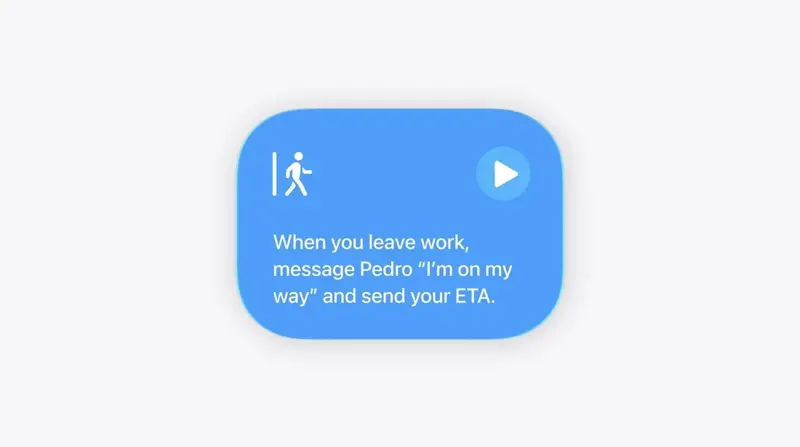
This is Apple’s own illustration of the exact pattern real estate agents can repurpose for lead follow-up: leave a location, automatically send a text. Source: MacRumors.
It’s available almost everywhere, in a lot of languages. Unlike the Gemini-powered conversational Siri feature launching alongside it — which is English-only and blocked in the EU over a regulatory dispute — “Describe a Shortcut” ships in more than 30 languages including English, Spanish, Vietnamese, Japanese, Korean, French, German, and Portuguese, and it’s live worldwide except mainland China. If you’ve been reading about Siri’s rollout headaches, don’t confuse the two. This feature has a much cleaner launch.
Quick Primer: What’s “Shortcuts,” Actually?
If you’ve never opened the Shortcuts app, here’s the one-sentence version: it’s Apple’s built-in tool for chaining small actions together so your phone does something automatically instead of you doing it by hand every time. Think of a single shortcut like a tiny recipe — “when X happens, do Y, then Z” — except until today, writing that recipe meant knowing the exact name of every ingredient and stirring them together yourself. iOS 27 is the update where the recipe writes itself. You describe the dish. The app figures out the ingredients.
Now let’s get to the part that actually matters for your Monday morning: what to type, and what happens when you do.
The Three Automations Every Agent Should Build Today
Before you touch your phone, know this: none of these three automations require you to know what an “action” or a “trigger” even is. You’re going to open Shortcuts, tap New Shortcut, and type a sentence. That’s the entire skill requirement.
Automation #1: Auto-Text a New Lead the Instant They Reach Out
This is the fully worked example — the one to build first, because it’s the one that actually stops leads from going cold while you’re driving between showings.
The problem it solves: A lead calls or texts your number. You’re mid-showing, on a call with another client, or just genuinely can’t grab your phone for twenty minutes. By the time you respond, they’ve already texted your competitor. Real estate agents have complained about exactly this bottleneck for years — one automation thread making the rounds this year opened with a realtor describing the same pain point: manually re-typing the same “thanks for reaching out, I’ll call you within the hour” message, over and over, from memory, while trying to also actually do her job.
What to type, exactly:
Open Shortcuts, tap the + button, then New Shortcut. In the box that says “What do you want your shortcut to do?”, type:
“When I get a text message from someone not already in my contacts, automatically reply with ‘Thanks for reaching out! I’m with a client right now but will call you back within the hour. — [Your Name], [Brokerage]’ and add their number to a new note called New Leads.”
Tap the arrow to submit. Apple Intelligence reads that sentence and assembles three linked pieces: a trigger (an incoming message from an unknown sender), an auto-reply action, and a note-logging action — the exact same building blocks Apple itself uses in its own “leave work, text ETA” example.
What actually happens on your phone: Review the shortcut Apple built (it opens in the editor automatically after generation, fully readable even if you never touch it). You’ll see it laid out as plain steps: “Get Latest Message,” “If Sender Not In Contacts,” “Send Message,” “Add to Note.” Tap Done, then confirm the automation as Run Immediately rather than “Ask Before Running” the first couple of times, so you can watch it fire and see the exact reply your future leads will get.
From here forward: any text from a number that isn’t already saved in your Contacts app triggers this automation within seconds. The sender gets your reply. Their number and the note land in a running list titled “New Leads” that you can review at the end of the day, forward to your CRM, or turn into contact cards during downtime.
Why this specific structure matters: Macworld actually ran a version of this exact idea — a natural-language auto-reply that reads incoming messages and sends a response automatically — and reported it works best over iMessage specifically, not most third-party messaging apps, and that you should absolutely review the tone before letting it run unsupervised on real conversations. Translation: this is genuinely reliable for the “I saw your text, give me an hour” holding pattern. It is not the tool for actually negotiating with a lead in your voice. Set expectations with the reply text itself, and you’re fine.
One refinement worth making after day one: once you’ve watched it run a few times, go back and describe a change instead of rebuilding from scratch — literally type “also make an exception if it’s after 9pm, just send a shorter version” and Apple Intelligence edits the existing shortcut around that new rule rather than making you start over.
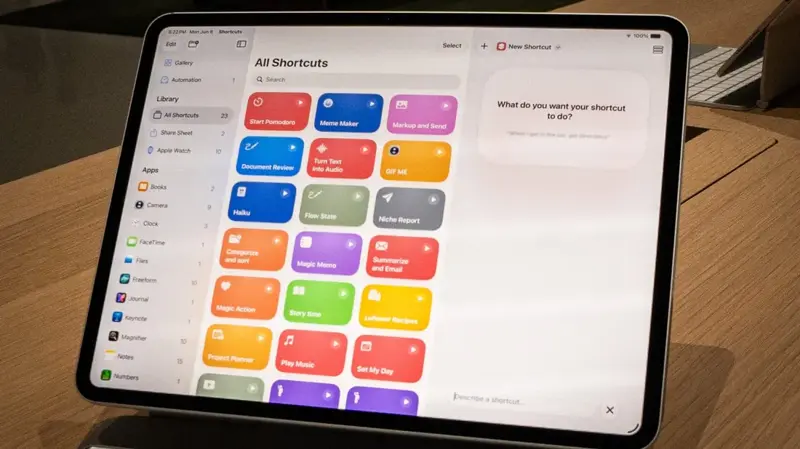
The actual text box you’ll type into — Apple calls it “Describe a shortcut,” and it sits right where the old “New Shortcut” blank canvas used to be. Source: PCMag.
Automation #2: One-Tap “Send My Listing Packet” (and Log the Contact)
The problem it solves: Someone at an open house wants “everything on this place” — the listing sheet, the disclosures PDF, maybe a video walkthrough link. The old way: dig through Files or Photos, attach four things to an email or text, type their name and number into your phone or CRM by hand, and hope you don’t misspell anything standing in a stranger’s kitchen. One realtor thread from earlier this year described this exact workflow — recording property video tours on an iPhone, uploading to Google Drive, then manually formatting and resending that link to every single client who asked, every single time.
What to type:
“When I run this shortcut, ask which listing folder to use from my Files app, then text the selected PDF and video link to a contact I choose, and create a new contact card with the name and number I enter.”
What happens: Apple Intelligence builds a shortcut that prompts you with two quick choices when you tap it — pick the property folder, pick or type the contact — then sends everything in one message and simultaneously creates the contact card, so you’re not doing double data entry. Put this shortcut on your iPhone’s Home Screen or, if you have an iPhone with an Action Button, assign it there directly. One press at the open house, two taps to confirm, done.
A related trick worth stacking on top: iOS 27 also lets Apple Intelligence read a photographed business card and drop the contact straight into your address book with the fields filled in automatically — you just review and save. Combine the two: photograph a card at your open-house sign-in table, then run your listing-packet shortcut against that new contact. That’s the entire “capture a lead and give them everything” loop, done in under a minute, no laptop required.
Automation #3: The End-of-Showing Follow-Up That Triggers Itself
The problem it solves: You walk out of a showing mentally exhausted, and the follow-up text — the one that actually closes the loop and keeps you top of mind — either goes out three days late or never goes out at all.
What to type:
“When I connect to CarPlay after leaving a location I’ve been at for more than 20 minutes, remind me in one hour to text the client asking what they thought of the property.”
What happens: This one leans on a genuinely new trigger type in iOS 27 — automations can now fire based on things like connecting to CarPlay, a keyboard being attached, or a screenshot being saved, not just time-of-day or location alone. Apple’s own beta demos showed the same underlying pattern: leave a location, calculate something, send or remind. Here, leaving the property and getting back in your car is the signal; the reminder lands an hour later, timed so you’re not texting a client while they’re still standing in their potential new kitchen deciding whether they love the backsplash.
If you’d rather it text immediately instead of reminding you, that’s a one-line edit: open the shortcut later and describe the change — “instead of reminding me, just send the text directly” — and it rebuilds around that instruction.
Old Shortcuts vs. New Shortcuts: What Actually Changed
| Classic Shortcuts Editor (pre-iOS 27) | Describe a Shortcut (iOS 27) | |
|---|---|---|
| How you build it | Search an action catalog, drag blocks in, wire up variables and conditions by hand | Type a plain-English sentence describing the outcome |
| Skill required | Know action names, data types, and how “If,” “Repeat,” and variables connect | Describe your goal clearly; the system asks or iterates if it’s ambiguous |
| Time to first working version | Grows with complexity — a multi-step automation can take real trial and error | Hands-on reviewers describe results landing in seconds; no controlled study exists comparing the two head-to-head |
| Editing later | Fully manual — reopen, find the block, change it | Describe the change in natural language, or still edit manually if you prefer |
| What it can actually do | Whatever actions your installed apps expose | The exact same actions and app integrations — natural language changes the interface, not the underlying capability |
| Control and precision | More deterministic; you see and set every parameter | Faster first draft, but the model can misread an ambiguous request or discard a step during an edit |
The honest summary, straight from the research: the interface got dramatically easier. The actual power under the hood — what Shortcuts can technically do — didn’t expand. If an action doesn’t exist for a given app, no amount of clever phrasing invents it. What changed is who can reach that power. Before iOS 27, building a real automation meant knowing what “Get Latest Message” or “Set Variable” meant. Now it means being able to describe what you want out loud.
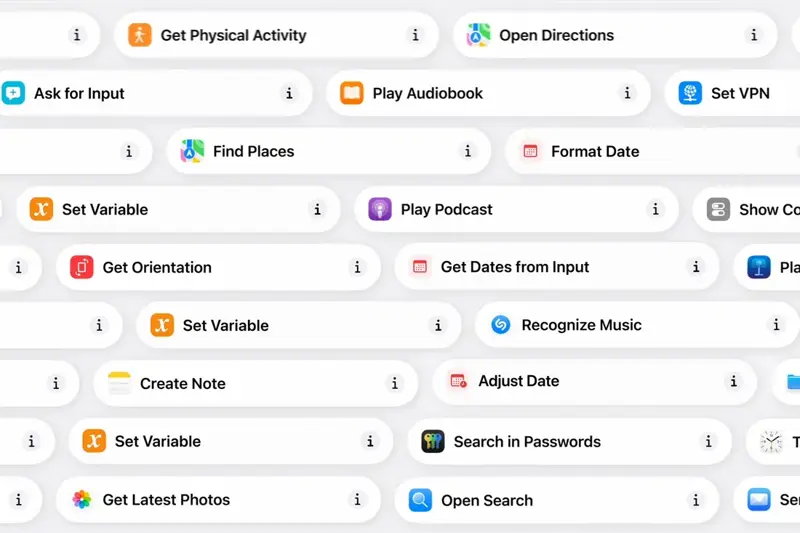
This is what building an automation looked like before today — scroll, search, tap, connect. Every one of these blocks still exists in iOS 27. You just don’t have to know their names anymore. Source: Macworld.
| Automation | Setup Time | Real-World Impact |
|---|---|---|
| Auto-text a new lead | Under 2 minutes | Cuts response time from “whenever you notice” to seconds — the single biggest lever on early-lead conversion |
| Send listing packet + log contact | Under 3 minutes | Removes manual re-sending and double data entry at every open house |
| End-of-showing follow-up | Under 2 minutes | Guarantees the follow-up happens at all, on a consistent, non-awkward delay |
What This Means for You
If you’re a solo agent juggling everything yourself: Build Automation #1 today. It’s the one with the highest return for the least effort — a two-minute setup that closes the exact gap where leads go cold. You don’t need the other two right away.
If you’re a new agent still building your systems: Start here instead of buying a $50/month CRM you’re not ready to configure. These three shortcuts give you 80% of what a basic CRM’s automation tier does, for free, on the phone you already own. Graduate to real CRM software once your lead volume outgrows what a note-taking app can track.
If you’re a team lead managing multiple agents: These automations are personal to each agent’s phone — they don’t sync across a team the way a shared CRM would. Use them as a stopgap or a training tool for agents who resist “another system to learn,” then layer real team infrastructure on top once volume demands it.
If you’re juggling multiple active listings at once: Automation #2 is built for exactly this. Naming your property folders consistently in Files (address, or MLS number) makes the “which listing” prompt fast instead of a hunt-and-peck moment in front of a client.
If you’re not technical and this all sounds intimidating: It genuinely isn’t, and that’s the entire point of this update. If you can text a friend a run-on sentence explaining what you want, you can build every automation in this article. Start with the exact sentences above, word for word, before trying to customize anything.
If you already have a CRM with its own automation (Follow Up Boss, kvCORE, etc.): Don’t duplicate what your CRM already does well — server-side lead routing, drip campaigns, deal pipelines. Use Shortcuts for the physical-world gaps your CRM can’t reach: what happens the second your phone buzzes, what happens when you photograph a business card, what happens when you literally leave a building.
If you’re still on an older iPhone: Check your model before getting excited. iPhone 15 Pro, 15 Pro Max, or iPhone 16 and newer is the actual line for the AI builder — the base iPhone 15 does not qualify, even though it’s not an old phone. iOS 27 installs on your device either way, and the classic action-based editor still works exactly as it always has.
Edge Cases and Troubleshooting
The automation isn’t triggering anymore, even though it worked yesterday. This is a documented quirk with location- and event-based automations, not unique to AI-built ones. The fix reported by beta testers: open the Shortcuts app, go to the Automations tab, and toggle the specific automation off, then back on again — from that list view, not from inside the shortcut’s own editor. That reset alone resolves most “it just stopped firing” cases.
Your vague prompt built something way too simple. If you type something short and general, Apple Intelligence tends to build the shortest possible shortcut that technically satisfies it. The fix isn’t to write a longer paragraph up front — it’s to build the simple version first, then layer on complexity one line at a time with “describe a change.” Testers who tried to cram five steps into one giant opening prompt got worse results than testers who built incrementally.
A long, complex request gets rejected or trimmed down. There’s a real, undocumented ceiling on how much a single description can reliably produce. If your automation needs six or seven distinct steps, don’t ask for all of them in one sentence. Build the first two or three, confirm they work, then keep describing additions.
“Describe a change” silently drops a step instead of editing it. Apple’s own release notes for iOS 27 flag a specific known bug: if an action relies on certain technical data types (this mostly shows up in advanced date/duration-based actions or actions involving shared links), asking for an edit can cause that one step to disappear entirely instead of updating. Apple’s documented workaround is simply Undo — if a “describe a change” edit looks wrong or something vanished, undo immediately rather than trying to re-describe it into existence.
You get a permissions pop-up you weren’t expecting. The first time any shortcut touches Contacts, Messages, or Location, iOS will ask you to confirm access, exactly like it always has. This isn’t a bug specific to AI-built shortcuts — it’s the same permission system Shortcuts has always used. Say yes once per permission type and it won’t ask again for that shortcut.
You’re not sure if your iPhone actually supports this. Check Settings, then search “Apple Intelligence” — if the toggle exists and turns on, and your device shows up in the supported list (iPhone 15 Pro/Pro Max or iPhone 16 and newer), you have it. If Shortcuts still shows the old blank “New Shortcut” screen with no text box, either your hardware doesn’t qualify, or the rollout genuinely hasn’t reached your device build yet — check for a software update before assuming it’s permanently missing.
An automation runs longer than expected and seems to just stop. Apple caps how long an automation can keep running in the background — four minutes, according to Apple’s own support response to a user bug report, and that’s “functioning as intended,” not a glitch. If your automation involves a long series of steps or waits on something slow (like a big file upload), it may time out before finishing. Break long chains into two shorter automations that hand off to each other instead of one giant one.
You want to undo a bad automation entirely, not just edit it. Go to the Automations tab, find it, swipe or long-press to delete, and rebuild rather than trying to talk it back to its original state through multiple rounds of “describe a change” — each edit compounds on the last one, and after two or three rounds it’s often faster to start clean with a better-written first sentence.
What It Can’t Do
It can’t invent capabilities your apps don’t already expose. The natural-language builder can only wire together actions that already exist — the same ones available in the classic editor. If your CRM or a third-party app hasn’t built a Shortcuts integration, no amount of clever phrasing will make one appear.
It can’t reliably handle open-ended, judgment-heavy replies. Macworld’s own test of an AI-driven auto-reply system found it works well for a fixed, templated response (“I’m on my way,” “thanks, I’ll call you back”) — it is not a substitute for actually negotiating with a lead in your own voice. Treat every auto-reply as a holding message, never a closing message.
It’s not proven to work fully offline. Despite running some processing on-device, there’s no confirmed guarantee the builder itself works with no internet connection at all, and several of the actions inside a typical realtor automation — sending a text, looking up a route, pulling weather — need a connection regardless of how the shortcut was built.
It doesn’t replace an actual CRM. These automations live on your phone. They don’t sync a shared pipeline across a team, they don’t run lead-scoring, and they don’t survive you switching phones without manual re-setup. Think of them as the fast, personal layer sitting on top of whatever system already tracks your deals.
It needs a 2023-or-newer iPhone Pro (or newer standard model) to work at all. If you’re carrying an iPhone 14, 13, or an original iPhone 15, iOS 27 installs, but the AI builder simply isn’t available on that hardware — not now, not with a future software update to that specific device.
Frequently Asked Questions
Do I need to be on iPhone 15 Pro specifically, or does any iPhone 15 work? Specifically the Pro models. The regular iPhone 15 and 15 Plus install iOS 27 fine but don’t get the AI-powered Shortcuts builder — only 15 Pro, 15 Pro Max, and iPhone 16 or newer qualify.
Is this the same AI as the new conversational Siri? No, and that distinction matters. The conversational Siri feature launching alongside iOS 27 is English-only at launch and blocked in the EU over a regulatory dispute. “Describe a Shortcut” ships in over 30 languages worldwide (except mainland China) and isn’t caught up in that same rollout mess.
Will this cost extra money? Not to build or run individual shortcuts — that’s free with iOS 27 on qualifying hardware. Apple has confirmed that some server-side Apple Intelligence features carry daily usage limits, with expanded access coming as a paid option later. It’s not clear the shortcut builder itself is metered the same way as those other features; what is confirmed is that any step inside your shortcut that calls a heavier cloud-based AI model can be subject to those caps.
What happens if I hit a daily usage limit? Based on Apple’s documentation for related features, the affected capability becomes temporarily unavailable until a timeout resets it. Apple hasn’t published exact numbers for how many requests trigger this or how long the reset takes.
Can I share a shortcut I built with another agent on my team? Yes — Shortcuts has always supported sharing via a link (through iCloud) that another person can open and add to their own Shortcuts library. It’s not a live sync; each person gets their own independent copy.
Does this work on Android? No. This is an Apple-only feature tied to Apple Intelligence and the Shortcuts app, which doesn’t exist on Android.
I don’t see the “Describe a Shortcut” text box after updating — what’s wrong? Two likely explanations: your specific iPhone model doesn’t meet the hardware requirement (double-check against the Pro/16-and-newer list above), or the rollout to your account hasn’t fully landed yet despite the general iOS 27 release. Check Settings for Apple Intelligence availability, and check for any pending software update before assuming it’s broken.
Can I use this for something more complex than these three examples? Yes, but build incrementally. Start simple, confirm it works, then describe one addition at a time rather than writing a long, multi-step request up front — testers consistently got better results building this way.
What if the shortcut sends a message to the wrong person? No widespread reports of this specific failure exist as of launch, but the safest habit is reviewing any new shortcut’s generated steps before switching it to run automatically without confirmation. Once you’ve watched it fire correctly a few times, you can safely turn off the “ask before running” confirmation.
Does building these shortcuts drain my battery or use a ton of data? Apple hasn’t published specific numbers, and none of the hands-on reviews flagged unusual battery drain from the builder itself. The bigger factor is what your finished shortcut actually does — a shortcut that checks location constantly in the background will use more battery than one that only fires on a text message, the same as it always has with any location-based automation.
I built a shortcut and it’s stuck on “Ask Before Running” — how do I make it fully automatic? Open the Automations tab, tap the automation, and look for a toggle near the bottom labeled “Ask Before Running.” Turn it off once you trust the shortcut’s behavior. Apple defaults new automations to asking first specifically so you can verify they do what you meant before they run unsupervised.
Bottom Line
The thing that makes this launch worth your attention isn’t that Apple built AI into Shortcuts. It’s that Apple built AI into the one part of the iPhone specifically designed to save you from repeating yourself — and real estate is a job made almost entirely of repeating yourself. The same three sentences to new leads. The same listing packet to every open-house visitor. The same follow-up text after every showing.
You don’t need to become a “tech person” to claim any of that back. You need three sentences, typed once, today.
If you want to go beyond these three starter automations and build a genuinely AI-fluent real estate practice — from lead qualification to listing descriptions to client communication — FindSkill’s AI for Real Estate Agents course walks through the rest of the toolkit, free to start.
Sources:
- Macworld — The best iOS 27 feature is an AI update to the app nobody uses
- Macworld — I trained Siri AI to answer my messages. It actually worked
- PCMag — I Tested Apple’s New ‘Describe a Shortcut’ Tool. It’s Not Perfect, But It Feels Like Magic
- PCMag — I Built and Ran Automations on an iPhone, iPad, and Mac by Talking to Them
- MacRumors — Apple Brings Natural Language Creation to Shortcuts App
- MacRumors — iOS 27: Everything We Know
- MacRumors — Apple Announces iOS 27 Release Date
- MacRumors — Apple’s Fine Print: Daily Usage Limits for Siri AI, ‘Expanded Access’ Coming for a Fee
- 9to5Mac — Apple confirms iOS 27 release date
- 9to5Mac — These are the best iPadOS 27 features you should try
- AppleInsider — macOS Golden Gate beta review: it’s nothing without Siri AI
- Apple — iOS and iPadOS 27 Feature Availability
- Apple — How to get Apple Intelligence
- Apple Developer — iOS & iPadOS 27 Beta 8 Release Notes
- Apple — Apple advances health and fitness capabilities using Apple Intelligence
- Apple Support — Intro to how shortcuts work on iPhone and iPad
