If you opened the Gemini app this week and couldn’t find Spark, nothing is wrong with your account. Google moved it. The Spark entry in the side menu is gone, and in its place there’s a Chat | Task switch above the prompt box. Task is Spark. Google’s own description, as 9to5Google quotes it, is “a new home for Spark: Start new tasks anytime and keep track of them in your chats.”
That’s the whole mystery, and it’s the thing a lot of people are typing into Google right now. The rest of this post is for the questions that come next: who can actually use Task mode, what it costs, what the limits are, how you start one, what it asks you to confirm, and whether it’s worth $19.99 a month for the kind of life you have.
One correction up front, because it matters for the “what does it cost” question. A lot of coverage (and the explainers we published in May) says Spark is an Ultra-only feature at about $100 a month. That was true at launch. It stopped being true in July, when Google brought Spark to Google AI Pro subscribers. So when you read that Task mode is “now available on Pro,” the October change isn’t the pricing. The October change is the name and the location. I’ll walk through the dates below, because they’re easy to get tangled.
I should say how I put this together. I haven’t run Task mode on my own account, so you won’t find a “I tried it and here’s what happened” section dressed up as a test. What you’re reading comes from Google’s help pages (read directly on October 15), Google’s July 30 announcement, 9to5Google’s coverage of the redesign, a Perplexity research pass with the Academic connector (132 sources), and a Grok search of X posts from October 11 to 15. Where Google has confirmed something I’ll say so. Where only one report says it, or where Google’s own pages disagree with each other, I’ll say that too.
The short answer
- Spark was renamed and moved, not removed. In the Gemini app it’s now the Task option next to Chat, with a new Scheduled page for running and repeating jobs.
- It needs a paid plan. Google AI Pro ($19.99/month) or Ultra (from $99.99/month). Free and Google AI Plus ($4.99/month) don’t get it.
- It’s blocked in the European Economic Area, the UK, Switzerland and Nigeria, per Google’s help page, and it needs a personal Google account (not work or school), age 18 or over.
- Keep Activity has to be on, and you have to opt in to Personal Intelligence. Both have privacy trade-offs, covered below.
- It runs up to 15 tasks at once and can hold up to 50 active schedules, within compute-based usage limits Google doesn’t publish as numbers.
- It asks before it sends, buys, submits a form, or edits a shared document. Google also says its safeguards “aren’t intended to replace your active supervision.”
What actually changed on October 12 and 13
The change has two parts, and they got reported in different places.
The first part is the interface. On October 12, 9to5Google described a redesign rolling out to Android through a server-side update: Chat and Task buttons sit above the prompt box, “Spark” is removed from the navigation drawer, and a new Scheduled page lists your tasks in four groups: Active, Paused, Completed and Suggested. Recent chats and tasks now share one history, with a filter for All, Ready, Needs attention and In progress. “Gemini Spark Settings” in the account menu became “Task settings.”
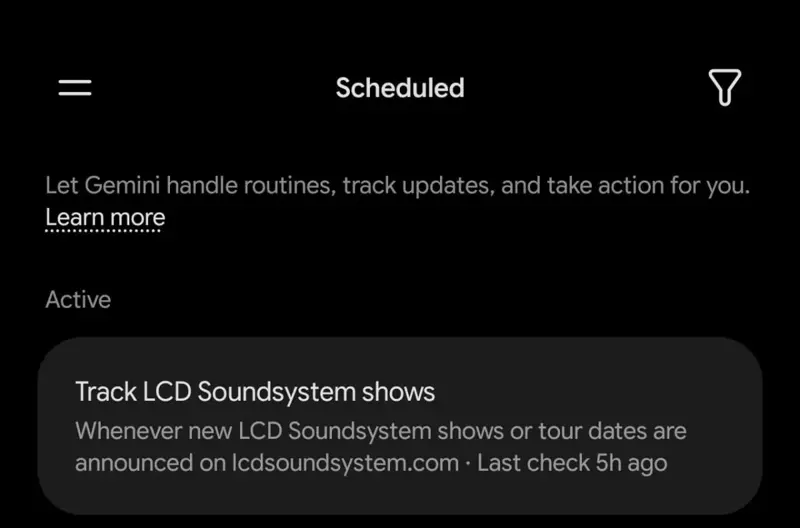
Here is how the old names map onto the new ones, using 9to5Google’s description and Google’s current help pages:
| Where it used to be | Where it is now | What it does |
|---|---|---|
| “Spark” entry in the side menu | Task button next to Chat, above the prompt box | Starts a new task from the same place you start a chat |
| Spark schedules | Scheduled page | Lists tasks and repeating schedules as Active, Paused, Completed or Suggested |
| A Recents list that held chats only | One shared history for chats and tasks | Filter by All, Ready, Needs attention, In progress |
| “Gemini Spark Settings” | Task settings | Deletes remote-browser and code-execution data, turns task mode off |
The second part is the message from Google. On October 13, when Google announced Gemini 4 Argon for Pro and Ultra subscribers, the announcement also mentioned a “simple toggle from chat to tasks” and said Gemini “can work for you even when you’re not at your computer.” PPC Land, which read the post closely, points out that Google didn’t use the word Spark, didn’t name any countries and didn’t explain how tasks run. That’s why the rename has been confusing: Google changed the product’s front door without a post that says, in plain words, “Spark is now Task.”
That also explains the posts on X. People who had Spark in the menu on Friday didn’t see it on Tuesday and assumed it had been pulled. I’ll show some of those below.
If you want the one-sentence version of how Google’s own help page now frames the feature, it’s this: “You can now start tasks in the same place you start a chat. Assign Gemini tasks to automate complex workflows and manage schedules for ongoing tasks.”
How Spark got here: the dates that trip people up
The reason old articles say “Ultra only” and new articles say “Pro” is that both were true, at different times. Here’s the sequence, built from Google’s release notes and its July 30 announcement.
The July 30 post is worth a look, because Google’s own illustration in it already shows a Chat | Spark switch above the prompt box. The toggle isn’t new. What changed in October is the second label, from “Spark” to “Task,” and the removal of the separate Spark menu entry.
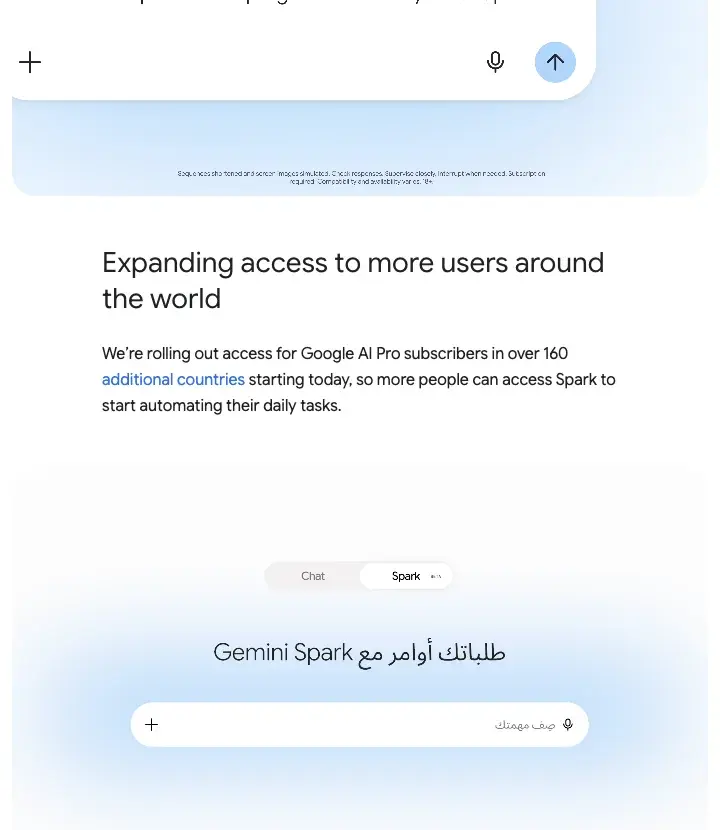
A few details from that July post and the release notes that people tend to miss:
- Pro came in two steps. US Pro subscribers (English) in mid-July, then “over 160 additional countries” on July 30. Google’s release notes list July 16 for the US step, while 9to5Google’s story about it is dated July 23, so you’ll see both dates floating around.
- Chrome integration arrived in July, US first. With your permission, Spark can use the accounts you’re signed into in Chrome, including saved passwords, to finish web errands. Google’s examples were scheduling apartment viewings and researching flights before starting a booking. For sensitive actions such as payments, Google says it hands the job back to you.
- The country list has moved around. The June 17 list was longer than today’s. Google’s current help page names only four exclusions, covered next.
Who gets Task mode: plan, region, device, account
This is the part people searched for, so here it is in one place. Everything below is from Google’s Gemini Apps Help page on tasks, which I read directly on October 15, unless I say otherwise.
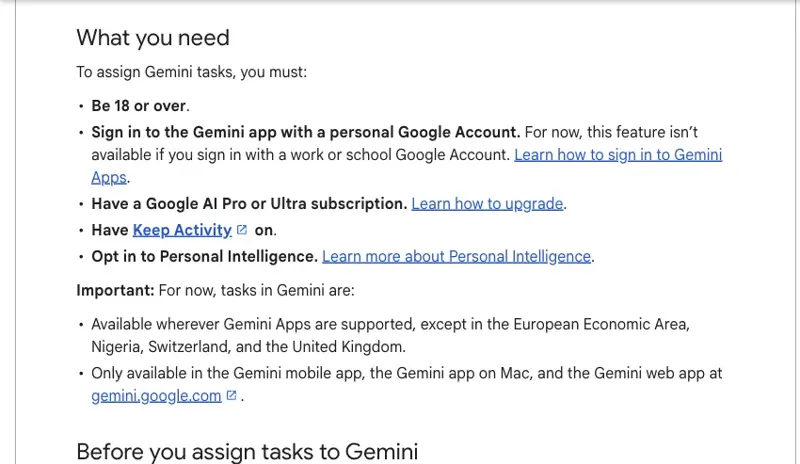
The five requirements:
- You’re 18 or older.
- You’re signed in with a personal Google Account. Work or school accounts aren’t supported “for now.”
- You have a Google AI Pro or Ultra subscription.
- Keep Activity is on.
- You’ve opted in to Personal Intelligence.
The region limit: available wherever Gemini Apps are supported, “except in the European Economic Area, Nigeria, Switzerland, and the United Kingdom.”
The device limit: the Gemini mobile app, the Gemini app on Mac, and the Gemini web app at gemini.google.com. This is where sources disagree, so I’ll be careful. 9to5Google reported on October 12 that the redesign was rolling out on Android first and wasn’t yet on iOS or the web. A third-party guide (Layer3 Labs) says the Task selector reached the Mac app on October 13, and that web and iPhone didn’t have it yet. Google’s help page lists mobile, Mac and web as supported surfaces, without saying which have the new switch today. The practical answer: open gemini.google.com or your app, and look for a Task button under the text box. If it’s there, you have it. If it isn’t, you might just be waiting for your rollout.
One honest caveat on the Pro-versus-Ultra difference. Google’s pages say higher subscriptions get higher compute-based limits, and 9to5Google’s July story gives the same 15-at-a-time figure without splitting it by plan, but neither one gives a message count, a task count per day, or a weekly number. If you read a specific figure for how many tasks Pro allows, treat it as a guess.
The price: Google AI Pro is $19.99 a month in the US. Ultra starts at $99.99 (the 5x tier) and goes to $199.99 (the 20x tier), per PPC Land’s reading of Google’s plan pages. Prices outside the US differ, so check your own country’s plans page.
How to give Gemini a task and walk away
This is Google’s documented path, with my commentary on what makes a task work well in practice. The steps come from Google’s help pages; the advice about how to word a task is my own, so weigh it accordingly.
Step 1. Open Gemini and pick Task. Go to gemini.google.com, or open the Gemini app on your phone or Mac. Click or tap Task below the text box. Expected result: the prompt box now says you’re starting a task rather than a chat.
Step 2. Describe the goal, and when you want it done. Google says to tell Gemini “your specific goals and when you want tasks completed.” The help page gives three sample goals: declutter an inbox by summarizing or archiving newsletters, monitor flight and hotel prices and alert you when they drop within your budget, and research a topic and package the results as a PDF, document, spreadsheet or slide deck. Expected result: Gemini starts working, and the task shows up in your history.
Step 3. Add files if the job needs them. You can attach files from your device, Google Drive or a Notebook. Skip this if the task doesn’t need any.
Step 4. Set a schedule if it should repeat. You can say it in the task (“every Monday at 8am”) or build it by hand: open Scheduled in the sidebar, create a new schedule, name it, write the instructions under “Plan,” and choose when it runs. Manual setup only works for time-based schedules. Google’s help page also tells you to test with Run now: hover over a schedule, open More, and choose Run now, so you see one real result before you trust a repeating job.
Step 5. Submit, then watch for input requests. Google tells you to “monitor the task for input requests.” A task can stop and wait for you, for example when it needs a decision or a sign-in. In the shared history, the Needs attention filter is where those show up.
Step 6. Know how to stop it. Click Stop in the Gemini text box to cancel a task. If Gemini is browsing with Chrome, Stop in the Gemini side panel in Chrome ends that browsing, and Gemini may then try another approach or give up. To pause a schedule, open the task thread, click the schedule chip, then More options, then Pause. Turning off task mode in Task settings stops schedules and deletes the remote-browser and code-execution data, while keeping your tasks, threads, schedules and files.
How to word a task so it finishes
Nothing below is from Google. It’s a template I’d use, based on what the documentation says Gemini does with ambiguous requests (it asks for input) and on what’s gone wrong in the X posts further down.
Goal: [one sentence, with a finish line]
For example: "Find three dog-friendly restaurants within 2 miles of my office that can seat 6 on Thursday at 6:30pm."

Limits: [what it must not do]
For example: "Don't book anything. Don't email anyone. Show me the options."

Done when: [what you want to see]
For example: "A table with name, distance, price level and booking link."

Ask me before: anything that costs money, sends a message, or needs a login.
The “Limits” line does the heavy lifting. It turns a task that might act into a task that researches and stops, which is the version of Task mode I’d start with.
A worked example: one office manager, nine chores, four delegations
This is a planning exercise, and the person in it is made up. I’m not reporting results from a real run, because I haven’t run one. What I can do honestly is show how to sort a to-do list into what’s worth delegating, using Google’s documented limits and confirmation rules.
Dana runs the office for a 12-person firm and pays $19.99 a month for Google AI Pro. Here are the nine recurring chores on her list, and what she decides for each.
| # | Chore | Delegate to Task mode? | Why |
|---|---|---|---|
| 1 | Weekly summary of newsletters she follows | Yes, on a schedule | Read-only. Worst case, a poor summary. |
| 2 | Watch supply prices for printer toner and flag drops | Yes, on a schedule | Matches Google’s “monitor prices” example. No purchase. |
| 3 | Find 3 lunch options for Friday’s client visit | Yes, research only | “Show me options, don’t book.” |
| 4 | Draft a reminder email for the quarterly fire drill | Yes, draft only | Gemini asks for review before sending anyway. |
| 5 | Pay the monthly software invoice | No | Money moves. She does it herself. |
| 6 | Reply to a client’s contract question | No | Confidential and consequential. |
| 7 | Book the team offsite venue | Not yet | She’ll run a research-only task first, book by hand. |
| 8 | Reconcile the office card statement | No | Financial data, and she’d have to paste it. |
| 9 | Clean up a shared Drive folder | Not yet | Edits to shared Workspace files require confirmation, and one wrong delete is annoying to undo. |
Dana ends up with four tasks (rows 1 to 4), three of them on a schedule, well inside the 50-schedule and 15-at-once limits. She starts with Run now on each, reads the output, and only then leaves them on a schedule. The monthly math is simple arithmetic, not a measured result: $19.99 a month is about $240 a year. If each of those four tasks saves her ten minutes a week, that’s roughly three hours a month. If her time is worth $25 an hour, that’s about $72 of her time against a $19.99 subscription, and it only works out if the outputs hold up and she’d otherwise have spent the time on those chores.
The reason this exercise matters is the sorting, not the savings. The chores that went into the “No” column are the ones where a mistake costs money or trust. Task mode is strongest on the research-and-draft side and weakest where something irreversible happens at the end.
What it asks you to confirm, and what it doesn’t
Google’s help page is more specific here than most coverage, and it’s worth knowing before you hand over anything important.
Gemini asks for your review before it:
- sends communications
- modifies data
- makes purchases
- submits web forms
- signs in with Google
Chrome permission: the first time Gemini browses for you on a device, Chrome asks for permission. After that, Gemini asks for confirmation before each web-browsing task.
What it doesn’t ask about: Google says edits to shared Workspace documents need your confirmation, but bulk actions on private Google Tasks don’t. Say you have 200 old items in a private Google Tasks list. Task mode can bulk-change them without asking. That’s a design choice, and it’s worth knowing about.
Take over, don’t type secrets: Google’s page says: “Do not enter sign-in info, payment details, or info you may find sensitive directly into the task thread.” The right way to handle a login is the take over option, where you do the sensitive step yourself in the browser and hand control back.
The warning from Google that deserves a direct quote: the page describes prompt injection, which means malicious instructions hidden in websites, emails or documents that can mislead an agent, and says “Gemini’s safeguards aren’t intended to replace your active supervision.” It recommends avoiding sensitive tasks or schedules, especially when you’re offline, since you may not be able to stop an unintended action.
Is that overcautious? The research suggests it isn’t. A 2025 paper on AI agents (Alizadeh and colleagues, arXiv 2506.01055) built simple prompt-injection attacks against a fictional banking agent and found an average attack success rate of about 20% across 16 tasks, with models losing 15 to 50 percentage points of usefulness under attack, and no built-in defense fully stopping data leakage in a larger 48-task test. That study didn’t test Gemini and predates Task mode, so it doesn’t tell you how Google’s product performs. It does tell you why Google, a company that wants you to use the feature, wrote that sentence about supervision.
The privacy trade-off most explainers skip
Two of the five requirements are privacy choices, and they’re linked.
Keep Activity must be on. Google’s Gemini Apps privacy page says that when Keep Activity is on, your chats are saved to your activity and used to improve Google’s services, including training generative AI models, with help from human reviewers. A subset of chats gets reviewed by humans, including Google’s service providers; reviewed chats are disconnected from your account and kept for up to three years, and deleting your activity doesn’t delete chats that were already reviewed. The same page says remote browser and computer tasks require Keep Activity to be on.
In plain terms: to use Task mode, you have to leave on the setting that lets Google use your Gemini chats to improve its products. If you were using Gemini with Keep Activity off, Task mode asks you to change that.
Personal Intelligence is opt-in. Google’s help page lists it as a requirement, and Gemini’s task description says it can draw on connected apps, skills, chats, signed-in websites, Personal Intelligence and location. That’s the point of the feature, and it’s also a lot of access. Our Gemini Personal Intelligence privacy playbook course goes through what to connect and what to leave off.
My rule of thumb: connect only what a specific task needs, and don’t schedule anything you couldn’t tolerate going wrong while you’re asleep.
What people on X are actually saying
I asked Grok to search X for posts from October 11 to 15. The honest summary is that volume is low, so this is a snapshot, not a verdict. Individual users’ posts are mostly in the tens to low thousands of views, and the biggest, 9to5Google’s own post about the redesign, reached about 12,700. Here are the posts that show the pattern, with the numbers as Grok reported them.
The “where did it go” posts. @MaaSonder wrote on October 12 that Gemini “has a new ‘Task’ button on the app it is replacing spark and is no longer separated and is apart of the Gemini interface,” listing multi-step work, workspace integrations and scheduling (49 likes, about 4,964 views). @Bandana_ici wrote on October 14: “Gemini spark have disappeared and now every task is invisible. Any fix for that?” (about 19 views). @thenewgenesis04: “Got Gemini Spark for two days and it disappeared mid-task.” @adamconner joked that it’s “a real classic of the google launch genre,” a new thing arriving while an old thing quietly goes away.
The praise. @White1637402 replied to Google’s Logan Kilpatrick that Gemini 4 Argon “ran autonomously for 30 mins in Task Mode, self-iterating through 6 versions via visual checks” to hand-craft a vector illustration (14 likes, about 689 views). That’s one person’s anecdote, but it’s the kind of long, unattended job the feature is built for.
The complaints about reliability. @allan_d_clive said that “6 tasks have died off with zero output or error, just dead” with Argon, and that the same tasks “run fine on flash”; a day later he reported re-running five tasks and having them all fail again. @ManabeT69109 gave a task to fill data into a Google Sheet and hit a permission block, with other models too. @Marqoh66 had a bad experience from before the redesign that stuck with them: when typing credentials for the agent, it “kept pasting things twice.” Those are exactly the cases where Google’s “take over” advice applies.
The complaints about access. @awesum_ironman wrote that Spark is “still not available in Europe,” a sentiment echoed by a few other European users. That’s the region block, and it’s the most consistent complaint.
The early critique that’s still useful. Before the rollout reached everyone, @altryne listed his problems with Spark on October 12, including that it felt slow, that the UI was awkward, and that he wanted “a continuous chat” rather than a tasks-based flow. Putting Chat and Task side by side in one app looks like Google’s answer to that complaint.
For independent reviews, I found two with provocative titles but couldn’t open them, so I won’t summarize what they say: PCMag’s “Gemini Spark Is the Best AI Agent I’ve Tested…But It Has a Big Problem” and ZDNet’s “I tested Gemini Spark - another Google AI fail, or its next dark horse?” Both sit in Perplexity’s source list for this topic, and since I couldn’t open them, I can’t say what they conclude or how current they are. Smaller reviews I did read describe mixed results: usable output on a first pass with small but consistent gaps, trouble with context in long sessions, and little meaningful reach beyond Google’s own apps. Treat those as secondary sources of varying rigor.
Is it worth $19.99 a month? A decision table by reader
The short version: it’s worth it if you have recurring, low-stakes research-and-draft chores and you’d actually read the output. It’s not worth it if your reason for upgrading is Task mode alone and you’re in a blocked region.
| If you are… | My recommendation | Your first action |
|---|---|---|
| In the EEA, UK, Switzerland or Nigeria | Don’t upgrade for Task mode. You can’t use it. | Skip. Check back if Google changes the region list. |
| On a work or school Google account only | You can’t use it on that account. | Check whether you have a personal Google account you could use for personal tasks. |
| A solo owner or office manager with recurring chores | Probably worth a month. | Make the Dana table above for your own list, pick three read-only chores, start a task with Run now. |
| A student or someone with a light email life | Probably not. Free Gemini covers most of what you do. | Try the same job as a normal chat first and see if the chat answer is enough. |
| Already on Pro for storage or Argon | You already have it. Test it. | Open the app, find the Task switch, run one research-only task this week. |
| Privacy-sensitive (client records, health, legal) | Be cautious. | Keep client data out of tasks entirely. Use Task mode for public-information jobs only. |
| A heavy user who wants constant agent work | Compare Pro limits with Ultra. | Run Pro for a month. If you hit the cap in practice, then look at Ultra. |
The three-task test (one month of Pro, nothing to lose)
If you’re undecided, the cleanest way to find out is to put three real tasks through it, for one billing cycle, and keep notes.
- A research task you do every week. Compare what Gemini produces with what you’d have produced. Time yourself reading it.
- A price or news monitor. Something you check by hand now, like a product price, a competitor’s blog, a local event listing. Let it run for two weeks.
- A draft task. One email or document you’d normally write from scratch, with “draft only, don’t send” in the limits line.
Write down, for each, how long you spent reading and correcting the output. If the total is less than what you’d have spent doing it yourself, keep Pro. If not, cancel. Canceling stops tasks: Google says you lose access, in-progress tasks finish, and schedules are paused, not deleted.
Edge cases and troubleshooting
These are the problems people are running into, drawn from the X posts and Google’s help pages.
1. “I don’t see Task. Spark is just gone.” The rollout is staged. 9to5Google reported Android first, with iOS and web later; Layer3 Labs reported the Mac app on October 13. Update the app, force-close and reopen it, and check gemini.google.com for a Task button under the text box. If it’s still absent a day or two later, check the requirements list above: wrong account type or Keep Activity off will also hide the feature.
2. “My tasks vanished after the update.” One user posted that every task became invisible. I can’t verify a fix for that. What Google’s redesign does is merge tasks and chats into one history, so try the history filter (All, Ready, Needs attention, In progress) and open the Scheduled page before assuming something was deleted.
3. “Tasks die with no output.” One user reported this with Argon selected, saying the same jobs ran on Flash. I couldn’t confirm this as a general fault, and Google hasn’t said which model tasks use. If a task silently fails, try the same job on a different model, and start with the simplest version of it.
4. “My schedule didn’t run.” Google lists the reasons: you’ve hit your usage limit when the schedule came due; 15 tasks are already running; run times are approximate and can be delayed in heavy traffic; turning off task mode pauses schedules; completed schedules can’t be edited or resumed, only deleted.
5. “I hit the 50-schedule limit.” Pause or delete an existing schedule first. Deleting a task thread also deletes every schedule in it.
6. “It needs a login I can’t give it.” Don’t type the password into the task thread. Use take over and finish the sign-in yourself. This is also the answer to the credentials-pasted-twice complaint.
7. “It can’t edit my Google Sheet.” A permission block was reported on a spreadsheet task. Shared Workspace documents require confirmation, and access depends on how the file is shared with your account. Check sharing on the file before blaming the model.
8. “I’m outside the US.” Pro reached 160+ more countries on July 30, but the four excluded regions stay excluded. Prices and availability vary by country, and Google’s pages disagree a little: one third-party guide says a schedules page once said scheduling outside the US required Ultra, but the schedules page I read on October 15 doesn’t say that. If it matters for your decision, check your own country’s plan page before paying.
What Task mode can’t do
A few honest limits, so nobody upgrades for the wrong reason.
- It can’t be used everywhere. The EEA, UK, Switzerland and Nigeria are excluded, and work and school accounts aren’t supported.
- It can’t replace your supervision. Google says so directly. Prompt injection is a documented risk for any agent that reads the web.
- It can’t promise results. Google publishes no success rate, no task-count per plan and no weekly cap. The X reports of silent failures are anecdotes, and so are the reports of 30-minute successes.
- It can’t work with Keep Activity off. You trade some privacy for the feature, and the trade is Google’s requirement, not an option you can tune.
- It can’t be trusted with the irreversible. The confirmation rules cover sending, buying, form submissions and shared-document edits, but not bulk actions on private Google Tasks. The safe pattern is research and draft first, act by hand.
FAQ
Where did Gemini Spark go? It’s now Task mode. Spark was folded into the main Gemini app as a Task option next to Chat, with a Scheduled page for repeating jobs. The Spark entry in the side menu was removed.
Is Gemini Spark the same as Gemini Task mode? Per 9to5Google, which describes the redesign, yes: “Task” is Gemini Spark. Google’s October 13 announcement describes a toggle from chat to tasks without using the name Spark, so the connection comes from the press and Google’s help pages, not from a plain-language Google statement.
Is Gemini Task mode free? No. It needs Google AI Pro ($19.99/month) or Ultra (from $99.99/month). Free and Google AI Plus accounts don’t get it.
Did Google just make Spark available on Pro? Not this week. Spark came to US Pro subscribers in mid-July and to Pro in 160+ more countries on July 30. The October change is the rename and the new location in the app.
Why can’t I use Gemini Task mode in Europe or the UK? Google’s help page excludes the European Economic Area, the UK, Switzerland and Nigeria. Google hasn’t published a date or reason for lifting that.
Can I use it with a work or school account? No, not for now. Google says to sign in with a personal Google Account.
How many tasks can run at once? Up to 15. A schedule won’t run if 15 tasks are already running. You can have up to 50 active schedules.
Does Gemini ask before it buys something or sends an email? Per Google’s help page, it asks for review before sending communications, modifying data, making purchases, submitting web forms, or signing in with Google. Google also says its safeguards aren’t a substitute for watching what it does.
Do I have to leave Keep Activity on? Yes. Google lists it as a requirement, and says remote browser and computer tasks need it on. With Keep Activity on, Google uses chats to improve its services, with human review of a subset.
What happens if I cancel Pro? You lose access to tasks. Google says in-progress tasks finish and schedules are paused, not deleted.
The bottom line
Gemini Spark didn’t disappear. Google renamed it Task mode, put it next to Chat, and gave it a Scheduled page. The Pro-tier access that people are surprised by happened in July, and the plan, region and account rules are strict: Pro or Ultra, a personal account, Keep Activity on, and not in the EEA, UK, Switzerland or Nigeria.
Whether it’s worth $19.99 is a question about your chores, not about Google. If you have a handful of recurring research, monitoring and drafting jobs, and you’ll read the output before anything goes out, a month of Pro is a cheap experiment. If your main reason is curiosity, or you’re in a blocked region, wait. And whatever you do with it, start with research-only tasks, use Run now before you schedule anything, and keep the sign-ins and the payments in your own hands.
If you want a structured way to learn what Gemini’s features do and where they stop, our Google Gemini course covers the app’s models, plans and workflows, and Gemini Spark for Solopreneurs goes deeper on building background workflows for a one-person business. For the glossary version of this topic, see What Is Gemini Spark?. For the model side of this week’s Gemini news, read Gemini 4 Argon: what Free, Pro and Ultra really get, and for the wider question of whether to pay at all, Gemini Flash vs Pro: do you need to pay?. If you’re comparing agents across vendors, the agent comparison from May still explains the three shapes (cloud worker, browser, coworker), though its Spark pricing predates the changes above. Agentic AI explains the underlying idea.
Sources
- Google Gemini Apps Help: Manage your tasks & workflows in Gemini Apps
- Google Gemini Apps Help: Create & manage schedules for tasks in Gemini
- Google Gemini Apps Help: What’s new for Gemini Spark (release timeline)
- Google Gemini Apps Privacy Hub: Keep Activity, human review and retention
- Google: Gemini Spark now integrates with Chrome (July 30, 2026)
- 9to5Google: Gemini ‘Task’ redesign integrates Spark into the main chat app (October 12, 2026)
- 9to5Google: Gemini Spark rolling out to Google AI Pro users in the US (July 23, 2026)
- 9to5Google: Gemini app rolling out Gemini 4 Argon to AI Pro and AI Ultra (October 13, 2026)
- PPC Land: Gemini app tasks mode works while users are away, for $19.99 and up
- Layer3 Labs: Gemini Spark disappeared because Google renamed it Task Mode
- Basic Tutorials: Gemini Spark now runs on Chrome, but Germany is left out
- Alizadeh et al.: Simple Prompt Injection Attacks Can Leak Personal Data Observed by LLM Agents During Task Execution (arXiv 2506.01055)
- Reactions from X, October 11 to 15, 2026, gathered through a Grok search (@MaaSonder, @Bandana_ici, @thenewgenesis04, @adamconner, @White1637402, @allan_d_clive, @ManabeT69109, @Marqoh66, @awesum_ironman, @altryne)
