

You didn’t ask for a summary on top of your search results, a Copilot icon in your spreadsheet, or an assistant behind your phone’s power button. And when you try to turn off AI, you get a different answer in each app (and in a few, no answer).
This guide covers the apps in the table below, not every app you might use, and for some of them we found no off switch. There’s no master switch. There are dozens of small ones: some real, some cosmetic, and some that only change what happens to your data while the feature keeps running.
Menu paths come from the makers’ help pages as read on November 26, 2026, unless another source is named. I haven’t tested these settings on a device or in a signed-in account, and menus differ by country, plan and app version.
TL;DR. This covers the apps listed here, not every app. Real off switches exist in Gmail, Microsoft 365 on a personal account, Firefox, DuckDuckGo, Canva Free and Pro, Adobe Acrobat on desktop and several others. On an iPhone or a Samsung phone, you go feature by feature. Google’s AI Overviews, Meta AI and Amazon’s shopping assistant had no off switch we could find. And switching off training is a different job from switching off a feature.
What “off” can mean
Three different things get called “turning AI off,” and mixing them up is how people think they’re protected when they aren’t.
- Switched off. The feature stops working for you.
- Hidden. A button or panel goes away, but the AI is still there. Removing the Copilot icon from the Office ribbon is like this: Microsoft says it “doesn’t turn off Copilot.”
- Training opt-out. The assistant works as before, but your future chats aren’t used to train models. ChatGPT’s “Improve the model for everyone” toggle is this kind.
Want both? Then you’ll usually need two switches. Turning off Gemini’s History isn’t the same as unticking its training box, and a Word checkbox says nothing about what you type at copilot.com.
The master table: what you can turn off
“Yes” means the maker gives you a switch for that item. “Partly” means you get some controls but not a clean off. “No” means we found no switch on the pages we read, or the maker says there isn’t one.
| App or feature | Off switch? | What you get | Where to look |
|---|---|---|---|
| Google AI Overviews | No | Web-only view, per search | Web filter |
| AI Mode button in Chrome | Partly | Hides the button | Address bar menu |
| Gmail smart features | Yes | Features off | Gmail settings |
| Gemini history and training | Yes | History and training off | Gemini settings |
| Gemini on Android | Partly | No default assistant | Default apps |
| Gemini in Chrome | Partly | Per-item switches | AI innovations |
| Google Photos | Yes | Gemini features off | Preferences |
| Office on a personal account | Yes | Per app, per device | Copilot options |
| Windows Copilot app | Yes | Uninstall it | Installed apps |
| Windows Recall | Yes | Off by default | Privacy and security |
| Edge Copilot | Partly | Limits and hides | Edge settings |
| Teams meetings | Partly | Licensed organizers and presenters, per scheduled meeting | Meeting window |
| Apple Intelligence | Partly | Feature by feature | Settings app |
| Samsung Galaxy AI | Partly | Feature by feature | Galaxy AI menu |
| Meta AI | No | Per-chat and reuse controls | Chat and profile |
| Snapchat My AI | Partly | Hide and clear | Chat screen |
| LinkedIn AI training | Yes | Training toggle (news report) | Data privacy |
| Amazon Rufus | No | Nothing we found | None |
| Alexa+ | Partly | Device only | Voice command |
| Slack AI | Admin only | Workspace setting | Feature access |
| Zoom AI | Partly | Hides the chat panel | Web portal |
| Canva Free and Pro | Yes | Generative AI off | Permissions |
| Adobe Acrobat desktop | Yes | Generative AI off | Preferences |
| Grammarly | Partly | Generative AI off only | Account settings |
| Notion | Partly | Web search, owners only | Workspace settings |
| QuickBooks Online | No | No per-feature switch | None |
| ChatGPT training | Yes | Training off | Data controls |
| Claude training | Yes | Training off | Privacy settings |
| Firefox | Yes | One block toggle | AI Controls |
| DuckDuckGo | Yes | AI features off | AI Features |
Where to start: privacy first, clutter second
Don’t start with the icon that annoys you most. Start with what happens to your words.
- Training switches: Gemini, ChatGPT, Claude, Copilot (if your version shows one), Google’s Search history setting, LinkedIn, Apple’s “Improve Siri” sharing.
- Access switches: what can read your mail, screen, tabs or locked phone.
- Clutter: Office checkboxes, notification summaries, the Windows Copilot app, assistant buttons.
- No switch at all: learn what it does, then decide how much you’ll use that app.
Why this order? A summary you dislike costs you a glance. A training switch you flip later isn’t promised to reach back to what was already used.
Google: Search, Gmail, Gemini, Chrome and Photos
AI Overviews have no off switch
Google is blunt about this one: “AI Overviews are a core Google Search feature, like knowledge panels. Features cannot be turned off.” What it offers instead is the Web filter. Run your search, then select Web, which shows text links without features like AI Overviews. On the desktop results page we looked at, Web wasn’t in the visible row of tabs; it sat under More.
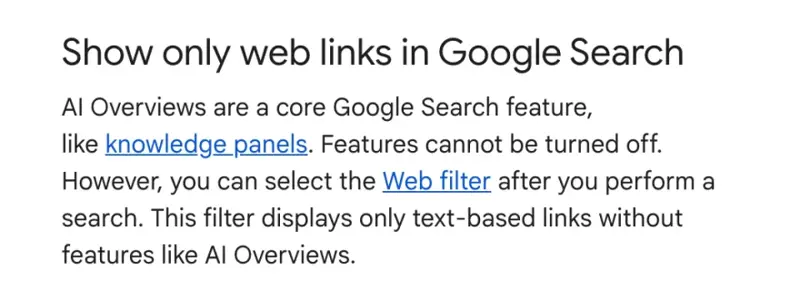
Google’s own wording. Source: Google Search Help.
You may have seen two other tricks. One is adding -ai to your query. Don’t count on it. A third-party test run on October 12 saw no AI Overview in 12 of 12 searches with it, but in a tiny check on November 26 (signed out, desktop Chrome, US English settings, from an address in Vietnam), “why do leaves change color in autumn” showed an AI Overview, and with " -ai" added it still showed one. A second query with -ai showed none, but we had no plain version to compare. Then Google served a CAPTCHA, so that’s the whole sample.
The other is adding &udm=14 to the address of a results page. On the leaves query it gave web results only, and a Path Around The World test (run October 12, 2026) reported the same on 12 of 12 searches. But it isn’t on Google’s help page, it’s unofficial, and that test warns it also drops the calculator, weather and flight status boxes. The reported search engine string for your browser:
https://www.google.com/search?q=%s&udm=14
And Labs? Google says you can turn off “AI in Search” there, but Labs is for experiments. Don’t expect it to remove AI Overviews. (Our AI Overviews explainer covers what they are.)
The AI Mode button
Google’s help page for AI Mode gives no off switch. In Chrome, right-click the address bar and unselect Always show AI Mode. That hides the shortcut; AI Mode itself is still there.
Stop searches from training Google’s models
Google’s setting is Search Services History. Its help page said it would arrive over the following months; if you don’t see it, yours is still called Web & App Activity.
Open its settings and turn it off. In Google’s words, “your future activity won’t be used to train Google’s generative AI models, unless you provide feedback.” It doesn’t remove AI Overviews. Personalized recommendations are separate: Google Account, Data & privacy, Personalization settings, Personalized Recommendations in Search services.
Gmail, Chat and Meet smart features
This is a real switch, and there are three, each independent: smart features in Gmail, Chat, and Meet, in Google Workspace, and in other Google products.
On a computer:
- In Gmail, click Settings at the top right, then See all settings.
- On the General tab, find Smart features and uncheck Turn on smart features in Gmail, Chat, and Meet.
- On the same tab, find Google Workspace smart features and click Manage Workspace smart feature settings.
- Turn off what you don’t want, then click Save.
On Android: Gmail, then Menu, Settings, pick your account. Under General, untick Smart features, then open Google Workspace smart features.
On iPhone or iPad: Gmail, then Menu, Settings. Under General, tap Data privacy and switch Smart features off. Then go back to Data privacy, open Google Workspace smart features, set your choices and tap Done.
What you lose: Smart Compose, summary cards for things like orders, events from Gmail appearing in Calendar, and Gemini in Google Workspace. That last one sits under the Workspace setting, so unticking only the first box won’t cover it.
What it doesn’t do: Google says “the learnings developed from this improvement process may persist even after you turn off a smart feature setting.” Changes apply across your devices, yet the same page says some computer changes don’t reflect in the mobile app. Check your phone too.
These settings are off by default if you live in the European Economic Area, Japan, Switzerland or the United Kingdom. Anywhere else, open the page and look.
Gemini app: history and training
Google’s help page calls this setting History. If you remember it as “Keep Activity” or “Gemini Apps Activity,” it’s the thing you’re looking for.
Turn off History:
- Computer: at gemini.google.com, click Settings at the bottom, then History. Near the top, click On, then Turn off or Turn off and delete history.
- Android, iPhone or iPad app: Menu, your profile picture or initial, Gemini History. Tap On, then Turn off.
Turn off training: this is a separate checkbox. On a computer it sits on the same History screen. In the mobile app, tap Menu, Settings, then History under “Data & privacy.” Untick the chat content box (the page calls it “Chat content including text & attachments,” and spells it “text & uploads” in its steps), then confirm. Google’s help pages disagree about the default. The English page says this box is on by default if you’re over 18; the German version of the same page says the training settings are off by default (both read November 26). We can’t tell which applies to you, so open yours and look. Both versions have the second setting, for audio and Gemini Live videos and screenshares, off by default.
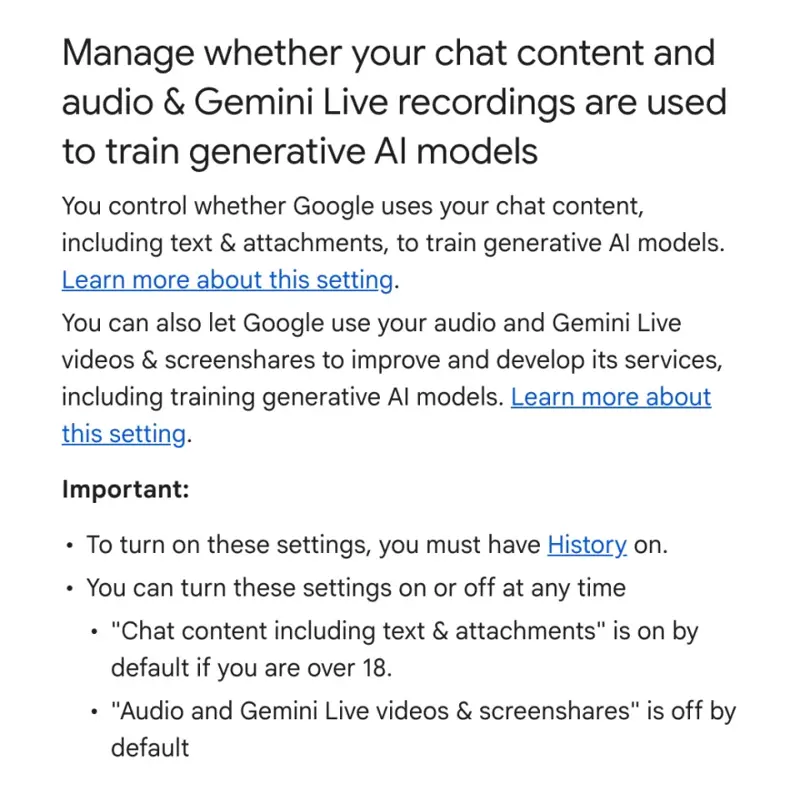
Training has its own boxes. You can untick them and keep your history. This is the English page; the German one gives a different default. Source: Gemini Apps Help.
What History off doesn’t do: chats are still saved with your account “for around two months.” Chats that human reviewers have seen aren’t deleted with your history; they’re retained for up to three years. Most Connected Apps stop working. Left on, history older than 18 months is auto-deleted by default (you can pick 3 or 36 months, or never).
Linked a bank through Google Wallet? Our guide to Gemini’s bank link and how to undo it uses Google’s older setting names and retention figure, so go by the details above. Connected apps explains the links themselves.
Gemini as your Android assistant
Steps vary by Android device, Google says. Here’s its list:
- Power button: Settings, System, Gestures, Press & hold power button. Change what it does there.
- “Hey Google”: in the Gemini app, Menu, Profile, Settings, Talk to Gemini hands-free, then turn off “Hey Google.”
- Lock screen: Menu, Profile, Settings, Gemini on lock screen, then turn off Use Gemini without unlocking.
- Default assistant: Settings, Apps, Default apps, Digital assistant app, Default digital assistant app, then choose None or another app.
Two things trip people up. Deleting the Gemini app doesn’t automatically remove Gemini as your default assistant. And you can no longer switch to Google Assistant on phones and tablets, Google says.
Gemini in Chrome and on-device AI
If you have Gemini in Chrome (not everyone does), go to More, Settings, AI innovations, Gemini in Chrome. Under Preferences, turn off the options that show Gemini in the browser, Mac menu bar or system tray. Check the permissions too, including microphone, location, sharing your current tab and “Let Gemini browse for you.”
Chrome also downloads AI models to your computer. To stop that: More, Settings, AI Innovations, then turn On-device AI off, and Chrome deletes the model files. Think first, though. Features that rely on them stop working, and Chrome’s examples include scam warnings. Other AI features may still run. We found no single Chrome switch that covers everything.
Google Photos
On Android, open Photos, then Photos settings, Preferences, Gemini features in Photos, and turn off Use Gemini in Photos. If you only dislike the Ask search, turn off Search with Ask Photos instead. On the same screen, Help us improve photos has a toggle, “Allow us to access your queries,” that you can switch off.
Microsoft: Office, Windows, Edge, Copilot and Teams
Word, Excel, PowerPoint, OneNote and Outlook
First, the catch that matters most: these settings are only for a personal Microsoft account. If you’re signed in with a work or school account, they aren’t available.
Windows: in the app, go to File, Options, Copilot. Clear Enable Copilot, select OK, then close and restart the app.
Mac: app menu, Preferences, Authoring and Proofing Tools, Copilot. Clear the same checkbox.
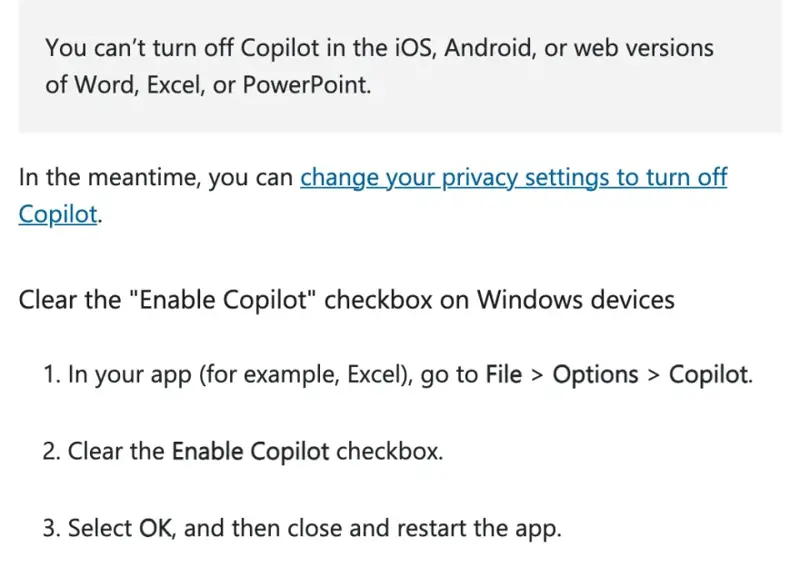
The checkbox steps, and the limit printed right above them. Source: Microsoft Support.
Each app has its own checkbox for that device only, so two laptops and three apps means six. It also turns Copilot off for anyone else on the device. And you can’t turn Copilot off in the iOS, Android or web versions of Word, Excel or PowerPoint. Microsoft’s page points to a privacy setting “in the meantime,” but the steps it gives are for Windows and Mac.
No checkbox? Check your version (Word 2412 or Excel 2501 on Windows, Word 16.93 or Excel 16.93.2 on Mac, or later). There’s also a privacy route: on Windows, File, Account, Account Privacy, Manage Settings, then clear Turn on experiences that analyze your content (on a Mac: Preferences, Personal Settings, Privacy, Manage Connected Experiences). It costs more, because text predictions, Designer and automatic alt text go too.
Outlook has its own Turn on Copilot toggle: Quick Settings, Copilot on Android, iPhone and Mac; Settings, Copilot on the web and in new Outlook for Windows. It follows your account across devices. Microsoft gave no date for classic Outlook.
Windows: the Copilot app, the Copilot key and Recall
On Windows 11, open Settings, Apps, Installed apps, find Copilot, open the “…” menu and choose Uninstall (Windows 10: Settings, Apps). Copilot inside Office or Edge stays.
Got a Copilot key? Microsoft’s page, read November 26, 2026, said a Windows 11 update “will ship later this year” so you can remap it under Settings, Bluetooth & devices, Keyboard.
Recall saves snapshots of your screen. It’s on Copilot+ PCs only, labelled a preview on the page read November 26, and off by default unless you opt in. To check: Settings, Privacy & security, Recall & snapshots, then Save snapshots (Windows Hello required; delete snapshots there too). You can also remove it under “Turn Windows features on or off.” Each user opts in separately.
Edge
Here are three partial controls for Edge. None of the three removes Copilot:
- Stop Copilot reading page context: More menu, Settings, Copilot and AI, then turn off Allow Copilot to read context clues on the web.
- On-device AI: Settings and more, Settings, Copilot and AI, turn the On-device AI toggle off.
- Toolbar button: a Microsoft page written for admins gives Settings, Appearance, Copilot and Sidebar, then under App specific settings, Copilot, turn off Show Copilot button on the toolbar.
Microsoft’s pages name two different settings sections, so if one isn’t there, try the other.
Copilot training
Check which Copilot you have first. Microsoft says an updated app for web, desktop and mobile has been available since August 18, 2026, and its page with the training switch applies only to the older version. The privacy page for the new one lists memory, shared experiences, chat history, web search and personalized ads, and names no training switch (both read November 26). So we have no training path to give you for the new version.
Older version: in the Windows or Mac app, select your profile icon, then Settings, Privacy, and turn off Training on conversation activity and Training on voice conversations. On mobile it’s menu, profile icon, Account, Privacy. The same page also gives a copilot.com path (profile icon, your profile name, Privacy), though it sends people using Copilot on the web to the new page.
For the older version, Microsoft says opting out covers future conversations only, and your data can still be used for ads, safety and other product improvement. You may not find the toggle: Digital Information World tested a personal copilot.com account from Pakistan on November 10, 2026 and saw none.
Teams meetings
For scheduled meetings, licensed organizers and presenters get a Meeting AI control at the top of the meeting window. Attendees can’t switch it off. According to an archive of Microsoft’s admin message center (not a Microsoft site), the rollout was set to finish by late September 2026, and turning AI off also turns off recording and transcription.
Our July walkthrough on Copilot’s AI notes in a Teams meeting has wording for telling a client. Its rollout dates have since moved, and Microsoft’s help pages say Copilot can run without a transcript. So “no transcript” doesn’t prove “no AI.”
Work and school accounts
If your employer or school runs the account, the admin often decides. Ask IT what’s on, what’s logged, and what you may change.
iPhone and Mac
Apple’s iOS 27 guide lists switches feature by feature, and no single Apple Intelligence master switch. Engadget (November 22) wrote that disabling it “isn’t as simple as flipping a single toggle like you could before.” This applies to iPhone 15 Pro, 15 Pro Max, and iPhone 16 or later. (Here’s what Apple Intelligence is.)
On iPhone, open Settings, then:
- Siri: tap Siri, scroll down, tap Turn Off Siri, then tap it again to confirm. This turns Siri off. Prefer the old Siri? Turn it off, tap Turn on Siri, then tap Siri Classic.
- Message summaries: Apps, Messages, turn off Summarize Messages.
- Email summaries: Apps, Mail, turn off Summarize Message Previews.
- Notification summaries: Notifications, Summarize Notifications, turn it off.
- Priority notifications: Notifications, Prioritize Notifications, turn it off.
- Smart replies: Apps, Mail, Personalize Smart Replies.
- Voicemail: Apps, Phone, Suggestions in Voicemail.
- Journal: Apps, Journal, Get Writing Prompts.
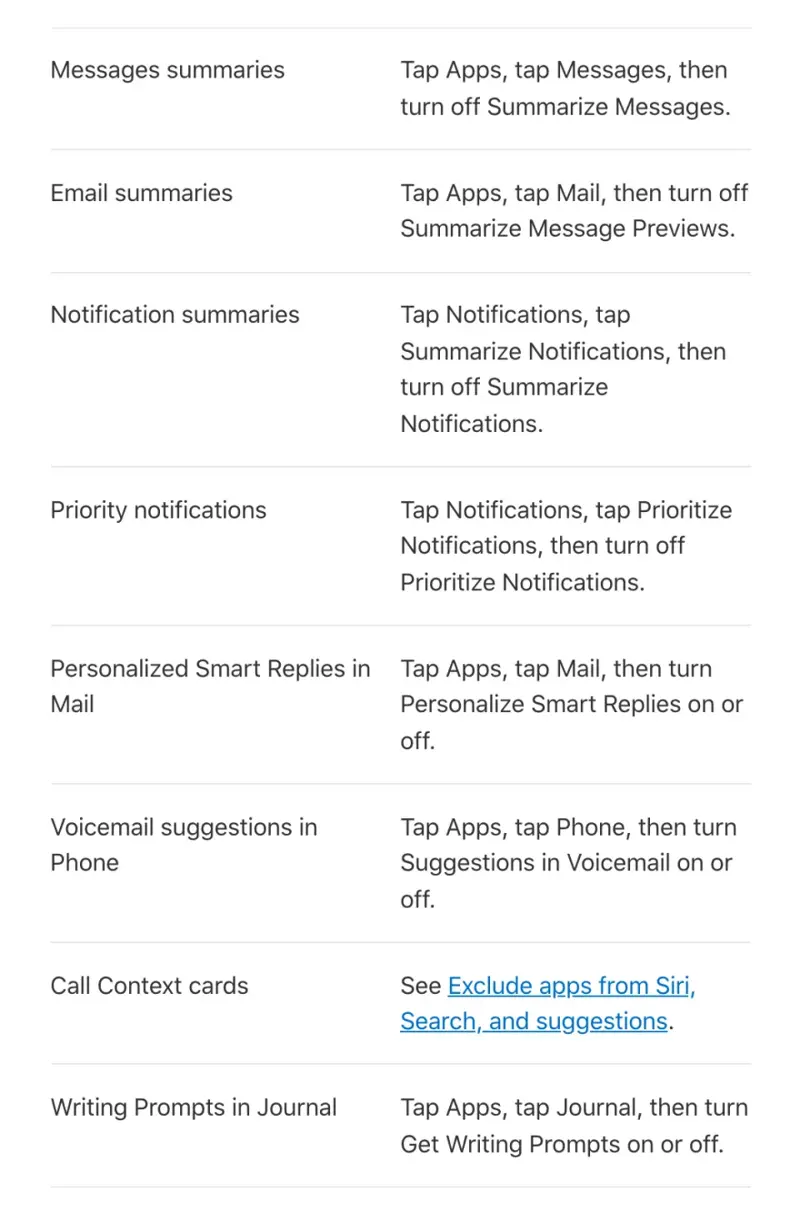
One row per feature: that’s the shape of the job on iOS 27. Source: Apple iPhone User Guide.
On a Mac (macOS 27): turn off Siri in System Settings, Siri. Then look for Summarize Messages (Messages, Settings), Summarize Message Previews (Mail, Settings, Viewing), Personalize Smart Replies (Mail, Settings, Composing), Summarize Notifications (System Settings, Notifications) and Get Writing Prompts (Journal, Settings, General).
Screen Time (iOS 27): tap Screen Time, Content & Privacy Restrictions, Siri. Pick Don’t Allow Siri, Siri (Classic Version) or Siri AI (Beta), or block capabilities such as image creation. On iOS 26 it’s Settings, Screen Time, Content & Privacy Restrictions, Intelligence & Siri, then Don’t Allow for Writing Tools, Image Creation and Intelligence Extensions.
Sharing for improvement: Settings, Privacy & Security, Analytics & Improvements, then Improve Siri & Apple Intelligence (or Improve Siri & Dictation).
Siri AI, a beta, was not going to be available at first in the EU on iPhone and iPad, and isn’t offered to under-13s or in mainland China.
Samsung Galaxy phones and tablets
Open Settings and tap Galaxy AI (some models: Advanced features first). Open each sub-menu, such as Call assist, and turn off what you don’t want. Some features switch off inside their own app, such as Phone, Notes, Camera or Gallery. Then restart the device.
Samsung warns that “some AI features may be integrated into the system and cannot be disabled,” and that disabling features may affect performance. Process data only on device stops cloud processing; it doesn’t turn features off. Gemini and Circle to Search are Google’s and are handled separately. For Gemini, see the Google section above; we give no Circle to Search steps.
WhatsApp, Instagram, Facebook, Snapchat and LinkedIn
Meta AI
WhatsApp calls Meta AI “an optional service,” yet the pages we read describe no setting that removes its button or search entry. What you can control:
- Restricted chat, which WhatsApp says is replacing Advanced chat privacy on the latest version of the app (chats with the old setting don’t update by themselves). People in that chat can’t use Meta AI features, export it, auto-save media or use linked devices. It’s set per chat, from your primary device; in groups, by admins.
- The stated limit: Meta AI only accesses messages people choose to send it, restricted or not.
- Message summaries and writing help: Settings, Chats, Private Processing. Off by default; English, Indonesian, Portuguese and Spanish only.
- Clean-up: delete your AI chats; group admins can remove Meta AI as a member.
On Instagram, when you “or others” use AI features in your chats, “messages from the past 30 days are shared.” You can delete or unsend messages, or delete the chat. There’s also a reuse control: profile, menu, Sharing and reuse, then turn off Allow people to create with and reuse your content for Posts and Reels. Its help page doesn’t mention AI features.
For Facebook and Messenger, we didn’t find a maker’s page with an off switch, so we won’t give steps we can’t stand behind.
Training: Meta said in April 2025 that people in the EU can object to their public data being used, through a form linked from its notifications. Interactions with Meta AI are used for training too; public data from EU accounts under 18 isn’t. For people in the EU and UK, 404 Media described a Privacy Center objection route, going by walkthroughs from users there, not a Meta page. We couldn’t verify the form path.
Our July guide to Meta AI settings has more on per-post reuse. It doesn’t mention Restricted chat, and Instagram’s label has changed, so use the names above.
Snapchat My AI
Swipe right from the Camera screen to the Chat screen, press and hold My AI, tap Chat and Notification Settings, then Unpin Conversation or Clear from Chat Feed. Snap’s own pages don’t agree on whether unpinning needs Snapchat+, so it may.
Clearing the thread doesn’t delete what you shared. For that, tap your profile, the gear, Privacy Controls, Clear Data, Clear My AI Data, and confirm. Snap also says this data may be used to improve its products and personalize your experience, including ads.
We couldn’t open LinkedIn’s help page, so this path is as reported by Digital Information World in November 2026 (adapted from the Electronic Frontier Foundation): click your profile image, Settings & Privacy, Data Privacy, then Data for Generative AI Improvement, and turn off “Use my data for training content creation AI models.” We haven’t confirmed from LinkedIn what the toggle does to data it has used before.
Amazon: Rufus and Alexa+
For the shopping assistant (Rufus, since renamed Alexa for Shopping), we found no Amazon setting that turns it off. Amazon staff wrote in July 2025, before the rename, “Currently, there isn’t a way to disable Rufus,” and a 2026 third-party guide still found none. A browser content blocker can reportedly hide the desktop panel, not the one in the app.
Alexa+ is a bit better. Amazon staff on its forum (February 2026) said you can say “End Alexa+.” When your Alexa+ benefits end, the device goes back to the original Alexa with Follow Up Mode turned on (“Alexa, turn off Follow-Up Mode” fixes that). Standard subscribers cancel under Your Memberships & Subscriptions and keep the benefits until the billing cycle ends. But the free, limited Alexa+ on Alexa.com and in the Alexa app can’t be deactivated.
Work apps: Slack, Zoom, Canva, Acrobat, Grammarly, Notion and QuickBooks
Slack. Only Owners and Admins on paid plans can change it: Admin, Workspace settings, Roles & permissions, Feature access, AI, then next to a feature click Edit, choose Everyone or No one, and click Save. Members can’t. On training, Slack says it doesn’t train generative AI on customer data without opt-in consent, but its predictive (non-generative) global models do use it unless an Owner emails feedback@slack.com with the subject “Slack Global model opt-out request.”
Zoom. For your own account, sign in to the Zoom web portal, click your picture, Settings, Zoom AI, and under Conversations turn off Show conversational AI (unless an admin has locked it). That hides the AI chat panel and agents. It doesn’t necessarily stop meeting summaries a host starts. Account admins have Allow Zoom AI on this account under Admin Center, Settings, Zoom AI, on certain plans.
Canva. On Free and Pro: profile icon, Settings, then Permissions under “Controls and permissions,” then turn off Enable generative AI features. It’s on by default. Non-generative tools like the background remover stay. Canva said it was releasing the toggle gradually, so you may not see it, and Teams and Education accounts are run by admins. One oddity: on the pages read November 26, another Canva FAQ said Canva AI “can’t be fully turned off,” while the settings page listed Canva AI among the things the toggle disables.
Training has its own place. Canva’s Trust Center says your Privacy Settings control how your data is used to improve its AI-powered features, and its help page gives the path: profile icon, Your account, Privacy controls. Our Canva AI off-switch guide covers the rest.
Adobe Acrobat (desktop). Close open documents. On Windows: Menu, Preferences, Generative AI. On Mac: View, Preferences, Generative AI. Untick Enable generative AI features and select OK. It’s enabled by default. This is Acrobat only, not Photoshop or the rest of Adobe’s apps.
Grammarly. Any user can turn off generative AI in the Feature customization tab of account settings. The core AI can’t be turned off separately from Grammarly itself, so if you want no AI at all, that means not using it. Team admins have their own control under Organization, Feature access.
Notion. The one switch we found is for workspace owners: Settings, Notion AI, then under AI Web Search, turn off Enable web search for workspace. We didn’t find a Notion page that turns Notion AI off. Notion says that by default neither it nor its AI providers use customer data to train models.
QuickBooks Online. Intuit’s help page says it plainly: “Currently, there isn’t a way to turn off AI features individually.” If your books are the worry, read what QuickBooks and Xero let you turn off, which covers what still needs your click (we didn’t recheck Xero for this post).
Chatbots and browsers: ChatGPT, Claude, Firefox and DuckDuckGo
ChatGPT. Open your account menu, Settings, Data controls, turn off Improve the model for everyone, then select Done. On iPhone and Android it’s under your profile icon in the same place. It’s on by default for personal Free, Plus and Pro accounts; Business, Enterprise and Edu data isn’t used by default. It doesn’t delete saved chats, voice has its own training control, and Temporary chats aren’t used for training (OpenAI keeps them up to 30 days).
Claude. Open the menu on your name, Settings, Privacy, and turn off Help Improve our AI models. Anthropic says new chats then aren’t used, though your data will “still be included in model training that has already started,” and chats flagged for safety may still be used. Thumbs-up or thumbs-down feedback can be stored for up to five years. This applies to consumer plans.
Firefox (desktop, version 148 or later). This is the closest thing to a master switch in this whole guide. Open Firefox’s Settings (the help article gives the Mac menu: Firefox, then Settings), select AI Controls, and turn on Block AI enhancements. It blocks current and future AI features and their pop-ups, and removes downloaded on-device models. It also blocks things you might like, such as translations and PDF alt text, unless you switch those back on one by one. It doesn’t cover extensions with their own AI, or your search engine’s AI.
DuckDuckGo. In the browser, go to Settings, AI Features, and turn off Duck.ai. In search, open Search Settings, AI Features, turn off Duck.ai, set the Search Assist dropdown to Never, then Save and Exit. There’s also noai.duckduckgo.com.
Training switches at a glance
| Service | Training switch | Default, per the maker | What it leaves |
|---|---|---|---|
| Gemini | Chat content box | Pages disagree: on if over 18 (English), off (German) | Saved history (18-month auto-delete by default), reviewed chats |
| Google Search | Search Services History | Not stated here | AI Overviews, your feedback |
| ChatGPT | Improve the model | On for personal plans | Saved chats stay |
| Claude | Help Improve toggle | Not stated here | Training already started |
| Copilot | Training on activity (older version only; the new version’s privacy page names none) | Not stated here | Older version: ads, safety, other uses |
| Apple | Improve Siri sharing | Asked at setup | Not stated here |
| Generative AI data | Not confirmed | Past use not confirmed | |
| Slack | Owner email opt-out | Predictive models use data | Not stated here |
| Notion | None needed by default | Customer data not used | Notion AI stays |
| Canva | Privacy controls | Not stated here | Generative features stay |
“Not stated here” means we have nothing on that point from the pages we read. In the default column, it doesn’t mean off. Open the setting and look.
What this means for you
New iPhone. First action: open Settings, Privacy & Security, Analytics & Improvements and check the Siri sharing toggle. Then switch off only the summaries that bother you.
New Windows laptop. First action: uninstall the Copilot app if you don’t want it, then clear Enable Copilot in each Office app. On a Copilot+ PC, check Recall too.
Android or Samsung phone. First action: set your default digital assistant, then work through Galaxy AI’s sub-menus if it’s a Samsung.
Parent. First action: on your iPhone, Settings, Family, your child’s name, Content & Privacy Restrictions, Siri. You can pick Siri AI (a beta that isn’t available for children under 13), Siri Classic or Don’t Allow Siri, and block Writing Assistance. Then check their other apps.
Teacher with a school account. First action: ask IT which AI features are on for staff and students and whether chats are used for training. Keep student details out of personal chatbot accounts.
Small business owner. First action: list the tools that hold client data and check each one’s training setting. QuickBooks gives you no per-feature switch, and Canva’s differs by plan. For your website, see blocking AI training versus being found by AI.
In the EU or UK. First action: confirm Gmail’s smart features are off, then look for Meta’s objection route. We found no 2026 DMA or GDPR rule that gives you a general right to switch AI features off, and we didn’t search UK law.
Edge cases and troubleshooting
The Gemini button is still in Gmail. One Google community thread (November 2026) reported this on Android after smart features were off, and a reply there said there’s no user setting to hide it. Do check the setting on the phone itself.
“Try Gemini” keeps coming back. A December 2025 forum thread describes exactly that.
Copilot returned in Word for Mac. One user reported in August 2026 that an update turned it back on and the option vanished. One report, not a pattern. If it’s yours, check the version and use the privacy route above.
“I don’t have Labs.” One person on Google’s forum, trying to turn off Google’s AI, wrote this. Don’t worry: Labs isn’t the AI Overviews switch anyway.
The Photos toggle is missing. A user found it on one account and not on a partner’s (July 2026). Check the app version and which account you’re in.
You want Google Assistant back. A Google product expert wrote that it has been phased out on Android phones. Setting the default assistant to None is your option. Skip roll-back hacks.
A setting is greyed out or absent. Check for a work or school account, an old app version, or a plan or country without the control.
What you can’t turn off
- AI Overviews. Sidestep them per search; you can’t disable them.
- Meta AI’s presence. We found no maker switch that removes it.
- Amazon’s shopping assistant (we found no Amazon setting that turns it off), and the free Alexa+ on Alexa.com and in the Alexa app, which Amazon staff say can’t be deactivated.
- The past. Claude training that has already started still includes your data, and Gemini’s reviewed chats outlive your delete button.
- What someone else controls: a meeting host’s tools, a school admin’s settings.
AI-made videos and pictures in your feed are a separate subject. To spot them, read how to recognize AI slop.
FAQ
Is there one setting that turns off AI everywhere?
No. Each maker has its own controls, and some have none. Firefox’s block toggle comes closest, but only for Firefox.
How do I turn off AI in Google Search?
You can’t turn off AI Overviews. After a search, choose the Web filter (look under More) for text links without them.
Does adding -ai to a search still remove AI Overviews?
Don’t rely on it. In our small signed-out check, a query with -ai still showed one.
Can I turn off Apple Intelligence completely?
Apple’s iOS 27 guide lists no single master switch. You turn off Siri and each feature, or restrict them in Screen Time.
Can you turn off Meta AI on WhatsApp?
We found no setting that removes it. You can restrict chats, leave Private Processing off and delete AI chats.
Does turning off an AI feature stop training on my data?
Not necessarily. Training usually has its own switch, so check both.
The bottom line
You can’t turn AI off. You can turn off a lot of it, one switch at a time, and in several apps you can limit which of your words go into future training, though those controls are partial. Do the training switches first, the access switches second, and the clutter whenever it annoys you enough. After a big update or a new device, open your list again and check.
For the habit behind the switches, knowing what’s safe to paste into a chatbot, take AI Privacy 101: Use ChatGPT & Claude Without Oversharing (first 2 lessons free).
Sources
- Google: AI Overviews, AI Mode, AI Mode in Chrome, Search Services History, smart features, Gemini History (German version), Gemini Apps Privacy Hub, Android assistant, Use Gemini in Chrome, on-device AI in Chrome, Gemini features in Photos
- Microsoft: Copilot in Office, Copilot app, Copilot key, Recall, Edge context clues, Edge on-device AI, Manage Copilot Chat, Copilot privacy, older version, Copilot privacy, new version, recap without transcription, Copilot without transcript, Copilot re-enabled in Word for Mac
- Microsoft 365 Message Center Archive: MC1319216
- Apple: iPhone, iOS 27, Mac, overview, iOS 26, Screen Time, child settings, Siri privacy
- Engadget: Apple Intelligence storage and toggles
- Samsung: Use features with Galaxy AI
- WhatsApp: About Meta AI, Restricted chat, Private Processing, Delete chats with AI, Meta AI in group chats
- Instagram: Meta AI in chats, Sharing and reuse
- Meta: AI training in Europe
- 404 Media: Meta AI training objections in the UK and EU
- Snapchat: Unpin or remove My AI, Delete My AI data
- Digital Information World: AI training controls, adapted from EFF
- Amazon Forum: How do I disable Rufus, Exiting Alexa+
- ModemGuides: How to disable Amazon Rufus
- Slack: AI feature access, Privacy principles
- Zoom: your account, admins
- Canva: Manage AI features, Canva AI FAQ, privacy preferences
- Adobe: Turn off generative AI in Acrobat
- Grammarly: Turn off generative AI, Feature access for teams
- Notion: Notion AI FAQs, Notion AI security practices
- Intuit: Agents in QuickBooks Online
- OpenAI: Data controls in ChatGPT
- Anthropic: privacy settings, training use
- Mozilla: AI Controls
- DuckDuckGo: opting out
- Path Around The World: Turn off AI on Google, a test
- Google community forums: remove the Gemini button, stop the Try Gemini banner, no Labs option, missing AI setting, bringing back Google Assistant