

On November 16, Google added a feature to Gemini Notebook, the research tool that used to be called NotebookLM, that suits a teacher in the middle of exam season. Type “make me a site” in a notebook’s chat, describe what you want, and it builds a clickable page from the sources you added: a timeline, a visual explainer, a dashboard, a tracker. Google’s own examples include an interactive periodic table and a historical timeline “to help you prepare for exams.”
For a teacher, the obvious use is a review site built from your own readings, slides and worksheets, instead of a handout you assemble by hand. The catch is in the fine print, and it’s the kind teachers care about: who is allowed to build one, who can open it, what opening it reveals, and what happens when your school has switched Gemini off for students.
This guide covers both halves. First, how to make a site and what to put in it. Then the part that decides whether you should share it: the sharing rules, the age limit, the school-account situation, and the privacy checks. I haven’t built one on a live account, and the feature launched on November 16. Most of it comes from Google’s own pages, and I mark what Google hasn’t said.
The short answer
TL;DR. Gemini Notebook can turn the sources in a notebook into an interactive site. Building one needs edit access to the notebook and an account for users 18 or over, on the web as of November 24. Sharing is the tricky part: Google’s help page says viewers need access to the full notebook, which includes your sources, and that sharing a site publicly needs a consumer account. So the safe pattern is to build from materials you’d happily hand to anyone who gets the link.
- What it does: builds a clickable study page, dashboard or tracker from the sources you’ve added to a notebook.
- Who can build: users 18 or over with edit access to the notebook. It rolled out on the web on November 16, with mobile “coming soon.”
- Who can open a shared site: people who have access to the full notebook. That is the rule to design around.
- What to do first: make a test notebook from a lesson that has nothing sensitive in it, build a site, and check every fact against your sources before any student sees it.
What Google launched on November 16
Google’s launch post is short. It says that starting that day, Gemini Notebook “can turn your sources into interactive sites to help you quickly make sense of complex information.” You type “make me a site” in the notebook chat with a description of what you want for work or study. Google lists three kinds:
- Visual explainers “to help you prepare for exams, like an interactive periodic table or a historical timeline.”
- Interactive dashboards “to explore your data, such as quarterly sales performance.”
- Project management trackers “to outline your tasks and deadlines.”
Once built, you choose “Open in a new tab” to use it, or share it with others. Google says it is “rolling out globally on the web today for Gemini Notebook users (18+), including Google Workspace subscribers, and is coming soon to the mobile app.”
The example, read closely
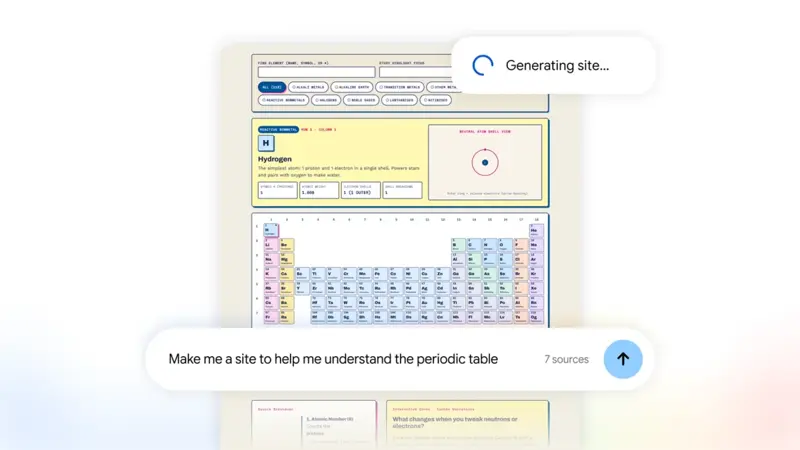
Digital Trends described Google’s demo in more detail. A notebook full of chemistry material becomes a site called “Understanding the Periodic Table,” with a clickable table of elements, plain-language sections and a five-question quiz at the end. A second prompt turns five sales documents into a dashboard with region filters. In the image above, the generated page offers filters such as alkali metals, halogens and noble gases, and a card that explains Hydrogen as “the simplest atom.”
That demo is what a good result looks like. It is Google’s own, so it doesn’t show how the feature handles a messy folder of scanned worksheets. Magica, which wrote up Google’s help pages, made the same point: Google’s demonstrations “do not establish how reliably sites handle other users’ documents,” and “a study aid needs its explanations checked against its sources.” Budget for that review. I’ll come back to it.
Who can build one, and where
Three conditions come straight from Google’s “Generate sites in Gemini Notebook” help page.
- Age. “This feature is only available to users ages 18 or over.”
- Edit access. “To generate or delete a site, you need edit access to a notebook.”
- Usage limits. “Usage limits apply to creating sites.” Gemini Notebook’s usage page says its limits are compute-based, factor in the complexity of your prompt, the models and features you use and the length of your chat, and refresh every 5 hours until you reach a weekly limit. Studio shows the expected AI usage cost before you generate. If you run out, a Generate later option on the web can delay a generation, and Google says that “may take a couple hours.” Google’s usage page lists higher tiers at two times and four times the standard limits.
Where? The web, at notebook.google.com. Google’s launch post of November 16 says the mobile app is “coming soon” and gives no date.
What if you teach on a school account?
This is where most teachers will get stuck, so it’s worth separating three situations.
You’re an adult teacher with a school (Google Workspace for Education) account. Google’s launch post says Google Workspace subscribers are included but doesn’t say which Workspace editions, so I can’t confirm that school accounts can build sites. Whether your school has turned Gemini Notebook on is the admin’s call. Google’s Classroom help page says “your admin must enable access to Gemini Notebook in order for you to create a notebook.” If you can’t create one, ask your admin.
You’re an adult teacher using a personal Google account. You can use the feature, subject to the age and edit rules. You should still follow your school’s policy about which tools may touch student work, and a personal account is the wrong place for anything with student information.
Your students have school accounts, and some are under 18. The feature itself is for users 18 or over. On November 3, Google announced that access to Gemini, Gemini Notebook, Gemini in Classroom and Google Search will be off by default for K-12 student accounts until school administrators turn them on. Our parents’ guide to that announcement explains why it is a plan Google announced, not something that flipped that day. The honest teacher pattern is the one in the next section: you build, you check, you share, and you don’t assume a minor’s account can open or use it. Whether an under-18 can open a shared site isn’t answered in the pages I read.
Build a study site, step by step
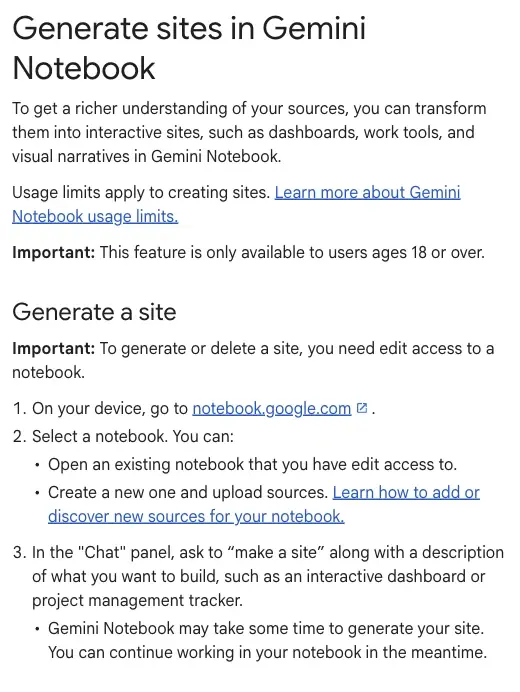
Google’s help page gives the mechanics. Here they are with the teacher’s checks added.
Step 1: Prepare the sources
A site is built from the sources in the notebook, so choose them like handouts. Good inputs: your own notes, slides, the readings you already hand out, a syllabus. Leave out anything you wouldn’t give to every student in the class: rosters, grades, student essays, behavior notes, parent emails, anything about a student’s needs.
The reason is on Google’s sharing steps, quoted below: a viewer needs access to the full notebook, and the public-notebook page says the “chat view” setting “hides sources and artifacts, but does not completely revoke a viewer’s access to them.” Assume anyone who can open the site can find the sources.
Step 2: Create the notebook and add sources
On notebook.google.com, open an existing notebook you can edit, or create one and upload sources. Check the sources you want the site to use.
Do a small test first. Pick a lesson that has nothing sensitive in it, add three or four of its sources, and make a site. You learn what the feature does to your kind of material before you trust it with a full unit.
Step 3: Ask for the site
In the Chat panel, ask to “make a site” and describe what you want. The help page calls the results “dashboards, work tools, and visual narratives,” and the launch post gives dashboard and tracker examples. Gemini Notebook “may take some time to generate your site,” and you can keep working in the notebook meanwhile.
Here is a prompt to start from. It is our own and I haven’t run it, so treat it as a first draft to adjust. Each line is one sentence so it copies cleanly.
Make me a site that helps my students review this unit before the test.
Use only the sources I have checked in this notebook.
Audience: students in grade 9. Keep the reading level plain and the sentences short.
Include a timeline of the key events, a key-terms section with one-sentence definitions, and a five-question self-check at the end.
Show which source each section comes from.
If the sources do not say something, leave it out and do not guess.
Three choices in that prompt are deliberate. “Use only the sources I have checked” ties the site to your materials. “Show which source each section comes from” gives you something to verify against. “Leave it out and do not guess” tells it what to do when a gap appears. Change the grade, the topic and the sections to fit.
Step 4: Open it and test it
In the Studio panel, select the generated site. To see it full screen, use More, then Open in new tab. Click everything. Google says the site saves and reopens to the selections and inputs you made, such as checked boxes, notes and text fields.
One detail helps with student work: “On shared sites, all users, including site owners, see only their own site inputs.” So if students use a site you shared, what each one types isn’t visible to you or to the others. That’s good for privacy and bad if you hoped to see their answers.
Step 5: Check it against your sources
Do this before anyone sees it, and do it slowly. The next section is the checklist.
Step 6: Change it, then decide how to share
To change a site, try describing the change in chat; Google’s help page doesn’t describe an edit flow. For sharing, see the section after the checklist, because the options are narrower than “send a link.”
Checking the site before a student sees it
A generated site can look finished and still be wrong. I’d check these five things every time.
- Dates and order. Compare every date and the order of events on a timeline against your source. A timeline is the example Google promotes, and I found no dated teacher report of wrong timeline dates, so the point is to check, not to assume either way.
- Definitions. Read each key-term definition against the source’s wording. Plain language can drift from the meaning.
- The quiz. For every self-check question, confirm that exactly one answer is defensible, that the answer key matches the source, and that the wrong choices are plausible without being tricks. Don’t use generated questions for marks without this pass.
- Source lines. If you asked for them, check that each section’s source line points at the right file. If it doesn’t, ask the site to fix it or drop that section.
- Everything that isn’t in your sources. Anything the site adds on its own is the first thing to cut. You asked it to use only your materials.
Add one more: try it the way a student would. Open it on the device they’ll use, with the account they’ll use. Whether generated sites are accessible to a screen reader or work by keyboard isn’t covered in Google’s pages, so test that yourself if a student needs it.
Sharing: the part to read twice
Here is Google’s own text for sharing a site.
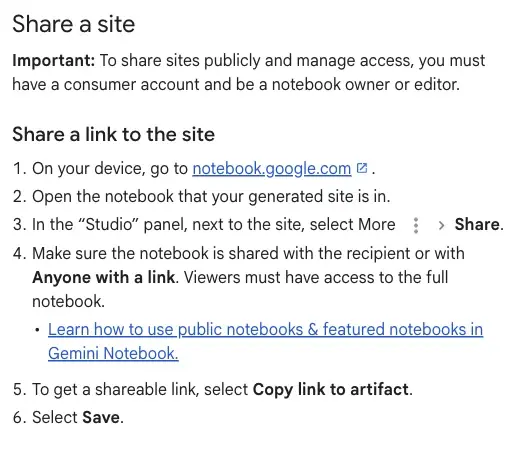
Read the second sentence of step 4 again: “Viewers must have access to the full notebook.” That means a shared site is not a separate web page that hides your sources. Magica drew the same conclusion from the help page: a dashboard link “cannot selectively expose a visual output while withholding the notebook.”
Three more rules from the same page:
- “To share sites publicly and manage access, you must have a consumer account and be a notebook owner or editor.” Being able to build a site on a Workspace account is not the same as being able to share it publicly.
- Sharing happens from the Studio panel: More, then Share, make sure the notebook is shared with the recipient or with Anyone with a link, then Copy link to artifact.
- “If you delete or turn off sharing to a site, previously generated share links will no longer work.” So you can take a site back.
There is also a Download option in the same menu, which Magica notes is a separate route from link sharing. Google’s page doesn’t say what the downloaded file contains beyond the site, so open it and check before you pass it on.
A different feature: assigning a notebook in Classroom
These are two different things. Interactive sites are pages generated from a notebook. Assigning a Gemini Notebook in Google Classroom is a separate workflow that shares the whole notebook with a class. Google’s Classroom help page spells out how it works:
- It’s for teachers with a Google Workspace for Education account, and “your admin must enable access to Gemini Notebook.” Students “must have admin-enabled access” as well.
- A notebook can be used across multiple classes, and “Gemini Notebook supports up to 50 source documents.”
- You attach it on the Assignment or Material page, under Attach, then Gemini Notebook. You can pick one of your notebooks, or paste the URL of a public notebook or one you can edit. You can also choose class content, and the supported attachments on the classwork items you select import as sources.
- Students get read-only access to the sources, and they don’t need access to the original files. They can chat and use the study items you generated. They can’t add or edit sources or generate items.
- Deleting the Classroom post doesn’t remove student access. You remove it in the notebook’s sharing settings.
Classroom also has insight summaries, which began rolling out on October 19, 2026, per Google’s Workspace Updates blog. Teachers see an overall summary of how students used the notebook, common themes such as questions and areas of strength, and individual chat transcripts. Students see a notice that their conversations in an assigned notebook are visible to the teacher. The help page adds limits: transcripts are available when Gemini activity is on, insights don’t include chats from before October 19, summaries are based on text conversations and not on quizzes, flashcards or audio overviews, and “insights are generated by AI and can make mistakes” and are “not intended for assessment or placement.”
I found nothing in those pages that says a generated site can be assigned through Classroom as its own item. Posting a site link in a Classroom post is just posting a link, and it carries the sharing rules above. If assignment with insights is what you want, the assigned notebook is the documented route.
How the options compare
| Option | What it is | Who can use it | What students see | Where it’s documented |
|---|---|---|---|---|
| Interactive site | A clickable page built from your notebook’s sources | Users 18 or over with edit access, on the web | Anyone you share with needs the full notebook; or a downloaded file | Gemini Notebook help |
| Assigned notebook in Classroom | A whole notebook shared with a class | Teachers and students on school accounts the admin has enabled | Read-only sources, chat, items you generated | Classroom help |
| Gemini study notebooks | A study space in the Gemini app where students upload materials and take a diagnostic quiz | Personal accounts of users 18 or over at launch; school accounts “in the coming weeks” per Google’s ISTE post | Their own plan of lessons | Google’s ISTE post |
| Guided Learning in Classroom | A teacher-assigned, step-by-step study tool | Via Classroom | A guided activity | Our Guided Learning guide |
Use the interactive site when you want a visual review page and you can control who gets it. Use the assigned notebook when you want students to ask questions of your materials inside Classroom. The ISTE post describes the study notebooks as the student’s tool in the Gemini app; our study notebooks guide covers that route, and the free AI study tools roundup compares the wider field.
What this means for you
If you teach K-12 on a school account. Ask your admin two things first: whether Gemini Notebook is on for teachers, and whether your school has settings for sharing it. Build from your own approved materials, and share by a route your school allows, usually the assigned notebook. First action: open Classroom’s Attach menu and see whether Gemini Notebook is there.
If you’re a college or university instructor. Your students are likely 18 or over, so the age rule matters less. The full-notebook sharing rule matters a lot if your sources are licensed readings. First action: check what your license lets you share before you add a reading to a notebook that others can open.
If you tutor on your own. A personal account works for building. Share only what you’d give a student on paper. First action: build one site from public-domain or self-written material and share it with one trusted parent first.
If you homeschool. You build the site as an adult. Whether a child’s account can open a shared site isn’t answered in the pages I read, so test it with the account your child will use. First action: download the site instead of sharing the whole notebook if you don’t want the sources open.
If you coach other teachers. You can turn this into a small PD session: one source set, one prompt, one check. First action: have each teacher run the five-point check on the same generated site and compare what they found.
If you’re a student 18 or over. The same feature works for exam prep from your own notes. First action: build a site from your notes and ask it to show the source for each section, so you can see where it is guessing.
If you administer a school’s Google Workspace. Google’s Workspace Updates post says Gemini Notebook external sharing is off by default and can be controlled at the domain, OU and group level, including trusted domains. First action: read what your settings say before teachers ask.
Edge cases and troubleshooting
- There’s no “make a site” option, or it fails. Check your age, your edit access to the notebook, whether your admin has enabled Gemini Notebook, and that you’re on the web. As of November 24, Google lists the mobile app as coming soon. Usage limits can also stop a generation: if you’ve hit one, the chat shows a message, and Generate later is available on the web.
- Your school account can build but not share publicly. That’s in the help page: public sharing needs a consumer account. Use the download option, or an assigned notebook if your school has it.
- The share link opens, but a student sees your sources. That’s how the rule works. Viewers need access to the full notebook, and chat view doesn’t completely revoke access to sources. Take out anything you don’t want visible and make the site again.
- A student’s account can’t open it. A school may have Gemini Notebook off for students until the admin turns it on. Google’s help says students need admin-enabled access to interact with an assigned notebook.
- You deleted the Classroom post, but students can still open the notebook. Google says deleting the post doesn’t remove access. Change the notebook’s sharing settings.
- The site’s facts don’t match your materials. Ask in chat to fix the specific section, naming the source it should use. If it still doesn’t match, cut the section. Google’s own insights warning says generated output can be wrong.
- You asked for a change and want to keep the old version. Google’s help page doesn’t say how edits are versioned, so download a copy of a version you’ve already checked before you change it.
- You ran out of generation quota mid-unit. Limits reset every five hours until a weekly cap. Plan the big builds for when you have room, and use Generate later when you don’t.
What it can’t do
- It can’t promise accuracy. It builds from your sources, and your sources can contain errors or be ambiguous. A site that looks polished is still a draft.
- It can’t hide your sources when you share. Viewers need the full notebook. That’s the rule on Google’s own page.
- It can’t be built by or for everyone. The feature is for users 18 or over, and a school’s settings can switch Gemini Notebook off.
- It can’t (as documented) be assigned in Classroom as its own item, or send quiz results back to a gradebook. Google’s pages describe none of that.
- It can’t replace your judgment on assessment. The Classroom insights page itself says summaries are “not intended for assessment or placement,” and generated quiz questions need your review.
FAQ
What is “make me a site” in Gemini Notebook? It’s a prompt you type in a notebook’s chat. Gemini Notebook uses the notebook’s sources to build an interactive site, such as a study explainer, a dashboard or a tracker. Google launched it on November 16, 2026.
Is Gemini Notebook the same as NotebookLM? Digital Trends says Gemini Notebook started life as NotebookLM, which Google first showed at I/O 2023 as Project Tailwind, and that Google renamed it in July.
Can students under 18 use it? The feature is for users 18 or over, per Google’s help page. Whether an under-18 can open a site you share isn’t answered in the pages I read, and school accounts for K-12 students may have Gemini Notebook off until an admin turns it on.
Can I share a site without sharing my sources? Not by link. Google’s help page says viewers must have access to the full notebook. You can download the site instead.
Can I make a site from my students’ work? I’d avoid it. Anything you add as a source can be seen by whoever can open the notebook. Keep student names, grades and files with identifying information out of the notebook, and check your school’s rules on which tools may handle student work. I didn’t verify Google’s privacy statements for education accounts while writing this, so read your district’s agreement for yourself.
Does it work on my phone? Not as of November 24. Google’s launch post says the mobile app is coming soon, with no date.
Does it cost anything? Google’s help pages say usage limits apply and that limits are higher on paid plans. Magica’s reading of the usage page is that standard limits apply without a subscription. I can’t say what your account’s limit is; Studio shows an expected usage cost before you generate.
Is this different from assigning a notebook in Google Classroom? Yes. Assigning shares a whole notebook with a class on school accounts, with read-only sources and teacher insights. A site is a page built from a notebook. Classroom’s help page doesn’t describe assigning a site as its own item.
How do I check a generated quiz? Check that each question has one defensible answer, that the key matches the source, and that the wrong choices are plausible. Don’t use generated questions for marks without that pass. The Google Forms quiz builder guide covers another route to quizzes.
What do students see when they use an assigned notebook? Read-only sources and the items you generated, plus chat. They are told that their conversations in an assigned notebook are visible to their teacher.
The bottom line
Interactive sites are a good fit for the review page every teacher builds by hand around exam time. The feature launched on November 16, is limited to adults and the web as of November 24, and its sharing rule is stricter than it looks: a link to a site is a link to the whole notebook.
So build from materials you’d hand to anyone, check every fact against your sources, and choose the route that matches your school’s settings: a download, an assigned notebook, or a link you’ve thought about. Start with one lesson and one test site. If it holds up on your own materials, make the next one.
If you want a deeper footing, Teaching with AI (first 2 lessons free) is our course for teachers, and NotebookLM Mastery (first 2 lessons free) covers working with notebooks and sources.
Sources
- Google, “Turn Gemini Notebook sources into interactive sites” (Nov 16, 2026)
- Google Gemini Notebook Help, “Generate sites in Gemini Notebook”
- Google Gemini Notebook Help, “Use public notebooks & featured notebooks”
- Google Gemini Notebook Help, “Manage your Gemini Notebook usage limits”
- Google Classroom Help, “Create and assign Gemini Notebook & Gems in Google Classroom”
- Google Workspace Updates, “Teacher-led Gemini Notebook in Google Classroom now offers insight summaries” (Oct 19, 2026)
- Google, “Supporting students with connected AI tools for more personalized learning”
- Digital Trends, “Gemini Notebook can now turn your notes into interactive websites”
- Magica, “Gemini Notebook adds interactive sites, with notebook-wide link access”