On October 6, OpenAI added a line to the ChatGPT release notes that quietly fixes one of the oldest complaints about the product. You can now attach an audio file to a chat, and ChatGPT will turn it into a transcript, a summary, a set of structured notes, or a draft follow-up email. For years the honest answer to “can ChatGPT transcribe my recording?” was “not really, go use another tool first.” That answer is out of date.
There is one catch, and I’d rather put it in the first paragraph than the twentieth. Audio uploads are for paid ChatGPT plans and workspaces. They are not available on the Free plan “at this time,” in OpenAI’s own words. If you’re on Free, most of this post is a preview, and there’s a section near the end on what to do instead.
Here’s what I’ll cover: what exactly OpenAI announced (quoting its pages, not the blog posts rewriting them), how to use it step by step, a worked example with real numbers about file sizes, how it compares to the tools you may already pay for, what it does with your audio, the recording-consent rules that apply the moment you press record on someone else’s voice, and the problems people will hit. I’ll say plainly where I couldn’t verify something, because the web already has plenty of confident guesses about this feature.
Here’s how I built it. I read OpenAI’s October 6 release note, its updated “Uploading files and audio to ChatGPT” help article (marked “Updated: 4 hours ago” when I opened it this morning), its Meetings plugin and Record help pages, and the data-use and retention sections of the same help article. I ran a Perplexity deep-research pass over several hundred sources, including academic speech-recognition studies and recording-law summaries, and I checked X for early reactions. I have not run my own paid-account test files through it yet, so where I describe behavior, I’m describing what OpenAI documents, not something I measured.
What “audio uploads” actually is
The October 6 release note is short. Here are its key sentences:
“Upload audio files to ChatGPT to create transcripts, summarize recordings, and ask questions about their contents. You can turn a meeting, interview, or lecture into structured notes or a follow-up email draft. To get started, attach a supported audio file to a conversation and describe what you need.”
And the fine print: “Audio uploads are available with paid ChatGPT subscriptions and workspaces. Availability may vary by workspace settings, region, client version, and model. Transcripts may contain errors, and performance may vary across languages.”
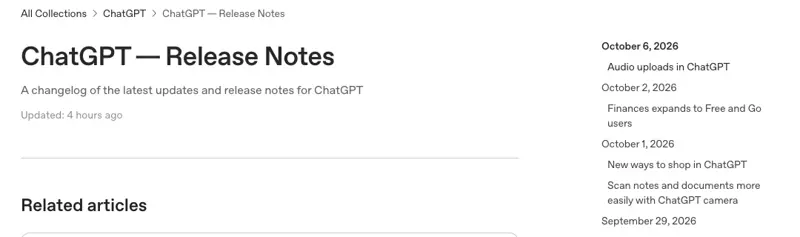
In plain terms, this is a file attachment, not a new app. You don’t open a special mode. You attach an audio file the same way you’d attach a PDF, tell ChatGPT what you want done with it, and keep talking to it afterward. That last part is the real value. A transcript on its own is a wall of text. A transcript sitting inside a chat where you can ask “what did the client say about the deadline?” or “draft a reply that confirms the three things we agreed” is a working document.
Three other features get mixed up with this one
Within the same week OpenAI also shipped or updated two other audio features, and the posts about all three are blurring together. Keep them straight, because they have different rules:
- Audio uploads (new, Oct 6): you already have a recording as a file. You attach it to a chat. Works with paid plans and workspaces, per the help article. Nothing is “recorded” by ChatGPT.
- Record mode (older): a Record button inside the ChatGPT macOS desktop app that listens live and builds notes. OpenAI’s Record page says it’s available for Plus, Enterprise, Edu, Business and Pro workspaces on macOS only.
- The Meetings plugin (new, Sept 29): also macOS only, in beta for all Pro and all Business plans, with Enterprise in a limited alpha. It takes notes during a call without a bot joining, then saves a summary with suggested action items to ChatGPT Space.
If you hear “ChatGPT can now record my meetings,” that’s Record or Meetings. (If the whole category is new to you, our What Is an AI Notetaker? page explains it.) If you hear “ChatGPT can now transcribe my voice memo,” that’s audio uploads. This post is about the second one, with a section on when the other two are the better choice.
The facts that matter, straight from OpenAI’s help article
The help article is where the details live. Here’s everything it says about audio, organized so you can find it.
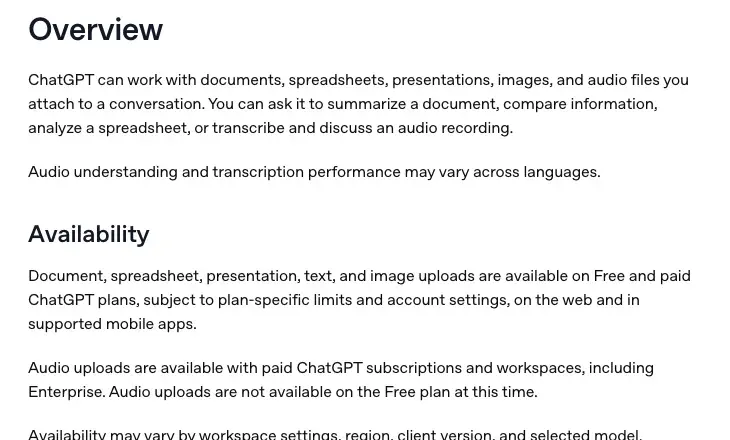
Who gets it. Paid ChatGPT subscriptions and workspaces, including Enterprise. Not Free “at this time.” The article also says availability “may vary by workspace settings, region, client version, and selected model,” so if you’re on a paid plan and don’t see it, update the app and check with whoever administers your workspace before assuming anything is broken.
What file types work. WAV, MP3/MPEG, OGG/OGA, audio-only WebM, PCM, FLAC, AAC, M4A, and audio-only MP4. In practice that covers a phone voice memo (usually M4A), a recording exported from a call app (often MP3, M4A or WAV), and most dictation recorders. One exclusion trips people up: WebM and MP4 files that are identified as video are not supported by audio uploads. A screen recording or a Zoom video file saved as MP4 may be rejected even though it has a clear audio track. Export the audio on its own first. The article also requires that “the file must contain a valid, decodable audio stream,” which is the polite way of saying a corrupted file won’t work.
How big. “Audio files can be up to 512 MB.” Longer recordings “may be processed in smaller sections when Data Analysis is available. Processing is best-effort, and very long recordings may time out.”
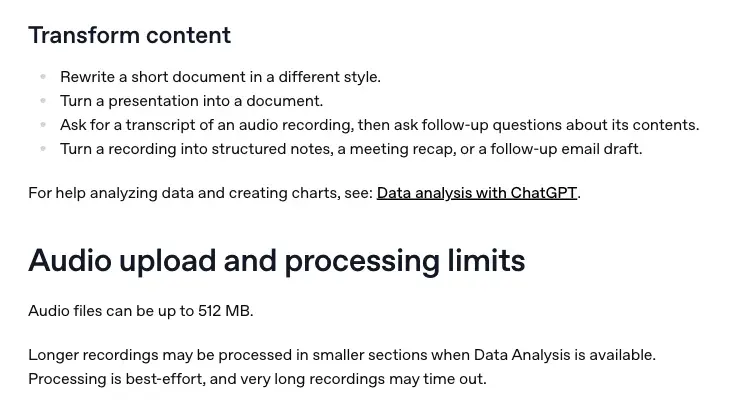
Notice what’s missing. There’s no stated maximum length in minutes or hours. There’s a size cap and a “very long recordings may time out” warning, and that’s all OpenAI commits to. Several articles circulating this week quote “25 MB” as the limit. That number belongs to OpenAI’s separate developer API for its speech-to-text models, not to the ChatGPT app. If you’ve seen it and wondered why a 40 MB file isn’t rejected, that’s why.
How accurate. The article says it twice: “Transcripts may contain errors, and speaker identification may be unreliable. Review important details against the original recording.” And: “Audio understanding and transcription performance may vary across languages.” OpenAI is telling you not to rely on speaker labels. Take that at face value, and I’ll come back to it in the troubleshooting section.
What it’s meant for. The article’s own examples are worth copying because they show the intended use: “Summarize a meeting recording, highlighting decisions, open questions, and next steps.” “Ask questions about a recording, for example, ‘What did they say about the launch deadline?’” “Extract key details from an interview or lecture, such as requirements, examples, or main takeaways.” “Ask for a transcript of an audio recording, then ask follow-up questions about its contents.” And “Turn a recording into structured notes, a meeting recap, or a follow-up email draft.”
How to use it, step by step
OpenAI’s own instructions are three lines: attach a supported file, describe what you want, review the response and ask follow-ups. Here’s the longer version, with the decisions that actually affect the result.
Step 1: Get the audio into a supported format and a sensible size. Voice memos from an iPhone or Android phone are usually fine as they are. If your recording came from a video call, export audio only. If it’s a huge WAV, convert it to MP3 or M4A first (the arithmetic below shows why). Expected result: a single audio file you can find in your Files or Downloads folder.
Step 2: Open a new chat and attach the file. Use the attach control in the message box, the same one you’d use for a PDF. Start a fresh conversation for each recording so the notes from one client don’t bleed into another. Expected result: the file appears in the message box as an attachment, with its name and length.
Step 3: Say what you want, and be specific about the format. The difference between a useful answer and a vague one is almost entirely in this message. “Transcribe this” gets you a transcript. “Give me a summary, a list of decisions, a list of open questions with an owner for each, and next steps” gets you something you can paste into a CRM. A copy-paste prompt is in the worked example below. Expected result: a response that starts working through the file. Long files can take a while, since OpenAI describes processing as “best-effort.”
Step 4: Check the output against the recording. Before you send anything to anyone, listen to the two or three moments that matter most: any number, any date, any name, any “yes, I agree.” OpenAI’s own advice is to review important details against the original recording, and it’s the single most valuable habit with any speech-to-text tool. Expected result: either confirmation, or a short list of corrections.
Step 5: Ask follow-up questions in the same chat. This is where it beats a standalone transcript tool. Ask “Who said they’d send the revised quote, and by when?” or “Rewrite the action items as a message to the client in a friendly, plain tone.” You can also ask for the transcript itself and then question it. Expected result: answers grounded in the recording, which you can still spot-check.
Step 6: Decide where the file lives. After the chat, OpenAI’s help article says deleting a conversation and deleting a saved file are separate actions. The article states: “Files saved in Library can be retained separately from the conversation that used them,” and “Deleting a chat does not delete a file that remains saved in Library.” The release notes also say Space replaces Library for accounts that have it, so if your account shows Space, look for the saved copy there. If the recording is sensitive, remove the saved copy deliberately. Expected result: the audio is gone from your account when you want it gone.
A worked example: one recording, from file size to follow-up email
I can’t show you a private client recording, and I haven’t run a live test, so I’ll do this the honest way. The numbers below are arithmetic anyone can check. The transcript and output format are an illustration I wrote, clearly labeled, not a real ChatGPT result.
The file-size math (this part is real arithmetic)
The 512 MB cap sounds enormous until you check how fast audio files grow. File size depends on bitrate, and bitrate depends on how the audio was saved. Using decimal megabytes (1 MB = 1,000,000 bytes):
| How the recording was saved | Bitrate | Size per minute | Size of a 45-minute meeting | Minutes before you hit 512 MB |
|---|---|---|---|---|
| MP3 or M4A, typical voice quality | 64 kbps | 0.48 MB | about 22 MB | about 1,067 (17.8 hours) |
| MP3 or M4A, standard quality | 128 kbps | 0.96 MB | about 43 MB | about 533 (8.9 hours) |
| WAV, 16-bit mono, 16 kHz | 256 kbps | 1.92 MB | about 86 MB | about 267 (4.4 hours) |
| WAV, 16-bit stereo, 44.1 kHz (CD quality) | 1,411 kbps | 10.6 MB | about 476 MB | about 48 minutes |
Three conclusions from that table. First, a normal MP3 or phone voice memo almost never hits the cap, so the size limit isn’t your problem. Second, an uncompressed CD-quality WAV of a 45-minute meeting is already about 476 MB, right at the edge, so a 50-minute WAV will be refused. Convert it to MP3 and it shrinks to about one-eleventh of that size with no meaningful loss for speech. Third, the real constraint on very long files isn’t the 512 MB cap. It’s OpenAI’s warning that processing is best-effort and that very long recordings may time out. Practical advice: if you have a three-hour recording, split it into one-hour pieces, and you’ll get better results than from a single giant file.
For contrast, the 25 MB figure from the developer API would be about 26 minutes at 128 kbps. That’s the number circulating in older “can ChatGPT transcribe audio?” articles, and it’s why those articles say you need to chop recordings up. Inside the ChatGPT app, you don’t, up to the limits above.
The prompt (copy this)
This is a recording of a client call. Please:

1. Give me a 5-sentence summary in plain language.
2. List every decision that was made, one line each, with who made it.
3. List open questions that nobody answered, with the person who should answer each.
4. List action items as: owner / what / by when (write "no date given" if none was said).
5. Flag anything where the speaker sounded unsure, or where you weren't confident in the transcript (names, numbers, dates, addresses).
6. Draft a short follow-up email to the client that confirms the decisions and next steps, in a friendly, professional tone. Don't add any commitment that wasn't said on the call.

Don't guess at names or numbers. If you can't tell, say so.
Point 5 and the last line are the important ones. They give the model permission to say “I’m not sure” instead of smoothing over a muffled word with a confident-sounding guess.
An illustration of the input and output shape (made up for demonstration)
Suppose a real-estate agent, walking back to the car after a showing, records 90 seconds into their phone:
“Showing at 14 Alder Lane, couple named in the file as the Reyes family. They liked the kitchen, didn’t like the busy road at the back. Budget came up, they said they could stretch to the high four hundreds but want to see two more homes first. I promised to send the school-district map and the HOA fee sheet by Friday. They’re not available this weekend, so next showings are Tuesday or Wednesday evening.”
You’d attach that 90-second file (about 1.4 MB as a 128 kbps MP3) and use the prompt above. A good response has this shape, which I’m describing, not quoting from a real run:
- A short summary stating the property, what they liked and disliked, and the budget signal.
- Decisions: none made yet (the clients want to see more homes).
- Open questions: which two homes to show next, and Tuesday vs. Wednesday.
- Action items: the agent sends the school-district map and the HOA fee sheet by Friday.
- A flag on anything unclear, such as the exact budget (“high four hundreds” is vague and should stay vague rather than turn into $490,000).
- A short, friendly follow-up email.
Notice the budget line. A careful model, and a careful prompt, will keep “high four hundreds” as-is. A sloppy one turns it into a figure the client never said. That’s the kind of error to look for in step 4 of the walkthrough. In a real-estate setting, there’s a second thing to watch: don’t dictate anything about a buyer’s family status, religion, national origin or other protected characteristics into notes you plan to keep. Fair-housing rules apply to what you record and how you use it, and a transcript makes those words permanent and searchable.
How audio uploads compare with the tools you may already use
Audio uploads are a good general-purpose tool, but they’re not the best option for every situation. This table compares what OpenAI documents for its own tools with the published pricing and limits for the main alternatives, as retrieved this week. Prices change often, so check each vendor’s page before you buy.
| Tool | What it’s for | Published cost | Notable limits |
|---|---|---|---|
| ChatGPT audio uploads | You already have a recording and want notes, a transcript or a follow-up | Included with eligible paid ChatGPT plans | 512 MB per file; best-effort on very long files; speaker ID “may be unreliable”; not on Free |
| ChatGPT Record (macOS app) | Live capture on your Mac | Included with Plus, Pro, Business, Enterprise, Edu | macOS only; sessions capped at 4 hours; works best in English; can separate speakers as “Speaker 1” etc. |
| ChatGPT Meetings plugin (macOS app) | Bot-free notes during a call, with action items saved to ChatGPT Space | Beta for all Pro and all Business plans | macOS only for now; stops at 4 hours; audio deleted once notes are ready; Enterprise is alpha-only |
| OpenAI speech-to-text API | Developers, automation, bulk files | GPT-4o Transcribe about $0.006 per minute (about $0.36 per hour); the mini model about $0.003 per minute | 25 MB per request; you build the workflow yourself |
| Otter | Live meeting capture and searchable history | Free: 300 minutes a month, 30 minutes per conversation. Pro about $8.33 a month billed annually, 1,200 minutes a month. Business about $19.99 per user a month billed annually | Minute caps on lower tiers; import limits |
| Fathom | Video-call notes | Free tier with unlimited recordings and transcription; Premium $20 monthly or $16 a month billed annually | Advanced summaries limited on Free after the first few calls each month |
| Granola | Bot-free notes on your own device | Free basic tier with limited history; Business about $14 per user a month | Built around live meetings, not file uploads |
| Gemini (free) | Free transcription with speaker labels | Free | See our free Gemini transcription walkthrough for the method and its limits |
The pattern: if you already pay for ChatGPT and your task is “I have a recording, give me notes,” audio uploads probably replaces a separate subscription. If your task is “I want every Zoom call captured automatically, with names and a searchable archive,” a dedicated meeting tool still does more. And if your task is “I’m on a Mac and want notes while the call is happening,” Record or the Meetings plugin is a better fit than recording first and uploading second.
How accurate is it, really?
Nobody has published a head-to-head test of ChatGPT’s new upload feature yet, and OpenAI doesn’t say which speech model sits behind it. So I can’t give you an accuracy percentage and you should distrust anyone who does. What I can give you is the independent evidence about the kind of technology involved, with its limits stated.
A peer-reviewed 2023 study in the Journal of Medical Internet Research tested 65 Zoom psychiatric interviews in US English, averaging 46 minutes. Word error rates (the share of words wrong, so lower is better) came out at 19.2% for Otter’s live transcription, 14.8% for Whisper (OpenAI’s open speech model), 8.9% for Amazon Transcribe, and 7.6% for a human transcription service. That tells you two useful things. The automatic tools got roughly one word in five to one in eleven wrong on conversational audio, against about one in thirteen for the human transcribers, so the gap between machine and human is real. But it isn’t a fair ranking of today’s products: the models are older, the speakers were native US English speakers, and background noise was limited.
A more recent independent preprint, GigaSpeechBench (2026), is more sobering about accents. It tested spontaneous English from six accent groups, ten hours each, and compared GPT-4o Transcribe with Whisper Large v3. It’s a preprint, meaning it hasn’t completed peer review, and it used YouTube-derived conversational audio, not controlled meetings.
By accent, GPT-4o Transcribe’s word error rate ranged from 17.1% for Indian English to 66.1% for Chinese-accented English, while Whisper Large v3 ranged from 7.9% to 27.2%. The authors’ own caution applies here too: the exact model version, prompting and text normalization could change the numbers a lot, and the result needs replication. OpenAI’s own published tests claim GPT-4o Transcribe beats Whisper on its benchmarks, but those are mostly read speech, not messy meetings.
What should you take from this? Not “ChatGPT is bad at accents.” You don’t know what model your upload uses. Take this: if your recordings involve accented English, crosstalk, noisy rooms or specialist vocabulary, run a test on your own audio before trusting it for anything that matters. Pick one recording you know well, upload it, and compare the output with what was said. Five minutes of that tells you more than any benchmark can.
What it does with your audio: privacy and retention
This is the part most posts skip, and it’s the part with consequences.
It depends on how the file is stored. OpenAI’s help article says retention “depends on where the file is stored and any workspace retention policy that applies,” that files saved in Library “can be retained separately from the conversation that used them,” and that “content from a file that was brought into a conversation can remain in that conversation.” In Enterprise, Edu and Healthcare workspaces, Library files follow the workspace retention policy. Deleting a saved file and deleting a conversation are separate actions.
Training use depends on your plan and settings. For consumer plans, the article says how uploaded content may be used to improve models “depends on the service you use and your data settings,” and points to the Data Controls pages. For business offerings, it says OpenAI “does not use content submitted by customers to business offerings, such as the API and ChatGPT Enterprise, to improve model performance.” If you’re on a personal Plus or Pro plan, check whether “Improve the model for everyone” is switched on in your settings before you upload a recording of anyone else’s voice. The Record page says the same trade-off explicitly for transcripts and canvases: on consumer plans with that setting enabled, OpenAI “may” use them for training.
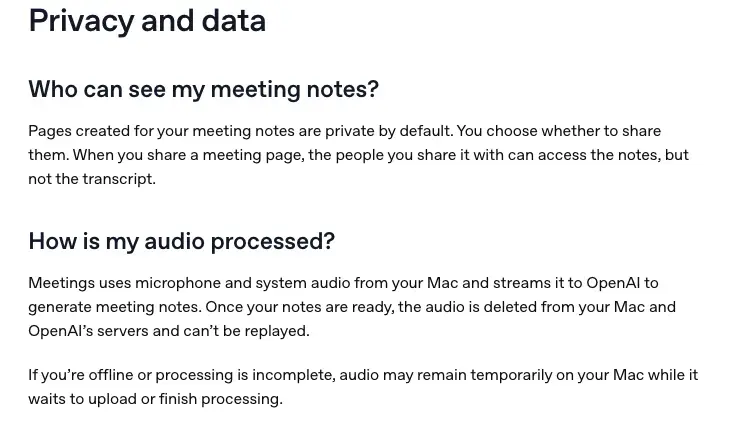
Don’t assume Record’s rules apply to uploads. Record and Meetings have specific promises: for Record, “audio files delete automatically after transcription,” and the Meetings page says “once your notes are ready, the audio is deleted from your Mac and OpenAI’s servers and can’t be replayed.” Those statements are about those features. The help article for uploads says nothing equivalent. An uploaded recording is a file in your account, with the retention behavior described above. That’s an important difference if you’re handling anything sensitive.
A simple rule that follows: if the recording contains something you’d be uncomfortable seeing in a stranger’s hands (a client’s medical details, a legal strategy call, a performance review, a candidate interview), either use a business workspace with the protections OpenAI documents for business plans, or don’t upload it. And if you do upload it, delete the saved copy when you’re done.
Recording other people: consent and the law
Audio uploads don’t record anyone. But the recording you upload had to come from somewhere, and in many places it matters how it was made.
In the United States, federal law generally permits you to record a conversation you’re part of if at least one participant (you) consents, unless it’s done for a criminal or harmful purpose. But state laws can be stricter. According to the Reporters Committee for Freedom of the Press, the states that require all parties’ consent for at least some private conversations are California, Connecticut, Florida, Illinois, Maryland, Massachusetts, Michigan, Montana, Nevada, New Hampshire, Pennsylvania and Washington. That list is shorthand. Nevada, for example, applies the all-party rule to phone calls but not to every in-person conversation, and Illinois applies it where people reasonably expect privacy. If your call crosses state lines, the safest assumption is that the stricter state’s rule applies.
In the EU and UK, a recording of an identifiable person’s voice is personal data under GDPR. You need a lawful basis, you should tell participants what you’re doing, and you need to think about where the audio is processed. Consent isn’t always the only basis, but “everyone on the call agreed to the recording and to AI transcription” is the easiest one to document.
OpenAI itself puts the burden on you. The Meetings page tells users to “tell everyone in the meeting that you’ll be taking notes from the meeting and get everyone’s consent before you start,” and adds that the consent reminder in the app “is visible to you. It does not notify other participants or obtain their consent for you.” The Record page says to “check local laws and always get the right consents before recording others.”
The lowest-risk habit is also the simplest. Say it out loud at the start: “I’m going to record this and use an AI tool to turn it into notes. Is that okay with everyone?” Wait for a yes. Keep it in the recording. Stop if anyone objects. It costs ten seconds, and it protects you in every state and country.
What this means for you
If you’re a real-estate agent: your best use is the 90-second voice memo after each showing. Record on the walk back to the car, attach it, and ask for notes plus a draft email. First action this week: record one real showing debrief, run the prompt above, and compare it with what you said. Keep protected-class details out of the recording. See our AI for Real Estate Agents course for the broader workflow.
If you’re a consultant or coach: record the call with the client’s explicit consent, upload it, and get a summary, decisions and a recap email while it’s fresh. The win is being fully present on the call because you aren’t typing. First action: add a one-line consent sentence to the start of every call. If you work with sensitive material, use a business workspace or keep the recording out of ChatGPT entirely. Our AI for Consultants course covers client-ready outputs.
If you’re a manager running regular meetings: if you’re on a Mac with a Pro or Business plan, test the Meetings plugin for live notes. For recordings you already have (a Teams call, a voice memo), use audio uploads. First action: pick one recurring meeting, use one tool for two weeks, and compare the notes with what actually happened. Our AI Meeting Notes course covers the prompts.
If you’re a student: lecture recordings are the obvious use, subject to your school’s rules on recording. Many instructors prohibit it, so ask. If it’s allowed, ask for the main concepts, three practice questions and a glossary, then check them against your slides. First action: try it on one short lecture before you rely on it for exams. Verify any formula or date against the source.
If you’re a freelancer or small-business owner: use it for client calls and your own voice notes. A one-minute memo after each call, turned into a follow-up message, is the biggest time saver. First action: record your next client call (with consent) and send yourself the follow-up draft, then edit it. Note that on the Free plan this isn’t available, so weigh a paid plan against a free alternative.
If you handle regulated or sensitive conversations (health, legal, HR, finance): don’t improvise. The question isn’t whether the transcript is accurate. It’s where the audio goes, how long it’s kept, and who can see it. Talk to your compliance lead or privacy officer before uploading any such recording, and prefer business workspaces with documented protections. Our posts on Google Meet’s automatic notes for therapists, lawyers and advisors walk through the same risk in a different product.
If you’re on the Free plan: audio uploads aren’t available today. You can still use ChatGPT’s voice dictation to speak a message, and you can transcribe with a free tool first, then paste the text into ChatGPT for summarizing. Our walkthrough on transcribing an interview free with Gemini shows one route, and turning any transcript into follow-ups shows the prompts.
Edge cases and troubleshooting
I’ll separate these into what OpenAI documents and what’s likely from the technology, because I haven’t yet run my own paid-account tests, and early first-hand reports are thin. When I searched X for people describing real uploads, I found only a handful of announcement posts and almost no first-person failure reports. So expect this list to grow.
1. “My file was rejected, but it plays fine.” (Documented.) If it’s an MP4 or WebM identified as video, audio uploads won’t accept it. Export just the audio track as MP3 or M4A and try again. Also confirm the file isn’t corrupted.
2. “It says I’ve hit an upload limit.” (Documented.) OpenAI’s article says to confirm you’re signed in to the right account and plan, check both your upload-rate limit and your storage, and note that failed attempts can count toward the rate limit. Wait and retry before uploading the same file again repeatedly.
3. “The transcript stops partway through a long recording.” (Documented warning, likely cause.) OpenAI says very long recordings “may time out” and may be processed in sections. Split the recording into shorter files, one per topic or per hour, and process each separately.
4. “The speaker names are wrong or mixed up.” (Documented.) OpenAI says speaker identification “may be unreliable.” Don’t rely on who-said-what for anything with consequences. State the names in your prompt (“There are two speakers: Priya, the client, and me”), and check commitments against the audio.
5. “A number, date or name is wrong.” (Likely, and the reason for step 4.) Speech recognition makes more mistakes on names, numbers, addresses and jargon. Ask the model to flag low-confidence items, as in the prompt above, and listen to those moments yourself.
6. “It’s much worse on my colleague’s accent or in a noisy room.” (Supported by independent research.) The accent study above shows large differences across speakers, and OpenAI says performance varies by language. Test on your own audio first. For important recordings, a closer microphone and a quiet room improve results more than any prompt.
7. “It doesn’t work in another language.” (Documented.) OpenAI says understanding and transcription “may vary across languages.” Test a short sample in your language before processing a long one. Record mode, a related feature, is described by OpenAI as working best in English today.
8. “I deleted the chat, but the file is still there.” (Documented.) Deleting a conversation doesn’t delete a saved file. Remove the saved copy in your files area (Library, or Space if your account has it). In some workspaces, a “recently deleted” area lets you restore files until you delete them permanently, so empty it if you need the file truly gone.
9. “I’m on a paid plan and I don’t see the option.” (Documented.) Availability varies by workspace settings, region, client version and model. Update the app, try the web version, and ask your workspace admin if you’re on Business or Enterprise.
What audio uploads can’t do
It can’t make a bad recording good. Crosstalk, wind, a phone across the table, and a speaker turning away from the mic all lower accuracy, and no prompt fixes that.
It can’t guarantee who said what. OpenAI itself says speaker identification may be unreliable. A transcript is a draft, not a record you’d put in front of a court or a regulator.
It can’t remove your obligation to get consent. The tool doesn’t ask anyone’s permission, and OpenAI’s own pages say the responsibility sits with you.
It can’t be a promise of deletion. Unlike the Meetings plugin, the upload help article makes no promise that audio is deleted after processing. Treat uploaded audio as a file in your account until you delete it.
It can’t (yet) do everything on the Free plan, or in every workspace. Free users are out, and business workspaces can restrict it. If your whole team relies on it, check your plan first.
FAQ
Can ChatGPT transcribe audio now? Yes, on paid plans and workspaces. Since October 6, you can attach an audio file to a chat and ask for a transcript, summary, structured notes or a follow-up email. It isn’t available on the Free plan “at this time,” according to OpenAI.
What audio formats does ChatGPT accept? WAV, MP3/MPEG, OGG/OGA, audio-only WebM, PCM, FLAC, AAC, M4A and audio-only MP4. Files identified as video (WebM or MP4) aren’t supported by audio uploads, and the file must contain a valid, decodable audio stream.
How big can the audio file be? Up to 512 MB per file. OpenAI says longer recordings may be processed in smaller sections, that processing is best-effort, and that very long recordings may time out. The 25 MB figure you may have seen belongs to OpenAI’s separate developer API.
Does ChatGPT label who is speaking? OpenAI warns that “speaker identification may be unreliable” for uploaded audio. Give it the speakers’ names in your prompt and verify anything important. Its separate Record feature on macOS can label speakers generically, such as “Speaker 1,” which you can rename.
Is it free? Audio uploads aren’t available on the Free plan. On a paid plan it’s part of the subscription, with no extra audio charge mentioned in the help article. The separate developer API is billed per minute.
Is my recording used to train ChatGPT? It depends on your plan and settings. For consumer plans, OpenAI says it depends on your data settings, so check whether “Improve the model for everyone” is on. For business offerings such as Enterprise and the API, OpenAI says it doesn’t use customer content to improve models.
Does ChatGPT delete the audio after it’s transcribed? The upload help article doesn’t promise that. It says files saved in your Library can be retained separately from the conversation and that deleting a chat doesn’t delete the saved file. Record and the Meetings plugin have their own, different deletion promises.
Is it legal to record someone and upload it? Often yes with their consent, but it depends on where you and they are. Many US states require all parties to consent for some conversations, and GDPR applies to identifiable voices in Europe. Tell everyone and get a clear yes before you record.
What’s the difference between audio uploads, Record and the Meetings plugin? Audio uploads handle a file you already have. Record is a live-capture button in the ChatGPT macOS app. The Meetings plugin is a newer macOS beta for Pro and Business that takes bot-free notes during a call and saves summaries and action items to ChatGPT Space.
Should I still pay for Otter, Fathom or Granola? It depends on the job. If you only need notes from recordings you already have, audio uploads may cover it. If you want automatic capture of every call, searchable history and team features, a dedicated meeting tool still does more.
The bottom line
ChatGPT audio uploads is a genuinely useful change, and a more modest one than “ChatGPT can transcribe anything” suggests. It’s a paid-plan feature. It accepts most common audio formats up to 512 MB, handles very long files on a best-effort basis, and comes with OpenAI’s own warning that transcripts can be wrong and speaker labels shaky. The sensible way to use it is the boring way: record with consent, upload one file per chat, ask for a specific structure, check the names, numbers and dates against the audio, and delete the saved copy when it’s sensitive.
If you want to build this into a reliable routine, our AI Meeting Notes course covers the prompts and checks for turning conversations into clear next steps. AI for Real Estate Agents and AI for Consultants apply the same ideas to client work, and ChatGPT vs Claude helps you decide which assistant should handle what.
Sources
- OpenAI Help Center, “ChatGPT — Release Notes” (October 6, 2026: Audio uploads in ChatGPT)
- OpenAI Help Center, “Uploading files and audio to ChatGPT”
- OpenAI Help Center, “The Meetings plugin in ChatGPT”
- OpenAI Help Center, “ChatGPT Record”
- OpenAI Help Center, “Chat and file retention in ChatGPT”
- OpenAI API documentation, speech-to-text guide (25 MB API limit)
- OpenAI, “Introducing our next-generation audio models”
- JMIR study comparing automatic transcription of Zoom psychiatric interviews (PMC)
- GigaSpeechBench, accent evaluation preprint (arXiv, 2026)
- WhisperX paper (arXiv)
- Reporters Committee for Freedom of the Press, recording-law guide
- GDPR, Article 4 definitions (EUR-Lex)
- Otter pricing
- Fathom pricing
- TechRepublic, “6 Best AI Meeting Note Takers for 2026” (Sept 30, 2026)
