If you live on an iPhone, your mail is probably at @icloud.com and your calendar holds the school run, the dentist and the thing you promised to do on Thursday. It’s the part of your life that sits in Apple’s apps.
On 27 October 2026, OpenAI added a way for ChatGPT to reach it. Its release notes say iCloud users can now connect Mail and Calendar to ChatGPT “to find emails, catch up on your inbox, check your schedule, and update calendar events,” and that it’s available to all ChatGPT plans on the web, the desktop app and iOS. The setup has some friction: a special Apple password, two plugins that don’t talk to each other, and a permission setting that decides whether ChatGPT can send an email in your name without asking.
This guide is the setup, in order, plus the settings I’d change before sending the first prompt, a first-day routine, and how to shut it all off again. One honest note first. I haven’t connected my own iCloud account for this guide, so I don’t show any output from a live connection. Everything below comes from OpenAI’s and Apple’s help pages, which I read on 29 October 2026, plus the launch coverage. Where a page leaves something open, I say so.
TL;DR. You need an Apple app-specific password for each of the two plugins (Mail and Calendar are connected separately). Mail takes your @icloud.com, @me.com or @mac.com address; Calendar takes your primary Apple Account email, which may be different. Then open ChatGPT’s Settings, Plugins, Permissions and choose “Allow read actions” so it asks before it changes anything. To undo it, disconnect in ChatGPT and revoke the password at Apple: the first doesn’t do the second.
What OpenAI actually added
Two plugins, not one. OpenAI’s help page on connected apps says “iCloud Mail and iCloud Calendar are separate plugins, and both include read-only contact lookup.” As of 29 October, it also says they are rolling out globally to all ChatGPT plans on web, desktop and iOS, subject to workspace app controls. Standalone Contacts and Reminders plugins are “outside this launch.”
MacRumors’ report of 27 October fills in what each one does:
| Plugin | What MacRumors says ChatGPT can do | What the OpenAI notes add |
|---|---|---|
| iCloud Mail | Search and read iCloud Mail, manage messages and drafts, send email, look up iCloud contacts | Find emails and catch up on your inbox |
| iCloud Calendar | Read, schedule and update events, including events from the iPhone Calendar app and third-party apps that use iCloud Calendar | Check your schedule and update calendar events |
Two limits are worth knowing before you get excited.
First, the Mail plugin sees iCloud Mail only. MacRumors points out that ChatGPT doesn’t see other accounts you’ve added to the Mail app on your iPhone, such as Gmail or Outlook. If your real inbox is Gmail and you only use an iCloud address for receipts, this plugin will see the receipts and nothing else.
Second, the supported addresses are the three iCloud ones: @icloud.com, @me.com and @mac.com. That comes from OpenAI’s help page.
9to5Mac adds one more detail: each plugin needs an app-specific password, and both plugins work with ChatGPT Dots, which it describes as a proactive agent. If you’re curious about Dots, we have a plain-English explainer. This post sticks to the plugins.
Before you start
Three checks save you most of the trouble later.
Is two-factor authentication on for your Apple Account? Apple’s support page says “To generate and use app-specific passwords, your Apple Account must be protected with two-factor authentication.” If you’ve never turned it on, do that first.
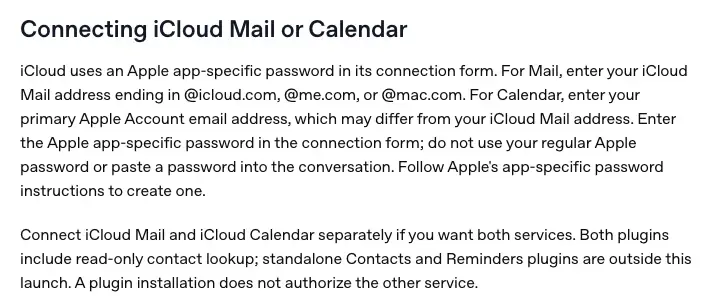
Which email goes where? This is the one that trips people up. OpenAI’s help page says for Mail you “enter your iCloud Mail address ending in @icloud.com, @me.com, or @mac.com” and for Calendar you “enter your primary Apple Account email address, which may differ.” So the two forms may need two different addresses.
| iCloud Mail plugin | iCloud Calendar plugin | |
|---|---|---|
| Email to enter | Your iCloud Mail address (@icloud.com, @me.com or @mac.com) | Your primary Apple Account email, which may be a different address |
| Password to enter | An Apple app-specific password | An Apple app-specific password |
| Connected by | Itself | Itself |
Are you on a work or school ChatGPT workspace? OpenAI says the plugins are rolling out “subject to workspace app controls.” OpenAI says that if a managed-workspace app shows “Disabled by admin,” you should ask an administrator to review it. A personal account has no workspace administrator, and OpenAI says to check the app requirements and contact OpenAI Support if the message continues.
Step 1: Make the app-specific password
An app-specific password is a separate password for one app. Apple describes it as a way to let an app made by another developer sign in to your Apple Account “so that the app can access information like mail, contacts, and calendars that you store in iCloud.” The aim, in Apple’s words, is to “help make sure that your Apple Account password can’t be stored or collected by the app.” Apple’s steps:

- Sign in to your Apple Account on account.apple.com.
- In the Sign-In and Security section, select App-Specific Passwords.
- Select “Generate an app-specific password,” then follow the steps on your screen.
Give it a label that says what it’s for. Apple lets you have up to 25 active app-specific passwords, so there’s no need to reuse one. I’d make two: one labelled “ChatGPT Mail” and one labelled “ChatGPT Calendar”. That’s my suggestion rather than OpenAI’s or Apple’s, and the reason is simple. Apple lets you remove passwords one at a time, and OpenAI’s page warns that “other connections using that password may also stop working” when one is revoked. Two passwords means you can cut one plugin off without touching the other.
Keep the password where you can copy it from. You’ll paste it into ChatGPT’s connection form, and nowhere else. OpenAI’s help page is blunt about it: “do not use your regular Apple password or paste a password into the conversation.” Never type it into a chat message.
Step 2: Connect iCloud Mail
OpenAI’s general steps for any plugin are on its page about connecting apps. They’re short:
- In ChatGPT, open Settings and choose Plugins. (Very old versions of the iOS or Android app may show Apps instead of Plugins, OpenAI notes.)
- Select the iCloud Mail plugin, then Install plugin if it’s shown. OpenAI says this may also start the connection or setup flow.
- If prompted, select Connect or continue the setup flow.
- In the connection form, enter your iCloud Mail address and the app-specific password you made for it.
- Review the requested services and permissions, then complete any required authorization.
A note on the plugin directory. ChatGPT’s plugin directory also lists at least one third-party plugin that does something similar. One I opened on 29 October is called CERTENTIC Bridge, published by CERTENTIC GmbH, and its listing says it’s read-only and “not affiliated with, endorsed by, or sponsored by Apple Inc.” It’s a different product from a different publisher. I haven’t used it and I’m not recommending or warning against it. The point is narrower: before you enter an Apple password into any form, check whose plugin it is. The two this guide covers are the ones OpenAI announced as iCloud Mail and iCloud Calendar.
Step 3: Connect iCloud Calendar
Do it again, separately. OpenAI’s help page says “Connect iCloud Mail and iCloud Calendar separately if you want both services. … A plugin installation does not authorize the other service.”
This time use your primary Apple Account email address in the form, with the Calendar password. If your Apple Account email and your iCloud mail address are the same, you’ll type the same address twice, which is fine.
Reconnecting later works the same way. OpenAI says “Reconnecting one does not update the other,” so if you change a password, you repeat the steps for each plugin you use.
Step 4: Make it ask before it changes anything
This is the step I’d do before the first prompt, because it decides what happens when ChatGPT wants to send an email or move an event.
OpenAI’s page on app permissions lists four settings. Depending on your account and the app, you may see:
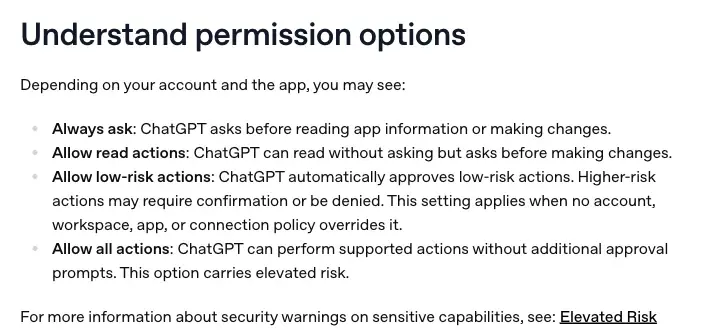
| Setting | What OpenAI says happens | My pick for a first week |
|---|---|---|
| Always ask | ChatGPT asks before reading app information or making changes | Safest, and the most tapping |
| Allow read actions | ChatGPT can read without asking but asks before making changes | The one I’d start with |
| Allow low-risk actions | ChatGPT automatically approves low-risk actions; higher-risk ones may need confirmation or be denied | Later, once you trust it |
| Allow all actions | ChatGPT can perform supported actions without additional approval prompts; “This option carries elevated risk” | Not for mail |
“Allow read actions” is the sensible middle. It lets ChatGPT look things up so a question like “what’s on tomorrow?” gets answered straight away, but it stops for your approval before it changes anything. OpenAI’s page lists the kind of action that may need extra review: “Sending an email, message, comment, or invitation,” and creating, editing or deleting a record.
To set it: open your profile menu, Settings, Plugins, Permissions, and pick your default. To set it for one connected account instead, open the plugin, open the account’s more-options menu, choose Settings, then Permissions, and Save. OpenAI says an account-specific setting applies only to that connection.
Two details from that page are easy to miss.
First, not every setting is on every menu. OpenAI says “The standard account-wide and workspace-wide permission selectors do not offer Allow all actions. It may be available for an individual app or connected account.” So if you can’t find it, that’s by design.
Second, when ChatGPT does ask, the approval card may offer “Always allow.” OpenAI describes it as allowing “supported future actions without repeated prompts” for an eligible, explicitly connected personal account. Tapping that on the first send is the quickest way to undo the setting you just chose. Use Allow once for now.
One more thing I couldn’t confirm. The 27 October release note doesn’t say whether the iCloud plugins ask before a send or an edit; it describes what they can do. The permissions page describes how approval works in general, “ChatGPT may show an approval card describing the app and the proposed action,” and that wording is hedged. So don’t rely on ChatGPT’s defaults. Set the permission yourself, then test it once on something harmless, which is the first item in the routine below.
A first-day routine
Here’s a short run of prompts, in the order I’d try them. I wrote them for this guide and I haven’t run them against a connected account, so I can’t show you what ChatGPT answers. What I can tell you is what to check each time.
1. Look only. Start with a question that can’t change anything.
What's on my calendar tomorrow? Don't change or create any events.
Check the answer against your Calendar app. The point isn’t the answer, it’s confirming ChatGPT is reading the right calendar. If it shows the wrong one, the fix is in the account you connected, not in your prompt.
2. Find one email you already know exists.
Find the most recent email from my dentist and tell me the date and time of the appointment.
Open the email yourself and compare. If you can’t find the email either, you’ve learned something about which mailbox is connected. If ChatGPT finds it and gets the time right, you’ve got a baseline for how much to trust the next answer.
3. Catch up on the inbox. This is the use OpenAI’s own release note names.
Summarize my unread emails from the last two days in five bullets. Put anything that needs a reply by the end of the week first. Don't reply or move anything.
Spot-check three of the bullets against the originals. A summary reads smoothly whether or not it’s right, so the only way to know is to look.
4. Draft, don’t send. This is the one I’d treat carefully.
Draft a short reply to the email from [name] about [topic]. Show me the draft here in the chat. Don't send it.
Reading the draft in the chat, then copying it into Mail yourself, is slower than letting ChatGPT send it. For the first week, slower is the point.
5. One deliberate change on a throwaway event. Make an event in your calendar called “ChatGPT test” for next week, then:
Move my "ChatGPT test" event next Tuesday to 4pm. Tell me exactly what you changed.
Now watch what happens. If you chose Allow read actions, an approval card should appear before anything moves. If it just moves, your setting isn’t doing what you expect, and you’ve found that out with a test event instead of a real meeting. Then open the calendar and confirm the event moved to the time you asked, in your time zone.
Notice what’s in none of these prompts: a client’s name, a medical detail, a password. That’s on purpose, and the next section explains why.
What it can see, and where that can go
Connecting a mailbox is a different kind of access from pasting a paragraph into a chat. OpenAI’s page on connected apps spells out what happens to information ChatGPT reads from an app:
- ChatGPT can use information in the app as context for its answers.
- If you have Memory turned on, “ChatGPT may remember relevant information accessed from the app, unless that app or connected source restricts Memory from saving that information.”
- For ChatGPT Free, Plus, Go and Pro users, “OpenAI may use information accessed from apps to train our models if your ‘Improve the model for everyone’ setting is on.”
- Disconnecting an app doesn’t automatically delete existing conversations, saved files or memories.
Read that third point twice. If you’re on a personal plan and that setting is on, OpenAI says it “may use” what ChatGPT reads from your mailbox for training. Our guide on whether ChatGPT is private walks through where that switch lives. If you’d rather your inbox never touches it, switch it off before you connect, not after.
There’s a second thing to think about that has nothing to do with you. Your inbox holds other people. A friend’s health news, a client’s invoice, a parent’s message about their child. Even a harmless-looking thread may reveal more than the sender meant to share with an AI. That’s a reason to ask narrow questions (“find the dentist email”) rather than broad ones (“read everything and tell me what’s interesting”), whatever the privacy settings say.
If you handle other people’s confidential information for work, a personal ChatGPT account hooked to your work mail is a bigger decision than this guide covers. Check your employer’s rules first. Our post on client confidentiality and ChatGPT’s locked chats covers that ground.
One reason the ask-first setting matters: hidden instructions
When ChatGPT reads your email, it reads text written by whoever sent it. The risk is called prompt injection: text in the material an AI reads that steers what the AI does. Our prompt injection explainer covers the idea in plain language.
The reason it’s relevant here is that an inbox is the place where strangers can put text in front of your assistant. The research is worth a sentence. AgentDojo, a benchmark published by researchers in 2024, tests AI agents that use tools on untrusted data. Its abstract says “AI agents are vulnerable to prompt injection attacks where data returned by external tools hijacks the agent,” and the benchmark includes 97 realistic tasks and 629 security test cases. Its main finding is more measured than the title suggests: “existing prompt injection attacks break some security properties but not all.”
That’s a benchmark from 2024 on other systems, not a test of these plugins. It’s an argument for the setting from Step 4, not a prediction. If ChatGPT has to ask before sending or changing something, a stranger’s hidden line in an email has to get past you as well.
How to cut it off
You’ll want to know how to leave before you join. There are two steps and they’re not the same step.
| What you do | What happens |
|---|---|
| Disconnect the plugin in ChatGPT | OpenAI: “Disconnecting stops future access through that account.” It “does not revoke its password at Apple.” |
| Revoke the app-specific password at Apple | The app using it is signed out until you create a new password and sign in again |
| Change or reset your main Apple Account password | Apple: all your app-specific passwords are revoked automatically |
| Delete chats, files or memories | A separate job: disconnecting doesn’t delete them |
So the full exit is: in ChatGPT, open Settings, Plugins, choose the plugin, and select Disconnect (if Connected accounts appears, it’s under the account’s more-options menu). Then go to account.apple.com, open Sign-In and Security, App-Specific Passwords, and remove the password you made for it. Apple’s page says you can remove one at a time or use Revoke All. Finally, look through your chats, files and memories for anything the plugin pulled in, because OpenAI says those stay unless you delete them.
This is where the two-passwords idea from Step 1 pays off. OpenAI notes that revoking a password can stop “other connections using that password” too. If Mail and Calendar share one, revoking it ends both.
Also keep in mind what revoking can’t do. It stops future access. It doesn’t pull back what ChatGPT has already read or any copy that was stored.
What this means for you
If you’re a freelancer who lives in iCloud Mail. Connect Mail, set Allow read actions, and use it for finding things: the quote someone sent in March, the invoice you’re chasing. First action: do routine items 1 and 2 today and leave drafting for the weekend.
If you run a family calendar on iCloud. The plugin works with events in the iPhone Calendar app and in apps that use iCloud Calendar, per MacRumors. Whether it reaches shared or family calendars isn’t spelled out in the pages I read, so test it. First action: create a test event in the shared calendar and ask ChatGPT to find it.
If your real email is Gmail and iCloud is the leftover. The Mail plugin won’t see your Gmail, even if it’s in the same Mail app. For a Gmail setup, see our Gmail connector guide and the connectors explainer. First action: check which inbox you’d actually want searched, and connect that one.
If you handle clients’ or patients’ information. The privacy questions above matter more for you than the convenience does. Don’t connect a mailbox full of client correspondence until you’ve checked your obligations. First action: read your employer’s or regulator’s guidance, not ChatGPT’s help page.
If you’re on a work or school workspace. An administrator controls which apps are enabled, and OpenAI says an app may show “Disabled by admin” there. First action: ask the person who manages the workspace before you try to work around it.
If you’re the careful type who wants to try it. If you have a spare iCloud account, send it a few emails from yourself, connect that account, and run the routine on it. You learn how the approval cards behave before you point it at your real inbox.
Troubleshooting
OpenAI has a page for problems with plugins and apps, including a section called “An iCloud connection fails.” These are the cases it covers, plus a few I’d check from the setup.
Mail rejects your email address. OpenAI’s advice: “check that you entered your iCloud Mail address.” Mail needs an address ending in @icloud.com, @me.com or @mac.com. The Mail form asks for the iCloud address, so a Gmail address that your Apple Account happens to be registered to isn’t the one to type there.
Calendar won’t connect with the address that worked for Mail. Calendar takes your primary Apple Account email, which may differ from your iCloud Mail address. Try the other one.
“Password rejected.” OpenAI says to “check the intended Apple account and whether its app-specific password was revoked.” If needed, generate a replacement and reconnect the affected plugin. And remember Apple’s rule: changing or resetting your main Apple Account password revokes every app-specific password, so a password reset last week would explain a connection that worked yesterday and doesn’t today.
One plugin works and the other doesn’t. They’re separate connections with separate passwords. OpenAI says reconnecting one doesn’t update the other.
A send or an edit has an unclear result. OpenAI’s troubleshooting page says to inspect the affected message, event or recurring series in the intended Apple account before retrying. In practice: open Mail’s Sent folder or the Calendar app, look, and only then ask again. That way you don’t send the same email twice or move the same event twice.
You can’t find Plugins in Settings. OpenAI’s permissions page says “If Settings shows Apps instead, open Apps to review the permission controls available to your account.” OpenAI adds that the same account-wide selector may not be available there.
The plugin is installed, but nothing works. OpenAI warns that “A plugin may be listed or installed before its app is ready to use.” You still need the correct connected account and any required approval.
It’s using the wrong account. If you’ve connected more than one account, OpenAI’s page on managing app accounts says to check which account is shown under Settings, Plugins, and use “Connect another account” where it’s offered.
What it can’t do
- It can’t see your Gmail or Outlook, even when they’re in the iOS Mail app. Only iCloud addresses.
- It can’t edit your Contacts. Both plugins include read-only contact lookup, nothing more, and OpenAI says standalone Contacts and Reminders plugins are outside this launch.
- It isn’t a promise that ChatGPT will always ask. What it asks about depends on the permission you chose, and OpenAI says some requests may be denied instead of showing a prompt.
- It can’t undo what it has already read. Revoking the password stops future access; it doesn’t delete what was retrieved or remembered.
- It isn’t free of limits. OpenAI says app use “may count toward your ChatGPT plan limits, feature-specific allowances, and limits imposed by the app provider.” That’s the page’s general wording, not an iCloud-specific number.
FAQ
Is it available on the free ChatGPT plan? OpenAI’s release note says the plugins are available to all ChatGPT plans on the web, the desktop app and iOS. The help page adds “subject to workspace app controls.”
Does it work on Android? The release note lists web, desktop and iOS. It doesn’t mention the Android app, and I haven’t seen OpenAI say either way.
Why can’t I just use my normal Apple password? Because the form uses an app-specific password. OpenAI says to use one rather than your regular password, and Apple says an app-specific password helps make sure your Apple Account password “can’t be stored or collected by the app.”
Does Apple require two-factor? Yes. Apple’s page says your Apple Account must be protected with two-factor authentication to generate and use app-specific passwords.
What happens if I change my Apple password? Apple revokes all your app-specific passwords automatically, so both plugins will stop working until you generate new ones and reconnect each.
If I disconnect in ChatGPT, is my password gone? No. OpenAI says disconnecting “does not revoke its password at Apple.” Revoke it in your Apple Account’s App-Specific Passwords section.
Will ChatGPT train on my email? For Free, Plus, Go and Pro, OpenAI says it “may use information accessed from apps to train our models if your ‘Improve the model for everyone’ setting is on.” Check that setting before you connect.
Will it ask before it sends an email? That depends on your permission setting. With “Always ask” or “Allow read actions” it asks before making changes, per OpenAI’s permissions page. With “Allow all actions” it may not.
Can it use my shared iCloud calendar? I didn’t find this documented. MacRumors says the Calendar plugin works with events in the iPhone Calendar app and third-party apps that use iCloud Calendar. Test it with a throwaway event.
What about the other iCloud plugin in the directory? A third-party plugin from a different publisher is listed alongside OpenAI’s. Check the publisher before you enter a password, since it’s a different product.
The bottom line
Connecting ChatGPT to iCloud is two setups, not one, and the setting that matters most isn’t in the setup. Make a password for each plugin, connect Mail with your iCloud address and Calendar with your Apple Account email, then set Permissions to “Allow read actions” before you ask for anything. Try the first-day routine on harmless things, and learn the exit (disconnect, then revoke) before you need it.
If you want the thinking behind the habit, AI Privacy 101 (first 2 lessons free) covers what to share with an AI tool and what to keep back. For the other half of the job, Email Writing with AI (first 2 lessons free) is about the drafts.
Your first step today is small: open account.apple.com and look at the App-Specific Passwords list. Do you know every password on it?
Sources
- OpenAI Help Center: ChatGPT release notes, 27 October 2026 entry
- OpenAI Help Center: Connected apps in ChatGPT
- OpenAI Help Center: Connecting and managing app accounts in ChatGPT
- OpenAI Help Center: Managing app permissions in ChatGPT
- OpenAI Help Center: Troubleshooting plugins and apps in ChatGPT
- Apple Support: Sign in to apps with your Apple Account using app-specific passwords
- MacRumors: ChatGPT Can Now Access Your iCloud Mail and Calendar, 27 October 2026
- 9to5Mac: iCloud Mail and Calendar plugins now work with ChatGPT, 27 October 2026
- AgentDojo: A Dynamic Environment to Evaluate Prompt Injection Attacks and Defenses for LLM Agents (arXiv 2406.13352)
- ChatGPT plugin directory: CERTENTIC Bridge listing