

On November 17, Google took a feature that used to sit behind a paid plan and made it free in six countries. Open the Gemini app, flip the switch from Chat to Task (it sits above the prompt box on a phone and below it on the web), and you can hand Gemini a job and walk away: compare chargers and look for a discount code, work out why your electric bill jumped, or phone a business and book an appointment while you do something else.
That last one is the part people are talking about, and it is also the part with the most fine print. Calling, buying and texting are not available everywhere the free version is. Calling and checkout each have their own approval step. And the rollout began on November 17, so almost nobody has a long track record with it yet.
This guide is the plain version. It says what Google confirmed, which pieces are US-first, how the approval steps work, where the real limits are, and three checks I would run before letting it near my money, my phone line or my passwords.
The short answer
TL;DR. Tasks in Gemini is free in the US, Japan, South Korea, Canada, Australia and India for people who are 18 or older, signed in with a personal Google Account, with History turned on. Calling businesses, Google Pay checkout, texting Gemini and email forwarding start in the US. Gemini says it asks for your go-ahead before it buys, and it tells the person on the phone that it is an AI.
- What changed on November 17: the price. Tasks used to need a Google AI Pro or Ultra subscription. In six countries it now needs none.
- What did not change: the rules. Outside those six countries, Google’s help page still says a Pro or Ultra subscription is required, and the European Economic Area, Nigeria, Switzerland and the United Kingdom are excluded even for subscribers.
- What is new in the US: calls to businesses, checkout through Google Pay, a text number for sending Gemini jobs, and an email address you can forward things to.
- What to do first: set a spending cap on anything that buys, read the summary after anything that calls, and decide what the account is allowed to see before you connect it to more.
If you read our October explainer on where Spark went, the pricing part of that story is now out of date. We have updated that post with a dated note, and this one is the longer answer to “what does it do now that it is free”.
What Tasks in Gemini actually is
Tasks is a mode of the Gemini app, not a separate app. Google’s help page says that on the web you click Task below the text box, describe the job and submit it. On a phone, 9to5Google describes the Chat and Task options sitting above the prompt box. 9to5Google quotes Google’s line that tasks let you “hand off even more tasks to Gemini”.
The history is worth knowing because the names are confusing. TechCrunch’s account is that the feature launched in May as Gemini Spark, was expanded to US subscribers of Google AI Ultra, and later became “Task Mode”. Now it is simply called Tasks, and Google says the free version runs on its new Gemini 4 Hydrogen model. If you want the rename story and the dates, our Spark to Task Mode explainer has them.
Here is what Google says a task can do, taken from its own announcement and help page:
- Research and compare things. The examples include comparing products and analyzing a bill.
- Change course while it works. You can type more instructions while a task runs, and you can cancel it with Stop.
- Use your Google apps. 9to5Google reports Google saying Gemini can reach your emails, calendar, passwords, photos, files and payment cards, and Google’s announcement says it connects to more than 60 popular apps.
- Sign in for you, with permission. Google Password Manager integration lets Gemini log in to something like a utility portal, and Gemini asks before it signs in.
- Check out. In the US, through Google Pay.
- Call a business. In the US, with the limits below.
That is a long list, and it explains why the safety questions matter. A chatbot that gives a wrong answer wastes your afternoon. An assistant that can dial a number or pay a bill can cost you something. So the useful way to read the rest of this post is: for each ability, who is allowed to say yes?
What Google confirmed on November 17
I read three Google pages for this guide (the release notes through a summarizing fetch of the page, so I quote them as that fetch returned them): the announcement post by Josh Woodward (Google’s Vice President of Labs, Gemini app, and AI Studio), the Gemini Apps Help page for tasks, and the Gemini release notes. Everything in this section is from them unless I name another source.
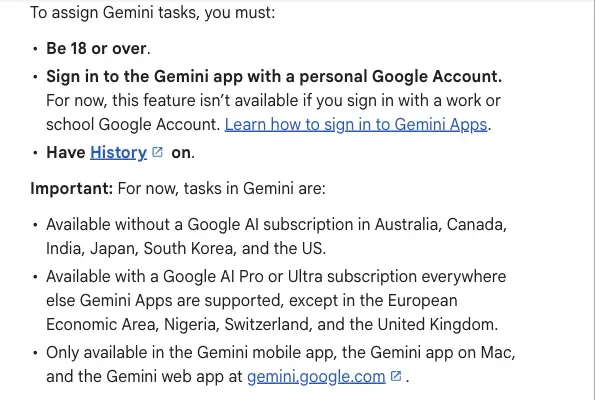
Who gets it free. Australia, Canada, India, Japan, South Korea and the US. To use it you must be 18 or over, sign in with a personal Google Account (for now, a work or school account does not work), and have History on.
Who still pays. In other places where Gemini Apps are supported, Google says tasks need a Google AI Pro or Ultra subscription, except in the European Economic Area, Nigeria, Switzerland and the United Kingdom, where the help page lists no way in.
Where it works. The Gemini mobile app, the Gemini app on Mac, and the Gemini web app.
How much you get. Here Google is vague. The help page says Gemini Apps “have compute-based usage limits” that increase with higher Google AI subscriptions, and that Gemini notifies you when you are near yours. It gives no usage number. It does say you can have up to 15 tasks running at a given time. So “free” here means no subscription, not unlimited.
The model. Google’s announcement says the free rollout uses the new Gemini 4 Hydrogen model. I did not find Google saying which model handles the phone calls, so I would not assume.
The US-first parts, one by one
Google’s announcement says the new advanced features are “starting in the U.S.” The release notes spell out the language and the account rules for checkout, texting and email. Put side by side:
| Feature | Where it is rolling out | Account and device rules | What Google says about approval |
|---|---|---|---|
| Calling businesses | US, with a footnote that calling is not currently available in Indiana, Louisiana, Minnesota, Montana and Nebraska | The release notes list none | You can review and approve the call plan before Gemini dials |
| Google Pay checkout | US, in English, on web, Android and iOS | 18+ with a personal Google Account | Explicit 1-tap and device approval: “Nothing is purchased without your go-ahead” |
| Texting Gemini | US, in English | 18+, personal account, a verified US phone number and an eligible carrier | You text Gemini to hand it a task |
| Email to Gemini | US, in English | 18+ with a personal Google Account | You forward mail to gemini@google.com |
Two cautions on that table. First, the release notes did not list calling’s eligibility conditions, so “who can use it” for calling is what Google’s announcement implies (a US feature), not a full list. Second, there is a separate Google help article, “Ask Gemini to handle your everyday phone calls”, that lists much narrower conditions: a Pixel 10 or 11, a US SIM, a Google AI subscription, the Phone by Google public beta and an English device. That page describes a narrower, phone-based calling feature. Google’s November 17 announcement does not say those conditions apply to calling from Tasks, so I am not applying them here. If Gemini’s calling button is missing for you, those two pages are the first place to look.
To set up texting, Google’s announcement gives these steps: in Settings, find Channels, choose Set up under “Text with Gemini”, and verify your phone number.
How a call works, and what the business hears
If you ask Gemini to call a business, here is what Google says happens:
- You tell Gemini the job: “Find out whether the dealership can do a service on Thursday.”
- Gemini shows you a plan, and you can approve it before it dials.
- On the call, it identifies itself as an AI assistant, and it won’t share payment or sensitive account details over the phone.
- When the call ends you get “a crisp summary and full transcript right in chat”.
Google’s own example is Woodward’s. He used it to book a minivan service appointment, and the announcement says it was done in less than five minutes with the calendar entry added. Android Authority describes the same example as Gemini calling two dealerships and matching an appointment time to his Google Calendar availability. TechCrunch gives it as car dealerships.
Two details matter for you as the customer. The first is the AI disclosure. Google says Gemini tells the other person it is an AI, so you are not tricking anyone, and a receptionist who dislikes automated calls knows what is on the line. The second is the opt-out: Google’s announcement says “Businesses can opt out whenever they want.” So there will be businesses Gemini will not be able to call. Do not be surprised if a task comes back saying so.
If you run a restaurant, a salon or a clinic and want the other side of this, we wrote a separate guide on what to do when an AI calls your front desk.
A worked example, start to finish
Here is a request of the kind Google demonstrated. This brief is one I wrote to show the shape, not something I ran, because the calling feature launched on November 17, I wrote this on November 18, and I had not seen it on my own account.
Call two independent garages near my home and ask how soon each can do a 60,000-mile service on a 2021 Toyota Sienna. Ask the price range and whether they offer a loaner. Only look at openings on a weekday after 3 p.m. in the next two weeks. Do not book anything yet. Tell me what each garage said and what you could not find out.
Notice what it does. It names the number of garages, the exact questions, the time window, and, importantly, “do not book anything yet”. That one sentence turns a task that acts into a task that gathers information, and you decide afterward. Google’s own help page says Gemini is designed to ask first before sending communications and before certain other actions, but I would still make the boundary explicit in the request.
When it comes back, read the transcript, not just the summary. A summary can say “the second garage can do Thursday” while the transcript shows the garage said “maybe Thursday, call back in the morning”. The summary is for speed and the transcript is your evidence.
Buying things: the approval steps
Google Pay checkout is the other ability that moves real money, so it gets its own section.
What Google says:
- A spending cap. The announcement says you can “set a hard spending cap upfront”, and that Gemini “is designed to stay within your budget”. The release notes say you “set your item and maximum price limit when starting a Task”.
- Your go-ahead. The announcement says Gemini is “designed to ask for your confirmation or pre-approval before clicking ‘Buy’”. The release notes use stronger wording: “explicit 1-tap and device approval” and “Nothing is purchased without your go-ahead”.
- An “Always allow” setting for routine actions. The announcement says that for routine actions you can choose “Always allow”. The help page, for its part, lists purchases and financial transactions among the things Gemini asks about first.
- Card tokens. Checkout uses the Agent Payments Protocol (AP2) and digital tokens on supported cards. Google names Mastercard and Visa, and its November 17 wording says American Express is “coming soon”.
- Your card’s perks still apply. Google says you still earn points, cashback or purchase protections.
- Receipts and tracking go to Google Wallet, which Google’s November 17 post says is expanding to iOS.
There are two ways to read the difference between “designed to ask for your confirmation or pre-approval” and “explicit 1-tap and device approval”. The generous reading is that both describe the same step in different words. The careful reading is that “pre-approval” could cover something you approved in advance, such as an Always allow setting, so the safe habit is to leave Always allow off for anything that costs money until you have watched the feature behave for a few weeks.
Google’s own example shows why a cap is useful. Woodward’s announcement says Gemini found a USB-C charger and a discount code that saved him another $10. That is a good outcome. It is also the kind of choice (which charger, which store) you can narrow in the request: a cap and a short list of acceptable brands keep it inside your limits.
What nobody has tested yet
I had Grok search X for what people had seen in the first day. The honest answer is: very little that is detailed. One user, @RudyXFantasy, reported using Tasks to help with a multi-payment property process, including drafting and sending a long email with screenshots, and to run a daily check of email and photos that flagged a flight check-in and an insurance need. The same user said earlier attempts to have Gemini buy items or watch for F1 tickets had failed, that it could not reliably sign up for or sign in to sites, and that the interface is “not very intuitive”. That is Grok’s summary of one post, and one person is not a trend.
The sharper commentary was about liability and disputes. One payments engineer, @pdurdenj, argued that agent purchases are card-not-present authorizations, and that traditional dispute rules assume a human clicked Buy. That is an opinion from one person on X, and I did not find a payments-industry source that confirms how a disputed Gemini purchase would be handled. I mention it so you know the question exists, not because it has an answer. What Google says is that your card’s purchase protections still apply.
For two posts on how other assistants handle the same decision, see our guides on letting AI check out for you and on ChatGPT Wallet for business cards.
Privacy, passwords and what it can see
Tasks is useful because it can reach things: connected apps, forwarded email, calendar entries and, with permission, saved logins. That is also the privacy question. These are the parts Google says about it.
- History has to be on. The help page says you must “Have History on”. Our October explainer, from the help page as it read then, called this setting Keep Activity, and it is a trade-off. If you keep History off for privacy, you cannot use tasks.
- A sandbox. The announcement says tasks run in a “hardware-isolated virtual machine” on Google Cloud’s Agent Compute Engine, dedicated to your account, with prompt-injection filters and Google Safe Browsing limiting which links Gemini can open.
- Sign-ins ask first. The help page says Gemini asks before signing in with Sign in with Google or Google Password Manager.
- You can pull back. The announcement says you can jump in mid-task, disconnect apps, adjust task settings and delete chat history.
- An exception to know about. The help page says Gemini can perform bulk actions on your private Google Tasks list “without your confirmation”. That is a different feature (your to-do list), but the word “bulk” and “without confirmation” appear in the same help page as the safety promises, so do not assume everything asks.
- Do not type secrets into a task. Google’s help page has a section called “Be careful when you enter info directly in a task thread”. I read the heading and not the whole text, but the advice fits any tool: if it is a password, let Password Manager supply it, do not paste it.
Our AI privacy course (first 2 lessons free) covers what to keep out of any assistant. For Gemini specifically, our posts on what Gemini remembers and on Gemini Skills cover the controls around it.
Three checks before you hand it anything
If you only do three things, do these.
1. Set the cap and read the approval. Before the first purchase task, put a maximum price in the request. Leave “Always allow” off. When Gemini asks for approval, read what it is approving: the item, the seller, the total. If an approval screen shows less than that, cancel.
2. Start with a task that cannot hurt. First task: something read-only. “Look at my last three electric bills and tell me what changed.” Second: a phone call that asks questions and books nothing. Third: a small purchase with a low cap. Woodward’s electric-bill example, a $389 bill traced to a heat pump running around 4 p.m. during peak pricing, is the kind of job to try first, because the worst outcome is a wrong answer.
3. Read the transcript after every call. The summary is a convenience. The transcript is the record. If the summary and the transcript disagree, the transcript wins.
What this means for you
If you are a casual user with no plan to pay for Gemini. You now get Tasks for nothing in six countries. Start with read-only jobs: summarize, compare, find out why something costs what it does. Skip the checkout and calling features until you have a feel for it.
If you are in the US and want it to make calls. The feature is rolling out, so it may not be on your account yet. Be specific about the questions and tell it not to book. If you are in Indiana, Louisiana, Minnesota, Montana or Nebraska, Google says calling through Gemini is not currently available there.
If you are in Japan, South Korea, Canada, Australia or India. You get free Tasks in the app. Google’s announcement says the advanced features, which include calling, checkout, texting and email, are starting in the US, so do not expect them yet.
If you use a work or school Google Account. For now, the feature is not available when you sign in with one. That includes people who use Gemini only through their employer’s Workspace. You need a personal account.
If you are a parent. The age rule is 18 or over. Our guide to school accounts and Gemini covers the separate controls for children.
If you run a small business. Tasks can call suppliers or book appointments for you, but it also means other people’s assistants will call you. The second half of that is covered in our front-desk guide linked above.
If you care mainly about privacy. The cost of entry is History on, and the feature works by reaching into your email, calendar and files. If that trade is not one you want, it is a legitimate reason to skip it.
Edge cases and troubleshooting
These are the problems the help page and early reports point to, with the fix where there is one.
- The Task switch is missing. Rollouts are gradual, and the feature has conditions. Check your age, that you are signed in with a personal account rather than a work or school one, and that History is on. If those are right, the switch may simply not have reached you yet.
- It says tasks are not available in your country. If you are outside the six free countries, you need Google AI Pro or Ultra, and in the EEA, Nigeria, Switzerland and the UK the help page lists no route.
- A task stalls on a website. Google’s help page says that with your local browser, you need to keep your device and Chrome awake and running. If the device is closed or off, Gemini “might use a remote browser”, which Google says is only used on mobile devices. If you care about a job finishing, keep the device on.
- A scheduled task keeps running. The help page warns that schedules that run while you are offline may not be stoppable. If you schedule something that touches money or messages, check it once a day for the first week.
- It will not run another task. You can have up to 15 tasks running at once, and a schedule will not run if 15 are already going.
- It could not sign in. One early user reported Gemini could not reliably sign up or sign in to sites. If a login stalls a task, sign in yourself rather than pasting a password into the chat.
- The text number does not work. Texting Gemini needs a verified US phone number with an eligible carrier. A number from another country will not work.
- You hit your usage limit. Google says Gemini notifies you when you are near it. Higher subscriptions raise the limit, but Google publishes no number.
- Something went wrong in a task. Google’s announcement says you can give a thumbs down when a task fails. For a purchase, check Google Wallet for the receipt first, then your card statement.
What it can’t do, or what we don’t know
- It cannot give you a guarantee. Google calls its safeguards “designed to” ask, stay within budget and ask before buying. That is a design goal. It is not a promise about every case,.
- It does not remove the five-state gap. Calling through Gemini is not currently available in Indiana, Louisiana, Minnesota, Montana and Nebraska.
- It will not work for every business. Businesses can opt out whenever they want, and some will.
- It will not share payment or sensitive account details over the phone. That is a safeguard, and also a limit: a business that wants a deposit by card number on the call will have to talk to you.
- We do not know the free usage limit. Google gives no number.
- We do not yet know how disputes work for an agent’s purchase. Google says card protections still apply, but I found no payments-industry source describing a disputed Gemini purchase, and the sources I read for this post did not report one.
- We do not know how often it gets things wrong. Google’s examples are successes. On November 18, I found no detailed reports of wrong bookings or wrong purchases, and that is more likely because it is early than because it never happens.
FAQ
Is Gemini Tasks really free? In six countries, yes, in the sense that it needs no subscription: the US, Japan, South Korea, Canada, Australia and India. Google says Gemini Apps have compute-based usage limits and gives no number, so free does not mean unlimited.
What was it called before? According to TechCrunch it launched in May as Gemini Spark, then became Task Mode. Google’s pages now call it tasks, or Tasks in Gemini.
Do I need to pay for Google AI Pro to get it in the US? Not anymore. Google’s help page lists the US among the countries where tasks are available without a Google AI subscription. Elsewhere, Pro or Ultra is required, except in the EEA, Nigeria, Switzerland and the UK.
Can Gemini really call a business for me? In the US, outside five states, Google says yes. It identifies itself as an AI assistant, you can approve the call plan beforehand, and you get a summary and full transcript afterward.
Can it spend my money without asking? Google says no: it is designed to ask for your confirmation or pre-approval before clicking Buy, you can set a hard cap, and its release notes say nothing is purchased without your go-ahead. “Always allow” exists for routine actions, so keep it off for purchases.
Does it work with a work or school account? For now, no. You must sign in with a personal Google Account.
Do I have to leave History on? Yes. The help page lists “Have History on” as a requirement.
Is it available in the UK or the EU? No. The help page says the European Economic Area, Nigeria, Switzerland and the United Kingdom are excluded even for paid subscribers.
How many tasks can run at the same time? Up to 15, per the help page.
Can a business refuse to be called? Yes. Google’s announcement says businesses can opt out whenever they want.
The bottom line
Tasks in Gemini going free is a real change in who can try an assistant that acts for them. The six-country list, the US-first calling and checkout, and the approval steps are all things Google has put in writing. What is not yet in writing, or in anyone’s experience, is how often it misfires. Treat it like a new assistant on its first week: give it small jobs, set a cap, ask it not to book, and read the transcript.
If you want to learn the app properly rather than by trial and error, try Google Gemini Mastery (first 2 lessons free): Start lesson 1 free →
Your first step today: pick one low-stakes chore, such as comparing two bills, write it with a “do not buy and do not book” line, and see what Gemini sends back.
Sources
- Josh Woodward, “Put Gemini to work for you”, Google, November 17, 2026
- Gemini Apps Help, “Manage your tasks & workflows in Gemini Apps”
- Gemini Apps release notes, November 17, 2026 entries
- TechCrunch, “Google expands access to Gemini Tasks, which can help with calls, purchases”, November 17, 2026
- 9to5Google, “You can now assign Gemini ’tasks’ for free in six countries”, November 17, 2026
- Android Authority, “Gemini can now handle task requests for free, including calls to businesses on your behalf”
- Gemini Apps Help, “Ask Gemini to handle your everyday phone calls”
- X posts by @RudyXFantasy and @pdurdenj on November 17, as summarized by Grok on November 18, 2026 (not opened individually)